
Why Is Your TCL TV Not Connecting to Wi-Fi?
TCL Smart TVs offer excellent streaming capabilities, but Wi-Fi issues can be frustrating. Whether your TCL TV won’t connect to Wi-Fi, frequently disconnects, or has slow speeds, this guide will help you fix all connectivity issues step by step.
TCL TV Wi-Fi Not Connecting can feel random: the TV sees your network, then refuses the password, drops after a minute, or connects with “No internet.” This guide focuses on the fastest diagnosis path for TCL Google TV, Roku TV, and Fire TV models (names and menus can vary by model, region, and firmware). 📶
Update (2026): This guide was refreshed for newer TCL firmware and modern routers/mesh systems. It applies to virtually all TCL TVs—Google TV, Roku TV, and Fire TV—though menu names and steps may vary by model/region/firmware.
Examples (region-dependent): TCL C855 (Google TV), TCL Q750G (Google TV or Roku TV depending on market), TCL 6-Series (R646/R655) (Roku TV). The fixes below work even if your exact model name differs.
Quick Takeaways
- Start with a true power cycle (TV + router), not standby. 🔄
- If only one device/app fails, it’s often DNS, router filtering, or a captive portal—not the TV radio.
- If your TCL connects to Wi-Fi but shows “No internet,” fix DNS/DHCP first before factory reset.
- Split 2.4GHz and 5GHz into separate network names (temporary test). It solves a surprising number of “TCL TV Wi-Fi Not Connecting” cases.
TCL TV Wi-Fi Not Connecting fast diagnosis table
| Symptom | Likely cause | Fast fix (try in order) |
|---|---|---|
| TV can’t see your Wi-Fi name | Band/SSID hidden, DFS channel, router issue | Show SSID, reboot router, try 2.4GHz SSID, change Wi-Fi channel |
| TV sees Wi-Fi but “Wrong password” | Saved profile corruption, WPA3/WPA2 mismatch | Forget network, reboot TV, set router to WPA2-PSK (AES) temporarily, re-enter password |
| Connects then drops every few minutes | Mesh band steering, weak signal, interference | Move TV closer, disable band steering for test, separate SSIDs, try 2.4GHz for stability |
| Connected but “No internet” | DNS/DHCP issue, router security/filtering | Restart router, set DNS manually, disable VPN/ad-blocker on router, renew IP |
| Only one app can’t connect | App cache/state or DNS resolution | Clear app cache/data (Google TV), reboot TV, change DNS |
| Works on hotspot but not home Wi-Fi | Router settings (WPA3, MAC filter, IPv6 quirks) | Disable MAC filtering, try WPA2-AES, toggle IPv6, update router firmware |
| Ethernet works but Wi-Fi doesn’t | Wi-Fi module glitch or router radio | Reset network settings, change channel width, power cycle TV, router reboot |
Step 1: Do a proper power cycle (TV + router)
This is the highest success-rate fix for TCL TV Wi-Fi Not Connecting because it clears stale DHCP leases and handshake states.
- Turn the TV off.
- Unplug the TV from power for 60 seconds.
- Unplug the router/modem for 60 seconds.
- Plug the router/modem back in first and wait until internet is fully up (lights stable).
- Plug the TV back in and try Wi-Fi again.
Why this works: you force a clean renegotiation—IP address, DNS, and Wi-Fi authentication from scratch.
Step 2: “Forget network” and reconnect (don’t just retry)
If the TV keeps failing on a network it used to remember, the saved profile is often corrupted.
TCL Google TV (most TCL Google TV models)
- Settings → Network & Internet → Wi-Fi
- Select your network → Forget
- Reconnect and type the password carefully
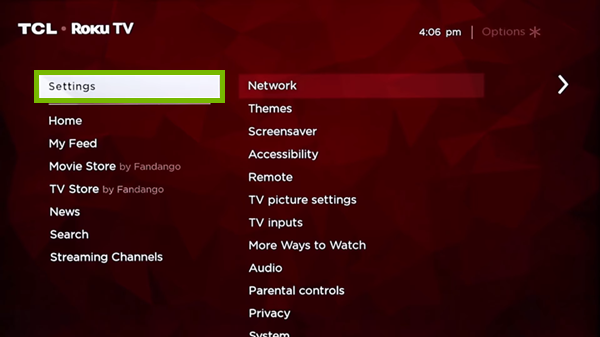
TCL Roku TV
- Settings → Network → Set up connection → Wireless
- Reselect the network and re-enter the password
TCL Fire TV (region-dependent TCL models)
- Settings → Network
- Select your network → Forget / Remove (wording varies)
If the TV still shows “Wrong password,” skip to the router security section below.
Step 3: Fix the “2.4GHz vs 5GHz” trap (fastest router-side win)
A lot of TCL Wi-Fi issues aren’t “signal strength”—they’re band steering and router behavior.
Best practice test (10 minutes)
- Create two separate SSIDs temporarily:
Home_2.4Home_5
- Connect the TV to:
- 2.4GHz if you need stability through walls
- 5GHz if the router is close and you want speed for 4K streaming
If the TV becomes stable on one band, you’ve identified the real cause (steering/interference), not a “bad TV.”
Step 4: Router settings that usually work (safe defaults)
You don’t need to become a network engineer, but a few settings solve most “TCL TV Wi-Fi Not Connecting” cases.
| Router setting | Recommended “compatibility” value | Why it helps |
|---|---|---|
| Security | WPA2-PSK (AES) (test) | Some TVs/router combos get picky with WPA3 or mixed modes |
| Band steering | Off (test) | Prevents the TV being kicked between bands |
| Channel width (2.4GHz) | 20MHz | Reduces interference and random drops |
| Channel width (5GHz) | 40/80MHz (auto is okay) | Balances speed and stability |
| MAC filtering / Access control | Off (test) | Stops silent blocks |
| Router firmware | Update if available | Fixes Wi-Fi bugs and compatibility quirks |
Where do you change this? In your router admin panel (gateway address varies—often something like 192.168.0.1 or 192.168.1.1, but it depends on the router).
Step 5: DNS and “Connected but no internet”
If the TV says it’s connected to Wi-Fi but apps won’t load, treat it like a DNS/DHCP problem first.
Quick DNS test (no guessing)
- Try setting DNS to a public resolver on the TV (if your menu allows it), then reconnect:
- DNS 1: 1.1.1.1
- DNS 2: 8.8.8.8
If DNS isn’t editable on your TV platform, set DNS in your router instead.
What you’re looking for: if the TV instantly starts loading apps after DNS change, the Wi-Fi link was fine—the name resolution wasn’t.
When only one app/device fails
If YouTube works but Netflix doesn’t (or vice versa), don’t factory reset yet.
Try this order:
- Reboot the TV (power cycle if possible).
- On Google TV: Settings → Apps → See all apps → (the app) → Clear cache (and Clear data if needed).
- Confirm date/time are correct (wrong time can break secure connections).
- Change DNS (router or TV) and retest.
When multiple apps fail (or Wi-Fi drops constantly)
This usually points to router behavior, interference, or TV network profile corruption.
Try this order:
- Separate SSIDs (2.4 and 5) and test stability.
- Switch router security to WPA2-AES temporarily.
- Disable access controls/MAC filtering/VPN features on the router (test).
- Reset network settings on the TV (see below).
Reset network settings (safe, before factory reset)
TCL Google TV (typical flow)
- Settings → Network & Internet → (your network) → Forget
- Reboot TV → reconnect
(Exact wording varies; some firmware shows a broader “Reset network settings” option.)
TCL Roku TV
- Settings → System → Advanced system settings → Network connection reset
- Reboot TV → set up connection again
This clears stored Wi-Fi profiles and forces a clean connection setup.
Factory reset (last resort, not Step 1)
Factory reset is effective, but it’s also disruptive—apps, logins, and settings go away.
Do this only if:
- the TV can’t connect to any Wi-Fi network (including hotspot), and
- power cycle + forget network + router compatibility settings didn’t help.
If you’re on Roku TV, follow a Roku-specific reset guide to avoid missing the “network reset first” step.
Common mistakes to avoid
- Using a single “smart SSID” with aggressive band steering, then blaming the TV.
- Keeping WPA3-only security when your TV behaves better on WPA2-AES.
- Resetting the TV before you confirm the router isn’t filtering the TV (MAC filter, parental controls).
- Assuming “5GHz is always better.” In many homes, 2.4GHz is simply more stable.
FAQ
1) Why does my TCL TV connect to Wi-Fi but say “No internet”?
Usually DNS or DHCP/lease issues. Power cycle router + TV, then test a DNS change before factory reset.
2) Should I use 2.4GHz or 5GHz for TCL TV Wi-Fi Not Connecting problems?
For stability, start with 2.4GHz. For speed (router close), 5GHz can be better. Separate SSIDs to test.
3) What router security mode is best for TCL TVs?
WPA2-PSK (AES) is the safest compatibility test. After stability, you can re-enable mixed/WPA3 if your setup supports it.
4) My TCL TV works on hotspot but not my home Wi-Fi—why?
That strongly suggests router settings (band steering, WPA mode, MAC filtering, DNS filters), not a TV hardware fault.
5) Can firmware updates fix TCL Wi-Fi issues?
Yes. If your TV is online even briefly, check for updates—many Wi-Fi bugs are firmware-level.
6) Do I need to factory reset for TCL TV Wi-Fi Not Connecting?
Not usually. Try power cycle, forget network, SSID split, WPA2-AES test, and DNS first.
7) TCL TV Wi-Fi Not Connecting after an update—what should I do first?
Do a full power cycle and “Forget network” + reconnect. Updates can change network profile behavior.
Final Verdict
Most “TCL TV Wi-Fi Not Connecting” cases are solved by a clean power cycle, wiping the saved network profile, and testing stability with split SSIDs plus WPA2-AES. Once the connection is stable, you can tighten settings again. If it still fails across multiple networks (including hotspot), then a deeper network reset—or a factory reset as a last resort—makes sense. 🧰
Recommended internal reads (TVComparePro)
https://tvcomparepro.com/tcl-hidden-features-2025/