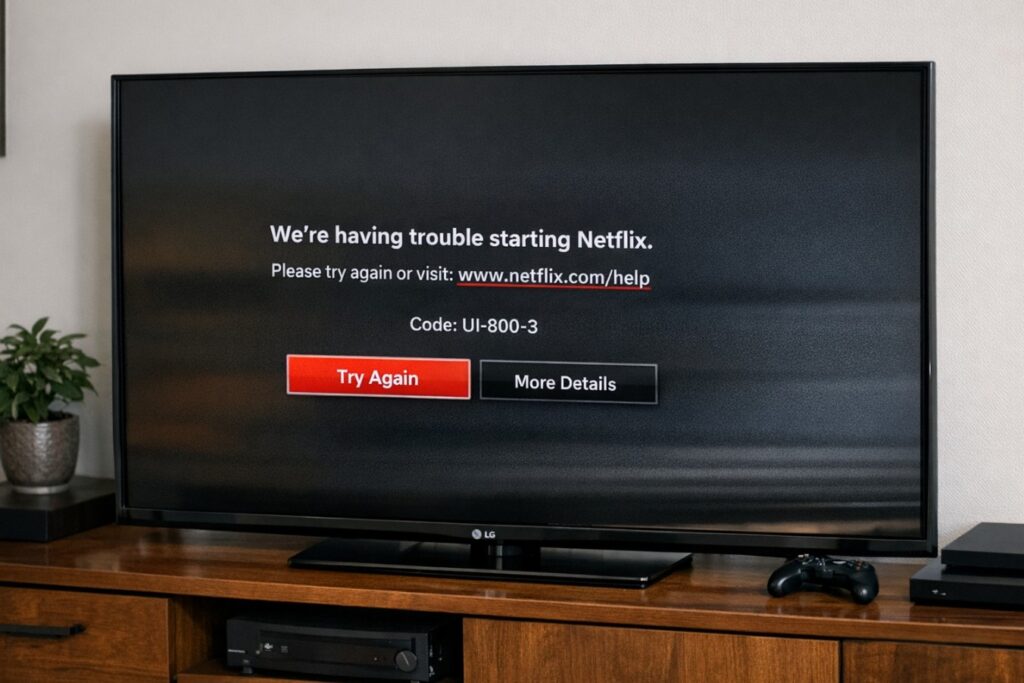

Netflix error UI-800-3 on TV fix usually isn’t a “Netflix is down” problem. It’s your TV’s Netflix app getting stuck with stale app data (cached session tokens, corrupted app files, or a half-finished update). The fastest fix is a controlled reset of Netflix’s local state—without factory-resetting your whole TV. ✅
Netflix describes UI-800-3 as a sign the device’s stored data needs refreshing.
Quick Takeaways
- UI-800-3 is most often fixed by: true power cycle → sign-out/token refresh → clear app data (or reinstall). 🔧
- If your TV doesn’t offer “clear data,” uninstall/reinstall is the clean equivalent—especially on some LG webOS builds.
- If UI-800-3 keeps returning, suspect network instability, DNS quirks, or TV firmware/app update mismatch rather than “Netflix servers.” 📶
- Keep troubleshooting simple: test the TV app first, then reintroduce complex HDMI chains later.
Netflix error UI-800-3 on TV fix: 30-second decision table
| What you see | What it usually means | Best first move |
|---|---|---|
| UI-800-3 on app launch every time | Stuck/corrupt Netflix app state | True power cycle → clear data/reinstall |
| UI-800-3 right after an update | Old files/tokens left behind | Reinstall Netflix → reboot → sign in |
| UI-800-3 keeps coming back weekly | State re-corrupts due to instability | Network stability + update order + deep clean |
| Netflix works on phone but not TV | TV app/device session issue | Clear data/reinstall + firmware check |
Netflix error UI-800-3 on TV fix: the fastest “clean reset” flow
Step 1: True power cycle (do it the right way)
- Turn the TV off
- Unplug power for 60 seconds (not standby)
- Plug back in and open Netflix
This clears a lot of “half-awake” app state that a remote restart doesn’t.
Step 2: Refresh the Netflix sign-in state (tokens)
If Netflix loads far enough to access settings, sign out first, then sign back in after Step 3.
If Netflix won’t open at all, skip sign-out and go straight to reinstall.
Step 3: Clear Netflix cache/data (or reinstall if you can’t)
- If your platform offers Force stop → Clear cache → Clear data/storage, do it in that order.
- If it does not offer “clear data,” uninstall/reinstall is the clean path.
Step 4: Reboot again, then test one title
After clear data/reinstall:
- unplug 30–60 seconds once more
- sign in
- test one known-good title (avoid changing 10 settings at once)
Step 5: Update TV firmware and the Netflix app
UI-800-3 often appears when:
- the Netflix app updated but TV OS didn’t (or the reverse)
- the TV is running a stability-buggy build
Manufacturer guidance vs real-life outcomes
| What you’ll read in basic guides | What actually happens on TVs | What your article does better |
|---|---|---|
| “Restart your device” | Restart doesn’t clear bad app state | Uses true power cycle + token refresh |
| “Clear cache” | Cache-only often doesn’t remove corrupt storage | Targets clear data / reinstall |
| “Factory reset TV” | Works, but is usually overkill | Gives a minimal-reset path first |
Brand-specific paths (safe, not overconfident)
Menu names/paths vary by model/region/firmware.
Google TV (Sony & TCL Google TV)
Look for:
- Settings → Apps → Netflix
- Force stop, Clear cache, Clear storage/data
Best order:
- Force stop
- Clear cache
- Clear storage/data
- Reboot TV (unplug 60 seconds)
- Sign in again
Samsung Tizen TVs
Tizen often limits per-app “clear data,” so reinstall is usually the cleanest.
Look for:
- Settings → Support → Device Care (storage tools)
- Apps → Netflix → Uninstall → Reinstall
Then do a true power cycle.
LG webOS TVs (the “no clear data” reality)
Many webOS builds don’t expose “clear storage” like Google TV.
Best path:
- Uninstall Netflix
- Unplug TV 60 seconds
- Reinstall Netflix
- Sign in again
This is exactly where generic guides are weakest—and where you can win on long-tail.
Audio & Connectivity
Port-by-port I/O map (for troubleshooting clarity)
| Connection | Why it matters | Best practice |
|---|---|---|
| Ethernet | Eliminates Wi-Fi drops | Use temporarily to test stability |
| Wi-Fi | Drops/band steering can trigger retries | Prefer stability settings over speed |
| HDMI (consoles/streamers) | Can trigger wake/input switching events | Keep external devices idle while testing |
| HDMI eARC | Not the cause of UI-800-3, but adds chain complexity | Troubleshoot Netflix in TV app first |
| USB | Not relevant for Netflix sessions | Ignore for this error |
Why UI-800-3 keeps coming back (the part most sites skip)
If you “fix it” and it returns days later, it’s usually one of these:
1) Network instability that never looks like “no internet”
You can have enough connectivity to browse menus but still fail Netflix session handshakes if:
- Wi-Fi roaming/band steering flips the TV between bands
- DHCP lease renewals cause brief drops
- DNS resolution is slow or inconsistent
A quick isolation test:
- run Netflix on Ethernet for 24 hours
- if the error disappears, the culprit is network stability, not Netflix.
2) Update mismatch (TV OS vs Netflix app)
If Netflix updated recently but the TV firmware hasn’t:
- you can get repeated “bad state” resets after app launches
- reinstall often fixes it temporarily, but the real fix is updating the OS layer
3) Low storage / sluggish OS behavior
On older TVs, low storage causes:
- partial updates
- leftover files
- corrupted app caches
If the TV feels slow everywhere, UI-800-3 is often just one symptom.
Common Mistakes to Avoid
- Restarting from the remote and assuming it’s a clean reboot
- Clearing cache only (then wondering why the error returns)
- Factory resetting immediately (painful, often unnecessary)
- Troubleshooting through complex HDMI chains before proving the TV app is stable
- Changing picture settings hoping it fixes a storage/session error
Troubleshooting / Pro Tips
Netflix error UI-800-3 on TV fix: 5-minute deep-clean routine
- Unplug TV 60 seconds
- Reboot router (power off 30 seconds)
- Uninstall Netflix (or clear data if available)
- Unplug TV again 30–60 seconds
- Reinstall Netflix → sign in → test a title
If it works after this, you’ve proven it was local app state.
When a factory reset is actually justified
Only if:
- Netflix fails after reinstall
- multiple apps misbehave
- the TV OS is generally unstable (menus lag, updates fail)
Otherwise, reinstall + power cycle is the smarter, faster “surgical” fix.
✨
FAQ
- What does UI-800-3 mean on a Smart TV?
It usually means Netflix’s local data on the TV needs refreshing (stale session tokens, corrupted app files, or an update mismatch). - What is the fastest Netflix error UI-800-3 on TV fix?
True power cycle (unplug 60 seconds), then clear Netflix data/storage (or uninstall/reinstall if your TV doesn’t support clear data), then sign in again. - Why does UI-800-3 come back after I fix it?
Most often: unstable Wi-Fi/DNS behavior, or TV firmware/app update mismatch causing repeated stale-state failures. - Should I clear cache or clear data?
Cache first, but data/storage (or reinstall) is the real fix when UI-800-3 persists. - Does eARC or a soundbar cause UI-800-3?
Not directly. UI-800-3 is an app/device state problem, but complex chains can make troubleshooting noisier. - Netflix works on my phone but not on the TV—why?
That’s a classic sign the TV’s Netflix app state is broken while your account/network are fine. - Is UI-800-3 a Netflix server outage?
Usually not. If another device plays Netflix on the same network, it’s almost always TV-side state. - What if my LG webOS TV has no “clear data” option?
Uninstall Netflix, unplug the TV for 60 seconds, reinstall Netflix, then sign in again.
Final Verdict
UI-800-3 feels like a dead end because it blocks you before playback, but it’s almost always fixable with a clean reset of local Netflix state. Netflix error UI-800-3 on TV fix is about doing the boring steps in the correct order—power cycle, purge app state, refresh sign-in tokens—then making sure your platform and network are stable enough that the error doesn’t creep back in.
Once it’s clean, Netflix behaves like it should: click, play, forget it ever happened. ✅