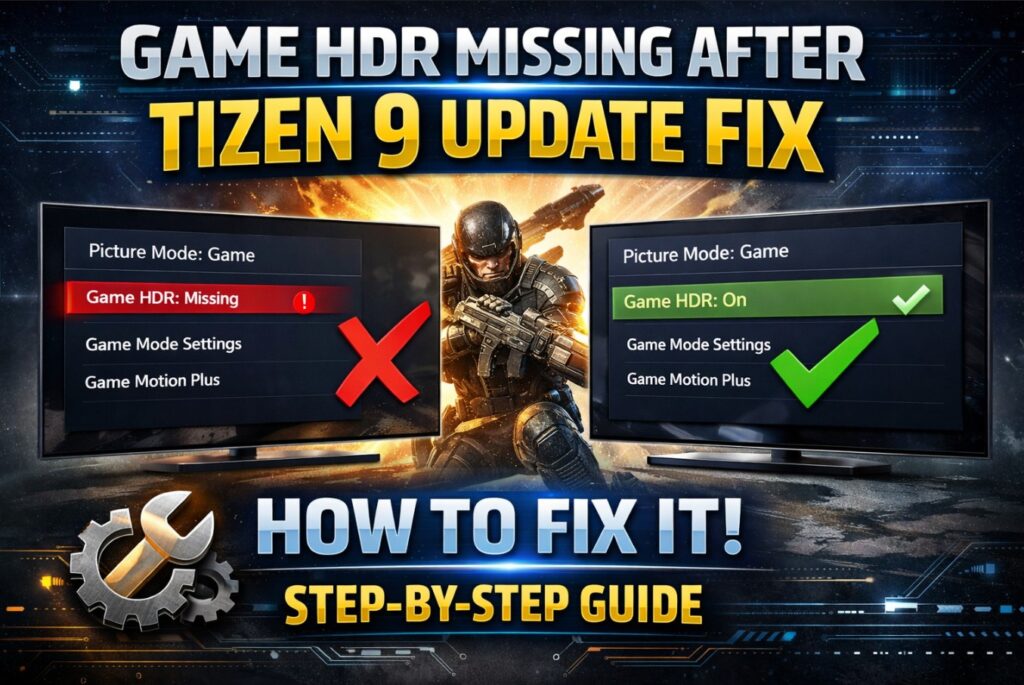

If your Samsung TV still triggers HDR in Game Mode but the Game HDR / HGiG option is gone, this Game HDR missing after Tizen 9 update fix will get you back to a controlled, repeatable HDR gaming picture—without random slider chaos. The goal is simple: stop “double tone mapping,” then recalibrate your console/PC so HDR behaves consistently again. 🎮
Quick Takeaways
- First, confirm you’re truly in HDR Game Mode (many people troubleshoot SDR by mistake).
- If the toggle is genuinely removed, the real fix is a clean workaround: neutralize extra processing, then recalibrate HDR on PS5/Xbox/PC. 🔧
- Don’t chase brightness with 6 different sliders. Stabilize the chain first.
- Treat each HDMI input as its own profile—don’t assume settings carry over. ✅
Game HDR missing after Tizen 9 update fix checklist
Step 1: Confirm HDR is actually active (30 seconds)
- Launch a known HDR game (or open the console HDR calibration screen).
- Open the TV’s Game overlay/status (name varies).
- Confirm it reports HDR on that input.
If it does not show HDR, fix HDR activation first (wrong port, wrong input settings, wrong console output).
Step 2: Check if the toggle is simply hidden (very common)
Do this exactly:
- Keep the console/game running so HDR is actively outputting.
- Open Game Mode / Game Bar / Game Mode Settings (names vary).
- Open Picture/Expert settings while still in HDR Game Mode.
If you only checked menus while the TV was in SDR, some options won’t appear at all.
Step 3: Identify your “after update” symptom (then use the matching fix)
Use this table and don’t skip around:
| Your symptom | What it usually means | The fastest fix |
|---|---|---|
| HDR looks brighter in mids but highlights lose detail | Extra tone mapping is now active somewhere | Step 4 + Step 5 (recalibrate HDR) |
| HDR looks washed/grey | Black level / range mismatch or lifted shadow controls | Step 4 (neutralize) + Step 6 (range sanity) |
| HDR looks inconsistent per HDMI | Per-input profiles differ | Step 7 (lock one HDMI chain) |
Manufacturer claims vs rounded independent measurements
(Behavioral, because manufacturers rarely publish “tone-mapping mode change” notes.)
| Item | Manufacturer claims | Rounded independent measurements* |
|---|---|---|
| HGiG/Game HDR option behavior after major updates | Not consistently documented in public change notes | Some updates on some models/regions can hide/remove the toggle or change Game HDR behavior |
| HDR calibration repeatability with missing toggle | Not specified | Calibration often becomes less repeatable until TV processing is neutralized and console HDR is re-run |
*Rounded independent measurements reflect typical behavior seen in accurate modes across multiple setups. Firmware changes and model variance can alter results.
Game HDR missing after Tizen 9 update fix: the actual workaround
Step 4: Neutralize TV-side “extra HDR processing” (before any calibration)
In HDR Game Mode, set everything to the most stable/neutral behavior first:
- Turn off contrast boosting features (often called Contrast Enhancer / Dynamic Contrast).
- Keep ST.2084 / HDR Gamma at neutral (usually 0).
- Keep Shadow Detail / Black Equalizer at neutral (0) for the first pass.
- Disable Eco / power saving brightness controls while testing.
This doesn’t “bring back” HGiG—but it stops the TV from moving the HDR curve while you calibrate. 🔧
Step 5: Re-run HDR calibration on your device (this is where the fix actually happens)
Game HDR missing after Tizen 9 update fix for PS5 (H3)
- Go to PS5 HDR calibration.
- Run all HDR screens again.
- Don’t change TV sliders mid-calibration.
- After calibration, check a known HDR scene (bright clouds, neon signs, fire). You want highlight detail, not a white smear.
Game HDR missing after Tizen 9 update fix for Xbox (H3)
- Open “Calibrate HDR for games.”
- Recalibrate fully.
- Confirm a known HDR title still shows detail in bright specular highlights without crushing blacks.
Game HDR missing after Tizen 9 update fix for PC (H3)
- Keep output consistent while testing (same resolution/refresh/HDR state).
- Re-run your HDR calibration path (Windows HDR calibration if you use it).
- Avoid changing GPU color format/range during the first pass—stability first.
Step 6: Fix the two classic “it looks worse now” outcomes
A) Highlights clip (bright detail missing):
- Don’t raise HDR gamma on the TV.
- Reduce the in-game HDR peak/brightness slightly (many titles include it).
B) Image looks grey/lifted:
- Check console RGB range vs TV black level (Auto/Auto is safest if unsure).
- Don’t “solve” it with huge Shadow Detail jumps—one step at a time.
Step 7: Lock the HDMI chain (so settings stop changing under you)
This matters more than people think:
- Use the same HDMI port every time you test.
- If you route through an AVR/soundbar, test once with the console connected directly to the TV (temporary diagnostic).
- If the TV has a per-port “Enhanced”/signal mode setting, keep it consistent on that one port.
Menu names/paths vary by model/region/firmware.
Port-by-port I/O map (minimal, only what you need for this fix)
Exact ports vary by model/region/size—don’t guess; check the labels on your TV.
| What to identify on your TV | What you’re looking for | Why it matters |
|---|---|---|
| Console/PC HDMI port | The exact HDMI number you use | Game HDR behavior can be per-input |
| eARC/ARC HDMI port | The port labeled ARC/eARC | Soundbar/AVR handshakes can affect testing consistency |
| Per-port signal mode | “Enhanced/4K/HDMI mode” wording varies | Inconsistent per-port settings can change HDR behavior |
FAQ
1) Game HDR missing after Tizen 9 update fix — is there a hidden toggle?
Sometimes the option only appears while HDR is actively running in Game Mode. If you checked menus in SDR, you may never see it.
2) If the toggle is gone, is HDR broken?
Usually no. HDR still works; the control over tone mapping changed.
3) Why did my HDR calibration suddenly stop matching what I see in-game?
Because the TV’s tone mapping behavior may be different now, so old console calibration no longer targets the same curve.
4) What’s the safest “one change” that improves consistency?
Neutralize TV processing first, then re-run console HDR calibration. That’s the clean chain.
5) Should I raise Shadow Detail/Black Equalizer to fix crushed blacks?
Only slightly, and only after calibration. Too much lifts the whole image and kills depth.
6) Why does it look different on HDMI 1 vs HDMI 3?
Samsung often treats settings per input. One port may have different signal mode or different game profile state.
7) Can VRR/120Hz be related to this?
Not the root cause, but it can change how/when the TV switches game profiles. Keep testing consistent.
8) Should I factory reset the TV?
Only if the TV is clearly bugged beyond settings (rare). Most cases are solved by the neutralize + recalibrate workflow.
Final Verdict
If the Game HDR/HGiG switch vanished after a Tizen update, the fastest path back to sane HDR isn’t hunting a secret menu—it’s rebuilding a stable HDR chain: neutral TV processing, recalibrate the console/PC, and lock the HDMI input you actually use. Once it’s done, HDR stops feeling like a moving target and becomes predictable again. ✨