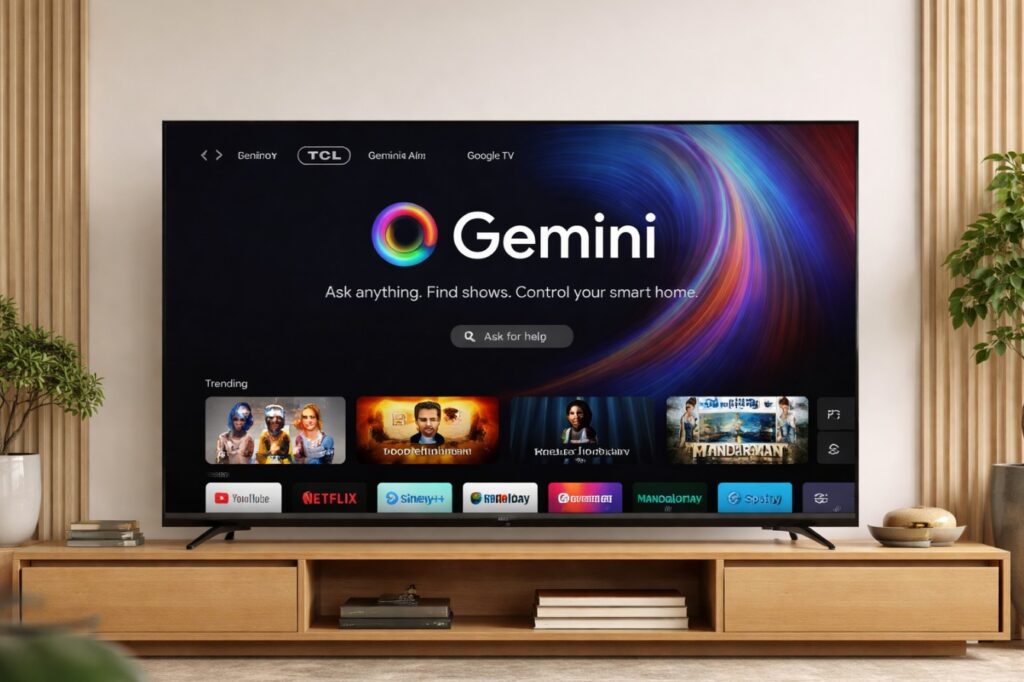

Gemini on Google TV TCL first is a shift from “voice search” to something closer to a TV co-pilot: you describe the problem in normal language, and the TV responds by adjusting settings or guiding you to the right place—without forcing you into menus. 🎙️
It’s also a bigger UI change than it sounds, because once settings become conversational (“my screen is too dim”), Google TV stops feeling like an app launcher and starts acting like a system.
This post separates what’s new, what’s actually useful, and what you should check so you don’t wait weeks expecting features your TV can’t run yet.
Quick Takeaways
- Gemini is adding menu-free picture and sound adjustments using natural language commands.
- The rollout starts on select TCL Google TV models first, then expands to other Google TV devices later.
- You’ll also see richer answers (visual cards), Deep Dives, and deeper Google Photos features.
- Availability can depend on model, region, language, firmware, and OS version—expect staged rollout.
What’s new at a glance
| Feature | What it does | Why it matters | What to check first |
|---|---|---|---|
| Voice-controlled settings | You say what’s wrong (“too dim”, “dialogue is lost”) and Gemini adjusts picture/sound | Fast fixes without breaking the moment | Hands-free mic/voice assistant enabled; feature availability in your region |
| Richer on-screen answers | Gemini replies with visual cards, images, and more context | Less “robot text”, more glanceable help | TV firmware up to date |
| Deep Dives | Longer, narrated, visual explainers on a topic you choose | Useful for kids/learning/sports context | Internet stability; profile permissions |
| Google Photos integration | Search Photos with natural language; build slideshows | Turns TV into a family “memory screen” | Google account signed in; Photos permissions |
| Creative tools (varies) | Photo remix / generative media features on TV | Fun, but not essential | Expect staged rollout; may differ by country |
Menu names/paths vary by model/region/firmware, and rollout timing can differ by account and language.
Gemini on Google TV TCL first: what Google announced
The headline change is conversation → action. Instead of digging through Picture settings, you describe the outcome you want. If it lands the way Google is pitching it, you’ll do fewer “pause → settings → scroll → guess” loops and more “fix it and keep watching.” 🙂
The bigger story is that Gemini is no longer only an assistant for content discovery. It’s being positioned as:
- a system helper (picture/sound tuning),
- a context layer (answers with visuals, sports context),
- and a home screen companion (Photos search, slideshows).
That mix is important because it creates a reason to return to your TV UI even when you’re not browsing apps.
Gemini on Google TV TCL first: which TCL TVs get it first
Google’s CES messaging is clear on the rollout order: select TCL Google TV models get the upgraded Gemini experience first, then other Google TV devices follow later.
What you should assume (safest, most accurate):
- Not every TCL Google TV will get it on day one.
- Even within the same “series family,” availability may differ by size, region SKU, and firmware channel.
- If your TV is older or running an older base OS, it may need a system update before the new Gemini layer appears.
Practical buyer note: if you’re shopping specifically for this feature, treat it like a “bonus,” not a promise—until your exact model is confirmed with the capability enabled in your region.
The part people will actually use: voice-controlled picture + sound fixes
This is the “sticky” feature because it solves real annoyance. 🛠️
Examples of the intent Gemini is designed to understand:
- “My screen is too dim” → raise brightness / adjust picture settings
- “I can’t hear the dialogue” → adjust voice clarity / sound mode / balance
The right way to think about it
This is not “automatic calibration.” It’s guided adjustment. The TV may:
- change one or two obvious parameters,
- surface a quick control pill/slider,
- or route you toward the relevant setting path.
So the win is speed and convenience—not perfect accuracy every time.
Why this matters for real rooms
Most people don’t need 30 picture modes. They need:
- readable dialogue at night,
- punchy HDR during the day,
- fewer “why does this look weird?” moments after updates.
If Gemini reduces friction, users stop over-tweaking—and picture quality often improves simply because they stop chasing random settings.
Evergreen checklist: how to make sure you’re ready (and not waiting for nothing)
1) Confirm you’re on TCL Google TV (not Roku TV)
TCL ships multiple platforms. This Gemini rollout is about Google TV models.
2) Update firmware, then do a real restart
Don’t rely on “standby.” After updating, do a proper restart/power refresh so new system components actually load.
3) Turn on the right voice assistant mode
Some TVs let you choose the assistant behavior (and hands-free mic state). If Gemini controls are missing, it’s often because voice assistant settings are still set up in an older mode.
4) Expect staged rollout (and don’t factory reset too early)
If your TV is supported but you don’t see it yet:
- it may be rolling out by region,
- by account cohort,
- or after an OS-level update step.
Factory reset is a last resort—resetting can remove the very account flags that help features appear.
Privacy and the “always listening” anxiety (what to do)
Any voice-forward TV experience raises one question: is it listening all the time? 🔒
The responsible approach is simple:
- Use hands-free mic only if you actually want it.
- Prefer push-to-talk (remote mic) in shared rooms.
- Review assistant permissions per profile.
This keeps the feature useful without turning your living room into a science experiment.
Common mistakes to avoid
- Assuming it will appear on every Google TV instantly (rollouts don’t work that way).
- Turning on every “AI” option at once, then blaming the TV when the picture looks unnatural.
- Troubleshooting the assistant when the real issue is Wi-Fi instability or a broken HDMI/eARC chain.
FAQ
1) What is Gemini on Google TV TCL first, in plain English?
Gemini on Google TV TCL first means TCL is among the first to get Google TV’s upgraded Gemini experience—especially the new voice-controlled settings fixes.
2) Will Gemini change my picture settings permanently?
It can. Treat it like making quick adjustments—if you prefer a consistent baseline, save your preferred mode (Movie/Filmmaker-style) and only tweak from there.
3) Why don’t I see the feature yet?
Most often: staged rollout, missing OS/firmware prerequisites, region limitations, or voice assistant settings not fully enabled.
4) Does it work without internet?
Some basic voice features may be limited, but the “Gemini-style” conversational layer is generally cloud-connected. If your internet is unstable, the experience won’t feel reliable.
5) Can I disable hands-free listening?
On many Google TV sets, yes—use remote mic instead. Menu names vary by model/region/firmware.
6) Gemini on Google TV TCL first: is this worth buying a new TV for?
If your current TV is fine, don’t upgrade only for this. But if you’re already shopping for a TCL Google TV, it’s a meaningful quality-of-life bonus—especially for families and bright-room viewers.
Final Verdict
Gemini on Google TV TCL first is the kind of “AI” upgrade that can quietly improve daily life—because it focuses on friction, not hype. When the TV can understand “too dim” or “dialogue is lost,” it stops asking you to be a part-time technician and goes back to being a screen you enjoy. 📸
If TCL’s early rollout is stable, this becomes a genuine differentiator for Google TV models—not because it’s flashy, but because it removes tiny annoyances that pile up over months.