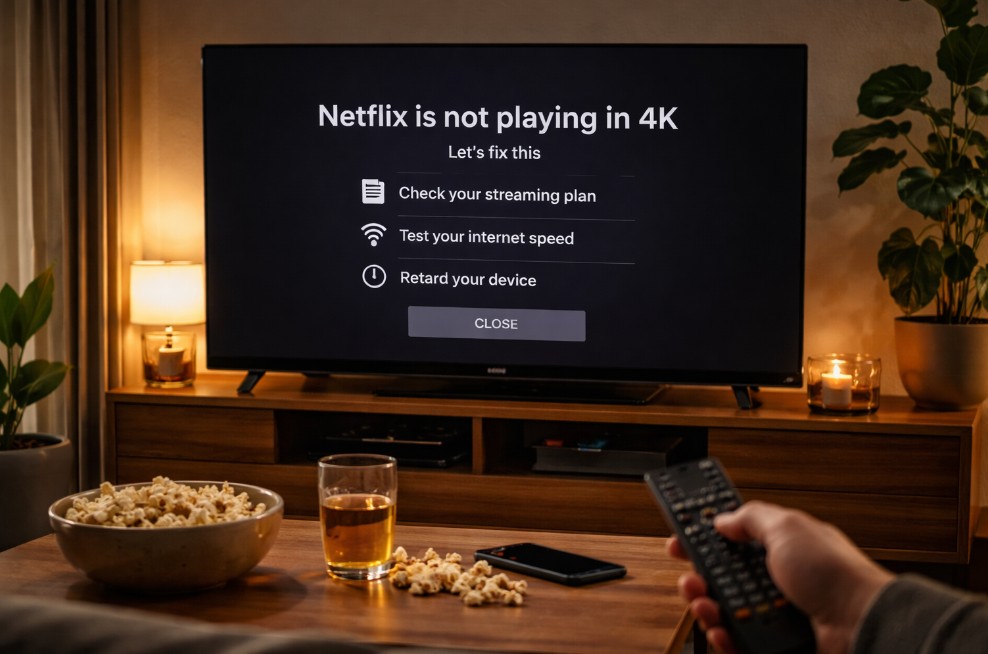

Netflix not playing in 4K on TV fix is almost never “one setting.” It’s a chain problem: your Netflix plan + the title’s actual 4K availability + playback quality limits + the TV app’s capability + your network stability + (if you use an external box) the HDMI/HDCP handshake.
When 4K fails, Netflix usually doesn’t throw a big error. It simply falls back to 1080p (or even 720p) and keeps playing — which is why this issue is so common. ✅
Menu names/paths vary by model/region/firmware.
Quick Takeaways
- Confirm your Netflix plan includes 4K/Ultra HD, and your profile isn’t capped to “Low/Medium” quality.
- Make sure the title actually has the Ultra HD / 4K badge on your TV, not just on your phone/laptop.
- On TVs, the fastest win is often: sign out → reboot TV (power cycle) → sign in.
- If you use a streaming box: HDMI port + cable + HDCP 2.2 can silently block 4K.
Fast Diagnosis Table (Symptom → Most Likely Cause → Fix First)
| What you see | Most likely cause | Do this first |
|---|---|---|
| No “Ultra HD / 4K” badge on titles | Plan or title availability | Check plan + pick a known 4K title, then retest |
| Badge exists, but picture looks soft | Playback quality cap or unstable bandwidth | Set Playback Settings to High/Auto + test wired/Ethernet |
| 4K works sometimes, then drops | Wi-Fi drops, band steering, router congestion | Force 5GHz (or Ethernet), reboot router, disable VPN |
| 4K never works on an external device | HDMI/HDCP mismatch | Try another HDMI port + certified cable + disable AVR passthrough temporarily |
| HDR shows but not 4K (or vice versa) | Device/app limitation or handshake | Update TV firmware + update Netflix app + restart chain |
Step 1: Confirm your Netflix “4K eligibility” (plan + profile settings)
1) Your plan must include 4K/Ultra HD
Netflix can’t output 4K if your subscription tier doesn’t include it — even if your TV is 4K.
2) Your profile playback quality must not be capped
Netflix account settings can limit quality per profile. If it’s set to Low/Medium, you’ll never get true 4K even on a perfect connection.
What to do (safe, universal):
- Open Netflix account settings in a web browser
- Go to Playback Settings for the profile you use on the TV
- Set Data usage per screen to High (or Auto, if High isn’t available)
Small detail, huge impact. 🔧
Step 2: Verify the title is truly available in 4K on your TV
This sounds obvious, but it’s the #1 “I swear it used to be 4K” trap.
- Some titles rotate quality versions by region.
- Some titles show 4K on one device but not another (app capability / codec support differences).
- Some titles have 4K only for certain cuts, seasons, or versions.
Do this:
- Search for a Netflix Original that’s widely known to have 4K
- Look for the Ultra HD / 4K badge directly in the TV app UI
- Test at least two different known-4K titles before changing ten settings
🎬
Step 3: Make sure the TV Netflix app is actually “healthy”
If Netflix used to do 4K and suddenly doesn’t, your fastest wins are boring:
- Force close Netflix (if your TV OS allows it)
- Sign out of Netflix
- Power cycle the TV (unplug 60 seconds, plug back in)
- Sign back in
- Try the same known-4K title again
Why this works: the app can get stuck in a bad DRM / codec / cache state. A real power cut clears it better than a normal restart.
Step 4: Your internet can be “fast” and still not stable enough for 4K
4K streaming is less about peak speed and more about consistent throughput.
What “good enough” looks like in real life
- If you can hold stable double-digit Mbps per stream, 4K is realistic.
- If you want fewer drops (especially in busy homes), aim for 25+ Mbps stable headroom per stream.
The simplest test
- Try Netflix 4K when no one else is downloading / gaming
- If 4K appears then disappears at peak hours, it’s usually congestion, Wi-Fi interference, or router QoS behavior.
📶
Step 5: Fix Wi-Fi issues the right way (don’t guess)
If you’re on Google TV or any TV OS with Wi-Fi:
- Forget the network
- Reboot router (power off 30 seconds)
- Restart TV
- Reconnect and retest
Then:
- Prefer 5GHz over 2.4GHz
- Disable “smart connect / band steering” temporarily if your router keeps bouncing devices
- If possible, test Ethernet once — even temporarily — just to confirm it’s a Wi-Fi problem
If Ethernet instantly brings back 4K, you’ve already won: fix the network instead of chasing TV picture settings.
Step 6: If you use a streaming box, HDMI/HDCP can silently block 4K
This is the classic “TV is 4K but Netflix won’t do 4K” scenario when using:
Apple TV / Fire TV / Roku / Chromecast / console / PC.
The 4K Netflix chain must be clean
- Correct HDMI port (some TVs have one “best” port for full bandwidth)
- A quality HDMI cable (especially if you’re running through an AVR/soundbar)
- HDCP handshake must succeed end-to-end
Fast isolation test (takes 2 minutes):
- Connect the streaming device directly to the TV (no AVR in-between)
- Retest Netflix
- If 4K works now: your AVR/soundbar passthrough settings, HDMI port choice, or cable is the bottleneck
Step 7: TV settings that can indirectly reduce Netflix quality
This won’t “force” 4K, but it can make you think you’re not getting it.
Check:
- Energy Saving / Power Saving (can dim and soften)
- Eco sensor / ambient light features
- Over-processed picture modes that add blur/NR
For testing, use:
- Movie/Cinema mode (or Filmmaker Mode if you like it)
- Turn off heavy noise reduction during troubleshooting
Common Mistakes to Avoid
- Assuming “4K TV = Netflix 4K.” It depends on plan + title + app capability + network.
- Testing one random title and concluding Netflix is broken.
- Fixing Wi-Fi by changing TV picture settings.
- Leaving the AVR/soundbar in the chain while troubleshooting — isolate first, then rebuild.
Troubleshooting / Pro Tips (the calm workflow that actually works)
If you want the “no drama” order, do this:
- Confirm plan includes 4K + Playback Settings not capped
- Test two known-4K titles (badge visible in the TV app)
- Sign out → power cycle TV → sign in
- Test Netflix on Ethernet (even temporary)
- If using a box, connect it directly to TV to eliminate HDMI/AVR issues
- Only then start tweaking router bands, ports, and passthrough settings
This sequence saves hours. It also avoids the trap of “I changed 12 things and now I don’t know what fixed it.” ✅
FAQ
- Netflix not playing in 4K on TV fix — what should I do first?
Netflix not playing in 4K on TV fix starts with plan eligibility + profile playback quality settings, then testing a known-4K title with the Ultra HD badge. - Why do some titles not show the Ultra HD badge?
Not every title is available in 4K in every region, and sometimes the TV app’s capability/codec support affects what badges appear. - Can Wi-Fi cause Netflix to drop from 4K to HD without warning?
Yes. Netflix will adapt quality dynamically if throughput isn’t stable. - Does restarting the TV really help?
A full power cycle can clear stuck cache/DRM states better than a normal restart. - I have 1 Gbps internet — why no 4K?
Peak speed isn’t the same as stability. Wi-Fi interference, router band steering, or congestion can still cause quality drops. - Can HDMI cables affect Netflix 4K?
If you use an external device, yes — a bad cable or handshake issue can block 4K even if everything “works.” - Does using an AVR/soundbar in the chain matter?
It can. For troubleshooting, connect the device directly to the TV, then reintroduce the AVR once 4K is confirmed.
Final Verdict
Netflix not playing in 4K on TV fix is a detective story with a very small cast: your plan, your profile settings, your title badge, and your connection stability. Most people lose time because they start at the wrong end — they tweak picture settings while the account is capped to Medium, or they blame Netflix when Wi-Fi is dropping.
Do the clean chain test once, rebuild your setup calmly, and 4K becomes boring again — the way it should be. 🙂
Recommended Schema: Article + Breadcrumb + FAQ