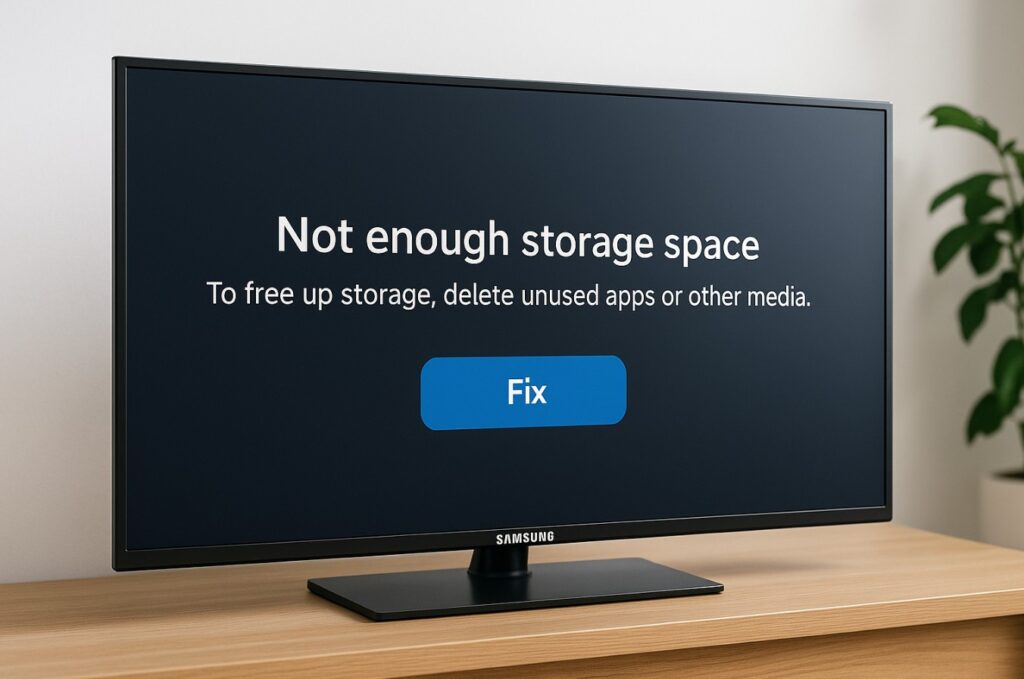

Samsung TV not enough storage fix starts with a blunt truth: on most Samsung Tizen TVs, storage is small, shared, and quietly consumed by app updates, thumbnails, cache, and “invisible” data. You delete one app, the error returns a week later, and it feels like the TV is lying. It usually isn’t—Tizen is just keeping more junk than you think. 🧹
This guide shows the fastest way to reclaim space, stop the error from coming back, and avoid the classic trap of factory-resetting when you didn’t need to.
Menu names/paths vary by model/region/firmware.
Quick Takeaways
- The biggest win is removing hidden app data (cache + leftover files), not just uninstalling apps.
- If apps won’t update/install, Reset Smart Hub can be the clean fix without nuking everything.
- Don’t hoard apps on a TV—treat Tizen like a “lean streaming console,” not a phone.
- If you want long-term peace, a streaming box can offload apps and keep the TV fast. 📺
The fast symptom → fix table (use this first)
| Symptom | Likely cause | Fast fix |
|---|---|---|
| “Not enough storage” when installing any app | Cache + leftover app data is clogging space | Clear cache / remove app data, then restart TV |
| Apps won’t update (stuck or fail) | Corrupt update cache / Smart Hub state | Power cycle, then Reset Smart Hub |
| Storage error returns every few days | One “heavy” app keeps rebuilding cache | Reinstall that app, reduce background auto-updates, keep fewer apps |
| TV is also slow/laggy | Low free space + bloated Smart Hub | Clean cache, uninstall rarely used apps, restart, device care optimization |
Main cleanup table (safe moves vs what to avoid)
| Action | Safe? | What it does | When to use it |
|---|---|---|---|
| Uninstall unused apps | ✅ | Frees app space and some data | Always |
| Clear cache / remove app data | ✅ | Frees the “invisible” storage hog | First real fix |
| Reinstall one problem app | ✅ | Clears corrupted data for that app | When one app is the culprit |
| Reset Smart Hub | ⚠️ | Resets Smart platform state, removes logins | When installs/updates fail repeatedly |
| Factory reset TV | ❌ (last resort) | Wipes everything | Only after Smart Hub reset fails |
Design & Build Quality
This is software, but hardware still matters: older or entry-level models often have less internal space reserved for apps, and some sets feel “full” after only a handful of major apps. That’s why the best Samsung TV not enough storage fix includes a prevention routine, not just a one-time cleanup.
Panel Technology Explained
No direct link to storage, but there is one practical pattern: people buy a gorgeous panel, then treat the TV OS like a phone—dozens of apps, constant updates, lots of cached thumbnails. Tizen is happiest when it stays lean.
Brightness & HDR Performance
Not directly related, but heavy processing + low free space can make the TV feel slower when switching HDR modes or launching apps. Restoring free space often improves “snappiness” more than people expect. ⚡️
Color Accuracy & Picture Processing
No effect on picture calibration. The only risk is if you reset the TV entirely and lose your picture settings. That’s another reason to prefer Smart Hub reset (or targeted app cleanup) first.
Motion Handling & Refresh Rates
Unrelated to storage itself, but if you’re seeing stutter in apps, low free space can worsen UI performance and buffering behavior. Clean storage first before you blame motion settings.
Gaming Performance
If you use Gaming Hub/cloud apps, those can build cache too. The same rule applies: keep only the apps you actually use weekly, and reinstall any “problem child” app that keeps bloating.
Smart Platform & UX
Here’s the safe, brand-accurate pathing for Tizen-style menus. Names vary, so search within Settings for the keyword if you don’t see the exact label.
Samsung TV not enough storage fix: do this first (the “clean reboot”)
- Power cycle properly
- Turn TV off
- Unplug from power for ~60 seconds (not just standby)
- Plug back in, turn on
- Forget the “delete one app” illusion
- Uninstall 2–5 apps you truly don’t use
- Restart TV again
This clears a surprising amount of stuck temporary state.
Where storage usually hides on Samsung (Tizen)
Look for one of these areas:
- Settings → Support → Device Care (then Storage/Manage Storage)
- Settings → Apps (then Storage/Clear cache options per app)
- Settings → Support → Self Diagnosis (some models nest cleanup tools here)
If you see an option like Manage Storage, use it first—it’s usually the most direct way to identify which app is hoarding space.
Samsung TV not enough storage fix: remove hidden app data (the real fix)
If your TV offers per-app actions, your target is:
- Clear cache
- Clear data / Remove data (wording varies)
Use this on the biggest offenders first:
- Netflix
- YouTube
- Disney+
- Prime Video
- Any live TV/FAST app
- Any “channels” aggregator app
Then restart the TV and try installing/updating again.
If updates/installations still fail: Reset Smart Hub (the clean “platform reset”)
If your TV is stuck in an “apps can’t update” loop, Reset Smart Hub often fixes it without factory-resetting the whole TV.
What to expect:
- You may need to log into apps again
- Your Smart Hub layout resets
- Picture settings usually remain, but don’t rely on it—take screenshots if you’re cautious
This is the point where many “storage full forever” problems suddenly disappear.
Audio & Connectivity
Port-by-port I/O map (typical Samsung TV — varies by model)
| Port / feature | Typical range | Notes |
|---|---|---|
| HDMI total | 3–4 | Count varies; higher models often have more |
| HDMI 2.1 | 1–4 | Depends on model/series |
| eARC | 1 port | Usually one HDMI is labeled ARC/eARC |
| USB | 1–3 | Some ports are service/low power; behavior varies |
| Optical | Often 1 | Useful fallback for audio (not a storage fix) |
| Ethernet | Often 1 | Helpful for stable streaming and faster updates |
| Wi-Fi / Bluetooth | Yes | Stable connection reduces failed downloads/updates |
A stable network won’t magically create storage, but it does reduce failed updates that leave partial downloads behind.
Manufacturer claims vs rounded real-world storage (what you actually get)
Numbers vary by model and firmware. The key point is the gap between “installed storage” and “usable storage.”
| What you think you have | What you usually feel in practice | Why it happens | Practical fix |
|---|---|---|---|
| “Plenty of space for apps” | Storage runs tight after a handful of big apps | OS + reserved space + cache grows over time | Keep fewer apps, clear cache monthly, reinstall heavy apps when needed |
| Deleting one app should solve it | Error returns soon | Another app rebuilds cache fast | Identify the “hog” app and reset its data |
Thermal Design & Longevity
Not a thermal issue—but long uptimes can keep cache and background states “sticky.” A proper power cycle every so often can keep Tizen behaving like it’s freshly booted instead of slowly accumulating nonsense.
Real-World Impressions
Most cases fall into one of these:
- A single heavyweight app (often YouTube/Netflix) quietly grows a huge cache
- The TV fails an update, leaving partial data behind
- Smart Hub state gets corrupted and refuses to install despite “free space”
The fix is rarely dramatic. It’s usually tidy, targeted, and repeatable. ✅
Common Mistakes to Avoid
- Doing a full factory reset before you try Smart Hub reset
- Installing every streaming app “just in case”
- Assuming USB storage will work like a phone SD card (many Samsung TVs won’t move apps to USB)
- Ignoring the one app that keeps re-bloating
Troubleshooting / Pro Tips
Samsung TV not enough storage fix checklist (in the best order)
- Power cycle (unplug 60 seconds)
- Uninstall unused apps
- Clear cache / remove data for the top 2–3 heavy apps
- Restart TV
- Try app update/install again
- If still broken: Reset Smart Hub
- Only if everything fails: factory reset (last resort)
The “prevention routine” (keeps the error from returning)
- Keep only 6–10 core apps installed
- Once a month, clear cache for the biggest apps
- If one app repeatedly causes issues, reinstall it instead of fighting it
The “I’m done” solution
If you’re constantly out of space and you hate maintenance, use a dedicated streaming device and keep the TV apps minimal. It’s not admitting defeat—it’s choosing stability.
FAQ
- Why does Samsung TV say storage is full when I barely installed apps?
Because cache, thumbnails, and leftover app data can consume space quickly on Tizen. - Will deleting apps always fix it?
Not always. Hidden app data is often the real culprit. - Can I add more storage to Samsung TV?
Many models don’t support moving apps to USB storage like a phone. USB is often for media, not app expansion. - Why do app updates fail even when I freed space?
Smart Hub can get stuck in a bad update state. A proper power cycle or Smart Hub reset usually helps. - Does clearing cache delete my account logins?
Clearing cache usually doesn’t, but “clear data” or Smart Hub reset often will. Expect to log back in. - Should I factory reset my Samsung TV?
Only after you try clearing cache/data and Reset Smart Hub. Factory reset is a last resort. - Samsung TV not enough storage fix — what’s the first thing I should do?
Samsung TV not enough storage fix starts with a proper power cycle (unplug 60 seconds), then clearing hidden app cache/data before you uninstall everything. - Why does the problem come back after a week?
One heavy app is rebuilding cache fast. Identify it, clear its data, or reinstall it.
Final Verdict
Storage errors on Samsung TVs feel petty because they interrupt something simple—installing an app, updating Netflix, launching YouTube. But the system isn’t broken; it’s crowded. The best Samsung TV not enough storage fix is to stop treating Tizen like a phone and start treating it like an appliance: lean, clean, predictable.
Clear hidden app data, reset Smart Hub only when needed, and keep your app lineup tight. Do that, and the TV stops nagging—and goes back to doing what it’s supposed to do. ✅
Internal links (LIVE on TVComparePro)