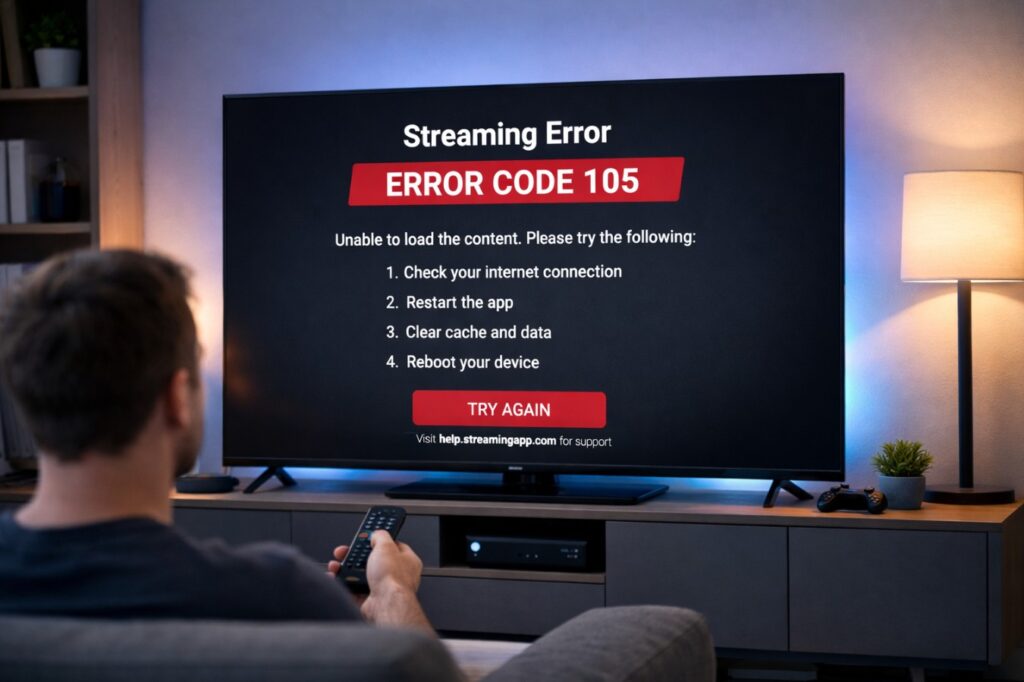

Streaming app error codes on TV fix is what you use when you’re done with “try turning it off and on” as a personality trait. You sit down, you press Play, and the app answers with a code that feels oddly impersonal—like it’s speaking to a technician instead of you.
In practice, most codes point to the same small set of causes: stale app data, account/auth glitches, network/DNS instability, or (when you stream from a box/console) HDMI/DRM/eARC handshake problems. Once you pick the right lane, the fix becomes straightforward—and you keep your TV settings intact. ✅
Quick Takeaways
- If only one app fails, it’s usually app state or account/auth (not “your TV is dying”).
- If several apps fail around the same time, suspect network/DNS stability or router/ISP behavior first.
- If failures happen only on an external streamer/console, look at the HDMI chain, DRM/HDCP, and eARC/CEC.
- Factory reset is almost never the smart first move.
The 30-second diagnosis table
| What you see | Most likely bucket | The first move that actually helps | If it still fails |
|---|---|---|---|
| Only Disney+ / Prime Video / YouTube fails, other apps are fine | App state / auth | Sign out → cold power cycle TV | Clear app cache/data or reinstall |
| Two or more apps fail or won’t start playback | Network / DNS | Reboot router + cold power cycle TV | Ethernet test / switch Wi-Fi band |
| App opens, but playback won’t start | Token drift / instability | Cold power cycle + reopen app | Check time/date, DNS, captive portal |
| Audio drops, no surround/Atmos, or silence | eARC/CEC chain | Simplify chain, retest | Fix eARC mode + reduce CEC conflicts |
| Works on phone, fails on TV | TV app pipeline | Clean app reset ladder (below) | Storage cleanup + app update |
App-specific patterns (no guessing, just what usually happens)
| App | What errors often “mean” in real life | Where to look first |
|---|---|---|
| Disney+ | auth/device trust, playback pipeline, occasional DRM chain issues | Sign-in state → network stability → HDMI chain (if external device) |
| Prime Video | account/auth, region/account flags, app cache drift | Sign out/in → app reset → network |
| YouTube | network negotiation, account state, app cache, occasional playback ID instability | Network stability → app cache/data → account |
| Apple TV app | auth token, DRM validation, time/date mismatch | Time/date → sign-in state → network |
| Max / Peacock / Paramount+ | app cache/state drift, network instability | App reset ladder → network stability |
Menu names/paths vary by model/region/firmware.
Streaming app error codes on TV fix when only one app fails
When a single app misbehaves and the rest are fine, you’re usually dealing with the app’s local “memory”: cached data, a stale sign-in token, or an update that didn’t settle cleanly. 🔧
Streaming app error codes on TV fix: the clean reset ladder
Do these in order (the order is the difference between “fixed” and “it came back tomorrow”):
- Fully close the app (not just Back).
- If you can, sign out inside the app.
- Cold power cycle the TV: turn off → unplug power → wait → plug back in.
- Open the app → sign in again.
- If the code returns, clear cache/data (where available) or reinstall the app.
If the app is stuck on an error screen and won’t let you sign out, don’t wrestle with it: cold power cycle first, then go straight to clear data/reinstall.
The “profile edge case”
If the app loads but fails only on one profile:
- Try playback on the main/default profile.
- If that works, you’re likely looking at a profile sync/state issue. Reinstalling the app usually clears it.
Streaming app error codes on TV fix when several apps fail
If multiple apps stumble at once, it rarely means “all services are down.” More often, your TV is losing a stable path to the internet—DNS delays, Wi-Fi drift, or router features that behave nicely on phones but poorly on TVs.
Here’s the calm way to fix it, without guessing:
- Reboot your modem/router (proper power cycle).
- Cold power cycle the TV (unplug, not standby).
- On the TV: Forget Wi-Fi → reconnect (fresh DHCP lease).
- If possible, do a short Ethernet test—even temporary—just to prove whether it’s Wi-Fi.
- Try a different Wi-Fi band:
- 5 GHz: fast, but range can be fragile through walls
- 2.4 GHz: slower, often steadier at distance
- If errors cluster at peak hours, suspect ISP congestion.
If you use VPN, proxy, or router-level filtering (ad-block DNS / “security shield”), disable it for one test. One tiny block in the wrong place can look exactly like an app failure. 🌐
External streamers and consoles: when the chain is the problem
If you stream from Apple TV / Fire TV / Roku / Chromecast / a console, you’re adding layers: HDMI handshake, DRM/HDCP validation, and audio negotiation. When that chain is shaky, apps can throw codes that feel unrelated.
A simple isolation check:
- Test the same app on the TV’s built-in version.
- Then test it on the external device.
If the built-in app plays and the external device doesn’t, stop blaming the service. Focus on the chain.
What to note on your ports and connections (without guessing specs)
| What to note | Why it matters | What “good” looks like |
|---|---|---|
| Which HDMI port is labeled ARC/eARC | Audio return reliability depends on it | Sound system is on the ARC/eARC-labeled port |
| Which HDMI port your streamer/console uses | Some ports behave differently in real setups | Device plugged directly into TV for isolation |
| Whether you can test Ethernet once | Best way to rule out Wi-Fi drift | A short wired test session |
| Any HDMI switches/adapters in the chain | Adds handshake points | Temporarily removed during testing |
Menu names/paths vary by model/region/firmware.
eARC + HDMI-CEC conflicts (the “random” feeling)
Some streaming errors feel like ghosts: you press Play, the screen goes black, audio vanishes, or the app spits you back to the menu. Often, it’s not the app—it’s a negotiation loop: CEC commands fire, eARC renegotiates, the HDMI handshake resets, and playback collapses.
If you’re seeing audio drops, black screens, or “works sometimes,” treat the chain gently:
- Confirm the sound system is on the ARC/eARC port.
- Remove switches/adapters during troubleshooting.
- Keep automatic device control features minimal until stability returns. 🎧
“Claims vs reality” (the truth in your living room)
| What people assume | What actually matters | How you check it | Why it affects errors |
|---|---|---|---|
| “My internet is fast” | Stable connection with no drops | Real playback test (10–15 min) | Drops trigger codes and failed starts |
| “Wi-Fi is strong” | Clean negotiation + low interference | Try 2.4 vs 5 GHz, or Ethernet | Stability beats peak speed |
| “HDMI cable is fine” | Reliable handshake under DRM/HDR | Swap cable/port for one test | Handshake issues mimic app failures |
Common mistakes that keep errors coming back
- Factory reset before you try the clean reset ladder
- Changing five settings at once (you never learn what fixed it)
- Leaving the TV in standby for weeks (cached state quietly degrades)
- Troubleshooting an external device while the real issue is CEC/eARC conflict
Troubleshooting / Pro Tips
When you’re deep in troubleshooting, the hardest part isn’t the settings—it’s the mood. You want the problem gone, fast, and the internet keeps offering ten different “fixes” that fight each other.
So take one quiet path: stabilize power and network first, refresh sign-in state second, simplify the HDMI chain last. If you keep that rhythm, the same error that felt personal starts to feel… predictable. 🌙🧭
FAQ
- What do streaming error codes usually mean on a TV?
Most codes point to app state, account/auth, network/DNS instability, or HDMI/eARC/DRM handshake issues (especially with external devices). - Should I factory reset my TV for streaming errors?
Not as a first move. The clean reset ladder and network stabilization solve most cases without wiping settings. - Why do errors appear after an app update?
Updates can leave stale tokens or corrupted cached data behind. A cold power cycle and app data reset usually clears it. - Why does streaming work on my phone but not on the TV?
TV apps and TV network stacks can be less forgiving. App state, Wi-Fi negotiation, and DNS stability matter more than raw speed. - Do external streamers and consoles make errors more likely?
They add HDMI/DRM/eARC negotiation layers. If the TV’s built-in app works but the device doesn’t, the chain is a prime suspect. - streaming app error codes on TV fix — what should I try first?
Use the diagnosis table, then follow the clean reset ladder for single-app issues, or the network stability checklist when multiple apps fail. - Why do the same errors come back every few days?
Usually network drift, app cache bloat, or a recurring CEC/eARC handshake loop. - Can wrong time/date cause playback failures?
Yes—some apps fail authentication or DRM validation if device time is off.
Final Verdict
Most streaming errors aren’t dramatic. They’re small fractures in a chain that’s supposed to be invisible.
If you keep the approach gentle—reset the app’s memory, steady the network, simplify the chain—you’ll notice something nice: the TV stops being a project and goes back to being a room. ✅