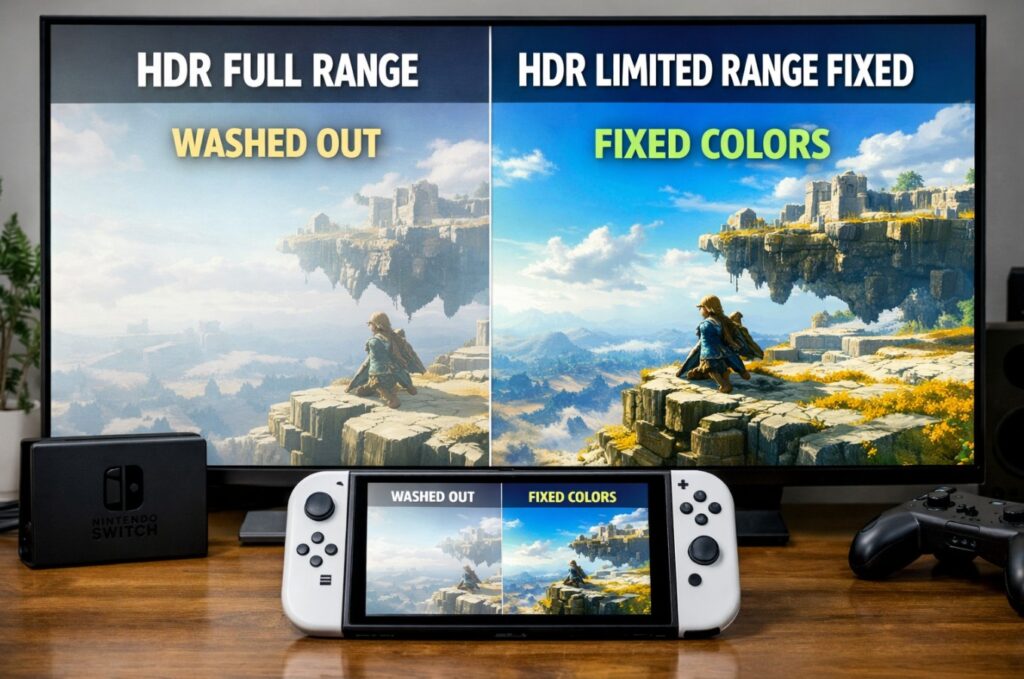

Switch 2 HDR washed out Full vs Limited fix is the one guide you need when HDR looks “grey,” blacks look lifted, and colors feel oddly flat—even after you re-ran the console’s HDR calibration. The reason this happens so often is simple: HDR calibration can be correct while your video range is wrong. ✅
Menu names/paths vary by model/region/firmware.
Quick Takeaways
- If Switch 2 HDR looks washed out, don’t start with tone mapping—start by matching RGB range (Full/Limited/Auto) to your TV’s HDMI Black Level / Black Level / RGB Range setting. 🔧
- A mismatch can make HDR look “foggy” even if brightness is high and the HDR sliders look “right.”
- Fix the chain in this order: TV input range → console RGB range → re-run HDR calibration → only then tweak tone mapping/HGiG. 🎮
- If you pass video through an AVR/soundbar, simplify the path first (direct to TV) to eliminate handshake/range overrides.
The 30-second decision table (do this first)
| What you see in HDR | Most likely cause | Fastest fix |
|---|---|---|
| Blacks look grey, contrast feels low | Range mismatch (Full vs Limited) | Match TV HDMI Black Level to Switch 2 RGB Range |
| Highlights clip early, image looks harsh | HDR calibration set too bright | Re-run HDR calibration after fixing range |
| HDR looks OK in games, washed out in menus | Mode switching / processing differences | Verify TV input range in the exact input + mode used |
| Looks fine direct to TV, washed out through AVR/soundbar | Device in the chain forces range/format | Keep console direct to TV; eARC only for audio |
Switch 2 HDR washed out Full vs Limited fix: the “range” problem explained
HDR isn’t a single on/off thing. It’s a transfer curve + metadata + color volume delivered inside a video signal. If the TV thinks the signal is Limited range but the console outputs Full, the TV expands/compresses levels incorrectly:
- Full interpreted as Limited → blacks lift, midtones lift → “washed out”
- Limited interpreted as Full → blacks crush, shadow detail disappears
This is why the fix that beats the generic “just use HGiG” advice is video-range alignment.
Switch 2 HDR washed out Full vs Limited fix: brand mapping table
Different brands label the same concept differently. Use this table to find the right control.
| Brand | The setting you’re looking for | Common options |
|---|---|---|
| LG (webOS) | HDMI Black Level / Black Level | Auto, Low (Limited), High (Full) |
| Samsung (Tizen) | HDMI Black Level | Auto, Normal (Limited), Low (Full) (names can vary) |
| Sony (Google TV) | HDMI Video Range / RGB Range | Auto, Limited, Full |
| TCL (Google TV) | HDMI Range / Black Level / Input range | Auto, Limited, Full |
⚠️ Names can differ by region/firmware, but the logic is the same: TV input range must match console output range.
Audio & Connectivity
Port-by-port I/O map (the “don’t break HDR” wiring)
| Device | Port | Best practice |
|---|---|---|
| Switch 2 Dock | HDMI OUT | Go direct to a full-bandwidth TV HDMI port first |
| TV HDMI (2.1-capable) | HDMI 1/3/4 (varies) | Use a primary gaming port; enable the TV’s enhanced HDMI mode |
| TV eARC port | HDMI (eARC) | Use for soundbar/AVR audio return only |
| Soundbar/AVR | eARC/ARC | Keep video passthrough out of the chain while troubleshooting |
Why this matters: some AVRs/soundbars can override or misinterpret range/format when video passes through them. For this specific “washed out” issue, simplify to console → TV first.
Panel Technology Explained
“Manufacturer intent” vs real-world outcomes (range settings)
This isn’t about a brand being “wrong.” It’s about two devices making different assumptions.
| Setting choice | What it’s supposed to mean | Typical result when everything matches |
|---|---|---|
| Switch 2 RGB Range = Auto | Console tries to negotiate correct range | Correct blacks if TV is also Auto and negotiates properly |
| Switch 2 RGB Range = Limited | Output video-range levels intended for Limited | Stable blacks if TV is set to Limited/Low/Normal |
| Switch 2 RGB Range = Full | Output full-range levels | Stable blacks if TV is set to Full/High |
Reality: “Auto” is great when it works. When it doesn’t, the fastest win is forcing both ends to the same range.
Brightness & HDR Performance
Once range is correct, then you fix HDR mapping. Here’s the sequence that avoids wasted time:
- Fix Full/Limited first (TV input range + console RGB range)
- Re-run the console HDR calibration
- Only then choose your TV’s HDR approach:
- HGiG (if available): best for “console-accurate” tone mapping
- Dynamic Tone Mapping: can look punchier, but may lift midtones and reduce creator intent
If you skip step 1, calibration becomes misleading—because you’re calibrating inside the wrong level mapping.
Motion Handling & Refresh Rates
This issue is not primarily a refresh-rate problem, but mode switches can change processing:
- Game Mode may lock different gamma/contrast behaviors
- Some TVs treat “console input label” differently from “generic HDMI”
If your HDR looks right in one mode but washed out in another, don’t chase brightness first—recheck the input range setting in the mode you actually use.
Gaming Performance
The practical goal is not “the brightest HDR.” It’s correct black floor + clean highlights.
When your range is aligned:
- dark scenes stop looking milky
- UI white doesn’t feel like a grey veil
- color saturation returns without you cranking “Color” artificially ✅
That’s the moment you know you fixed the real problem—not just applied a prettier filter.
Smart Platform & UX
TV menus can be sneaky here. Some models store range settings per input and sometimes per signal type.
Best practice:
- Set the range while the Switch 2 input is active
- Confirm the TV isn’t applying a separate “PC mode” or “HDMI enhanced mode” profile that changes how levels are processed
Menu names/paths vary by model/region/firmware.
Real-World Impressions
When the mismatch is the cause, the change is immediate: the image stops looking “fogged,” blacks anchor properly, and HDR feels like HDR instead of “bright SDR.” ✨
If the image still looks off after you match ranges, that’s when the problem is usually tone mapping strategy or calibration overshoot, not the Full/Limited layer.
Common Mistakes to Avoid
- Leaving Switch 2 on Auto while your TV is forced to a different range (or vice versa).
- Fixing tone mapping first and calling it “solved” while blacks remain lifted.
- Troubleshooting through an AVR/soundbar video chain before you test direct-to-TV.
- Changing TV black level in one picture mode, then gaming in another mode where it reverted.
Troubleshooting / Pro Tips
Switch 2 HDR washed out Full vs Limited fix: step-by-step checklist (do it in order)
- Connect Switch 2 Dock → TV directly (temporarily remove AVR/soundbar video passthrough)
- On the TV input, set HDMI Black Level / HDMI Video Range to a known value (start with Limited)
- On Switch 2, set RGB Range to the same value (start with Limited)
- Re-run the console HDR calibration
- If blacks crush (too dark), switch both ends to Full and retest
- Put the soundbar/AVR back using eARC only (audio return), not video passthrough
If “Limited looks right but Full looks washed”
That’s a strong hint your TV’s “Full/High” path is being processed differently (or your chain isn’t truly matching). Lock both ends, reboot the chain, then retest.
FAQ
- What is the best Switch 2 HDR washed out Full vs Limited fix?
Match the Switch 2 RGB Range (Full/Limited/Auto) to your TV’s HDMI Black Level/Video Range setting, then re-run HDR calibration. - Should I use Auto for RGB Range?
Auto is fine when negotiation works, but if HDR looks washed out, forcing both ends to Limited (or Full) is usually faster and more stable. - Why does HDR calibration not fix the washed-out look?
Because calibration can’t correct a video-range mismatch. If the black floor is mapped wrong, the whole curve looks wrong. - What should LG owners change?
Look for HDMI Black Level/Black Level on the active HDMI input and match it to the Switch 2 RGB Range (names can vary). - What should Samsung owners change?
Look for HDMI Black Level for that HDMI port and match it to the Switch 2 RGB Range. - What should Sony owners change?
Look for HDMI Video Range/RGB Range and match it to the Switch 2 RGB Range. - What should TCL owners change?
Look for HDMI Range/Black Level/Input range and match it to the Switch 2 RGB Range. - Does routing through an AVR or soundbar matter?
Yes. Some devices in the chain can mis-handle range/format. Test direct-to-TV first, then reintroduce eARC for audio. - After matching range, should I use HGiG or Dynamic Tone Mapping?
If you want “as the console intends,” try HGiG. If you want extra punch, Dynamic Tone Mapping can help—but it can also lift midtones.
Final Verdict
This is the rare HDR problem where the “boring” fix is the real fix. Switch 2 HDR washed out Full vs Limited fix isn’t about finding a magic picture preset—it’s about making sure your console and your TV speak the same language before you touch anything else.
Once the range is aligned, HDR calibration finally becomes meaningful. And the picture stops looking like it’s trapped behind a thin pane of mist—clean blacks, honest contrast, and highlights that actually feel earned. ✅