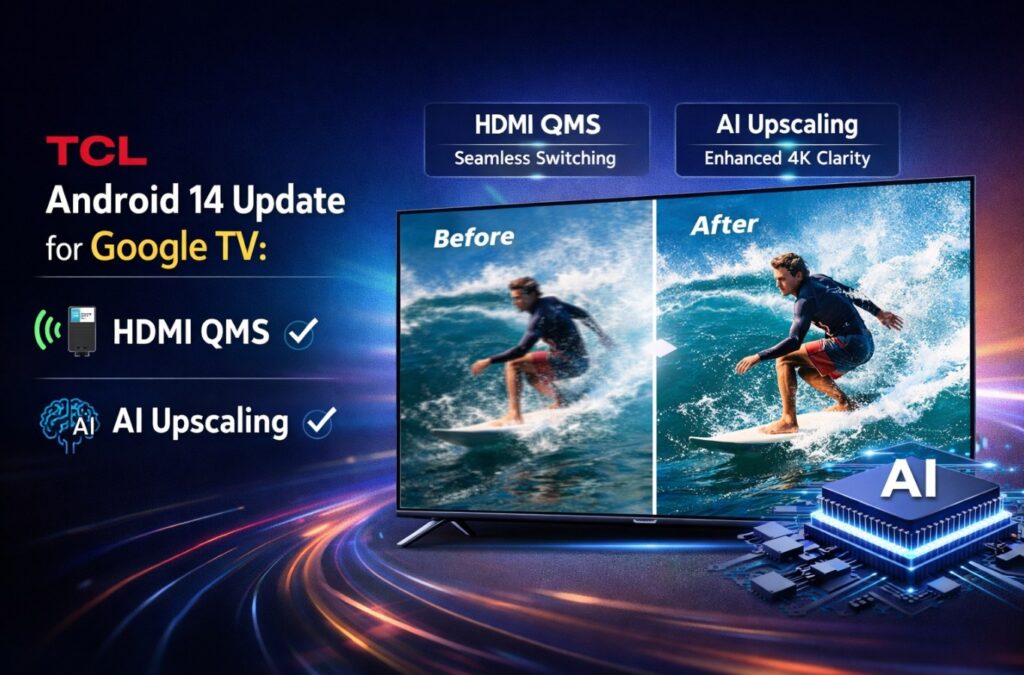

The TCL Android 14 update is one of the most important software refreshes TCL has pushed to recent Google TV models in a while. It’s not just a version bump. It’s tied to practical upgrades like HDMI QMS (fewer “black flashes” when frame rate changes) and AI-assisted Super Resolution upscaling—plus the usual performance and stability refinements you’d expect from a major platform step. 🔄
Because this rollout may appear staged (and sometimes starts as a manual package before arriving OTA), the experience can feel inconsistent: one owner sees it today, another doesn’t. This guide keeps it practical—what’s new, how to confirm eligibility, the safest install path, and what to do if something breaks.
Feature availability can vary by model/region/firmware, and some items may arrive later via follow-up patches.
Quick Takeaways
- The TCL Android 14 update has been reported as firmware v590 (naming can vary by region), and it targets certain TCL Google TV models using a specific chipset family.
- The two “headline” user-facing changes are HDMI QMS (less blackout during frame-rate switching) and Super Resolution upscaling (AI edge/detail enhancement). ✨
- QMS requires a compatible source device (your streamer/console/PC must support it), and it won’t eliminate every blackout (format switches like SDR↔HDR can still trigger a brief blanking).
- Your safest approach is: backup settings → update → cold reboot → re-check HDMI input format + motion/game settings.
What’s included
| Change | What it does in real life | Who benefits most | What can vary |
|---|---|---|---|
| Android 14 platform bump | System-level improvements, smoother UI behavior, new OS features | Everyone on supported Google TV models | Region/firmware cadence, minor UI differences |
| HDMI QMS (Quick Media Switching) | Reduces the black flash when switching refresh rates (e.g., 60Hz UI → 24Hz film) | Apple TV 4K / streaming boxes, PC users with frame-rate matching | Requires compatible source + correct HDMI port/settings |
| “Super Resolution” upscaling | Enhances edges/detail on lower-res content | Cable/older streams/HD sources | Strength/label differs by model; best used gently |
| General optimizations | Performance, stability, feature additions | Everyone | Patch notes may differ by region; some fixes arrive later |
TCL Android 14 update: which TVs are likely to get it
Reports point to the update targeting recent TCL Google TV models built on MediaTek’s Pentonic 700 platform (exact SKU lists can vary by market). The most practical way to treat this:
You’re a strong candidate if…
- Your TCL runs Google TV (not Roku TV), and
- Your model is part of TCL’s newer performance tiers (often Mini-LED/QLED premium lines), and
- Your region has started receiving firmware v590-class updates (OTA or manual).
Known model names that have been mentioned in coverage (region-dependent)
You may see references to families like C8K / C7K / C6K, QM8K / QM7K / QM6K, and other regional equivalents. The key is not the badge—it’s the platform underneath. If your exact name doesn’t match, you can still be eligible if the internal platform aligns.
Important: treat model lists online as directional until your TV’s update screen confirms availability.
What HDMI QMS changes (and what it doesn’t) 🎬
If you use frame-rate matching, you’ve seen it: the TV goes black for a moment when playback switches to 24p film or a different refresh rate.
What QMS improves
- It can reduce (or eliminate) the “black flash” during refresh-rate switches when the chain supports it properly.
What QMS won’t fully fix
- SDR ↔ HDR switches can still cause a blanking moment, because that’s more than just refresh rate—it’s a signal format change.
- A flaky HDMI chain (bad cable, wrong port format, AVR pass-through quirks) can still produce dropouts.
The practical QMS checklist
- Source device supports QMS (and is configured to match frame rate where appropriate)
- TV HDMI port is set to the correct “Enhanced/HDMI 2.1” style format (wording varies)
- Cable and chain are stable (TV ↔ soundbar/AVR ↔ source, if applicable)
What “Super Resolution” upscaling really means (and how to use it) 🔧
“Super Resolution” is typically positioned as AI-based detail enhancement for lower-res sources. In real viewing, it can:
- make edges look cleaner
- reduce the “soft” look of some HD streams
- add a touch of perceived sharpness without cranking the Sharpness slider
The rule of thumb: use it like seasoning, not a main ingredient.
- If faces start looking over-etched, back it down.
- If subtitles glow or textures shimmer, it’s too strong.
How to confirm the TCL Android 14 update is installed (without guessing)
TCL Android 14 update: confirmation steps
- Go to your TV’s System / About / Software update area (label varies).
- Check the Android TV OS version and the build/firmware version details.
- After updating, do a cold reboot (unplug ~60 seconds) to ensure the launcher and services reload cleanly.
Signs the update “took”
- UI feels slightly smoother after a cold reboot
- New toggles appear around upscaling or HDMI behavior (names vary)
- Frame-rate switching behavior improves when using a compatible source
The safest install flow (OTA first, manual only if necessary)
Option A: OTA update (recommended)
- Run the built-in update tool
- Let it complete fully
- Cold reboot afterward
Option B: Manual update (only if you know what you’re doing)
Manual installs can be useful when the file is available before OTA in your region—but they also carry more risk (wrong region file, interrupted update, etc.).
Safety rules:
- Only use a file that matches your exact region/SKU
- Never interrupt power mid-update
- Expect settings to shift (some toggles may reset)
If you’re not 100% sure, wait for OTA. It’s slower, but safer.
Troubleshooting after the update (most common “new issues”)
Here’s the fast path when something feels worse after the TCL Android 14 update:
1) HDMI dropouts / black flashes got worse
- Cold reboot TV + source device
- Re-check HDMI input format (Enhanced/HDMI 2.1 style toggle)
- Try a different HDMI port
- Temporarily bypass AVR/soundbar to isolate the chain
2) Gaming feels different (VRR/refresh quirks) 🎮
- Confirm Game Mode is still enabled
- Re-check VRR/ALLM toggles
- Verify the console/PC output format didn’t reset
3) Picture looks overprocessed
- Reduce Sharpness
- Disable heavy noise reduction
- Set motion smoothing to Off/Low (firmware updates sometimes nudge these back on)
4) System feels slower
- Cold reboot
- Clear unused apps / reduce background clutter
- Give the launcher 24 hours to settle after major updates (it often re-indexes content)
FAQ
1) What is the TCL Android 14 update?
The TCL Android 14 update is a major Google TV firmware refresh reported for select TCL models, moving them from Android 12 to Android 14 and adding features like HDMI QMS and “Super Resolution” upscaling (availability varies).
2) Which TCL TVs get the update?
It’s reported for certain recent TCL Google TV models, commonly those built on the Pentonic 700 platform family. Exact model lists vary by region and SKU.
3) Does HDMI QMS eliminate every black screen when switching content?
No. QMS targets refresh-rate switching blackouts. SDR↔HDR or other format changes can still trigger a brief blanking, and weak HDMI chains can still drop signal.
4) Why don’t I see the update yet?
Rollouts can be staged by region/model/account. If your TV is eligible, it may arrive later via OTA, even if some users can install manually earlier.
5) Should I install manually or wait for OTA?
If you’re not completely sure about region/SKU match, wait for OTA. Manual installs are higher risk.
6) Will the update reset my picture settings?
It can. After major updates, always re-check: Picture Mode, HDMI input format, Game Mode, VRR/ALLM, and motion/noise reduction toggles.
7) TCL Android 14 update: what’s the first thing I should do after installing?
Do a cold reboot, then verify HDMI input format and your picture/game presets—those are the most commonly “shifted” items after big firmware changes.
Final Verdict
The TCL Android 14 update is the kind of upgrade that matters because it targets real friction: smoother system behavior, smarter upscaling, and fewer HDMI interruptions when your gear switches frame rate. Not every setup will feel transformed overnight—but when your chain supports it, QMS can make the whole experience feel more seamless, like the TV is finally stopping to breathe between scenes instead of slamming the lights off. ✨
Recommended reads
https://tvcomparepro.com/google-tv-14-best-settings-speed-up-sony-hisense-tcl/
https://tvcomparepro.com/tcl-tv-hdmi-is-not-working-heres-how-to-fix-it/
https://tvcomparepro.com/tcl-144hz-settings-2025/