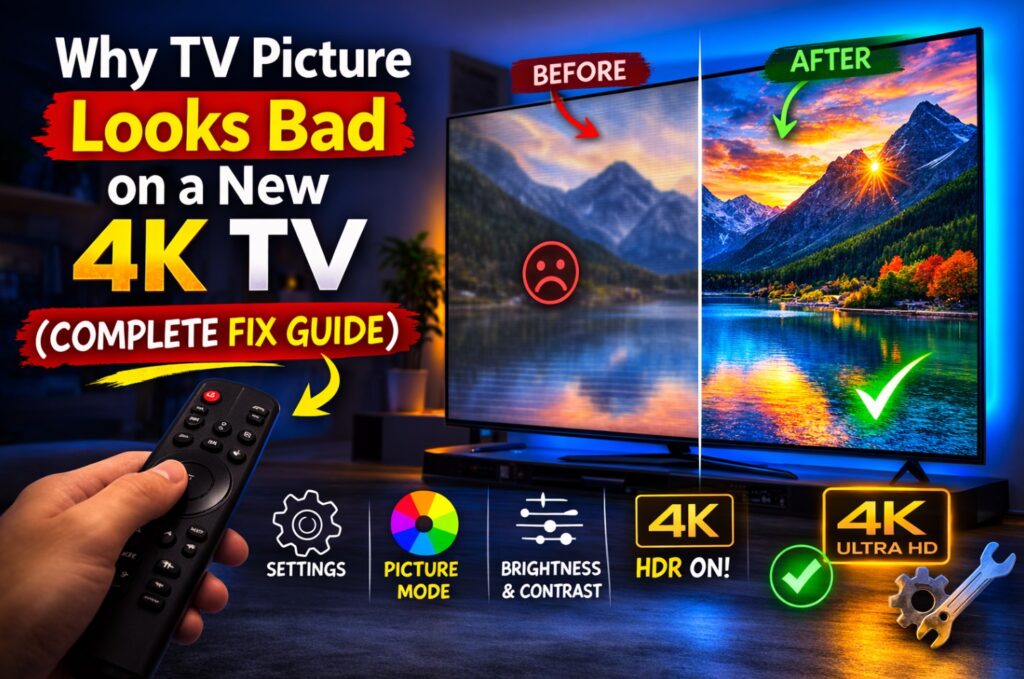

If you’re wondering Why TV Picture Looks Bad on a New 4K TV, you’re not alone. Many users upgrade to a bigger, brighter, more advanced television—only to feel disappointed. Motion looks artificial, HDR looks darker than expected, streaming seems soft, and sometimes even your old TV felt better.
The truth? Modern TVs are powerful—but they ship with aggressive defaults, expose low-quality sources, and rely heavily on processing. The good news: most issues are fixable in minutes 🎯
This is the complete diagnostic guide.
Quick Diagnostic Table (Start Here)
| What You Notice | Most Likely Cause | Fast First Fix |
|---|---|---|
| Motion looks fake / “soap opera” | Motion interpolation enabled | Disable Motion Smoothing |
| HDR looks darker than SDR | Tone mapping + power limits | Switch to Cinema / Filmmaker |
| Streaming looks soft | Low bitrate compression | Test with high-bitrate source |
| 120Hz doesn’t feel smooth | Signal fallback to 60Hz | Check HDMI port + cable |
| Screen dims during subtitles | ABL / local dimming reaction | Adjust dimming settings |
| Colors look oversaturated | Vivid / Store mode active | Change picture preset |
1️⃣ Motion Looks Fake or “Too Smooth”
Modern TVs enable motion interpolation by default. This inserts artificial frames to make content look smoother—but it destroys the cinematic feel.
Common names:
- TruMotion (LG webOS)
- Motion Plus (Samsung Tizen)
- MotionFlow (Sony Google TV)
- Motion Clarity (TCL Google TV)
Fix
Turn it off or set it to the lowest setting.
If motion still looks odd, check:
- Game Mode forcing different processing
- Frame rate mismatch (24fps vs 60Hz content)
Artificial motion is one of the biggest reasons people think their new TV looks worse 🎬
2️⃣ HDR Looks Dark or Flat
Another major reason Why TV Picture Looks Bad on a New 4K TV is HDR behavior.
HDR often:
- Reduces average brightness
- Changes gamma curve
- Prioritizes highlight detail over overall luminance
In bright rooms, HDR can look dim compared to SDR.
Fast Fix
- Use Cinema / Filmmaker mode
- Disable Energy Saving / Ambient sensors
- Check tone mapping options
- Test SDR vs HDR side by side
HDR isn’t broken—it’s different. And room lighting matters.
3️⃣ Streaming Looks Worse Than Expected
Streaming compression is aggressive. Even “4K” streams are often heavily compressed compared to Blu-ray.
What happens:
- Fine detail gets blurred
- Gradients band
- Dark scenes lose shadow detail
Your new TV reveals compression more clearly than your old one.
How to Test
- Compare streaming vs a high-quality disc or local file
- Pause and inspect textures
- Reduce sharpness (too much sharpness amplifies artifacts)
This is not a TV defect—it’s bitrate limitation 📡
4️⃣ 4K 120Hz Feels Like 60Hz
Some TVs advertise 120Hz panels, but:
- The wrong HDMI port is used
- The cable can’t sustain bandwidth
- VRR + HDR overloads the signal
- The device falls back silently to 60Hz
Always verify:
- You are using the full-bandwidth HDMI port
- Enhanced/4K 120 mode is enabled
- Cable is certified and short
Refresh rate mismatch is subtle—but noticeable in gaming 🎮
5️⃣ Auto Brightness or Random Dimming
Modern TVs use:
- ABL (Automatic Brightness Limiter)
- Local dimming algorithms
- Ambient light sensors
- Scene-based tone adjustments
These can cause:
- Bright scenes to dim
- Subtitles to change brightness
- Picture to shift between modes
What to Check
- Disable ambient light sensor
- Adjust local dimming level
- Check for automatic picture mode switching
- Verify firmware version
These features are designed to protect panels and save power—but can feel inconsistent.
6️⃣ Oversharpening & Artificial Processing
Store demo modes exaggerate:
- Edge enhancement
- Noise reduction
- Color saturation
- Contrast boosting
These settings look impressive in stores—but unnatural at home.
Fix
- Use Cinema / Movie preset
- Set sharpness low (not zero, but low)
- Disable excessive AI enhancement
Processing overload often creates the illusion that the new TV is worse than the old one.
7️⃣ Scaling Issues (Why 1080p Looks Worse on 4K)
Not all 4K TVs upscale equally. Poor scaling makes:
- HD channels look soft
- Older content look noisy
- Broadcast TV look worse than expected
High-resolution panels expose source flaws.
If you mainly watch:
- Cable TV
- Low bitrate streaming
- YouTube 1080p
Then upscaling quality becomes critical.
8️⃣ Game Mode Looks Washed Out
Game Mode reduces processing to lower input lag.
This can:
- Change color tone
- Reduce local dimming
- Disable tone mapping adjustments
Game Mode isn’t worse—it’s optimized for latency.
If visuals matter more than competitive latency, test both modes.
9️⃣ Panel Differences (OLED vs Mini-LED vs LED)
Some expectations mismatch panel type:
- OLED → perfect blacks but ABL brightness limits
- Mini-LED → high brightness but possible blooming
- Standard LED → stable brightness but weaker contrast
Understanding panel strengths prevents disappointment.
Final Checklist (Do This in Order)
- Switch to Cinema / Filmmaker mode
- Disable motion smoothing
- Turn off energy saving / ambient sensors
- Verify HDMI port + cable
- Test SDR vs HDR
- Reduce sharpness and AI enhancements
- Compare streaming vs high-bitrate content
Most people fix their issue before step 4.
Final Verdict
If you’re asking Why TV Picture Looks Bad on a New 4K TV, the answer is rarely “the TV is defective.” It’s usually a combination of aggressive defaults, content compression, motion processing, HDR tone mapping, or signal chain limitations.
Modern TVs are more capable than ever—but they demand better settings and better sources. Once calibrated properly, the difference becomes obvious 🎯
Give it 10 focused minutes—and your “worse” TV often becomes dramatically better.
Related Articles
HDMI Handshake Issues Explained (Why TVs Lose Signal Randomly)
https://tvcomparepro.com/hdmi-handshake-issues-explained/
Why 4K 120Hz Drops to 60Hz (Bandwidth, Ports & Cables Explained)
https://tvcomparepro.com/why-4k-120hz-drops-to-60hz-tv/
OLED Auto Dimming Fix: Reduce ABL & ASBL Without Losing HDR
https://tvcomparepro.com/oled-auto-dimming-fix/