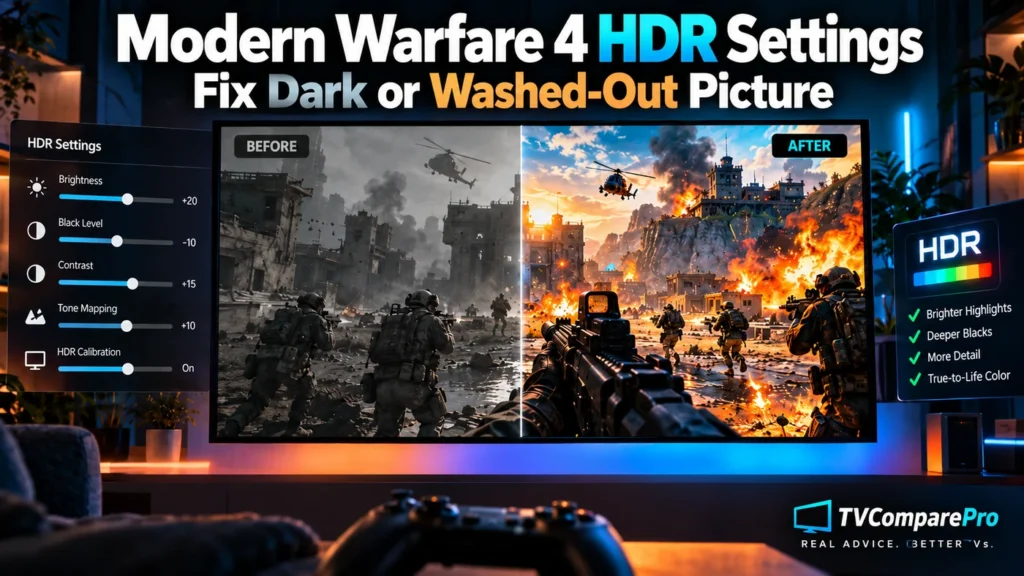

Dark scenes should create tension, not hide every enemy. If your Modern Warfare 4 HDR settings leave the campaign too dark or the picture grey and flat, start by checking where the picture is being adjusted: the game, the console or PC, or the TV. Changing all three at once usually makes it harder to find the problem.
HDR means high dynamic range. In simple terms, it helps a screen show bright lights and detail in dark places at the same time. Call of Duty: Modern Warfare 4 is playable through campaign early access ahead of its October 23, 2026 release. Some early players have reported dark interiors and hard-to-find brightness controls. That does not prove every copy has an HDR bug, and one set of numbers will not work on every screen.
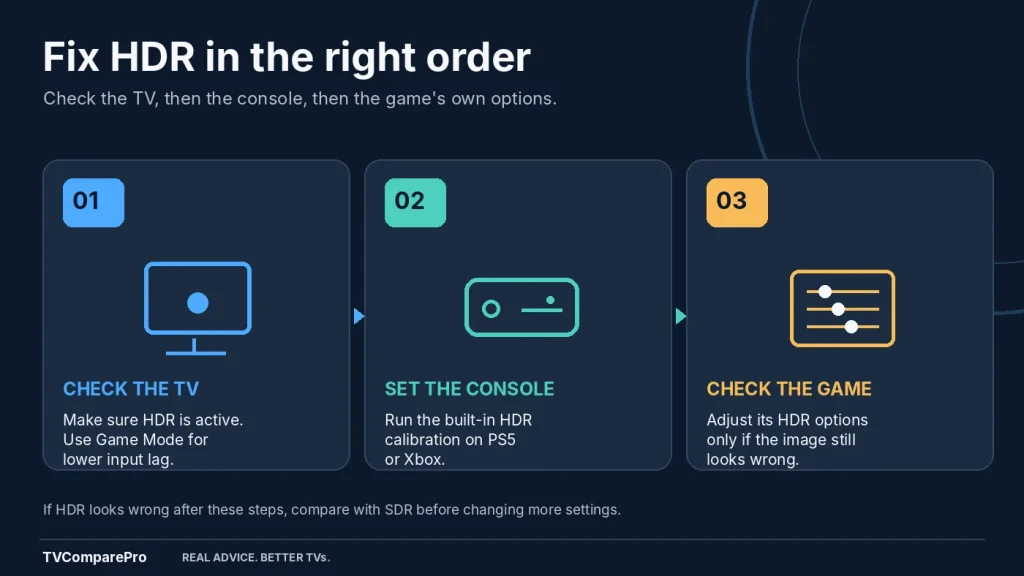
Start here: Make sure your TV is actually receiving HDR. Run your console’s HDR calibration, use the TV’s Game picture mode, and revisit the same dark scene. If it still looks wrong, follow the symptom guide below before changing anything else.
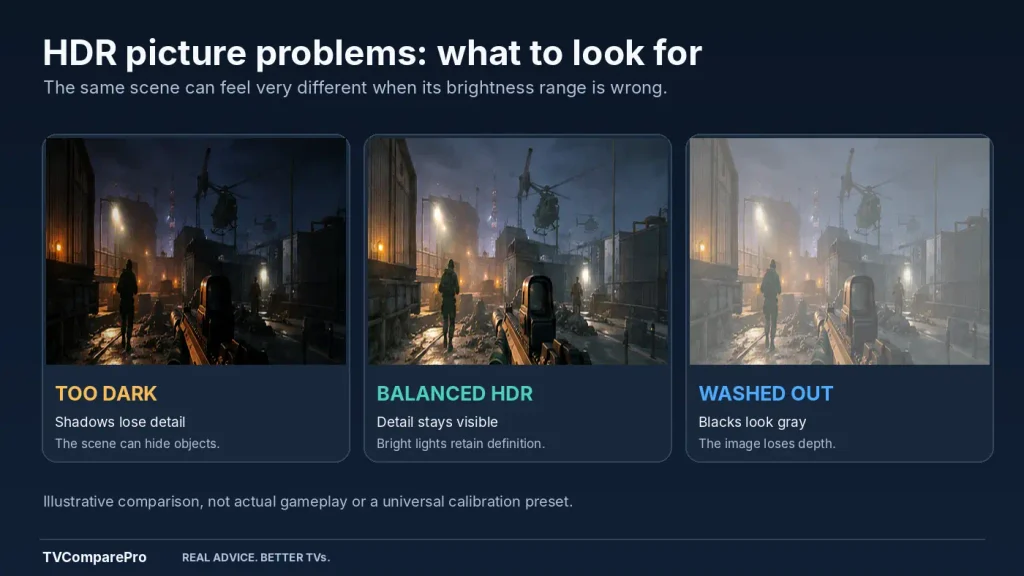
What looks wrong on your screen?
Choose the description closest to what you see. Each problem points to a different first check.
| What you see | What to check first |
|---|---|
| Dark rooms are almost black | TV shadow processing, HDR calibration and whether the game offers a separate SDR adjustment. |
| Blacks look grey or foggy | Black level / RGB range mismatch, extra TV contrast processing or overly raised brightness. |
| Sun, fire or lamps lose detail | Console HDR calibration and TV tone mapping. Do not simply push brightness higher. |
| HDR controls are greyed out | Whether the game is passing HDR control to the console or operating system. |
| Only this game looks wrong | Game-specific calibration, its current version and whether the scene is intentionally dark. |
Modern Warfare 4 HDR settings on PS5 and PS5 Pro
You do not need a different HDR recipe just because you own a PS5 Pro. First make sure the console is sending the right signal, then check the television.
- From the PS5 home screen, open Settings > Screen and Video > Video Output.
- Set HDR to On When Supported. This keeps games that do not support HDR in SDR rather than forcing an HDR conversion.
- Choose Adjust HDR and follow the on-screen pictures. Change the controls until the symbols meet the instructions shown on each calibration screen. Do not copy a click count from someone else’s television.
- Check Information for the Connected HDMI Device to see what the PS5 detects. Your TV should also show that HDR is active when the game uses it.
- On the TV, select Game Mode or the equivalent low-lag picture preset. Then return to exactly the same scene in the campaign.
If the game is still too dark, look for a brightness or calibration option in its Graphics / Display menus, if your console build offers one. Some early-access players have found a control labelled SDR Calibration. SDR means standard dynamic range, the non-HDR picture. This option is for SDR, not a guaranteed fix for HDR.
Important: 120Hz and VRR settings affect how motion is displayed. They are not HDR brightness sliders. VRR means variable refresh rate, a feature that helps the TV match the game’s changing frame rate. Turning it on will not automatically reveal enemies hidden in dark rooms.
Modern Warfare 4 HDR settings on Xbox Series X and Series S
On Xbox, some players have reported that the in-game brightness control becomes unavailable after the first setup. If the menu tells you to adjust HDR at the system level, use the Xbox calibration tool first instead of repeatedly changing unrelated TV settings.
- Press the Xbox button and go to Profile & system > Settings > General > TV & display options.
- Open Calibrate HDR for games and follow the test patterns with your TV already in its normal HDR Game picture mode.
- In TV & display options, check the available Video modes and make sure HDR10 is allowed if your display supports it.
- Fully close the game and open it again. Check whether HDR is active and compare the same dark scene.
If an in-game HDR slider stays greyed out, it may be unavailable in that console mode or build. That is not a reason to leave HDR disabled permanently. You can briefly compare SDR and HDR to diagnose the problem, but restore your preferred settings afterward.
Modern Warfare 4 HDR settings on PC
PC offers more display controls, so it is especially easy to change too many things. Start with the screen you actually play on, not a preset made for a different monitor.
- In Windows Settings > System > Display, select the gaming display and check that Windows detects its HDR capability.
- Open the game’s Settings > Graphics > Display area. Look for High Dynamic Range (HDR) and HDR Calibration when available.
- Use the HDR calibration screen to adjust the brightest and darkest parts of the picture. If the menu labels controls Black Level and White Level, change one at a time and compare the result.
- If everything looks flat, confirm that the TV or monitor has actually switched to HDR mode. An HDR option selected in a menu does not always mean the complete display chain is working correctly.
HDR behavior and slider limits were examined during the PC beta, but a beta value is not a verified final-release preset. There is no responsible universal setting such as “White Level 0.80” for every OLED and Mini LED. Your display’s peak brightness and tone mapping matter.
OLED vs Mini LED: should the settings be different?
Yes, but not because one technology needs a magic number. An OLED can show very deep blacks. That is excellent for contrast, but aggressive shadow settings can make a dark game look almost black. A Mini LED can create bright highlights while controlling backlight zones, although its shadow handling depends heavily on the model and local-dimming settings.
For either type, start with the television’s Game preset and leave Dynamic Contrast, Contrast Enhancer or similarly named processing off while you check the baseline picture. These controls may brighten a scene, but they can also change the intended contrast.
If your TV offers HGiG, that is one possible way to let a compatible game handle HDR tone mapping. It is not an automatic fix for every game, and its behavior varies between TV models. Tone mapping is how the screen fits the game’s bright and dark details within what your TV can show. If you switch that setting, recalibrate the console before judging the difference.
A simple way to tell whether HDR is actually the problem
Use a scene you can return to, such as a doorway with a bright outdoor area and a dark room behind it. Keep your TV’s Game picture mode unchanged, then follow this short test:
- Look at a dark wall or object. Can you still see some texture, or is it a solid black shape?
- Look at a bright lamp or the sky. Can you see detail, or is it just a white patch?
- Check the TV’s information display to confirm whether the signal says HDR.
- If needed, temporarily switch to SDR in the console or game and restart the game. Compare the same scene, then return to HDR.
If both HDR and SDR look unusually dark in the same place, the problem may not be HDR calibration at all. That scene might have deliberately limited lighting, an SDR brightness issue, or a game-specific presentation problem. Avoid pushing the TV’s black level so high that every other game looks grey.
Settings I would avoid changing blindly
- RGB Range / HDMI Black Level: Leave both ends on Auto where they work properly. Mismatched Full and Limited ranges can cause either grey blacks or missing shadow detail.
- TV Brightness and Peak Brightness: They do not mean the same thing on every brand. Do not copy someone else’s number without checking the control’s purpose.
- Motion smoothing: It may increase input lag and is not a solution to incorrect HDR.
- Factory reset: A picture problem in one game does not justify wiping the television’s settings as a first step.
What if the image still looks too dark?
If the TV reports HDR correctly, the console has been calibrated and other HDR games look normal, stop adjusting everything at once. Return to the game’s display menu, check for updates and compare another mission or lighting condition. A scene that remains much darker than expected may be an issue with that particular game build.
For a wider check of the console and HDMI setup, see our PS5 Pro TV settings guide. If the picture is fine but dark scenes flicker when the frame rate changes, our TV VRR flicker guide covers that separate issue.
My recommendation: Confirm the HDR signal first, calibrate the console or PC second, and adjust the TV only after you have compared one repeatable scene. That is a better starting point than using a universal brightness value or turning HDR off as a permanent workaround.
This guide reflects campaign early-access information available before the October 23, 2026 full launch. Menu names and HDR behavior may change with updates or differ by platform, game mode and display.