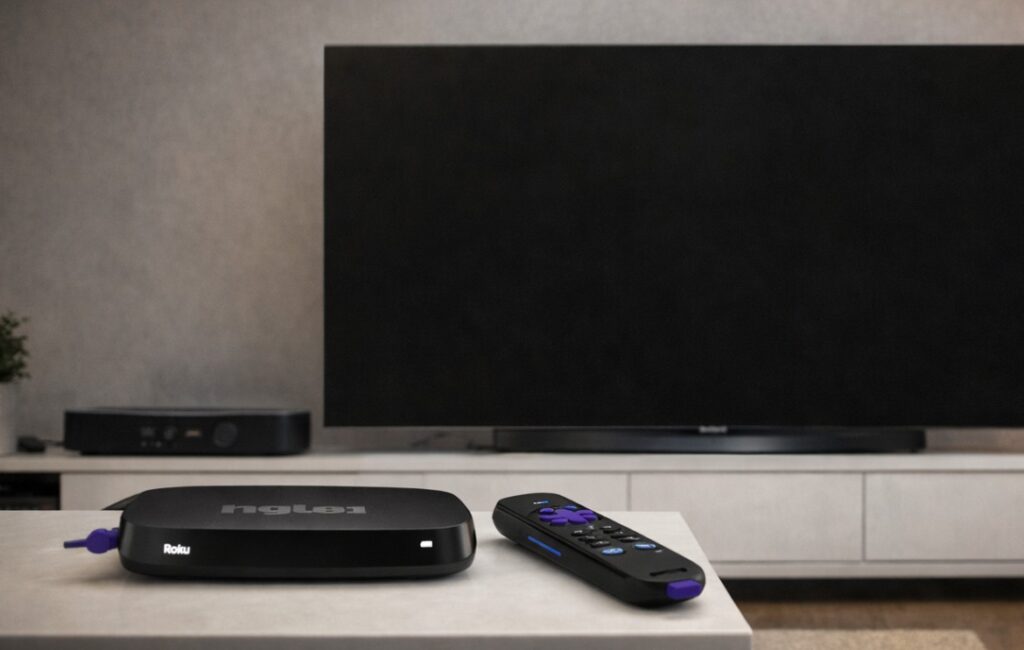

Roku 4K Dolby Vision not working on TV usually means one part of the chain is breaking the signal before Dolby Vision can lock in properly. In most homes, that is not the Roku box itself. It is more often the wrong HDMI port, an older cable, a TV input still set to a limited HDMI mode, an AVR or soundbar in the middle, or a compatibility mismatch between what Roku detects and what the display can really handle. 📺
The frustrating part is that this problem can look different depending on the setup. Sometimes you get a black screen. Sometimes the TV falls back to plain 4K HDR or even SDR. Sometimes Dolby Vision works in one app but fails in another. And sometimes the Roku insists the TV is not fully compatible even when the panel clearly supports Dolby Vision.
That is why the right fix is not random trial and error. You need to check the signal path in the right order.
Roku 4K Dolby Vision not working on TV — symptom, cause, fix
| Symptom | Likely cause | Best fix |
|---|---|---|
| Black screen when Dolby Vision starts | HDMI cable or port cannot carry the required signal cleanly | Replace cable and move to the correct full-bandwidth HDMI port |
| Roku falls back to HDR10 or SDR | TV input mode is limited or compatibility handshake fails | Enable enhanced HDMI mode on the TV and rerun display detection |
| Dolby Vision works in some apps only | App-level format support differs | Test multiple known Dolby Vision titles before blaming the hardware |
| Dolby Vision fails through AVR or soundbar | Intermediate device is breaking the handshake | Connect Roku directly to the TV, then return audio through eARC |
| Roku reports limited 4K / HDR compatibility | Auto-detect is reading a restricted chain | Check TV input mode, cable quality, and any device between Roku and TV |
Start with the HDMI port, not the Roku menu
This is the first place most people get caught.
Many TVs do not give full 4K Dolby Vision bandwidth on every HDMI input, or they require a specific input setting before that port behaves correctly. On some TVs, the correct mode may be called Enhanced Format, Enhanced HDMI, 4K Enhanced, Input Signal Plus, or something similar. Menu names may vary by region or firmware.
If the Roku is plugged into the wrong port, Dolby Vision may never work properly no matter what you change later. If the port is right but the TV input is still set to a limited mode, the Roku may detect the display incorrectly and step down to a weaker format.
What to do
- Move the Roku to a known full-bandwidth HDMI port on the TV.
- Open the TV’s HDMI input settings and enable the enhanced or high-bandwidth mode for that port.
- Reboot both the TV and the Roku.
- Run Roku’s display setup again.
This one step solves more “Dolby Vision not working” cases than people expect.
Replace the cable before you waste an hour on menus
This sounds basic, but it matters.
Roku’s own support notes that older or lower-grade HDMI cables may fail with 4K HDR signals and recommends using a Premium High Speed HDMI cable or better for stable 4K HDR performance. That matters even more once Dolby Vision enters the picture, because the signal path becomes less forgiving.
A cable can still “work” while failing only in the exact moments that matter:
- when the TV switches into Dolby Vision
- when frame rate changes
- when an app triggers a different HDR profile
- when the signal passes through an AVR or soundbar first
Replace the cable if
- it is older and unlabeled
- it came from a random accessory box
- the issue happens only with Dolby Vision, not SDR
- black screen appears when content starts
- the problem gets worse through an AVR or soundbar
If you are troubleshooting seriously, do not “test” with a mystery cable. Swap in a known good one.
If you use a soundbar or AVR, remove it temporarily
This is the next major trap.
A lot of Dolby Vision failures are not caused by the TV or the Roku. They happen because the signal is going through an AVR, HDMI switch, or soundbar that complicates the handshake. Even when the middle device claims Dolby Vision passthrough support, real-world stability can still vary by firmware, HDMI mode, and the exact combination of devices.
Test the clean chain first
Use this path first:
Roku → TV directly
Then, once picture works correctly, send audio back with eARC if needed.
If Dolby Vision suddenly works when the Roku is connected directly to the TV, you have already found the problem area. At that point, the issue is not “Roku is broken.” The issue is the HDMI chain between devices.
This is also why some users see one strange pattern: Dolby Vision fails through the main setup, but works when the Roku is connected directly to the display. That usually points to handshake instability, not to a defective streamer.
Rerun Roku display detection after every major change
A common mistake is changing the cable or the HDMI input and then assuming Roku will automatically reinterpret everything perfectly.
Sometimes it does. Sometimes it does not.
After you change the HDMI port, TV input mode, or cable, go back into Roku’s display settings and rerun the display detection. If the old handshake data remains in place, the device may continue using a fallback mode even after the hardware path is fixed.
Roku 4K Dolby Vision not working on TV after auto-detect?
Then test these in order:
- rerun display detection
- restart Roku
- power off the TV fully
- unplug both devices for a short power cycle
- reconnect and test again
This sounds repetitive, but HDMI handshakes are often stubborn rather than logical.
When Dolby Vision fails in one app but not another
This is where people misread the situation.
If Netflix works in Dolby Vision but another app does not, that does not automatically mean your TV lacks support. It may mean:
- that app is serving HDR10 instead
- that title is not actually Dolby Vision on your device
- that app has its own playback bug
- the format falls back because of bandwidth or compatibility conditions in that app path
So do not diagnose the system from one title in one app.
Test properly
Use at least two or three known Dolby Vision titles across major apps before deciding the whole setup is broken.
If Dolby Vision works in one major app and not another, the smarter article angle for the site later may be app-specific. But for now, the right conclusion is simple: your chain may be basically fine, and the failure may be app-side.
Roku 4K Dolby Vision not working on TV through Auto settings
Auto mode is useful, but it is not magic.
Roku relies on handshake information from the connected display chain. If the TV input is in the wrong mode, if a cable is marginal, or if an AVR is reporting capabilities imperfectly, Auto may choose a lower mode than your panel actually supports.
That is why Auto can look “wrong” even when the TV itself is modern and fully capable.
The practical interpretation
If Auto keeps choosing a weaker format:
- do not assume the TV lacks Dolby Vision
- verify the port
- verify the cable
- bypass the AVR
- rerun detection
Auto is only as smart as the signal path it sees.
Common mistakes that keep Dolby Vision broken
Leaving the TV input on a limited HDMI mode
A Roku can only use what the TV port exposes.
Troubleshooting through a soundbar first
That hides the real source of the problem.
Trusting an old cable because “it still shows a picture”
Showing a picture is not the same as carrying stable 4K Dolby Vision.
Testing one title in one app
That can send you in the wrong direction fast.
Changing settings without rebooting the chain
HDMI devices often need a fresh handshake after major changes.
Advanced path for stubborn cases
If the basics still do not fix it, use this order:
- Connect Roku directly to the TV
- Use a known good Premium High Speed or better HDMI cable
- Enable enhanced HDMI mode on the TV input
- Reboot TV and Roku
- Rerun Roku display detection
- Test multiple known Dolby Vision titles
- Only after that, reinsert AVR or soundbar into the chain
That order matters because it isolates the problem one layer at a time. 🔧
Final Verdict
Roku 4K Dolby Vision not working on TV is usually a chain problem, not a mystery. The signal fails because one link in the setup is weaker, more limited, or less compatible than the rest. In most cases, the real fix is not buried in an obscure menu. It is the combination of the correct HDMI port, the correct TV input mode, a proper cable, and a clean test path without an AVR or soundbar in the middle.
That is why this issue feels annoying at first but becomes manageable once you stop treating it like one bug. It is not one bug. It is a handshake puzzle.
Solve the chain in the right order, and Dolby Vision usually comes back without drama. ✨