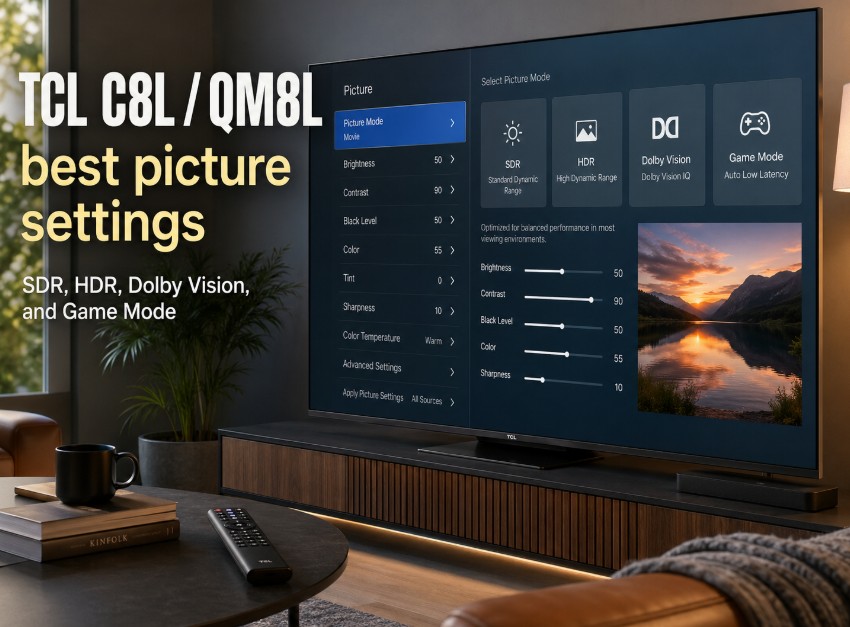

TCL C8L / QM8L best picture settings matter because this TV has enough brightness and local dimming power to look spectacular, but also enough processing options to look overdone if you leave everything at maximum. The C8L in Europe and QM8L in the U.S. are TCL’s SQD-Mini LED models, built for high brightness, wide color, Google TV, 144Hz gaming, HDMI 2.1, Dolby Vision IQ, HDR10+, and strong local dimming.
That is a serious feature list. But the best picture does not come from using the brightest mode all day. It comes from choosing the right mode for SDR, HDR, Dolby Vision, sports, and gaming — then keeping artificial sharpness, motion smoothing, and dynamic contrast under control. 📺
Menu names may vary by region, firmware, and model listing, especially between TCL C8L and TCL QM8L.
TCL C8L / QM8L technical specifications
| Category | TCL C8L / QM8L |
|---|---|
| Regional naming | TCL C8L in Europe and selected global markets, TCL QM8L in the U.S. |
| Display type | SQD-Mini LED LCD |
| Resolution | 4K Ultra HD |
| Panel family | WHVA 2.0 Ultra / HVA-based panel family, depending on region and size |
| Smart platform | Google TV |
| Processor | TCL TSR AiPQ Processor |
| Native refresh rate | 144Hz |
| Game accelerator | Up to 288Hz VRR Game Accelerator in supported scenarios |
| HDMI | 4× HDMI 2.1 on C8L / QM8L listings |
| Gaming features | VRR, ALLM, AMD FreeSync VRR, Game Master / Game Bar |
| HDR formats | Dolby Vision IQ, HDR10+, HDR10, HLG |
| Audio | Bang & Olufsen-tuned audio, Dolby Atmos support |
| Local dimming | Precise Dimming Zones, exact count depends on size |
| Color claim | Up to 100% BT.2020 coverage, manufacturer claim |
| Brightness claim | Up to 3,000–6,000 nits depending on size |
| Best use case | Bright-room HDR, movies, sports, PS5 / Xbox / PC gaming |
The key point is simple: this is a very bright Mini LED TV, so you do not need to force extra processing to make it look powerful. The panel and backlight already do the heavy lifting.
Exact TCL C8L dimming zones and brightness by size
| Size | Precise Dimming Zones | Manufacturer HDR brightness claim | Practical note |
|---|---|---|---|
| 55-inch C8L | 1,008 zones | Up to 3,000 nits | Strong entry point, but not the full headline performance |
| 65-inch C8L | 2,040 zones | Up to 5,000 nits | Big jump in dimming control and HDR punch |
| 75-inch C8L / QM8L | 2,584 zones | Up to 5,500 nits | Very strong balance of size, dimming, and brightness |
| 85-inch C8L / QM8L | 3,200 zones | Up to 6,000 nits | One of the best sizes for bright-room impact |
| 98-inch C8L / QM8L | 4,032 zones | Up to 6,000 nits | Highest zone count and strongest large-screen positioning |
These numbers matter because a 55-inch C8L and a 98-inch C8L are not simply the same TV in different sizes. The larger models get more dimming zones and higher brightness claims, so HDR and blooming control can behave differently by size.
Practical setup notes before changing picture modes
In setup-style testing, the safest starting point for the TCL C8L / QM8L is not Vivid mode. This TV already has enough brightness and color power, especially on the larger sizes, so the cleaner approach is to begin with Movie or Filmmaker Mode for SDR, Dolby Vision Dark at night, Dolby Vision IQ or Bright during the day, and Game Mode for consoles or PC.
The biggest improvement usually comes from reducing artificial processing rather than pushing brightness higher. Extra sharpness, noise reduction, dynamic contrast, and heavy motion smoothing can make the image look more dramatic at first, but they also make faces, skies, subtitles, and fine game detail look less natural.
For most living rooms, local dimming is the strength you should keep active, while unnecessary processing is what you should control. That is especially true with HDR games, Dolby Vision streams, and PS5 Pro titles using upgraded PSSR, where clean edges and stable tone mapping matter more than a showroom-style image.
TCL C8L / QM8L best picture settings for SDR
For SDR content — regular TV, YouTube, older shows, news, cable, SDR streaming, and most daytime viewing — the goal is not maximum brightness. The goal is a clean, stable picture with natural color and controlled contrast.
Typical path:
Settings → Display & Sound → Picture
or:
Press the settings button on the remote → Picture
Menu names may vary by region or firmware.
| Setting | Recommended value | Why it helps |
|---|---|---|
| Picture Mode | Movie / Filmmaker Mode | More natural than Standard or Vivid |
| Brightness / Backlight | Adjust to room | Higher during the day, lower at night |
| Contrast | Default or slightly reduced | Helps avoid clipped whites |
| Local Dimming | Medium | Good SDR balance without over-darkening |
| Color Temperature | Warm / Warm 2 | More natural whites and skin tones |
| Sharpness | Low / neutral | Avoids artificial outlines |
| Dynamic Contrast | Off | Keeps brightness stable |
| Black Stretch | Off | Preserves shadow detail |
| Color Enhancement | Off or Low | Avoids oversaturated faces and grass |
| Noise Reduction | Off for clean sources | Use Low only for poor streams |
| Motion Clarity | Off for movies | Optional for sports |
Movie or Filmmaker Mode may look less punchy than Standard at first, especially if you are used to store-style settings. Give it a day. The image usually becomes easier to watch because whites look less blue, faces look calmer, and dark scenes are less exaggerated.
TCL C8L / QM8L best picture settings for daytime SDR
| Setting | Bright-room SDR value |
|---|---|
| Picture Mode | Movie / Filmmaker Mode |
| Brightness / Backlight | High enough for the room |
| Local Dimming | Medium or High |
| Color Temperature | Warm |
| Dynamic Contrast | Off or Low |
| Motion Clarity | Off for movies, Low for sports if needed |
Avoid jumping straight to Vivid. On a TV this bright, Vivid can quickly make SDR look too cold, too sharp, and less realistic.
TCL C8L / QM8L best picture settings for HDR
HDR is where the C8L / QM8L should look more impressive. The TV has the brightness, local dimming, and color volume to make HDR movies, streaming shows, and games look powerful. The trick is to let HDR breathe without turning highlights into flat white patches.
| Setting | Recommended HDR value | Why it helps |
|---|---|---|
| Picture Mode | HDR Movie / Filmmaker / Cinema-style mode | Better HDR tone and color balance |
| Local Dimming | High | Stronger blacks and highlight control |
| Brightness / Backlight | High / Max | HDR needs output |
| Dynamic Contrast | Off first, Low only if needed | Avoids unstable tone changes |
| Black Stretch | Off | Prevents crushed shadow detail |
| Color Temperature | Warm / Warm 2 | More natural HDR whites |
| Sharpness | Low / neutral | Keeps edges clean |
| Noise Reduction | Off | HDR streams should not need it |
| Motion Clarity | Off for movies | Keeps film motion natural |
HDR should look bright, but not harsh. If bright clouds, lamps, snow, or sunlight reflections lose detail, first check dynamic contrast, in-app HDR sliders, and PS5 / Xbox HDR calibration before lowering the TV brightness.
Best Dolby Vision settings on TCL C8L / QM8L
Dolby Vision can look excellent on this TV, but the right mode depends heavily on the room.
| Room condition | Dolby Vision mode | Best use |
|---|---|---|
| Dark room | Dolby Vision Dark | Movies and series at night |
| Mixed lighting | Dolby Vision IQ | Balanced automatic adjustment |
| Bright room | Dolby Vision Bright or Dolby Vision IQ | Daytime streaming |
| Accuracy-first viewing | Dolby Vision Dark | Most natural cinematic image |
Start with Dolby Vision Dark at night. Use Dolby Vision IQ or Dolby Vision Bright during the day. If Dolby Vision looks too dim, do not immediately change every advanced setting. The room may simply be too bright for Dolby Vision Dark.
What to avoid in Dolby Vision
Keep these conservative:
| Setting | Recommended approach |
|---|---|
| Sharpness | Low / neutral |
| Dynamic Contrast | Off or Low |
| Motion Smoothing | Off for films |
| Color Enhancement | Off or Low |
| Noise Reduction | Off for clean streams |
Dolby Vision already uses dynamic metadata. Too much extra TV processing can make the image less controlled, especially on faces, skies, and dark scenes.
TCL C8L / QM8L best picture settings for sports
Sports are different from movies. You may want a little more motion support, especially on large screen sizes.
| Setting | Recommended sports value |
|---|---|
| Picture Mode | Movie, Standard, or Sports if carefully adjusted |
| Brightness / Backlight | Medium-high to high |
| Local Dimming | Medium or High |
| Color Temperature | Warm or Normal |
| Motion Clarity | Low or Medium |
| Sharpness | Low / neutral |
| Dynamic Contrast | Off or Low |
For football, tennis, motorsport, or hockey, a low motion setting can help fast movement look clearer. But avoid pushing motion too high, because players and camera pans can start to look artificial.
TCL C8L / QM8L Game Mode settings
For consoles and PC gaming, use Game Mode / Game Master. This lowers input lag and enables the TV’s gaming feature set.
| Setting | Recommended value |
|---|---|
| Picture Mode | Game / Game Master |
| HDMI Mode | Enhanced / High Frame Rate if shown |
| Local Dimming | High |
| VRR | On / Automatic |
| ALLM | On / Automatic |
| Dynamic Contrast | Off |
| Black Stretch | Off |
| Motion Clarity | Off |
| Sharpness | Low / neutral |
| Color Temperature | Warm or Normal |
| Game Bar | On |
For gaming, do not use Movie Mode just because it looks more cinematic. Use Game Mode first, then adjust the image inside that mode.
PS5 and PS5 Pro settings for TCL C8L / QM8L
On PS5 or PS5 Pro, go to:
Settings → Screen and Video → Video Output
| PS5 / PS5 Pro setting | Recommended value |
|---|---|
| Resolution | Automatic or 2160p |
| 120Hz Output | Automatic |
| VRR | Automatic |
| Apply to Unsupported Games | Off first, test later |
| ALLM | Automatic |
| HDR | On When Supported |
| Deep Color Output | Automatic |
| RGB Range | Automatic |
Run Adjust HDR only after the TV is already in Game Mode. If you calibrate HDR before Game Mode is active, the console may adjust itself to the wrong picture behavior.
For PS5 Pro and upgraded PSSR, keep TV processing clean:
| TV setting | Recommended for PSSR-style games |
|---|---|
| Sharpness | Low / neutral |
| Noise Reduction | Off |
| MPEG Noise Reduction | Off |
| Motion Smoothing | Off |
| Dynamic Contrast | Off |
| Color Enhancement | Off or Low |
| Local Dimming | High |
PSSR is handled by the console and supported games, not by the TV. The TV’s job is to avoid adding extra sharpening or noise reduction that makes reconstructed detail look edgy.
Xbox Series X settings for TCL C8L / QM8L
On Xbox Series X, use:
| Xbox setting | Recommended value |
|---|---|
| Resolution | 4K UHD |
| Refresh rate | 120Hz if desired |
| Allow 4K | On |
| Allow HDR10 | On |
| Allow Dolby Vision | On for video, optional for games |
| Allow VRR | On |
| Auto Low Latency Mode | On |
For gaming, HDR10 is often the safer baseline. Dolby Vision Gaming can look good, but if you see raised blacks, softer contrast, or strange tone mapping, test HDR10 as the cleaner option.
PC gaming settings
The C8L / QM8L can go beyond typical console use. For PC gaming, the TV is more flexible, but also more sensitive to settings.
| Area | Recommended PC gaming setup |
|---|---|
| HDMI | Use HDMI 2.1 |
| Refresh rate | 4K up to 144Hz where supported |
| VRR | On |
| Picture Mode | Game / PC / Game Master |
| Sharpness | Low / neutral |
| Motion processing | Off |
| Local Dimming | High for games, Medium if desktop behavior is distracting |
| Color Temperature | Warm or Normal |
For desktop use, local dimming can sometimes make windows or UI elements change brightness. For full-screen games, High local dimming usually gives better contrast.
Best settings by content type
| Content type | Best starting mode | Key adjustment |
|---|---|---|
| SDR TV / YouTube | Movie / Filmmaker | Local Dimming Medium |
| HDR movies | HDR Movie / Filmmaker | Local Dimming High |
| Dolby Vision at night | Dolby Vision Dark | Keep processing low |
| Dolby Vision during day | Dolby Vision IQ / Bright | Use brighter Dolby Vision mode |
| Sports | Movie or adjusted Standard | Motion Low / Medium if needed |
| PS5 / Xbox | Game / Game Master | VRR, ALLM, HDR calibrated |
| PS5 Pro PSSR games | Game / Game Master | Low sharpness, no noise reduction |
| PC gaming | Game / PC mode | 4K 144Hz, VRR, clean processing |
The best setting is not always the brightest one. It is the one that stays consistent across real content.
Common mistakes to avoid
Using Vivid as the daily mode
Vivid can look impressive for a few minutes, but it often makes the image too cold, too sharp, and too saturated.
Setting sharpness too high
Modern 4K content does not need heavy sharpness. Too much sharpness creates outlines around faces, buildings, text, and game objects.
Leaving motion smoothing on for movies
This creates the soap-opera effect and makes films look like live video.
Using Dolby Vision Bright in a dark room
Dolby Vision Bright can lift the picture too much at night. Use Dolby Vision Dark for controlled lighting.
Forcing HDR on SDR games
SDR should usually remain SDR. Forced HDR can make older games look washed out or unnatural.
Ignoring size differences
A 55-inch C8L with 1,008 zones will not behave exactly like a 98-inch C8L with 4,032 zones. Settings can be similar, but blooming, brightness, and local dimming behavior may differ.
Best everyday setup
| Use case | Recommended setup |
|---|---|
| Daily SDR viewing | Movie / Filmmaker, Local Dimming Medium, Warm color |
| HDR movies | HDR Movie / Filmmaker, Local Dimming High |
| Dolby Vision night viewing | Dolby Vision Dark |
| Dolby Vision daytime viewing | Dolby Vision IQ or Bright |
| PS5 / Xbox | Game Mode, VRR On, HDR On When Supported |
| PS5 Pro PSSR games | Game Mode, low sharpness, processing off |
| PC gaming | Game / PC mode, 4K 144Hz where supported |
| Sports | Movie or Standard adjusted, motion Low / Medium if preferred |
A cleaner way to use this TV
The TCL C8L / QM8L does not need to be pushed hard to look impressive. Use Movie or Filmmaker Mode for regular viewing, Dolby Vision Dark at night, Dolby Vision IQ or Bright during the day, and Game Mode for consoles or PC. Keep local dimming strong, but keep artificial processing low.
That balance lets the TV use its Mini LED strength without turning everything into a showroom demo. The brightness is already there. The color is already there. Good settings simply keep both under control. ✨
Pingback: Xbox App on TCL TVs: X11L Confirmed, C8L and C7L?