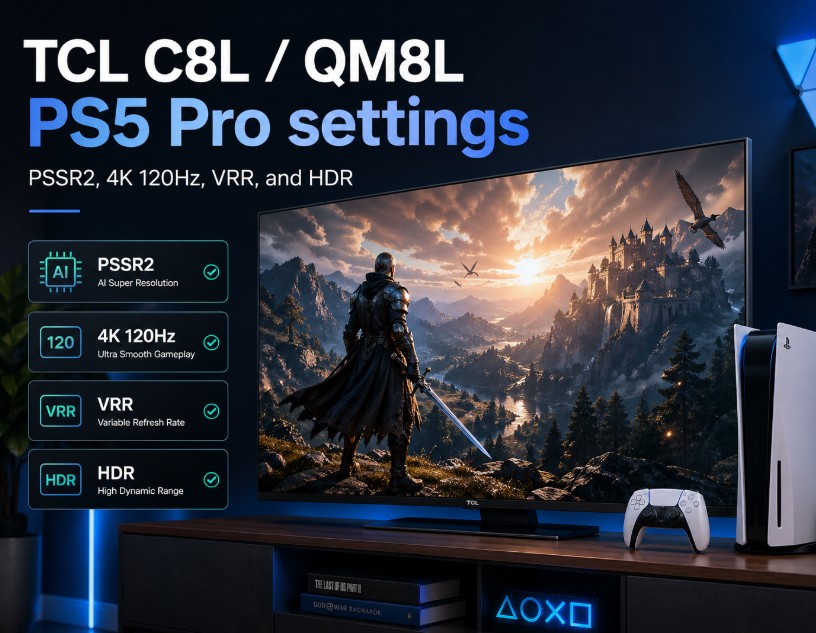

TCL C8L / QM8L PS5 Pro settings matter because this TV has the right hardware for serious console gaming, but it still needs to be set up carefully. The C8L in Europe and QM8L in the U.S. are built around TCL’s SQD-Mini LED platform, Google TV, high brightness, strong local dimming, 144Hz-class gaming, VRR, and HDMI 2.1 connectivity.
That gives the PS5 Pro a strong display partner. But the best result does not come from turning every enhancement on. It comes from using the right HDMI input, enabling Game Mode, setting HDR correctly, keeping VRR stable, and avoiding extra TV processing that can make upgraded PSSR — often called PSSR2 by players — look harsher than it should.
One important point first: PSSR2 is not a TV setting. The PS5 Pro handles the upscaling. The TCL’s job is to preserve the signal cleanly, keep latency low, and avoid processing that interferes with the console’s reconstructed image.
Menu names may vary by region or firmware.
TCL C8L / QM8L specifications for PS5 Pro
| Category | TCL C8L / QM8L |
|---|---|
| TV family | TCL C8L in Europe / TCL QM8L in the U.S. |
| Panel type | SQD-Mini LED LCD |
| Resolution | 4K |
| Smart platform | Google TV |
| Processor | TCL TSR AiPQ Processor |
| Refresh rate | 144Hz native panel class, with high-refresh gaming support |
| HDMI | 4× HDMI 2.1 |
| VRR | Supported, including AMD FreeSync VRR |
| ALLM | Supported |
| HDR formats | Dolby Vision IQ, HDR10+, HDR10, HLG |
| Local dimming | High-zone Mini LED local dimming, size-dependent |
| Audio | Premium integrated audio, region/model dependent |
| Best PS5 Pro role | Bright-room HDR gaming, VRR, 4K 120Hz, upgraded PSSR-friendly setup |
Best PS5 Pro setup at a glance
| Setup area | Recommended choice | Why it helps |
|---|---|---|
| HDMI connection | PS5 Pro directly to TV | Avoids handshake issues through soundbars or AVRs |
| Cable | Ultra High Speed HDMI | Needed for stable 4K, HDR, VRR, and 120Hz |
| TV picture mode | Game / Game Master | Keeps latency low |
| TV local dimming | High | Keeps HDR punch and black levels stronger |
| TV sharpness | Low / neutral | Avoids halos around PSSR-reconstructed detail |
| TV motion smoothing | Off | Games do not need interpolation |
| TV dynamic contrast | Off | Keeps tone mapping more predictable |
| PS5 resolution | Automatic or 2160p | Lets the console output 4K correctly |
| PS5 120Hz output | Automatic | Enables 120Hz in supported games |
| PS5 VRR | Automatic | Helps smooth frame-rate variation |
| PS5 HDR | On When Supported | Avoids forcing HDR onto SDR games |
| PSSR2 / upgraded PSSR | Console/game-side feature | Keep the TV clean and responsive |
Start with the HDMI connection
Use a direct connection first:
PS5 Pro → TCL C8L / QM8L
Do not start through a soundbar, HDMI switch, or AV receiver. Those devices may work later, but they can complicate the first setup. A clean direct connection makes it easier to confirm that the TV and console are talking correctly.
Use the HDMI cable included with the PS5 Pro, or another certified Ultra High Speed HDMI cable. A weak cable can still show an image while failing under 4K HDR, VRR, or 120Hz load.
Once everything works directly, you can reconnect your soundbar or AVR and test again.
TV settings for PS5 Pro
On TCL Google TV, start from the HDMI input used by the PS5 Pro.
Typical path:
Settings → Display & Sound → Picture
or:
Press the settings button on the remote → Picture
Menu names may vary by region or firmware.
| TCL setting | Recommended value | Notes |
|---|---|---|
| Picture Mode | Game / Game Master | Main mode for PS5 Pro |
| HDMI Mode | Enhanced / High Frame Rate if available | Use the highest-bandwidth mode shown |
| Local Dimming | High | Best starting point for HDR games |
| Dynamic Contrast | Off | Avoids unstable brightness shifts |
| Adaptive Contrast | Off or Low | Start with Off for a cleaner image |
| Black Stretch | Off | Helps avoid crushed shadow detail |
| Sharpness | Low / neutral | Keeps PSSR2 image cleaner |
| Noise Reduction | Off | Not useful for clean console output |
| MPEG Noise Reduction | Off | Can smear fine game detail |
| Motion Clarity | Off | Avoids added processing and artifacts |
| Color Temperature | Warm / Warm 2 if available | Usually more natural than Standard or Cool |
| Game Bar / Game Master overlay | On | Useful for checking VRR, HDR, and refresh rate |
Do not use Vivid or Standard for PS5 Pro gaming. Those modes may look bright in a store, but they usually add processing that makes games look less natural.
PS5 Pro video output settings
On the PS5 Pro, go to:
Settings → Screen and Video → Video Output
Use this baseline:
| PS5 Pro setting | Recommended value |
|---|---|
| Resolution | Automatic or 2160p |
| 4K Video Transfer Rate | Automatic |
| VRR | Automatic |
| Apply to Unsupported Games | Off first, test later |
| 120Hz Output | Automatic |
| ALLM | Automatic |
| HDR | On When Supported |
| Deep Color Output | Automatic |
| RGB Range | Automatic |
The most important setting here is HDR: On When Supported. Do not force HDR into every game. SDR games should remain SDR unless they have a proper HDR mode.
Adjust HDR only after Game Mode is active
This step is easy to miss.
Before running PS5 Pro HDR calibration, make sure the TCL is already in Game / Game Master mode. If you calibrate HDR in another picture mode, the console may match itself to the wrong tone mapping behavior.
Go to:
Settings → Screen and Video → Video Output → Adjust HDR
Use Sony’s three-screen HDR setup carefully.
On the white-symbol screens, raise the level until the symbol is barely visible, then stop. Do not push far beyond that point. On a bright Mini LED TV, overdoing the PS5 HDR screens can make highlights look clipped or harsh.
For the black screen, follow the on-screen instruction and avoid lifting blacks too much. If shadows look gray later, the HDR setup or TV black-level processing may be too aggressive.
PSSR2 / upgraded PSSR settings
This is the part to explain clearly.
The PS5 Pro’s upgraded PSSR is often called PSSR2 by players, but Sony’s official language is upgraded PSSR. It is not enabled from the TCL menu. It is handled by the PS5 Pro and supported games.
For games that already use PSSR, the upgraded PSSR path can apply through the PS5 Pro system update and compatible game support. In practice, this means you should keep your PS5 Pro updated, keep games patched, and enable the upgraded PSSR image-quality option when it appears. Do not look for a “PSSR2” switch inside the TV.
Best TV settings for PSSR2 image quality
| Setting | Recommended choice | Why |
|---|---|---|
| Sharpness | Low / neutral | Prevents halos around reconstructed edges |
| Noise Reduction | Off | Preserves fine game detail |
| MPEG Noise Reduction | Off | Avoids texture smearing |
| Motion Smoothing | Off | Prevents unnecessary interpolation |
| Dynamic Contrast | Off | Keeps brightness behavior stable |
| Color Enhancement | Off or Low | Avoids exaggerated color shifts |
| Local Dimming | High | Keeps HDR contrast strong |
Upgraded PSSR is already reconstructing detail. Extra TV-side processing can make the image look more artificial, especially around hair, grass, thin lines, text, distant geometry, and shimmering edges.
Best HDR settings for PS5 Pro on TCL C8L / QM8L
| Setting area | Recommended choice |
|---|---|
| TV Picture Mode | Game / Game Master |
| Local Dimming | High |
| Dynamic Contrast | Off |
| Black Stretch | Off |
| Sharpness | Low / neutral |
| Motion Clarity | Off |
| Color Temperature | Warm / Warm 2 |
| PS5 HDR | On When Supported |
| PS5 Adjust HDR | Run after Game Mode is active |
| In-game HDR | Adjust per game after system HDR setup |
For bright open-world games, check clouds, lamps, sun reflections, snow, and bright UI elements. If they look blown out, do not immediately lower TV brightness. First recheck PS5 HDR calibration and the game’s own HDR sliders.
Best SDR settings for PS5 Pro on TCL C8L / QM8L
Not every game should be HDR.
For SDR games, keep the image clean and natural:
| Setting area | Recommended choice |
|---|---|
| TV Picture Mode | Game / Game Master |
| Brightness / Backlight | Adjust to room |
| Local Dimming | Medium or High |
| Dynamic Contrast | Off |
| Black Stretch | Off |
| Color Temperature | Warm |
| Sharpness | Low / neutral |
| Motion Clarity | Off |
| PS5 HDR | On When Supported |
If SDR looks too dim, raise the TV’s brightness/backlight level. Do not force HDR globally from the PS5 Pro.
4K 120Hz and VRR setup
The PS5 Pro can output 120Hz, but the game must support a 120fps mode.
On PS5 Pro:
Settings → Screen and Video → Video Output → 120Hz Output → Automatic
For VRR:
Settings → Screen and Video → Video Output → VRR → Automatic
Keep Apply to Unsupported Games off at first. After the setup is stable, you can test it game by game. If a game flickers, stutters, or behaves strangely, turn that option back off.
Use the TCL Game Bar / Game Master overlay to confirm:
- resolution
- refresh rate
- HDR status
- VRR status
- input status
This is often faster than guessing based on how the game feels.
Recommended settings by game type
Cinematic single-player games
| Setting | Recommended value |
|---|---|
| Picture Mode | Game / Game Master |
| Local Dimming | High |
| HDR | On When Supported |
| VRR | Automatic |
| Motion Clarity | Off |
| Sharpness | Low / neutral |
| Color Temperature | Warm / Warm 2 |
This is the best setup for games where lighting, shadows, and cinematic HDR matter.
Competitive shooters
| Setting | Recommended value |
|---|---|
| Picture Mode | Game / Game Master |
| 120Hz Output | Automatic |
| VRR | Automatic |
| Local Dimming | High or Medium |
| Motion Clarity | Off |
| Dynamic Contrast | Off |
| Sharpness | Low |
| Game Bar | On |
For competitive games, responsiveness matters more than extra processing. Keep the image clean.
Upgraded PSSR / PSSR2 games
| Setting | Recommended value |
|---|---|
| TV processing | Minimal |
| Sharpness | Low / neutral |
| Noise Reduction | Off |
| Motion Smoothing | Off |
| Dynamic Contrast | Off |
| VRR | Automatic |
| Game updates | Keep installed |
| PS5 system software | Keep updated |
For PSSR2-style rendering, less TV processing is usually better. Let the PS5 Pro do the reconstruction work.
Common mistakes to avoid
Using Vivid mode for PS5 Pro
Vivid may look bright, but it usually adds too much processing, oversaturation, and sharpening.
Adjusting HDR before enabling Game Mode
Always set Game Mode first, then run PS5 HDR calibration.
Forcing HDR on every game
Use On When Supported. Forced HDR can make SDR games look wrong.
Turning sharpness too high
This is especially bad for upgraded PSSR games. Fine detail can start to look edgy or artificial.
Leaving noise reduction on
Console output is already clean. Noise reduction can blur textures and fine image reconstruction.
Assuming PSSR2 is a TV feature
It is not. The TV only displays the final signal. The PS5 Pro and game handle upgraded PSSR.
Best overall setup
| Area | Best choice |
|---|---|
| Connection | PS5 Pro directly into HDMI 2.1 |
| TV mode | Game / Game Master |
| Local dimming | High |
| Motion processing | Off |
| Dynamic contrast | Off |
| Sharpness | Low / neutral |
| Color temperature | Warm / Warm 2 |
| PS5 resolution | Automatic or 2160p |
| PS5 HDR | On When Supported |
| PS5 VRR | Automatic |
| PS5 120Hz | Automatic |
| PSSR2 handling | Keep system and games updated; avoid extra TV processing |