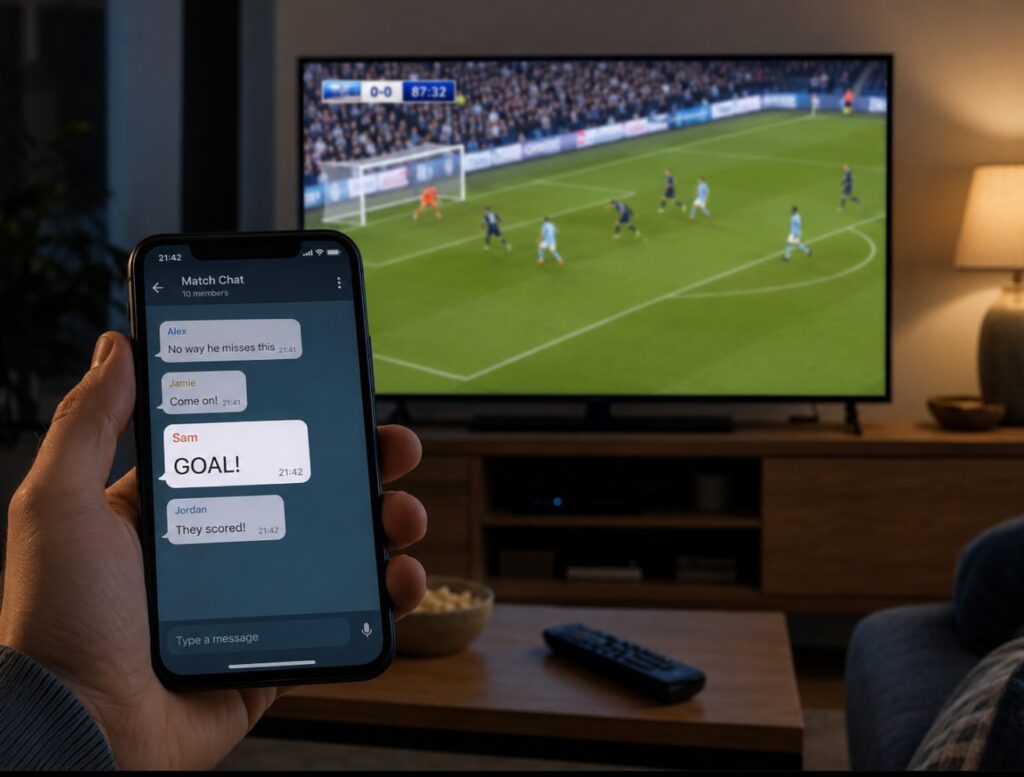

The worst part of a big match is not always the scoreline. It is live sports delay on TV, the strange moment when your phone says “Goal,” the neighbours cheer through the wall, and your screen is still showing the winger running down the touchline.
This can happen on streaming apps, cable boxes, satellite receivers, antenna channels, IPTV services, and even premium sports packages. It is not always your TV’s fault. Often, the delay comes from the route the match takes before it reaches your screen: stadium feed, broadcaster, satellite or cable operator, streaming servers, home router, TV app, HDMI device, audio system, and finally the TV panel.
That sounds complicated, but the fix does not have to be. You need to identify where the delay starts, then remove the slowest part of the chain. Sometimes the answer is a low-latency app setting. Sometimes it is Ethernet. Sometimes it is using cable instead of a TV app. Sometimes it is simply muting goal alerts until full time. ⚽
Live sports delay on TV: symptom, cause, fix
| What you notice | Most likely cause | What to check first |
|---|---|---|
| Neighbours cheer before your TV shows the goal | Your feed is behind another broadcast path | Compare app, cable, satellite, and antenna feeds |
| Phone alerts arrive before the action | Sports data feed is faster than your video stream | Mute goal alerts and group chats |
| One app is much later than another | App-specific buffering or broadcast delay | Check the app’s broadcast delay or low-latency setting |
| Cable TV is faster than the app | Streaming adds extra encoding and buffer | Use cable/satellite/antenna for important live matches |
| Satellite box is late compared with antenna | Receiver, operator, or channel processing delay | Restart receiver and compare HD/SD or alternate channel feed |
| Live TV app starts close to live, then drifts behind | Network instability or app buffering | Use Ethernet, restart app, reduce other network traffic |
| Picture is fine but commentary is late | Audio sync or soundbar delay | Check audio delay, PCM, eARC, and soundbar processing |
| TV changes channel/source slowly during live sports | Platform/app sluggishness | Restart TV, update firmware, test external streamer |
First, understand what type of delay you have
Not every delay is the same. Before changing settings, identify the type of problem.
Broadcast delay
This is the real gap between the live event and what appears on your TV. It is the reason another person may see a goal before you do.
Broadcast delay can come from:
- streaming app buffer;
- IPTV delivery;
- cable or satellite operator processing;
- live channel re-encoding;
- regional feed differences;
- app latency settings;
- overloaded servers during big events.
Audio delay
This is when the video is not late, but the sound is out of sync. Commentary may arrive after the player shoots, or crowd noise may feel behind the picture.
Audio delay can come from:
- soundbars;
- AV receivers;
- Bluetooth headphones;
- Dolby audio processing;
- TV audio delay settings;
- eARC/ARC handshake issues;
- external boxes connected through the wrong path.
Input lag
This mostly matters for gaming, not passive live sports. Game Mode can reduce TV processing delay, but it cannot make a streaming app closer to the real match if the app feed is already 30 seconds behind.
That distinction matters. If the match is spoiled before you see it, changing gaming input lag settings will not solve the main problem.
Measure your delay before changing anything
A calm test saves time.
Use one of these comparison methods:
| Compare your TV against | What it tells you |
| Antenna / aerial TV | Whether internet streaming is behind free broadcast |
| Cable box | Whether the TV app is slower than operator TV |
| Satellite receiver | Whether app streaming is behind satellite |
| Same app on phone | Whether the TV app is slower than mobile |
| Same app on streaming box | Whether the built-in TV app is the weak point |
| Live score app | Whether phone alerts are ahead of video |
| Radio commentary | Whether your TV feed is behind audio broadcast |
Do not panic if your TV is 10–25 seconds behind a phone alert. Many live streams behave that way. The bigger issue is when the delay is large enough to ruin goals, penalties, red cards, race starts, or final-lap moments.
| Delay range | What it usually means |
| 5–10 seconds | Very good for internet live sports |
| 10–25 seconds | Common for many streaming apps |
| 25–45 seconds | Noticeable and likely to cause spoilers |
| 45+ seconds | Worth troubleshooting seriously |
| Delay grows during the match | Network, app, or buffer instability |
If the delay stays the same, the service may simply be running behind. If the delay gets worse over time, your app may be buffering and drifting further away from live.
The fastest viewing path is not always the sharpest one
For live sports, you may have to choose between the best picture and the least delay.
A 4K HDR stream can look beautiful, but it may arrive later than a normal HD cable channel or antenna broadcast. A satellite feed may be more stable than an app. An app may offer better quality than cable but carry more delay.
| Viewing method | Delay risk | Best for |
| Antenna / aerial live TV | Usually low | Fastest free-to-air sports where available |
| Cable TV box | Low to moderate | Reliable live sports with simple channel switching |
| Satellite receiver | Low to moderate | Stable sports channels, especially where internet is weak |
| IPTV box from provider | Moderate | Operator TV over internet, depends on provider |
| Native TV app | Moderate to high | Convenience, 4K/HDR, catch-up features |
| Streaming stick or box | Moderate | Better app support if TV app is weak |
| Casting from phone | Often higher | Backup only, not ideal for major matches |
| Browser screen mirroring | Often higher | Emergency option only |
For finals, derbies, title races, Champions League nights, World Cup matches, and Formula 1 starts, test the feed before kickoff. Do not wait until the first goal to discover that your TV app is 40 seconds behind.
Live TV through cable: what to check
Cable TV is often faster than streaming apps, but it can still have delay or sync issues, especially when a set-top box is involved.
If cable TV is behind another TV in the house
Check whether both TVs use the same source. One TV may be using the cable box, while another uses antenna, IPTV, or a different app.
Try this:
- Put both TVs on the same channel.
- Check if one uses a cable box and the other uses the TV’s internal tuner.
- Restart the cable box.
- Change channel and return to the match.
- Disable pause/rewind/live buffer if your box has it.
- Test the SD and HD version of the same channel, if available.
- Connect the cable box directly to the TV, not through an AVR or HDMI switch.
Some cable boxes keep a small live buffer for pause and rewind features. That can add delay. It is useful for replaying a missed moment, but bad when neighbours spoil the goal.
If cable picture is live but sound is late
This is likely audio sync, not broadcast delay.
Check:
- TV audio delay setting;
- soundbar audio sync;
- digital audio output format;
- HDMI ARC/eARC setting;
- whether the cable box has its own audio delay menu;
- whether “Dolby Digital” creates more delay than PCM.
For testing, switch to TV speakers. If TV speakers are in sync but the soundbar is late, the delay is in the audio chain, not the live sports feed.
Live TV through satellite: what to check
Satellite is usually stable, but it can still feel behind another source because the signal path is different. Satellite feeds can also vary by provider, region, channel version, receiver model, and HD/UHD processing.
If satellite TV delay is too high
Try this order:
- Restart the satellite receiver fully.
- Check if the channel has HD, UHD, and SD versions.
- Compare the same event on another sports channel if available.
- Turn off pause/rewind/live buffer features if the receiver allows it.
- Avoid routing the receiver through an HDMI switch.
- Connect the receiver directly to the TV.
- Check whether the receiver is outputting fixed 2160p, 1080p, or Auto.
- If Auto causes black screens or pauses, test a fixed resolution.
A UHD satellite channel can look better but may be processed differently from the HD feed. During live sports, the fastest and most stable feed may not always be the one with the highest resolution.
If satellite channels freeze or drop signal during sports
This is not normal latency. It may be signal quality.
Check:
- dish alignment;
- cable damage;
- loose F-connectors;
- LNB condition;
- weather impact;
- receiver signal quality, not just signal strength;
- whether only one transponder/channel group is affected.
If the satellite signal drops during rain or wind, the receiver may buffer, freeze, or recover late. That can make you feel behind the match even if the channel itself is not heavily delayed.
Live TV through antenna or aerial: what to check
Antenna broadcasts are often among the fastest ways to watch major free-to-air events. If you can receive the match this way, it is worth testing before relying on an app.
If antenna channels are missing
Run a fresh channel scan. The exact path depends on the brand, but look for:
- Channels;
- Live TV;
- Broadcasting;
- Auto tuning;
- Auto Program;
- Channel Scan;
- Digital tuning.
Make sure the TV source is set to TV, Antenna, Cable, or Live TV, not HDMI. If a set-top box is connected, the TV’s internal channel scan may be unavailable or irrelevant because the channels come from the box.
If antenna is fast but picture quality is worse
That is common. The antenna feed may be closer to live, while the streaming app may offer cleaner HD, 4K, or HDR. For some matches, speed matters more. For others, picture quality wins.
A practical compromise:
- use antenna for very important live moments;
- use the app for replays, analysis, or less spoiler-sensitive viewing;
- switch to the app if the antenna signal is unstable.
Live sports in apps: what to check
Streaming apps are convenient, but they are usually the biggest source of live TV streaming delay.
Check the app in this order:
- Fully close and reopen the app.
- Open the live event early.
- Look for broadcast delay, low-latency, or live delay settings.
- Test Auto quality instead of forcing 4K.
- Use Ethernet if the app stutters.
- Restart the TV or streaming box.
- Update the app.
- Sign out and sign back in.
- Clear cache/data if the platform allows it.
- Test the same service on another device.
Some apps give you a choice between smoother playback and lower delay. If the app has a reduced delay setting, use it for live sports. If the stream starts freezing, return to the default setting or improve the network first.
When the app has a broadcast delay setting
A broadcast delay setting is one of the few app options that can directly reduce goal spoilers.
Look for wording such as:
- Broadcast Delay;
- Decrease;
- Low Latency;
- Reduce Delay;
- Real Time;
- Live Mode;
- Sports Mode.
Use reduced delay when:
- your internet is stable;
- the match is live and spoiler-sensitive;
- you are watching on a wired or strong Wi-Fi connection;
- you can accept a slightly higher risk of buffering.
Use default delay when:
- the stream freezes;
- picture quality drops too often;
- Wi-Fi is weak;
- several people are using the internet heavily;
- stability matters more than being closest to live.
This setting is not the same as picture mode. It changes the app’s playback buffer, not the TV panel.
When only one app is delayed
If one sports app is behind but other apps are fine, do not reset the whole TV first.
Do this instead:
| Step | Why it helps |
| Fully close the app | Removes a stuck live session |
| Reopen the event from the live guide | Avoids resuming an old delayed stream |
| Switch channel, then return | Forces a fresh stream request |
| Check broadcast delay setting | Some apps default to stability over speed |
| Test Auto quality | Forced 4K can increase buffering |
| Clear cache/data | Removes corrupted local app state |
| Reinstall the app | Helps after broken app updates |
| Test another device | Shows whether the TV app is the problem |
A small but important trick: do not pause the stream before kickoff unless you want to be behind. Even a short pause can leave you watching delayed live video.
When every app is delayed
If all live apps are late or unstable, look at the network and TV platform.
Check:
- Wi-Fi signal strength;
- router distance;
- mesh node connection;
- Ethernet cable;
- DNS reliability;
- router overload;
- downloads on other devices;
- cloud backups;
- VPN use;
- TV storage and memory;
- old app versions;
- outdated TV firmware.
Live sports need stability more than headline speed. A connection can test at 300 Mbps and still be bad for live sports if it drops for two seconds every minute.
Router and network checklist for sports streaming lag
Use this before big matches:
| Setting or condition | Best choice for live sports |
| Connection | Ethernet first, stable 5 GHz/6 GHz Wi-Fi second |
| Router restart | Do it before the event, not during the match |
| Downloads | Pause game updates, PC downloads, cloud backups |
| VPN | Disable for live sports testing |
| Wi-Fi band | Avoid crowded 2.4 GHz if possible |
| Mesh network | Connect TV to the strongest node |
| Guest network | Avoid for TVs and streaming boxes |
| DNS | Use stable DNS if apps load slowly |
| Router QoS | Prioritize TV/streaming device if available |
If the live stream starts behind and then becomes even further behind, the app may be increasing buffer because the connection is not stable enough.
TCL Google TV live sports delay: what to check
TCL Google TV models are popular for sports, gaming, and streaming, but live delay can come from different places depending on whether you use the internal tuner, a TV app, or an external box.
Live sports delay on TV on TCL Google TV
Start here:
- Press the Home button.
- Open Settings.
- Go to Channel & Input.
- Check Channels or Channel Scan if using antenna/cable directly.
- Make sure the correct tuner mode is selected.
- For apps, open the live sports app and check its own playback settings.
- Restart the TV if apps feel slow.
- Test Ethernet if Wi-Fi is unstable.
Menu names can vary slightly by region and firmware, but the idea is the same: confirm whether the match comes through the internal TV tuner, a built-in app, or an HDMI device.
TCL Google TV app delay fixes
For streaming apps on TCL Google TV:
- fully close the app;
- restart the TV by power cycling it;
- check for app updates in Google Play;
- clear app cache if available;
- use Ethernet for important matches;
- avoid casting from a phone;
- test a streaming stick if the built-in app is slow;
- set picture processing modestly for sports;
- turn off heavy noise reduction if the source is clean.
If only one sports app is delayed, it is probably app-side or service-side. If every app struggles, check Wi-Fi, router, storage, and TV performance.
TCL Google TV with cable or satellite box
If you use a cable or satellite receiver on TCL Google TV:
- connect the box directly to the TV for testing;
- avoid HDMI switches;
- check the receiver’s live buffer;
- test another HDMI port;
- turn off unnecessary HDMI-CEC behavior if the TV changes source by itself;
- compare the same match on the TV app and box.
If the box is faster than the app, use the box for big matches. If the app is faster or has lower delay mode, use the app.
Sony Google TV live sports delay: what to check
Sony Google TV models usually have strong motion processing, which is helpful for sports, but motion processing does not remove broadcast delay. Keep the troubleshooting chain clean: source first, app second, network third, TV processing after that.
Sony Google TV channel and app checks
For antenna or digital channels:
- open Settings;
- go to Channel & Inputs;
- check Channels;
- run Auto tuning if channels are missing;
- confirm whether you are using Digital, Cable, or Satellite where available.
For apps:
- fully close and reopen the live sports app;
- check the app’s broadcast delay setting;
- test Auto video quality;
- restart the TV;
- update the app and firmware;
- compare with a streaming box or phone.
Sony motion settings for live sports
Sony motion settings can make sport look smoother, but they should be adjusted carefully.
Try:
| Setting area | Practical advice |
| Motion smoothing | Use low to moderate values for sports |
| Cinemotion / film detection | More relevant for movies than live sport |
| Noise reduction | Keep low or off for clean HD/4K feeds |
| Reality Creation / sharpness processing | Avoid pushing too high |
| Light sensor / power saving | Disable if brightness shifts during the match |
If the picture feels artificial, reduce motion smoothing. If the ball or players blur too much, test a slightly higher motion setting. Do not change ten options at once.
Sony audio sync during live sports
If commentary is behind the picture, check audio settings. On newer Sony Google TV models, audio post-processing or Dolby processing can affect sync in some setups. For testing, use Standard sound settings and TV speakers first. Then reconnect the soundbar or receiver after confirming the TV feed itself is in sync.
LG webOS live sports delay: what to check
LG webOS TVs are common in sports setups, especially OLED models. For live delay, separate the app problem from the TV processing problem.
LG live TV and channel checks
If using antenna or cable directly:
- open Settings;
- go to General;
- check Channels;
- run Auto Tuning if channels are missing;
- confirm the correct signal type;
- make sure the source is Live TV, not HDMI.
If using a set-top box, the TV’s channel scan will not fix missing cable box channels. In that case, troubleshoot the box and provider signal.
LG app delay fixes
For streaming sports apps on LG webOS:
- close and reopen the app;
- restart the TV;
- update the app;
- test Ethernet;
- reduce other network traffic;
- avoid screen mirroring for major matches;
- test a streaming box if the app is old or unstable.
If an LG app crashes, freezes, or starts late, treat it like an app-state issue first, not a panel issue.
LG audio delay during live sports
LG TVs include AV sync/audio delay controls on many models. If the soundbar is late, adjust sync carefully, but first test TV speakers.
Do this:
- Switch to TV speakers.
- Watch the same live channel.
- If sync is fixed, the soundbar/receiver chain is the issue.
- Test PCM instead of bitstream for troubleshooting.
- Reduce soundbar processing modes.
- Check HDMI ARC/eARC.
- Adjust AV Sync only after the chain is stable.
For Bluetooth headphones, expect more delay. They can be fine for casual watching, but they are not ideal for live football, tennis, or racing if sync matters.
Samsung Tizen live sports delay: what to check
Samsung TVs often combine live TV, apps, Samsung TV Plus, HDMI devices, and Gaming Hub-style menus. That makes it important to confirm the actual source before troubleshooting.
Samsung live TV and channel checks
If antenna or cable channels are missing:
- make sure the source is TV or Live TV;
- open Broadcasting or Channel settings;
- run Auto Program / Auto Tuning;
- check antenna or cable connection;
- if using a set-top box, troubleshoot the box instead of scanning channels on the TV.
If Broadcasting or Auto Program is greyed out, the TV may currently be on an HDMI source or external device. Switch back to TV/Live TV first.
Samsung app delay fixes
For sports apps on Samsung Tizen:
- close the app fully;
- reopen the live channel from the guide;
- check for low-latency or broadcast delay settings;
- update the app;
- restart the TV;
- test Ethernet;
- clear/reinstall the app if needed;
- compare the built-in app with a streaming stick.
Samsung TV Plus, a sports app, a cable box, and an IPTV app may all have different delay levels. Test the actual service you plan to use.
Samsung picture and sound settings for sports
For live sport:
| Setting area | Practical advice |
| Picture Mode | Standard or a tuned Movie/Custom mode usually works better than extreme presets |
| Motion settings | Use moderate motion handling; avoid making players look artificial |
| Noise reduction | Keep low/off for clean channels |
| Intelligent/AI brightness | Disable if brightness shifts distract you |
| Sound Mode | Use Standard for sync testing |
| Digital output audio | Test PCM if a soundbar has delay |
| Game Mode | Test only if using an HDMI streamer or cloud gaming app, not as the first fix for broadcast delay |
Samsung motion processing can make sports look smooth, but too much processing can make the ball, pitch, and crowd look unnatural. Keep it balanced.
Built-in TV app vs streaming box vs cable box
If the same match is available in several places, test them.
| Setup | Use it when | Avoid it when |
| Built-in TV app | It is updated, stable, and has low-latency settings | It crashes, buffers, or starts far behind |
| Streaming stick/box | TV app is slow or missing features | Wi-Fi is weak or HDMI chain is messy |
| Cable box | It is faster and stable | It has heavy live buffer or poor picture |
| Satellite receiver | Internet is unstable | Weather/signal quality is poor |
| Antenna | Match is free-to-air and speed matters | Signal is weak or channel not available |
For live sports, the best device is the one that is closest to live and stable in your home. The “best” device on paper may not be the fastest feed.
Picture settings that help live sports feel better
These settings do not usually remove major broadcast delay, but they can make live sport feel clearer and less frustrating.
| Setting | What to do |
| Motion smoothing | Use low/moderate, not maximum |
| Black frame insertion / motion clarity | Test carefully; it can reduce brightness or flicker |
| Noise reduction | Off or low for HD/4K sports |
| Sharpness | Avoid pushing too high |
| Dynamic contrast | Use carefully; can crush detail |
| Energy saving | Turn off if the screen gets too dim |
| Ambient sensor | Optional, but disable if brightness changes during play |
| Sports Mode | Test, but do not assume it is accurate |
| Game Mode | Useful for input delay, less useful for stream delay |
A natural sports picture is usually better than an exaggerated one. You want the ball easy to follow, the pitch clean, and motion stable without turning players into glossy video-game characters.
Soundbar, AVR, and Bluetooth troubleshooting
If the picture arrives on time but the sound feels wrong, work through the audio path.
With a soundbar
Try:
- TV speakers first;
- then HDMI ARC/eARC;
- then PCM audio output for testing;
- then soundbar Standard mode;
- then AV sync adjustment.
Avoid stacking too many sound modes. A TV sound mode, soundbar surround mode, dialogue enhancer, and virtual Atmos layer can add processing and sync problems.
With an AV receiver
Check:
- HDMI passthrough;
- receiver video processing;
- audio delay setting;
- whether the receiver is processing video;
- whether the sports box should connect to the TV first or receiver first.
For testing, connect the source directly to the TV. If sync improves, the receiver chain needs adjustment.
With Bluetooth headphones
Bluetooth can add noticeable delay. For live sports, this is often more annoying than in movies because whistles, ball kicks, crowd noise, and commentary need to feel immediate.
Try:
- TV speakers;
- wired headphones if available;
- a low-latency wireless setup;
- disabling audio enhancement;
- reducing manual audio delay to zero.
Phone alerts, smart speakers, and group chats
This is the human side of the fix.
Even if you reduce live sports delay on TV, your phone may still beat the video. Goal alerts, betting apps, social media, sports widgets, smart speakers, and group chats can all spoil the match.
Before kickoff:
- mute goal alerts;
- mute WhatsApp or Telegram groups;
- disable smart speaker sports updates;
- hide live score widgets;
- avoid social media feeds;
- turn on Do Not Disturb;
- ask friends not to message spoilers.
Sometimes the best anti-spoiler setting is not on the TV. It is on the phone sitting next to you.
Troubleshooting ladder: do this in order
Use this when you just want the shortest path to a better result.
| Step | What to do | Why |
| 1 | Compare app vs cable/satellite/antenna | Finds the fastest feed |
| 2 | Restart the app or box | Clears a delayed live session |
| 3 | Check broadcast delay setting | Can reduce live app latency |
| 4 | Use Ethernet or stronger Wi-Fi | Stops buffer drift |
| 5 | Stop downloads and cloud backups | Reduces network congestion |
| 6 | Test TV speakers | Separates audio sync from video delay |
| 7 | Reduce heavy picture/audio processing | Removes extra TV-side delay |
| 8 | Try another device | Shows if the built-in TV app is weak |
| 9 | Mute phone alerts | Prevents spoilers even if stream remains delayed |
| 10 | Use the fastest source for big matches | Practical final fix |
Common mistakes to avoid
Treating all delay as input lag
Input lag is not the same as live broadcast delay. Game Mode can help responsiveness, but it cannot make a delayed app stream truly live.
Watching through a paused live buffer
If you paused earlier, you may be watching behind live without realizing it. Jump back to live before kickoff.
Using casting for major matches
Casting from a phone is convenient, but it can add extra handoff delay. Use the native TV app, cable box, satellite receiver, antenna, or a proper streaming box for important live sports.
Forcing 4K when the stream becomes unstable
A stable HD feed close to live may be better than a beautiful 4K feed that runs 40 seconds late and buffers during attacks.
Ignoring the set-top box
If cable or satellite is delayed, restart the box and check its live buffer. The TV cannot fix a receiver that is already behind.
Forgetting audio sync
If only the sound is late, do not blame the sports stream. Check soundbar, Bluetooth, eARC, PCM, and AV sync.
Leaving notifications on
If your phone spoils every goal, your TV may not be the biggest problem.
Practical setup notes for match day
For ordinary matches, convenience is fine. For the match you really care about, prepare the setup like you would prepare snacks and drinks.
Use this setup:
- Test cable, satellite, antenna, and app feeds before kickoff.
- Pick the feed with the lowest delay and stable picture.
- Use Ethernet where possible.
- Open the app or channel early.
- Make sure you are actually live, not behind a paused buffer.
- Enable reduced broadcast delay if the app offers it.
- Keep motion settings moderate.
- Test TV speakers before blaming video delay.
- Mute phone alerts and group chats.
- Avoid changing settings during the match unless something breaks.
The goal is not perfection. The goal is to stop the silly, frustrating version of live sport where every important moment arrives first through a wall, a phone, or someone else’s shout.
A calmer way to watch live sports
Live TV is no longer one simple signal. It is a chain. Cable, satellite, antenna, TV apps, IPTV, streaming boxes, routers, soundbars, and phones can all change the timing.
That is why the best fix is not one magic setting. It is a smart order: find the fastest source, reduce app delay where possible, stabilize the network, clean up audio sync, and silence the devices that spoil the result before your TV gets there.
Once the chain is clean, live sports feel normal again. The goal happens on the screen first. The crowd noise makes sense. The phone stays quiet. And the match belongs to you again, not to the neighbour upstairs.