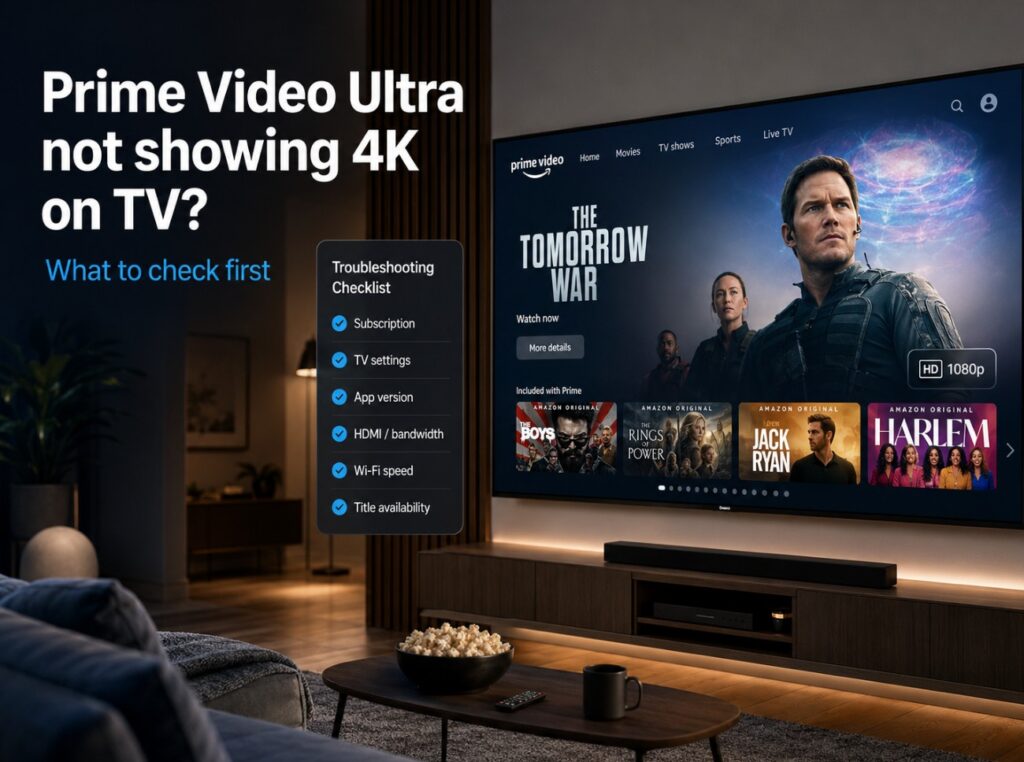

If your TV looks fine in other apps but Prime Video Ultra not showing 4K is suddenly the problem, do not start by resetting the television. The issue is often simpler than that: your Prime Video plan, the title you selected, the app version, the TV’s playback badge, or the device chain may not be giving you the full Ultra stream.
This matters because Prime Video Ultra changes the way people troubleshoot 4K. Before, missing 4K usually meant checking the TV app, HDMI cable, internet speed, or streaming device. Now, in markets where Ultra controls 4K/UHD access, the subscription tier belongs at the top of the checklist.
The goal is not to change every TV setting. The goal is to confirm where the 4K signal is being blocked. Sometimes it is the plan. Sometimes it is the title. Sometimes the TV app is slow to update the quality badge. And sometimes the problem is an external device that is not negotiating 4K HDR correctly. 📺
Prime Video Ultra not showing 4K — symptom, cause, fix
| Symptom | Most likely cause | What to check first |
|---|---|---|
| Prime Video only shows HD | Ultra plan not active, unsupported title, or app/account mismatch | Confirm subscription tier and test a known 4K title |
| 4K appears on one device but not the TV | TV app, firmware, cache, or device support issue | Update the app, restart the TV, sign out and back in |
| 4K works but HDR does not | Title, TV mode, app badge, or HDR format mismatch | Check HDR10/HDR10+/Dolby Vision support |
| Dolby Atmos missing | Ultra tier, title support, device support, or eARC/soundbar chain | Test TV speakers first, then eARC chain |
| Image looks soft even with Ultra | Stream buffering or app still ramping up quality | Wait 60–90 seconds, test wired Ethernet, check bandwidth |
| 4K works on a streaming stick but not built-in app | TV app limitation or outdated TV firmware | Use the external streamer or update the TV |
| 4K disappears through soundbar/AVR | HDMI handshake or HDCP issue | Connect streamer directly to TV and test again |
This is the order that saves time. Check the account and content first, then the app, then the network, then the device chain.
What Prime Video Ultra actually controls
Prime Video Ultra is not just an ad-free label. In markets where Amazon has moved premium video features into Ultra, it becomes the tier tied to 4K/UHD and Dolby Atmos access. That means a TV can be fully 4K-capable and still not show Prime Video in 4K if the account does not include the right plan.
That is why this issue can feel confusing. Netflix, Disney+, Apple TV, YouTube, and Prime Video do not all expose quality information the same way. Some show clear 4K badges. Some change quality after playback starts. Some titles show HDR badges in one place but play differently depending on device support.
For Prime Video, you need four things to line up:
| Requirement | Why it matters |
|---|---|
| Correct subscription tier | Ultra may be required for 4K/UHD and Dolby Atmos |
| 4K-capable title | Not every movie or show is available in UHD |
| Compatible TV or streaming device | The app/device must support 4K playback |
| Stable internet connection | The stream may fall back if bandwidth is unstable |
If one of those fails, Prime Video may play in HD even if your TV is a premium 4K model.
Practical setup notes before changing TV settings
In practical testing, the biggest mistake is changing picture settings before confirming the stream itself. A TV can be in the perfect HDR mode and still receive only a 1080p stream from the app. In that case, changing sharpness, motion, brightness, or local dimming will not solve the real problem.
The cleaner approach is to start with the Prime Video account and title. Confirm that Ultra is active, open a title that clearly supports 4K/UHD, wait for the stream to ramp up, and then check the playback badge or TV info panel if your model shows one.
Only after that should you move to the TV app, network, HDMI chain, soundbar, or external streamer. This keeps the troubleshooting path logical and avoids turning a simple subscription/app issue into a full TV reset.
Step 1: Confirm your Prime Video Ultra plan
Start with the plan, not the TV.
If Prime Video Ultra is required for 4K in your market, a standard Prime Video plan may still play the same movie or show, but only in HD. That can make it look like the TV is failing when it is actually the account tier.
Check:
- whether Prime Video Ultra is active on the account;
- whether you are signed into the correct Amazon profile;
- whether the TV app is using the same account as your phone or browser;
- whether the Ultra feature is available in your country;
- whether the plan change has fully applied.
If you recently upgraded, sign out of the Prime Video app on the TV, restart the TV, and sign back in.
Step 2: Test a known 4K title
Not every Prime Video title is available in 4K/UHD. Some titles are HD only. Some versions differ by region. Some rented or purchased titles may expose different quality badges than titles included with Prime.
Use a title that clearly shows a UHD / 4K badge on the same device. Do not rely only on what appears on your phone, because mobile apps and TV apps can show availability differently.
| What to test | Why |
|---|---|
| A known Amazon Original in UHD | Best chance of full format support |
| The same title on TV and browser | Helps detect device/app differences |
| Another 4K streaming app | Confirms whether the TV/network can handle 4K |
| Playback after 60–90 seconds | Some streams start lower and improve |
If 4K appears in another app but not Prime Video, focus on Prime Video. If no app plays 4K, focus on the network, TV settings, or device chain.
Step 3: Wait for the stream to ramp up
Streaming quality is not always instant. Prime Video may begin playback at a lower bitrate and increase quality after the connection stabilizes.
Before changing anything, play the title for at least a minute. If the picture sharpens after 30–90 seconds, the app may simply be adapting to bandwidth.
If the stream stays soft:
- test wired Ethernet if available;
- move the TV closer to the router;
- restart the router;
- pause downloads on other devices;
- test another 4K app.
For 4K streaming, stability matters more than a single speed-test number. A connection can test fast but still have drops, packet loss, or Wi-Fi congestion.
Step 4: Update the Prime Video app and TV firmware
A stale app can cause missing badges, playback errors, login mismatch, or format fallback.
On Google TV / Android TV:
- open Google Play Store;
- search Prime Video;
- update if available;
- restart the TV.
On Samsung Tizen:
- open Apps;
- check for Prime Video update;
- update TV software from Settings.
On LG webOS:
- open LG Content Store / Apps;
- update Prime Video if available;
- update webOS from Support settings.
On Fire TV:
- go to Appstore / Manage Installed Applications;
- update or clear cache if needed;
- restart the device.
Menu names may vary by model, region, and firmware.
Step 5: Sign out, restart, sign back in
This is one of the safest fixes because it refreshes account entitlements without wiping the TV.
Use this order:
- Open Prime Video on the TV.
- Sign out of the account.
- Fully restart the TV or streaming device.
- Open Prime Video again.
- Sign back in.
- Test a known 4K title.
If your Ultra plan was recently activated, this can help the app refresh the account status.
Step 6: Clear app cache or reinstall Prime Video
If Prime Video still refuses to show 4K, clear the app cache where possible.
On Google TV / Android TV:
Settings → Apps → Prime Video → Clear cache
If needed:
Settings → Apps → Prime Video → Clear data
Only clear data if you are ready to sign in again.
On some TVs, you may not be able to fully remove a built-in app. In that case, update the TV firmware, restart the TV, and sign out/in.
Step 7: Check whether HDR is confusing the issue
Some users think Prime Video is not showing 4K because the HDR badge is missing. But 4K resolution and HDR format are not the same thing.
| Format | What it means |
|---|---|
| 4K / UHD | Resolution |
| HDR10 | Basic HDR format |
| HDR10+ | Dynamic HDR format supported by many Samsung and Prime Video titles |
| Dolby Vision | Dynamic HDR format on supported TVs and titles |
| Dolby Atmos | Audio format, not picture quality |
A title may be 4K without Dolby Vision. Another may show Dolby Vision but not Atmos. Another may be HD with HDR depending on plan and device behavior.
Do not judge everything from one badge. Test several titles.
Step 8: If you use a streaming stick, check HDMI and HDCP
If you watch Prime Video through Apple TV 4K, Fire TV Stick 4K, Roku, Nvidia Shield, Chromecast, or a console, the HDMI chain matters.
Use this test:
Streaming device → TV directly
Do not start through a soundbar, AVR, HDMI splitter, or capture device. Those can create HDCP or HDMI negotiation issues.
Check:
- streaming device is 4K-capable;
- HDMI port supports 4K HDR;
- HDMI cable is certified for 4K HDR;
- TV input is set to enhanced HDMI mode if required;
- soundbar/AVR supports 4K HDR passthrough if used.
If 4K works directly into the TV but fails through the soundbar, the TV is not the problem. The audio/video chain is.
Step 9: Check your TV brand settings
LG webOS
Look for:
Settings → General → External Devices → HDMI Settings
Enable the enhanced HDMI mode if your device needs it. Menu names may vary.
For built-in Prime Video, focus on:
- app update;
- webOS update;
- account sign-in;
- network stability.
Samsung Tizen
Look for:
Settings → Connection → External Device Manager → Input Signal Plus
Enable it for the HDMI port used by your streaming device.
Samsung TVs support HDR10 and HDR10+, but not Dolby Vision. That means Prime Video may show HDR10+ instead of Dolby Vision on compatible titles.
Sony Google TV
Look for:
Settings → Channels & Inputs → External Inputs → HDMI signal format
Use Enhanced format for 4K HDR devices. Menu names vary by model.
TCL Google TV
Look for:
Settings → Channels & Inputs → External Inputs
or:
Settings → Display & Sound
Use the enhanced HDMI option if shown. For the built-in app, focus on app updates, account refresh, and firmware.
Panasonic
Menu names vary strongly by region and platform. Check HDMI signal format for external devices and make sure the app is updated.
Prime Video Ultra not showing 4K on Samsung TVs
Samsung users may see extra confusion because Samsung does not support Dolby Vision. That does not mean Prime Video Ultra 4K is broken. It means Dolby Vision will not appear on Samsung TVs, even if the title has Dolby Vision on other devices.
On Samsung, look for:
- UHD / 4K badge;
- HDR10 or HDR10+ playback;
- Input Signal Plus for external devices;
- app and TV software updates.
If you are expecting Dolby Vision on Samsung, that is not a Prime Video Ultra problem. It is a TV format support issue.
Prime Video Ultra not showing Dolby Atmos
Dolby Atmos has a separate checklist from 4K.
Check:
- Ultra plan is active;
- title supports Dolby Atmos;
- TV app supports Atmos for Prime Video;
- soundbar or AVR supports Atmos;
- eARC is enabled;
- digital audio output is set correctly;
- passthrough is enabled where available.
Test Atmos first with the TV’s built-in speakers or direct soundbar connection, then add the AVR chain if needed. If Atmos disappears only when a soundbar or AVR is connected, the issue is likely in audio passthrough or eARC.
Built-in TV app vs external streamer
Sometimes the fastest fix is to use a better streaming device.
| Setup | Strength | Weakness |
|---|---|---|
| Built-in TV app | Simple, no HDMI chain | App updates can be slower on older TVs |
| Fire TV Stick 4K / Cube | Strong Prime Video integration | HDMI/power/network setup matters |
| Apple TV 4K | Excellent app performance | Prime format support can vary by title/app behavior |
| Roku 4K | Simple and stable | Dolby Vision/Atmos support depends on model |
| Game console | Good fallback | Not always the best streaming-app experience |
If the built-in TV app refuses 4K but an external 4K streamer works, keep the streamer. The TV panel is still doing the display work; the app platform is simply better on the external device.
Common mistakes to avoid
Resetting the TV first
A factory reset should be a last resort. Check plan, title, app, and network first.
Confusing Dolby Vision with 4K
Dolby Vision is HDR. 4K is resolution. They are related, but not the same.
Expecting Dolby Vision on Samsung TVs
Samsung TVs do not support Dolby Vision. Look for HDR10 or HDR10+ instead.
Testing only one title
One title may not be available in 4K in your region. Test multiple titles.
Ignoring the HDMI chain
Soundbars, AVRs, HDMI switches, and older cables can block 4K HDR from external streamers.
Assuming Ultra applies globally the same way
Prime Video Ultra availability and feature behavior can vary by country. Check your local Prime Video account page.
Best troubleshooting order
| Step | What to do |
|---|---|
| 1 | Confirm Prime Video Ultra is active |
| 2 | Test a known 4K/UHD Prime Video title |
| 3 | Wait 60–90 seconds for stream quality to ramp up |
| 4 | Update the Prime Video app |
| 5 | Restart the TV or streaming device |
| 6 | Sign out and back into Prime Video |
| 7 | Test Ethernet or stronger Wi-Fi |
| 8 | Check HDMI enhanced mode if using external streamer |
| 9 | Connect streamer directly to TV |
| 10 | Clear cache / reinstall app if needed |
This order fixes the most common problems without overreacting.
What this usually means
When Prime Video Ultra does not show 4K, the TV is not always the guilty part. In many homes, the issue is the plan, title, app state, network stability, or HDMI chain. The most useful fix is to move through the checklist in the right order instead of changing every picture setting.
Start with the account. Then test a known 4K title. Then refresh the app. Then check the network and HDMI path. Only after that should you think about deeper TV resets.
That approach keeps the troubleshooting clean, and it avoids turning a streaming-tier problem into a full TV repair project. ✅