
Unlock the Best Performance from Your TCL QLED TV
TCL has rapidly become a leader in the QLED TV market, offering stunning picture quality, immersive sound, and affordable pricing. However, to get the best performance out of your TV, you need to optimize its settings.
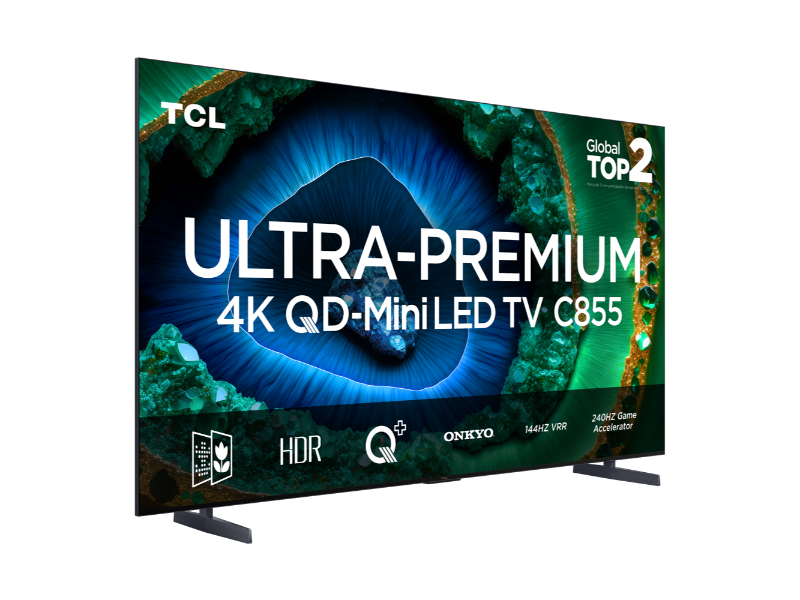
This guide gives you safe, repeatable picture and sound settings for TCL QLED TVs that work across most of the lineup (QLED and Mini-LED QLED), while still covering the specific models people search for by name—TCL C855, TCL Q750G, and TCL Q850G. Features, menu labels, and options can vary by region, size, and firmware, so use the closest matching setting names on your TV. 🎬
Update (2026): Refreshed with clearer Google TV / Roku TV / Fire TV menu guidance, “no-regret” baseline settings that work in real rooms, and quick checks for HDR, motion, and eARC stability.
Platform note: These steps apply across TCL TVs running Google TV, Roku TV, or Fire TV, but menu names and paths vary by model/region/firmware. Follow the closest matching labels on your TV.
Quick Takeaways
- Start with the correct Picture Mode, then adjust only what you need.
- For a cleaner image: Sharpness low, Noise Reduction off for good sources, and avoid stacking “enhancers.”
- For gaming: Game Mode + ALLM/VRR (if supported) + correct HDMI input format (if your TV offers it). 🎮
- For soundbars: stable audio usually means eARC on + Digital Audio Output = Auto/Pass-through/Bitstream (wording varies). 🔊
Where to find the settings (fast navigation map)
| Platform | Picture Mode path (typical) | Advanced picture controls (typical) | Sound / eARC (typical) |
|---|---|---|---|
| TCL Google TV | Settings → Display & Sound → Picture → Picture mode | Picture → Advanced settings (or “More picture settings”) | Settings → Display & Sound → Audio output (or Sound) → eARC / Digital audio output |
| TCL Roku TV | Settings → TV picture settings → Picture mode | TV picture settings → Advanced picture settings | Settings → Audio → HDMI (ARC/eARC) / Digital output format |
| TCL Fire TV (region-dependent) | Settings → Display & Sounds → Picture → Picture mode | Picture → Advanced settings | Settings → Display & Sounds → Audio → HDMI eARC / Digital audio format |
Menu names and paths vary by model/region/firmware. If your TV uses different wording, look for the same labels: Picture mode, Advanced picture settings, Local dimming, Motion, Noise reduction, HDMI format, eARC, Digital audio output.
Fast setup table (choose your goal first)
| Goal | Best starting mode | Key toggles to set | What to avoid |
|---|---|---|---|
| Movies (dark room) | Movie / Cinema / Filmmaker | Warm color temp, Local dimming Medium/High (if available), Motion smoothing Off | Dynamic contrast, vivid boosters |
| Movies (bright room) | Movie or Standard (tuned) | Backlight higher, Local dimming Medium/High, Motion smoothing Off/Low | Over-sharpening, heavy NR |
| Sports | Sports or Standard (tuned) | Motion smoothing Low; “Clear Motion” only if you tolerate flicker | Max motion + max sharpness |
| Gaming (console/PC) | Game Mode | ALLM On, VRR On (if supported), HDMI input format enhanced (if available) | Motion smoothing forced in Game Mode |
| Everyday TV | Standard (cleaned up) | Warm/Normal temp, NR Off/Low, Local dimming Medium | Daily “Dynamic/Vivid” |
Baseline settings you can copy (these “actually work”)
These are starting points that perform well across many TCL QLED / Mini-LED QLED models. If your sliders use a different scale (0–50 vs 0–100), use the conversion below.
Scale conversion:
- If your TV uses 0–100, use the values as written.
- If your TV uses 0–50, use half (e.g., Sharpness 10 → 5).
1) SDR Movies & Streaming (dark room baseline)
Use this when: Netflix/Prime/TV shows at night, dim rooms, film-like picture.
| Setting | Baseline value | What it does |
|---|---|---|
| Picture Mode | Movie / Cinema / Filmmaker | Removes most “showroom” processing |
| Backlight / Panel Brightness | 20–35 | Comfort level for your room (not a “quality” slider) |
| Brightness (black level) | Default (only tweak if needed) | Too low crushes shadow detail; too high lifts blacks |
| Contrast | 85–95 | Keeps highlights strong without clipping |
| Sharpness | 0–10 | Prevents halos around text/faces |
| Color Temperature | Warm (or Warm 1) | More natural whites for movies |
| Noise Reduction / MPEG NR | Off (or Low for poor sources) | Avoids smearing detail on good content |
| Dynamic Contrast / Black Stretch | Off | Prevents pumping and crushed blacks |
| Motion Smoothing | Off (or the lowest level) | Avoids soap-opera effect |
If blacks look grey: increase Local dimming from Medium → High (if available), then recheck subtitle blooming.
2) SDR Daytime / Bright room baseline
Use this when: daytime TV, bright living room, sports/news.
| Setting | Baseline value | What it does |
|---|---|---|
| Picture Mode | Standard (tuned) | Good bright-room base when cleaned up |
| Backlight / Panel Brightness | 45–70 | Higher output for daylight viewing |
| Contrast | 85–95 | Keeps the image punchy |
| Sharpness | 0–10 | Keeps edges clean |
| Color Temperature | Warm or Normal | Choose the one that looks neutral in daylight |
| Noise Reduction | Off (or Low if needed) | Helps only for low-bitrate sources |
| Dynamic Contrast | Off or Low | Use Low only if the room is very bright |
| Motion Smoothing | Low (sports/news) / Off (movies) | Improves sports clarity without heavy artifacts |
3) HDR10 / HLG baseline (non–Dolby Vision)
Use this when: HDR content is playing and you’re in an HDR picture mode.
| Setting | Baseline value | What it does |
|---|---|---|
| HDR Picture Mode | HDR Movie / HDR Cinema (or Movie while HDR is active) | Clean HDR mapping |
| Backlight / HDR Brightness | High / Max (if available) | HDR needs headroom for highlights |
| Contrast | 90–100 | Preserves HDR “sparkle” |
| Local Dimming | Medium (then test High) | Improves blacks/contrast (watch subtitles) |
| Dynamic Contrast | Off or Low | Prevents pumping and crushed detail |
| Tone Mapping / HDR Enhancer | Off or Low | Use Low only if HDR looks too dim in your room |
| Sharpness | 0–10 | Avoids edge halos in HDR too |
If HDR looks washed out: leave Black level / HDMI range on Auto first—forcing Full/Limited wrongly can break HDR quickly.
4) Dolby Vision baseline (if your model supports it)
Use this when: the TV shows Dolby Vision modes during DV content.
| Setting | Baseline value | What it does |
|---|---|---|
| Dolby Vision mode (dark room) | Dolby Vision Dark / Cinema | Most natural in dim rooms |
| Dolby Vision mode (bright room) | Dolby Vision Bright | Better for daytime |
| Dolby Vision IQ (if present) | Optional | Helpful in changing light; turn off if brightness “pumps” |
| Sharpness | 0–10 | Keeps DV clean |
| Motion Smoothing | Off (or lowest) | Avoids DV soap-opera look |
Motion settings (simple rules that work)
You don’t need perfect motion settings—just avoid the extremes.
- Movies: Motion smoothing Off (or lowest)
- Sports: Motion smoothing Low
- “Clear Motion/LED Motion”: use only if you tolerate flicker and reduced brightness.
If your TV splits motion into “Judder reduction” and “Blur reduction,” keep both low (or off) for movies, and nudge judder slightly for sports if needed.
Gaming settings (console/PC)
For gaming, stability beats chasing extra processing.
Gaming baseline table
| Setting | Baseline value | Why it helps |
|---|---|---|
| Picture Mode | Game Mode | Lowest input lag path |
| ALLM | On (if available) | Auto low-latency switching |
| VRR | On (if supported) | Reduces tearing/stutter |
| HDMI input format | Enhanced (if your TV offers it) | Enables full bandwidth features on that port |
| Motion Smoothing | Off | Adds lag / artifacts |
| Black level / HDMI range | Auto | Prevents washed-out or crushed HDR |
If game HDR looks wrong, re-run the console HDR calibration and keep the TV’s black level/range on Auto before changing anything else.
Sound settings (built-in speakers or soundbar)
1) Built-in speakers: clean baseline
| Setting | Baseline value | Why it helps |
|---|---|---|
| Sound mode | Standard or Movie | Natural balance |
| Dialogue enhancement | Low / Medium (if available) | Clearer voices without harshness |
| Virtual surround | Off (or Low) | Prevents echo/phasey sound |
| Auto volume leveling | Off (or Low) | Can reduce dynamics if too aggressive |
2) Soundbar / home theater: eARC stability baseline
| Setting | Baseline value | Why it helps |
|---|---|---|
| Connection | HDMI port labeled eARC/ARC | Correct return channel |
| eARC | On (if available) | Best format support and stability (when working) |
| Digital audio output | Auto / Pass-through / Bitstream (wording varies) | Sends the right format to the bar/AVR |
| CEC control | On (optional) | One-remote convenience; test if issues occur |
If you get dropouts: power-cycle TV + soundbar, then test with only TV↔soundbar connected before adding external HDMI devices.
Model coverage note
If you arrived here searching for TCL C855, TCL Q750G, or TCL Q850G settings: use the same baseline tables above, then adjust only the features your TV actually offers (Local dimming levels, DV modes, motion labels, eARC options). Model features and menus vary by region, size, and firmware.
Common mistakes to avoid
- Using Dynamic/Vivid daily (looks bright, not clean).
- Maxing Sharpness + Motion smoothing together.
- Turning on every enhancer and then chasing artifacts.
- Factory resetting because HDR looks “off” (it’s usually a mode + range + tone mapping mismatch first). ✨
FAQ
What are the best settings for TCL QLED TV?
Start with Movie/Cinema/Filmmaker for films, Game Mode for gaming, and Standard tuned for daytime. Keep Sharpness low, avoid heavy enhancers, and use motion smoothing only when needed.
Should I use Warm or Cool color temperature?
Warm usually looks most natural for movies. Cool often looks blue.
Why does HDR look dim on my TCL QLED TV?
In bright rooms, HDR can look dim. Use a brighter HDR/Dolby Vision preset, raise backlight/HDR brightness, and keep black level/range on Auto.
Should I enable motion smoothing?
For movies, most people prefer it off. For sports, Low can help.
What’s the best gaming setup?
Game Mode + ALLM + VRR (if supported) and Enhanced HDMI format if your TV offers it.
How do I get the best sound with a soundbar?
Use the eARC/ARC port, enable eARC, and set Digital Audio Output to Auto/Pass-through/Bitstream (wording varies). Test stability before enabling extra effects.
Do these settings work on all TCL QLED models?
The baseline approach applies widely across TCL QLED and Mini-LED QLED TVs, but options and menu labels vary by model/region/firmware.
Final Verdict
A great TCL QLED setup isn’t about chasing one magical slider value. It’s about choosing the correct base mode, removing the processing that harms real content, and applying small, reliable adjustments for your room. Start with the baseline tables above and you’ll get a cleaner picture, more consistent HDR, less distracting motion—and audio that behaves the way it should. ✨
🔥 Your TV, Perfected – Only on TVComparePro.com! 🔥
Internal links (TVComparePro)
https://tvcomparepro.com/how-to-fix-tcl-tv-wi-fi-not-connecting-2025-guide/
https://tvcomparepro.com/tcl-hidden-features-2025/
https://tvcomparepro.com/speed-up-tcl-google-tv-2025/