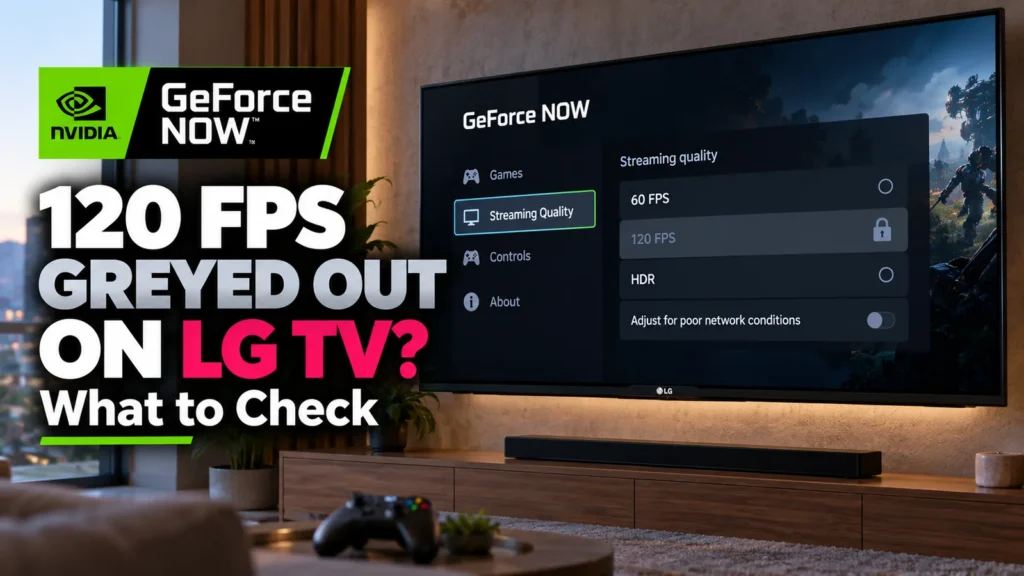

Owning a 120 Hz OLED should make cloud gaming feel effortless. Yet you can still find GeForce NOW 120 FPS greyed out on an LG TV that handles 120 Hz games perfectly through HDMI. The panel itself is not necessarily the problem.
The built-in GeForce NOW app has its own compatibility requirements, and they are not the same as the TV’s gaming specifications. Some owners can select 4K and HDR but remain limited to 60 FPS. Others see new options after a webOS update. The useful question is whether the missing frame-rate choice is a setting you can correct or a model-level limitation you cannot.
Why 120 Hz on the TV Doesn’t Guarantee 120 FPS in GeForce NOW
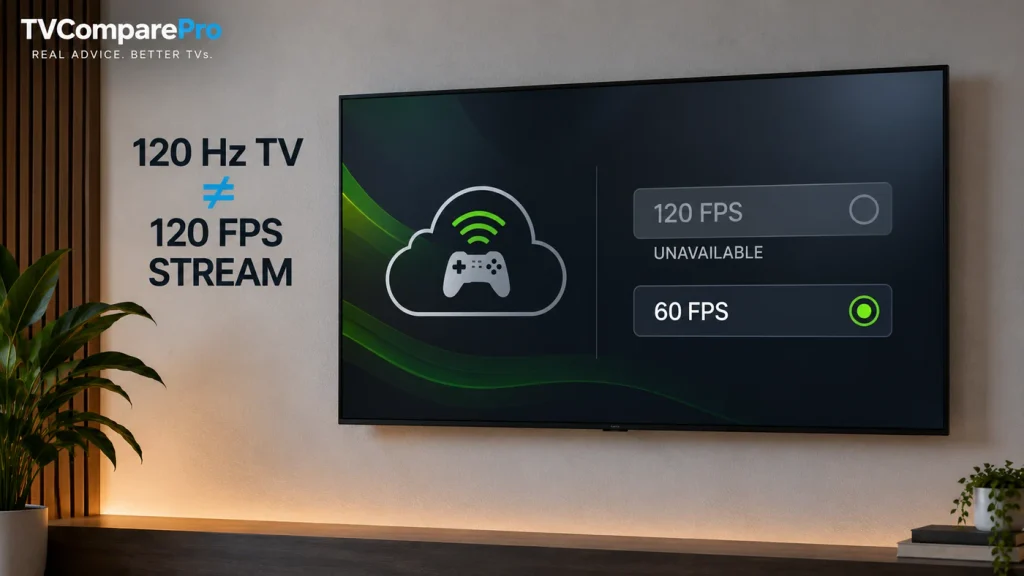
Three things have to line up: the physical display, the cloud stream received by the app, and the frame rate produced by the running game. A 120 Hz panel can show up to 120 different frames each second, but it cannot make the GeForce NOW app request a streaming mode that the device has not been enabled to use.
Likewise, an Ultimate subscription, 4K support or a working HDR switch does not prove that 120 FPS is available on your particular television. Those capabilities overlap, but they are not interchangeable.
| What you see | What it usually means |
|---|---|
| 120 FPS greyed out before playing | Check the TV model, firmware, app and membership first. |
| 4K selectable, but 120 FPS unavailable | 4K support does not guarantee a 120 FPS stream. |
| 120 FPS selected, but gameplay looks like 60 | Inspect the stream statistics and the game’s actual frame rate. |
| 120 FPS disappeared after an update | Record the firmware and app versions, then check compatibility again. |
Which LG OLED TVs Can Stream GeForce NOW at 4K120?
LG lists GeForce NOW across several generations of smart TVs. Its compatibility guidance for 2026 says that 4K HDR is available on supported OLED and Micro RGB models, while a 120 Hz streaming refresh rate applies to select models. That distinction matters: finding your TV on a general app-support list is not proof of 4K120 eligibility.
NVIDIA also publishes software requirements for eligible OLED models from 2022 through 2025:
| LG OLED model year | NVIDIA-published minimum software for eligible 4K120 TVs |
|---|---|
| 2025 | webOS 25, version 30.01.20 or later |
| 2024 | webOS 25, version 33.21.85 or later |
| 2023 | webOS 25, version 33.22.15 or later |
| 2022 | webOS 25, version 33.22.15 or later |
The version numbers above come from NVIDIA’s Smart TV setup guidance. They are minimum software thresholds, not an automatic guarantee that every LG B, C, G or other television made that year can unlock 120 FPS. For a 2026 set, check LG’s current listing for the full regional model number rather than treating the earlier table as a 2026 support list.
Owners of B4 and B5 sets have reported cases in which 4K60 and HDR work but 120 FPS remains unavailable, even after firmware updates. Those are user reports, not a universal finding about every B-series size or region. By the same logic, a C-series owner getting 4K120 does not establish that another LG model must support it too.
Six Checks Worth Doing Before You Troubleshoot Anything Else
1. Find the exact LG model number
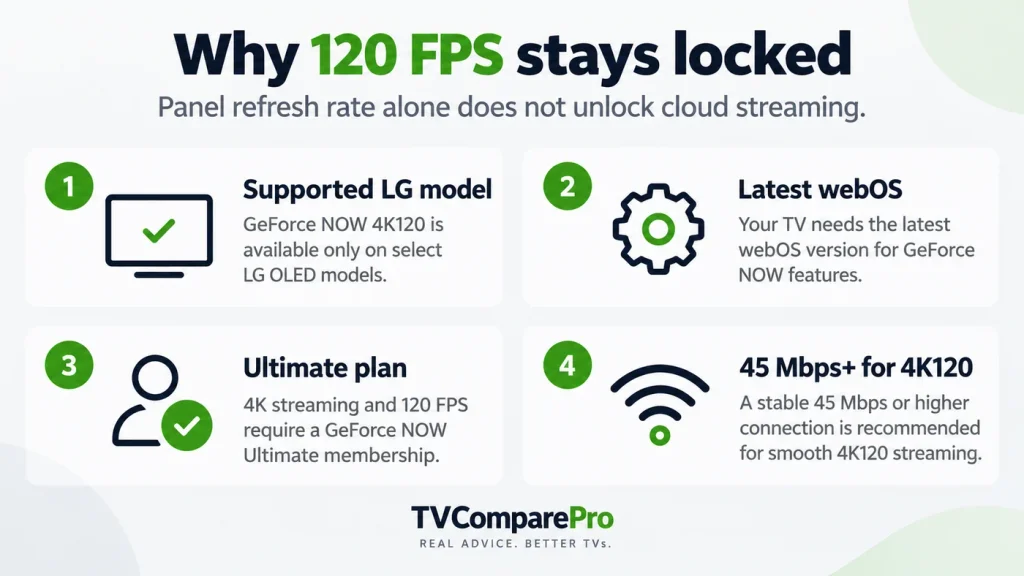
Open your TV’s product information screen or check the model label, then record the complete code, including the regional suffix. The marketing name alone is not enough. A supported 4K HDR app may still have a different frame-rate ceiling, and LG’s compatibility lists distinguish model variants.
2. Confirm GeForce NOW Ultimate
NVIDIA requires an Ultimate membership for 4K streaming on Smart TVs. Free and Performance members are limited to 1080p on that platform. If you’re using a lower tier, a missing 4K option is expected. Upgrading a membership cannot, however, override a missing 120 FPS capability on a particular TV.
3. Check the installed webOS software version
On many recent LG models, go to Settings → All Settings → Support → Software Update, then check for available updates and note the installed version. Menu names vary with model year. Compare the number against the NVIDIA requirements for your generation rather than assuming that an “up to date” message confirms every new GeForce NOW feature.
Firmware can roll out at different times across countries. Never install a software package meant for another TV model or region just to chase an unavailable streaming option.
4. Update and restart the native GeForce NOW app
Check the LG app store for an available GeForce NOW update, then close the application and start it again. Restart the television if the settings still appear unchanged. Reinstalling the app can help with a broken installation, but there is no reason to expect it to unlock 120 FPS on hardware or firmware that is not eligible.
5. Look inside the app’s Streaming Quality options
In GeForce NOW, open Settings and locate the streaming-quality controls. Available names and selections can differ by version. If 120 FPS is greyed out before a game launches, changing a game’s graphics settings cannot unlock that choice. The limitation is upstream, in the app, account or device compatibility.
6. Check internet speed only after the support questions
For 4K120, NVIDIA specifies at least 45 Mbps and a connection to its data center with under 80 ms latency; below 40 ms is preferable. Wired Ethernet or reliable 5 GHz Wi-Fi is recommended. Bandwidth matters for a stable stream, but buying a faster connection will not make an unsupported mode selectable.
Why LG B-Series and C-Series Owners See Different Results
A native 120 Hz screen, HDMI 2.1 support and G-SYNC Compatible branding describe the television’s abilities with suitable external hardware. They do not certify the video mode offered inside the webOS GeForce NOW application.
This is why advice such as “enable VRR” or “switch on Game Optimizer” often misses the point when the app’s own frame-rate setting is disabled. VRR and HDMI settings are relevant to a connected PC or console; they do not control the native app’s stream negotiation.
For B4, B5, B6 and C-series owners, the correct answer starts with the full model code, the firmware build and the current LG compatibility listing. If NVIDIA and LG do not confirm 120 FPS for that combination, treat user-reported fixes cautiously. One person’s success after an update may reflect a different model or rollout.
120 FPS Is Selectable, but the Game Still Shows 60 FPS
That is a different symptom. Selecting a 120 FPS stream does not force every game to render at 120 FPS. An individual game can have its own frame cap, performance bottleneck or mode limitation.
Check streaming statistics where your app version offers them. Distinguish the stream’s configured rate from the actual game frame rate and from dropped frames on the network. If the app is sending a stable stream but the game renders at 60 FPS, look inside that game. If the stream fluctuates, connection quality becomes more relevant.
It is also possible to have 4K120 support without HDR working for every title. Check HDR as a separate feature rather than changing several settings simultaneously and losing track of the cause.
What to Do if 120 FPS Remains Locked
Once your membership, model, firmware and app version are confirmed, an unavailable 120 FPS option may simply be a compatibility or rollout limitation. Contact LG or NVIDIA support with the full model number, country, webOS version, GeForce NOW app version, membership tier and a photo of the disabled option. That gives support a specific case to investigate instead of a generic complaint about a 120 Hz TV.
A compatible gaming PC running the native GeForce NOW application can offer another route to high-frame-rate cloud gaming through HDMI, subject to its own app, hardware and display requirements. That is a different configuration, not a fix for the native LG app. An external streaming box is not automatically capable of 4K120 either.
For single-player games, stable 4K60 may be a reasonable compromise. For fast shooters or racing games, the additional motion clarity of 120 FPS can matter more. Either way, the first step is identifying what the TV can actually receive through GeForce NOW rather than relying on the refresh rate printed on the box.
Related TVComparePro Gaming Guides
If HDR is the part of your gaming picture that looks wrong, see our Modern Warfare 4 HDR troubleshooting guide. For a console connected directly to an LG OLED, our LG G5 HGIG gaming settings cover different controls. And when a connected PC or console shows uneven brightness during variable refresh, consult our TV VRR flicker guide.