
Forza Horizon 6 HDR settings on Xbox should make the game look bright, punchy and cinematic. If your picture looks too dark, flat or strangely muted, the problem is usually not the TV itself. In most cases it comes down to three things: the TV is not in the best gaming mode, HDR is not fully set up on the console, or the Xbox HDR calibration needs to be done again.
The good news is that this is usually easy to fix. You do not need a professional calibration, and you do not need to start changing twenty different picture controls. The smartest approach is simple: put the TV in Game Mode, make sure HDR10 is active, turn off strong Eco limits, run Calibrate HDR for games on Xbox, then fully restart Forza Horizon 6.
That is the core fix. After that, you can compare Quality and Performance mode and decide which one looks better on your screen.
Why Forza Horizon 6 can look too dark on Xbox
When a racing game looks darker than expected, people often assume the TV is weak or the panel is not bright enough. That can happen, but it is not the first thing I would suspect here. A dark picture is more often caused by one of these setup issues:
- Game Mode is off. The TV may be using a slower movie preset instead of a gaming preset.
- HDR10 is not fully active. The Xbox may not be outputting HDR correctly, or the TV may not be receiving it on that HDMI input.
- Eco or power saving is limiting brightness. Some TVs reduce light output aggressively when Eco settings are on.
- Xbox HDR calibration is wrong or outdated. This is one of the biggest causes of weak HDR on console.
- You are judging Quality and Performance mode before HDR is set correctly. That makes it harder to tell what the real problem is.
That is why I prefer a structured approach. Fix the setup first, then judge the image second.
Important: On Xbox, Forza Horizon 6 uses the console HDR calibration for peak brightness. That means the most important HDR adjustment starts in the Xbox system menu, not with random TV brightness changes.
Start with the TV, not the game
Before touching the Xbox menu, make sure the TV is ready for gaming. This is the part casual players often skip, but it matters a lot.
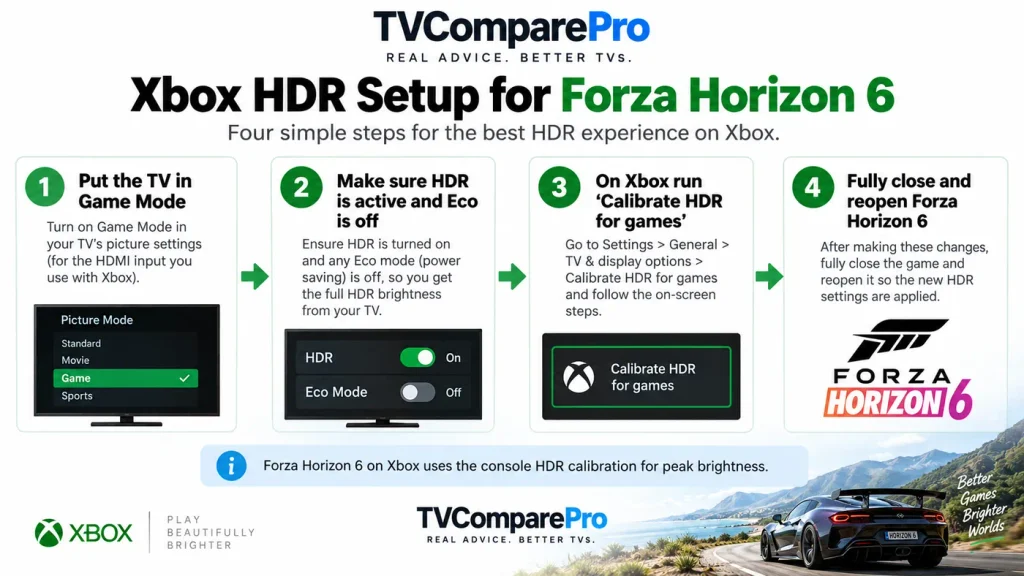
1. Put the TV in Game Mode
Use Game Mode, Game Optimizer, Game Master or the equivalent gaming preset on your TV. Different brands use different names, but the idea is the same: reduce extra processing and give the console a clean gaming signal path.
2. Make sure HDR10 is active
Check that the Xbox is actually sending HDR10 and that your TV shows an HDR indicator on the correct HDMI input. If HDR is off, the game may look strangely dull or just not behave as expected.
3. Turn Eco off while you test
Eco Mode, Power Saving and related automatic brightness limits can easily make a good HDR TV look weaker than it really is. You do not have to leave those options off forever, but they should be off while you set the game up.
Run Xbox Calibrate HDR for games
This is the key step for Forza Horizon 6 on Xbox.
Go to:
Settings > General > TV & display options > Calibrate HDR for games
Follow the Xbox on-screen instructions carefully. Do not rush through the patterns. The goal is to match the console to your TV properly, not simply to push the screen as bright as possible.
Once you finish, fully close Forza Horizon 6 and reopen it. Do not leave it sitting in Quick Resume and assume the new settings will apply automatically. A full restart is the safer move here.
This one step can make a bigger difference than people expect. If the game still looks dim after that, then continue with the rest of the checks below.
Quality Mode or Performance Mode: check only after HDR is fixed
It is tempting to compare Quality and Performance mode immediately, but I would not do that until HDR is working correctly. Otherwise, you are comparing two modes under a broken setup.
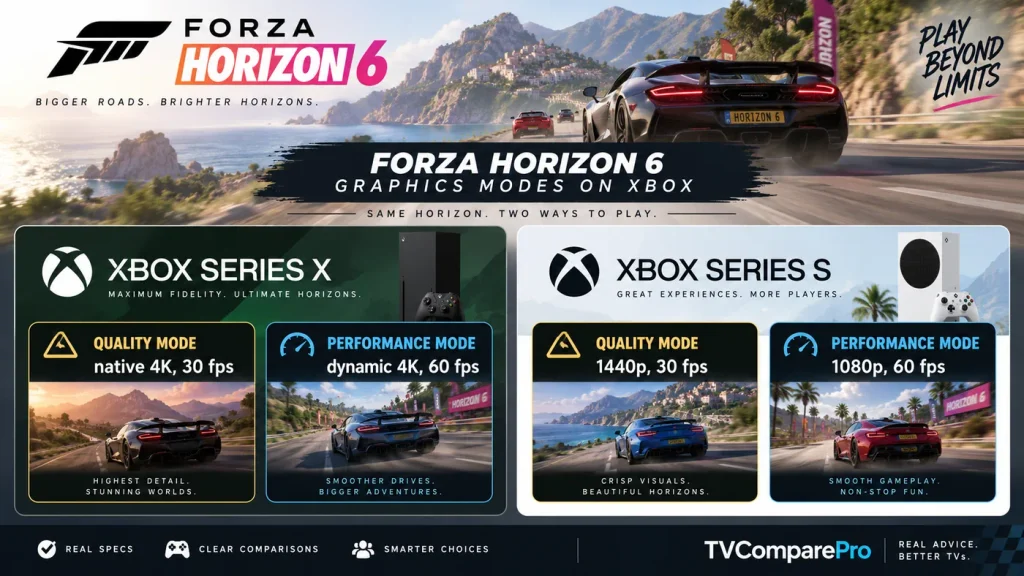
Once HDR is sorted, the official console graphics modes are straightforward:
| Console | Quality Mode | Performance Mode | Best use |
|---|---|---|---|
| Xbox Series X | Native 4K, 30 fps | Targets 4K at 60 fps with dynamic resolution scaling | Quality for maximum detail, Performance for smoother driving |
| Xbox Series S | 1440p at 30 fps with dynamic resolution scaling | 1080p at 60 fps with dynamic resolution scaling | Quality for cleaner image, Performance for smoother gameplay |
For many players, Performance Mode will feel better in actual play because a racing game benefits a lot from 60 fps responsiveness. But the right answer depends on your TV, your seating distance and whether you care more about motion or image detail.
If Forza Horizon 6 still looks too dark
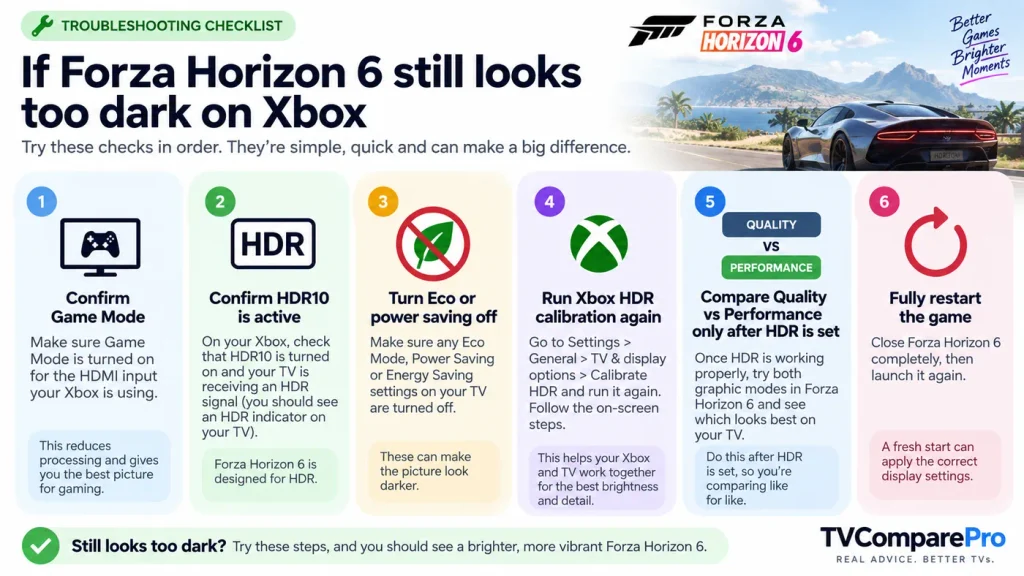
If the image still feels too dim after the main setup, go through this checklist in order.
- Reconfirm Game Mode. Some TVs switch presets automatically or remember different settings per HDMI input.
- Reconfirm HDR10. Make sure the TV is still receiving an HDR signal.
- Turn Eco off again. Sometimes there is more than one power-saving option.
- Run Xbox HDR calibration again. A second pass can help if the first one was done too quickly.
- Then compare Quality vs Performance mode. At this stage you are comparing correctly.
- Fully restart the game. This is especially important after HDR changes.
If your picture improves after those steps, stop there. Do not keep changing extra picture controls once the image already looks good. A simple setup is often the best setup.
What not to do
There are also a few mistakes worth avoiding.
- Do not max out every brightness control on the TV. That can distort the picture rather than fixing the real problem.
- Do not judge HDR from one dark scene alone. Drive in daylight, at sunset and at night before deciding.
- Do not compare Xbox screenshots with random PC screenshots online. They may come from different versions, different settings or even edited captures.
- Do not change ten settings at once. If you change everything together, you will not know what actually helped.
Best Forza Horizon 6 HDR settings for most Xbox players
If you just want the short version, this is the setup I would start with for most people:
| TV picture mode | Game Mode |
|---|---|
| HDR on Xbox | HDR10 enabled |
| TV energy saving | Eco off while testing |
| Main HDR setup step | Run Xbox Calibrate HDR for games |
| After calibration | Fully close and reopen Forza Horizon 6 |
| Mode to test first | Performance Mode on Series X or Series S if you prefer smoother gameplay |
This is simple, realistic and easy to follow. It is also enough for the majority of players.
Practical setup notes
- Use the TV’s gaming preset for the HDMI input your Xbox uses.
- Confirm HDR10 is active before blaming the panel.
- Turn off strong Eco limits while you test brightness.
- Use Xbox Calibrate HDR for games as the main HDR setup step.
- Fully restart Forza Horizon 6 after changing HDR calibration.
- Compare Quality and Performance mode only after the HDR setup is correct.
- If the image already looks good, stop adjusting and enjoy the game.
Final thoughts
Forza Horizon 6 should look spectacular on Xbox when the basics are done properly. Many “my HDR looks too dark” cases come from setup problems, not from the game being impossible to fix.
Start with the TV, confirm HDR10, disable Eco, run the Xbox HDR calibration and relaunch the game. That approach is cleaner, more reliable and easier for normal players than chasing complicated settings that may not even apply to the Xbox version.
If you still want to fine-tune after that, do it slowly. But for most players, the simple method above is the one that gets you back on the road fastest.