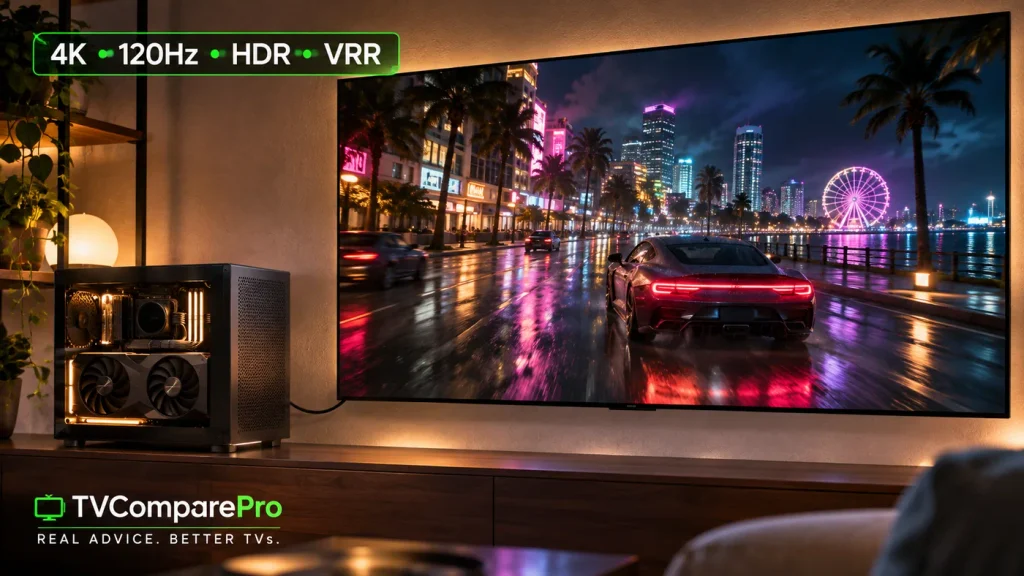

A high-refresh OLED TV is a great reason to build a gaming PC, but it also makes choosing the right parts more complicated. If you’re planning a 4K 120Hz gaming PC for your living room, I’d start with the games you want to play rather than a list of the most expensive components. You can send a 4K120 signal from a capable graphics card without getting anywhere near 120 frames per second in a demanding game.
That distinction affects everything from the GPU and CPU to the power supply, case and HDMI cable. It also explains why a sensible PC built around a 65-inch OLED can be a better purchase than a flagship system that looks impressive on paper but runs hot and noisy beside your television. Here’s how I’d put the parts together, with room to grow as new games and consoles arrive.
What a 4K 120Hz Gaming PC Actually Has to Do
There are three numbers worth keeping separate: the resolution your graphics card sends to the TV, how often the TV refreshes its panel and how many new frames the game actually renders. A Windows desktop running at 3840 × 2160 and 120Hz confirms the display connection works. It does not prove your game is running at 120 FPS.
| What you’re checking | What it actually tells you |
|---|---|
| 4K output resolution | The TV receives a 3840 × 2160 video signal. |
| 120Hz refresh rate | The screen can refresh 120 times each second. |
| 120 FPS in-game | The game produces 120 new frames each second, if the hardware and settings allow it. |
| VRR enabled | The TV can adjust its refresh timing to supported variations in frame delivery. |
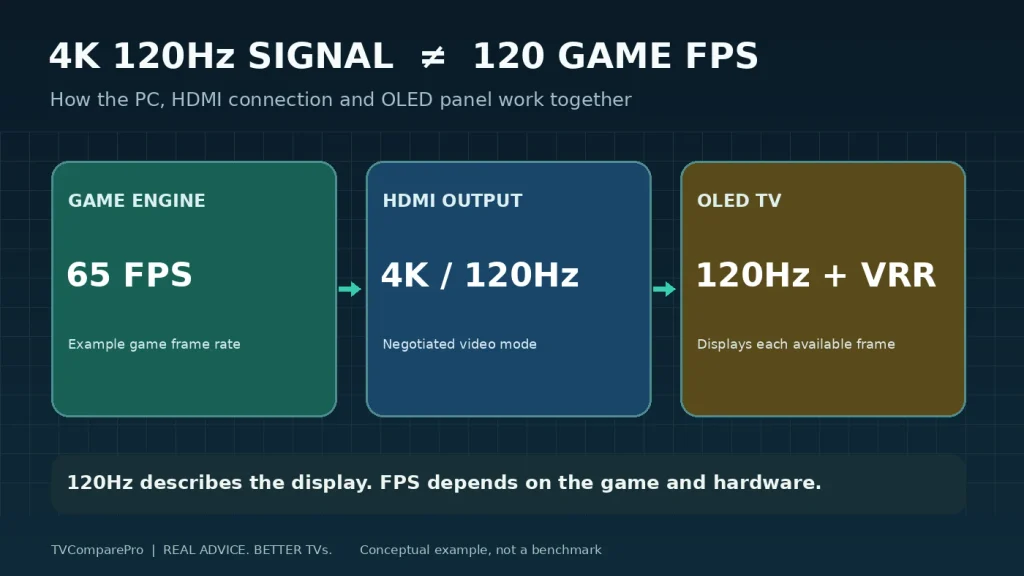
At 120 FPS, the game has roughly 8.3 milliseconds to produce each new frame. At 60 FPS, it gets about 16.7 milliseconds. That’s a demanding difference, particularly when you add ray tracing or raise every graphics setting to Ultra.
My starting point would be a stable, responsive 4K experience with room to push toward 120 FPS in the games where it makes sense. For a cinematic single-player game, a consistent 60 to 90 FPS with good image quality may feel better than chasing an unstable 120. Competitive games are a different story.
The GPU Matters More Than the 4K-Ready Label
The graphics card does most of the heavy lifting at 4K. It has to shade more than eight million pixels per frame, manage textures and effects, and still leave enough performance for the next frame. An HDMI port that supports 4K120 is necessary for the connection, but it tells you little about actual gaming performance.
Cards such as the Radeon RX 9070 XT, GeForce RTX 5070 Ti and RTX 5080 are legitimate 4K gaming choices, yet even expensive cards fall well below 120 FPS in many demanding native-resolution Ultra presets. Switch on heavy ray tracing and the margin becomes smaller.
| Practical target | GPU examples | How I’d approach it |
|---|---|---|
| 4K with sensible settings | RTX 5070, Radeon RX 9070 | Start with upscaling and optimized High settings; don’t assume 120 FPS in new AAA games. |
| Balanced 4K OLED build | RX 9070 XT, RTX 5070 Ti | Strong place to start for a mix of quality and high refresh, depending on the game and RT settings. |
| More headroom at 4K | RTX 5080 and above | More useful when high-end effects or demanding games justify the cost; still no blanket 4K120 promise. |
These are examples of hardware available when this guide was prepared, not a ranking by today’s street price. GPU pricing, game patches and driver performance change. The card I would buy depends on whether you value native rendering, ray tracing, power efficiency or upscaling support most.
Is 16GB of VRAM necessary?
I would favor 16GB of VRAM in a new, reasonably powerful 4K-focused build when the budget allows. Large textures, high-resolution assets and certain ray-tracing workloads can make extra memory useful. That doesn’t mean every game requires 16GB, or that a 12GB card automatically becomes unusable at 4K. Settings and game engine behavior matter more than a single cutoff.
As concrete examples, AMD lists 16GB of GDDR6 for the RX 9070 XT, while NVIDIA lists 16GB of GDDR7 for the RTX 5080. The interface and memory capacity are only part of the performance story. Neither specification alone tells you how fast a game will run.
DLSS, FSR and frame generation can help, with limits
Upscaling renders at a lower internal resolution and reconstructs an image for a 4K output. It is often a much smarter trade-off than insisting on native 4K Ultra at all costs. I would compare image quality in the games I actually play, particularly around thin lines, foliage, moving text and fine detail.
Frame generation is different. It can insert additional displayed frames, improving perceived smoothness on a 120Hz TV, but generated frames don’t give the game the same input response as 120 natively rendered frames. Start from a sufficiently responsive base frame rate, watch frame pacing and use the game’s latency controls where available. A 120 FPS counter that includes generated frames isn’t interchangeable with 120 actual simulation frames.
Choose a CPU for Consistent Frame Times, Not Just a Benchmark Headline
At 4K, a strong GPU often becomes the limiting part. That doesn’t make the CPU irrelevant. Open-world simulation, dense crowds, physics and competitive high-frame-rate games can expose a weak processor even when the average GPU usage looks healthy.
For most builds, I would begin with a modern six- or eight-core gaming processor and put the money saved toward a better graphics card. An eight-core gaming-focused chip, such as AMD’s Ryzen 7 9800X3D, is a higher-end option for players who also care about demanding CPU-bound games and strong 1% low frame rates. It isn’t a requirement for using a 120Hz OLED.
A good CPU comparison should include low-frame-rate consistency, heat and power consumption, not just the highest average FPS in a 1080p benchmark. The latter can reveal CPU differences, but it doesn’t automatically predict the gains on a 4K television.
RAM, SSD and Motherboard: Where I Would Spend and Save
32GB of RAM is my practical starting point for a new gaming build. It’s a comfortable amount for modern games, Windows and the apps many of us leave open in the background. Sixteen gigabytes can still work, while 64GB makes more sense if the PC will also handle large creative workloads or a specific memory-hungry use case. For a new DDR5 platform, choose a supported memory kit and prioritize stability over chasing a tiny benchmark gain.
I’d also budget for a 2TB NVMe SSD if this is going to be the main gaming machine. Large games, updates and recordings consume storage quickly. A reliable PCIe 4.0 drive is already very capable for gaming; buying the fastest PCIe 5.0 model rarely solves a frame-rate problem.
For the motherboard, check the things that affect your actual setup: CPU socket, memory support, GPU slot layout, M.2 slots, USB ports, networking and BIOS support. In Mini-ITX, I pay particular attention to the placement of front-panel headers and whether a thick graphics card blocks connectors or cables. A premium board can’t turn a slow GPU into a fast one.
The Power Supply Deserves More Attention in a Living-Room PC
A power supply is easy to overlook because it doesn’t appear in an FPS chart. Yet it affects how comfortably the system handles a demanding GPU, how the cables fit and how much noise you hear when the room is quiet.
Start with the specific graphics card manufacturer’s recommendation, not an arbitrary number. AMD lists a 750W minimum PSU recommendation for its reference RX 9070 XT, and NVIDIA lists 850W required system power for the RTX 5080 in its reference configuration. An overclocked partner card or a different CPU may change the sensible choice.
For a new high-end build I would prefer a quality PSU with the relevant modern GPU power connector, appropriate transient-load handling, protections and a solid warranty. Efficiency certification matters, but a Platinum label alone does not prove low electrical noise, quiet fan operation or superior build quality.
If the case is compact, also decide between ATX, SFX and SFX-L early. A full-size ATX unit can limit GPU clearance or cable routing in a small enclosure. An SFX supply can make the layout cleaner, but only if its capacity, connectors and acoustic behavior fit the build. The right size is the one the case actually supports.
Mini-ITX or ATX: Can a Small PC Still Handle 4K120?
Absolutely. A smaller motherboard doesn’t lower your frame rate by itself. A Mini-ITX PC can use a powerful CPU and full-size graphics card, provided the enclosure, power delivery and cooling system can accommodate them.
The catch is heat and noise. A large GPU may be only a few millimeters away from a side panel, and a dense case can recirculate warm air if the fans and vents aren’t planned carefully. For a PC beside the TV, I’d rather have a slightly larger case with quieter fans than a beautiful tiny box that becomes distracting during a movie or game.
Before choosing a case, check GPU length, thickness and power-cable bend clearance, CPU cooler height, radiator support, PSU dimensions, ventilation and the amount of room the TV cabinet leaves around the intake and exhaust. Don’t place a performance PC inside a closed compartment and expect its temperature tests to represent open-air operation.
| Component | What I’d prioritize for an OLED TV setup |
|---|---|
| GPU | Real 4K performance, VRAM, HDMI output, power draw and cooler size. |
| CPU | Steady frame delivery and sensible power use. |
| Motherboard | CPU/RAM compatibility, storage, rear I/O and layout. |
| RAM and SSD | 32GB RAM and useful game capacity before extreme speed claims. |
| PSU | Correct power headroom, connectors, size and noise. |
| Case and cooling | Airflow, GPU clearance, radiator fit and low-noise operation. |
| TV and HDMI | Real 4K120 input, HDR, VRR, Game Mode and a reliable connection. |
What Your OLED TV Needs to Deliver the Result
It’s possible to build a powerful PC and still see a 60Hz signal because the wrong input or display mode is being used. Before spending money, confirm that your television supports 4K120 over the HDMI port you intend to use. Also check whether 144Hz or 165Hz modes require a dedicated PC setting and which ports offer the necessary bandwidth.
For gaming, I’d look for a native high-refresh panel, working VRR, low-latency Game Mode and convincing HDR performance. OLED’s quick pixel response is particularly appealing in fast games, while a bright Mini LED TV may suit a sunny living room better. Don’t buy solely from the advertised refresh figure.
When using the TV as a desktop display, RGB or YCbCr 4:4:4 output is helpful for small text and fine interface detail if the full signal chain supports it. Ten-bit HDR is useful for compatible material, but selecting twelve-bit output doesn’t automatically improve a ten-bit signal or a panel’s actual performance.
I would use a certified Ultra High Speed HDMI cable for the usual HDMI 2.1 4K120 connection. HDMI Licensing Administrator specifies up to 48Gbps for this cable category. For a very long cable run across a room, fiber HDMI is worth considering. In my hands-on RUIPRO 10m review, I verified 4K120 with HDR, VRR and ALLM on PS5 Pro, plus a separate laptop-to-TV 4K120 signal with 10-bit 4:4:4 and HDR. That is evidence for those tested configurations, not a blanket guarantee for every PC, cable length or 165Hz mode.
What Does GTA VI Change About Building a 4K Gaming PC?
Grand Theft Auto VI is an obvious reason people are thinking about bigger screens and more powerful hardware. It also shows why I wouldn’t base a purchase on unverified requirements. Rockstar’s launch material lists PS5 and Xbox Series X|S for its November 19, 2026 release; as of this guide’s preparation, it does not provide official PC system requirements or PC frame-rate benchmarks.
That leaves no credible way to promise which desktop GPU will run a future PC version at native 4K120. Open-world games can stress both graphics hardware and CPU simulation, but a trailer cannot tell us the exact performance budget. Any supposedly official PC requirements circulating before Rockstar publishes them should be treated carefully.
For the TV side of the decision, I have already covered why 30 FPS can look different on OLED and Mini LED. This PC guide serves another purpose: choosing an upgradeable system without assuming a specific GTA VI performance mode. If official PC specifications and repeatable benchmarks arrive, those will be the evidence worth using.
And What About PS6, Xbox Project Helix and HDMI 2.2?
Future consoles matter because the same OLED TV may stay in the living room longer than the PC beside it. A sensible 4K120 television is already useful for PS5, PS5 Pro and Xbox Series X|S. But nobody should buy a GPU or power supply today based on rumored PS6 clock speeds or a supposed 4K240 requirement.
Microsoft has officially outlined its next-generation Xbox project, Project Helix, with a custom AMD system-on-chip and plans to deliver alpha hardware to developers starting in 2027. That’s a confirmed development milestone, not a final consumer launch date or published TV output specification. Sony hasn’t published a complete PS6 retail hardware specification either.
HDMI 2.2 and the new Ultra96 cable standard can provide more headroom for higher-bandwidth formats in future devices. That doesn’t suddenly make today’s properly implemented HDMI 2.1 setup obsolete for 4K120. I cover the television side, including what is and isn’t known about next-generation console connections, in my PS6 and Xbox Helix TV guide.
For now, I’d buy a GPU for current games, a PSU with enough upgrade margin and a television whose existing 4K120, HDR and VRR features work properly. That’s a more practical form of future-proofing than guessing the specifications of a console that hasn’t reached stores.
Three Sensible Ways to Plan the Build
I wouldn’t recommend a single shopping list for everyone. The TV’s size doesn’t decide the GPU; your games, picture-quality expectations and willingness to adjust settings do.
1. A value-conscious 4K OLED PC
Use a modern mid-to-upper-range GPU with a genuine high-refresh HDMI output, a competent six- or eight-core CPU, 32GB of RAM and enough SSD space for your library. Expect to make sensible compromises in demanding new releases. A strong 60 FPS experience is already a worthwhile result on a good OLED.
2. A balanced PC built around 4K120
Spend more of the budget on the GPU, keep 32GB of RAM and choose a PSU based on the actual card’s requirements. I’d lean toward 16GB of VRAM where the price makes sense. Use VRR and quality upscaling intelligently, and aim for a stable high frame rate rather than forcing Ultra settings in every title.
3. A compact premium living-room PC
The biggest upgrade here isn’t necessarily a faster CPU. It’s a carefully matched Mini-ITX case, graphics card, cooler and SFX-class PSU that can stay quiet near the sofa. Pay close attention to GPU thickness, cable routing, fan curves and heat buildup inside the furniture. The result should feel like part of the entertainment setup, not a workstation squeezed into the wrong place.
My PC-to-OLED Setup Checklist
Once the parts are assembled, this is the short setup routine I’d use before judging any game’s performance:
- Connect the GPU directly to a confirmed high-bandwidth HDMI input on the TV.
- Set Windows to 3840 × 2160 and the supported 120Hz refresh rate, then confirm the TV reports that signal.
- Enable the TV’s PC/Game input mode and check RGB or 4:4:4 text clarity.
- Enable VRR in the relevant graphics driver and TV settings, if supported.
- Configure Windows HDR and game HDR separately; verify the resulting picture instead of leaving every slider at its maximum.
- Check actual rendered FPS and frame-time consistency with a suitable performance overlay.
- Test temperatures, noise and stability with the PC positioned where it will normally be used.
If the connection unexpectedly drops to 60Hz, diagnose the port and signal path first. That’s a connection problem, not evidence that the GPU is too slow for 4K gaming. The PC hardware guide should help you choose the system; the actual high-bandwidth signal and game performance then need to be checked separately.
What I’ll Be Covering in PC & 4K Gaming
This guide is the starting point for a wider TVComparePro hardware section. My aim isn’t to abandon TVs or start publishing generic component spec sheets. I want to connect each part of a gaming PC to the experience it ultimately delivers on a big 4K HDR screen.
That means reviewing graphics cards and processors for real gaming performance, motherboards and RAM for stability and compatibility, SSDs for practical storage and loading behavior, and power supplies, cases and cooling for the things benchmarks often miss: noise, thermals, connectors and fit. When I have the components and complete builds available, hands-on results will make those comparisons more useful.
For a TV-first site, I think that’s a natural direction. You can choose a fantastic OLED and still be disappointed by a poorly balanced PC. The opposite is true as well: a powerful PC can’t fix a television with the wrong HDMI features or distracting game-mode behavior.
Would I Build a 4K120 PC for an OLED TV?
Yes, provided the goal is to make good use of the display rather than to see 120 FPS in every game at any cost. I’d prioritize the graphics card, choose a reliable power supply, keep RAM and storage sensible, and spend real attention on case airflow and noise. That’s especially important if the system will sit next to the TV rather than under a desk.
A well-balanced 4K gaming PC should give you options. It can offer higher frame rates when the game allows them, better image quality when you prefer that, and hardware you can upgrade when your needs change. The 120Hz OLED is the destination. The components should be chosen for the experience you want to have on it.