
Having a 120Hz TV doesn’t help much when Modern Warfare 4 refuses to offer its 120Hz mode. The question “Modern Warfare 4 120Hz not working?” had a frustrating answer at launch, but Season 1 changed that. Infinity Ward removed the mandatory VRR requirement for Performance Mode, so I’d check the game and console settings before changing anything on the TV.
Since the November 5–6, 2026 Season 1 update, the developer says Performance Mode (120Hz) is available to PS5 and Xbox Series X|S players with a compatible 120Hz display, even when that screen doesn’t support VRR. VRR is still recommended for smoother motion when frame rates vary, but it isn’t supposed to be the gatekeeper anymore.
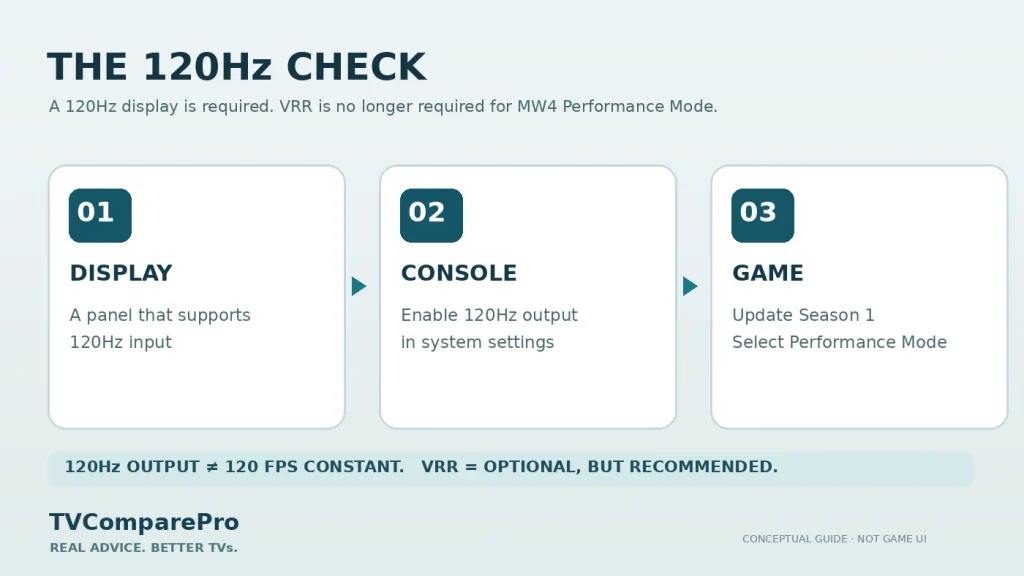
That sounds simple, but there are three separate things to check: whether the TV accepts 120Hz, whether the console is allowed to send it, and whether the game is actually using Performance Mode. I’d check them in that order. It is much faster than changing ten different graphics settings and hoping one of them works.
What changed in Modern Warfare 4 Season 1?
Before Season 1, players without VRR could run into an unexpected restriction: a screen might support 120Hz, yet the game’s high-refresh Performance Mode was unavailable. That was especially frustrating for people with older 120Hz TVs and gaming monitors.
The Season 1 notes changed the rule. Infinity Ward now allows the 120Hz mode on PS5, PS5 Pro and Xbox Series X|S with compatible displays, whether or not VRR is supported. I wouldn’t confuse that with a promise of 120fps at every moment. Performance still depends on the console, scene and game mode.
The short version: If your TV is genuinely 120Hz-capable, you no longer need VRR just to access MW4’s 120Hz Performance Mode. Update the game first, then check the console output and HDMI input.
Find the problem before changing any settings
These symptoms may look similar, but they point to different checks. Start with the row that describes what you see.
| What you see | First thing to check |
|---|---|
| Performance Mode is missing | Game updated to Season 1; TV detected as 120Hz-capable |
| Xbox reports 60Hz | TV & display options → Refresh rate |
| PS5 won’t output 120Hz | Video Output → 120 Hz Output; connected HDMI device capabilities |
| Black screen or 4K falls back to 60Hz | Correct TV HDMI port, high-bandwidth input setting, cable and devices between console and TV |
PS5 and PS5 Pro: enable the right video output
On PlayStation, the first place I’d go is the console’s video menu. Don’t start by turning off HDR or resetting your TV. Neither action is required just because the old MW4 VRR restriction has been removed.
- From the PS5 home screen, open Settings → Screen and Video → Video Output.
- Set 120 Hz Output to Automatic. Leave Resolution on Automatic as a starting point.
- Open Information for the Connected HDMI Device. Check which resolutions and features the console detects from your TV.
- If your TV supports VRR, you can leave it enabled. If it doesn’t, you should not need to enable VRR to unlock MW4 Performance Mode after Season 1.
- Make sure Modern Warfare 4 has finished updating. Launch the game and check its available Performance Mode (120Hz) option. Exact menu placement can vary by current game build.
There’s also Settings → Saved Data and Game/App Settings → Game Presets → Performance Mode or Resolution Mode. Selecting Performance Mode tells compatible games which preset you prefer. It does not force 120fps in every game, and it doesn’t replace a game-specific graphics option.
On PS5 Pro, the HDMI and 120Hz checks are the same. The console may render scenes differently from a standard PS5, but that doesn’t change the display requirement or prove a locked 120fps. If the PlayStation home screen shows 60Hz, check again while the game’s 120Hz mode is actually running; an idle menu readout is not a reliable frame-rate benchmark.
Xbox Series X and Series S: check refresh rate first
Xbox makes the display capability check easier to spot. I would verify that before deciding the game update is broken.
- Press the Xbox button and open Profile & system → Settings → General → TV & display options.
- Open 4K TV details to see the resolutions and refresh rates your current connection reports.
- Return to TV & display options and select Refresh rate → 120 Hz, if your TV offers it.
- Check that Modern Warfare 4 is updated and restart the game. Select its 120Hz Performance Mode if the option is offered.
Series S owners: 120Hz output and a consistent 120fps are different things, and 4K 120Hz support depends on the display chain. You don’t need to pretend your setup is 4K 120Hz for the game to use a supported high-refresh output. If 4K 120Hz isn’t listed, test the resolution and refresh-rate combinations your TV actually accepts.
Your TV might be the missing link
A 120Hz panel is a good start, but I would check whether the specific HDMI input supports the resolution and refresh rate you’re requesting. Some televisions have only one or two high-bandwidth ports. Others require an HDMI enhanced-signal setting before a console can negotiate 4K 120Hz.
Look for options such as Enhanced HDMI, Input Signal Plus or HDMI Deep Color, depending on your TV brand. These are examples of manufacturer labels, not one universal setting. Then try the console directly on the appropriate port using its supplied cable or a suitable Ultra High Speed HDMI cable. Disconnect an older AVR, capture card or HDMI switch temporarily if it sits between the console and TV.
If the screen goes black only when 120Hz starts, don’t immediately conclude that the game is faulty. A failed HDMI handshake or incompatible input mode can look exactly like a software problem. I would isolate the cable and port first, then look at firmware updates for the TV.
120Hz, 120fps and VRR are not interchangeable
This distinction matters more than a green 120Hz badge on your television.
120Hz is how often the TV can refresh its image each second. 120fps is how many new frames the game renders. VRR, or variable refresh rate, lets a compatible display adjust its refresh timing to the game’s changing frame delivery.
So a TV may report a 120Hz signal while the game itself fluctuates below 120fps. Removing the VRR requirement makes Performance Mode accessible to more players, but it doesn’t magically eliminate frame-rate drops, stutter or tearing. Infinity Ward still recommends VRR when the whole setup supports it.
If you prefer sharper image quality over responsiveness, a game’s quality-focused mode may still be the right choice. Personally, in a fast multiplayer shooter I would start with Performance Mode, see how motion feels, then decide whether the image-quality trade-off is worthwhile on that particular screen.
Still stuck at 60Hz after the update?
At that point, I’d keep the checks narrow instead of resetting the television:
- Confirm the Season 1 update is installed. The change came with that update, not the original October release.
- Look at the detected HDMI capabilities. If the console doesn’t see 120Hz at all, the issue may be outside the game.
- Test with a direct HDMI connection. Avoid troubleshooting through an old receiver or capture device at first.
- Compare another game with known 120Hz support. If that works but MW4 doesn’t, check MW4’s current graphics settings and support notices.
- Check the active game mode. The developer’s statement opens Performance Mode generally, but it doesn’t guarantee identical presentation or frame rates in Campaign, DMZ, Multiplayer and every future playlist.
One thing I would not do is lower PlayStation’s Video Transfer Rate to -1 or -2 as a routine 120Hz fix. Sony says these options limit 4K 120Hz output. They are diagnostic compromises for certain signal problems, not a way to enable high refresh rates.
If your main problem is a picture that’s too dark or washed out rather than a missing 120Hz mode, see our Modern Warfare 4 HDR settings guide. And if you’re diagnosing a long HDMI run rather than a short console-to-TV connection, our 10-meter fiber HDMI cable tests show why the complete signal path matters.
What matters most here: the VRR restriction has been lifted. For most setups, the sensible starting point is to update MW4, verify that your console detects a 120Hz-capable input, and select Performance Mode. That’s more useful than buying a new television just because an older guide still says VRR is mandatory.