
An HDR badge can appear while the picture still looks flat. If you searched for Google TV Streamer HDR washed out, the first question I would ask is whether the problem appears only with HLG video or across everything you watch. Those are different faults, and changing your television’s brightness blindly can make both harder to identify.
Google lists Dolby Vision, HDR10, HDR10+ and HLG support for its 4K Streamer. Yet in 2026, owners described pale YouTube HDR colors, odd contrast in F1 TV’s 4K broadcasts and cases where switching off content matching changed the picture. These are user reports, not a confirmed defect affecting every device. There are useful checks to try, but no verified universal firmware fix as of November 2, 2026.
Start by identifying which HDR picture is wrong
Before entering the settings menu, replay the same scene in two different apps. I would use a known HDR10 or Dolby Vision title alongside the HLG video that looks wrong. If ordinary HDR movies remain convincing while sports coverage or certain YouTube clips look grey, the issue is more specific than a failing HDR display.
| What you see | First check | What it suggests |
|---|---|---|
| HLG sports or YouTube HDR looks pale, but HDR10 films look normal | Compare HLG with content matching on and off | A format-specific output or app-path issue is possible |
| Every streaming app is washed out, including SDR | Check the HDMI input’s picture preset and signal range | TV-side settings or a broader signal-path problem may be involved |
| SDR looks too vivid after an HDR adjustment | Restore automatic content matching | SDR may be receiving unnecessary HDR conversion |
| F1 TV 4K looks dull, but the HD feed looks natural | Compare the same event in UHD and HD | The HLG stream or its handling deserves closer inspection |
Do not conclude that your Streamer outputs the wrong color space merely because an image looks desaturated. One user reported an apparent Rec.709 versus BT.2020 mismatch in YouTube, while others pointed to different HLG behavior. Without inspecting the signal or reproducing the case, both remain explanations to investigate rather than a diagnosis for every owner.
Check dynamic range settings on Google TV Streamer
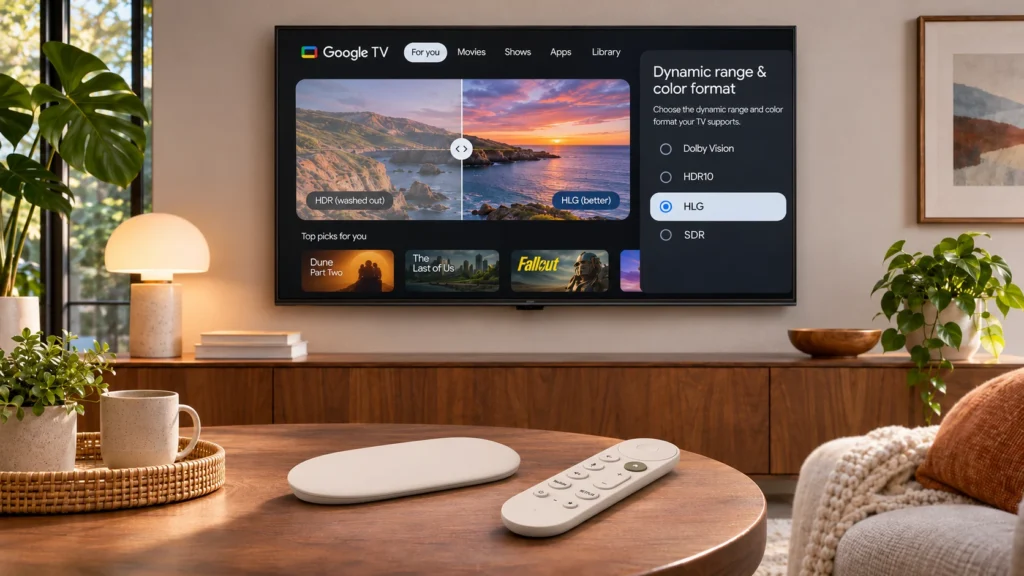
Google’s documented entry point is All settings > Display & Sound. Look under Dynamic range and color format for the available matching and format preferences. The labels and submenus can differ by software version and attached television. Google also provides Format selection in its advanced display options.
- Open the content that looks wrong and note whether the TV reports HLG, HDR10, Dolby Vision or simply HDR.
- Keep a note of your present dynamic range setting so you can restore it later.
- Use content matching as the normal baseline, especially if you also watch SDR material.
- For a short comparison only, switch the dynamic-range matching option off if your software exposes that choice. Replay the same HLG clip.
- If the colors improve, check whether the device is now holding the TV in HDR for SDR titles, or converting material differently. Return to your baseline after the comparison.
That fourth step is a workaround test, not a recommended permanent configuration. Some owners said HLG colors looked better when matching was disabled or another available HDR format was preferred. Google’s own support warns that forcing HDR can make non-HDR content too saturated. A setting that helps one clip may be wrong for the next film.
My starting point: keep the signal matched to the content unless you can reproduce an HLG-specific problem. I would rather tolerate a temporary workaround for one app than degrade SDR across the entire system.
For YouTube HDR, compare the actual clip and signal
YouTube is a useful way to narrow the fault, but you need a clip that really plays in HDR. Look for an HDR label in YouTube’s playback quality options where available. Open the same video through the television’s native YouTube app, then through Google TV Streamer. Choose the same resolution and picture preset when the TV allows it.
If the built-in app displays the clip correctly while the Streamer looks faded, that comparison points toward the Streamer, its output negotiation or the app’s playback path. It does not identify the exact component at fault. In an April 2026 Google TV discussion, an owner described incorrect colors with content matching enabled while Netflix and other HDR services looked normal. A later commenter believed HLG was the affected format, not all HDR10 or Dolby Vision material.
Use the television’s signal information screen if it shows the HDR format. A simple HDR notification only tells you that an HDR mode is active. It does not establish that the video was interpreted correctly throughout decoding, tone mapping and display output.
F1 TV 4K HLG washed out: the HD workaround
F1 TV is a particularly useful case because the premium UHD presentation uses HLG, a format that can behave differently from the HDR10 movies most people use to check their televisions. In August and September 2026, Google TV Streamer owners reported dull HLG colors even with content matching enabled. At least one viewer reported that changing the F1 TV quality from UHD to HD restored a more natural-looking picture.
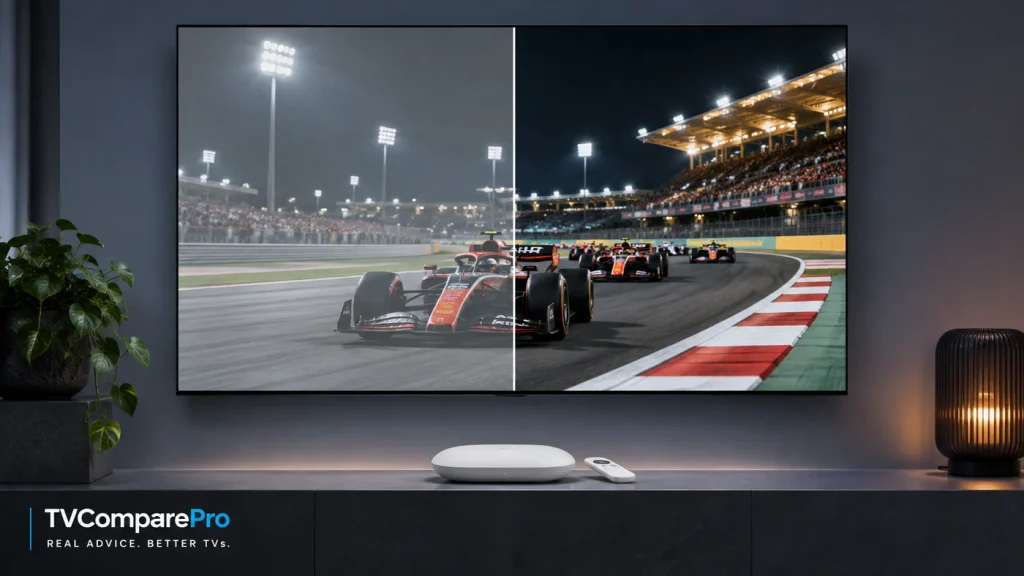
If you are seeing this, compare the same race or session in the app’s available UHD and HD modes. A more natural HD picture is evidence about that playback path, but it does not prove your television is defective. The compromise is significant: the HD selection may drop you to 1080p SDR, and the audio format may also change. One September report specifically described stereo output on the HD feed.
Another viewer found that disabling HLG removed access to the 4K option. That is why I would not advertise “turn off HLG” as a universal fix. It may improve color while taking away the very resolution the subscription is intended to provide.
HLG, HDR10 and BT.2020 are not interchangeable
HLG (Hybrid Log-Gamma) and HDR10 use different transfer characteristics. Both can carry wide-color-gamut video, but the output chain must interpret the video correctly. BT.2020 describes a color-gamut container used in many UHD HDR workflows; Rec.709 is associated with conventional HD SDR. A mismatch somewhere in the pipeline can leave colors looking unusually weak or otherwise incorrect.
Still, “washed out” is not a precise technical measurement. An HLG sports feed may also look less punchy because of its grading, the television’s tone mapping or the content provider’s implementation. The strongest simple test is comparative: same scene, same television, different playback paths. Avoid assuming a decoder error when the content itself has been mastered differently.
What to check if every app looks washed out
When HDR10, Dolby Vision, HLG and even SDR all look wrong, I would move away from the HLG theory and inspect the complete HDMI chain:
- HDMI signal mode: some TVs need Enhanced, Deep Color or an equivalent setting to accept certain HDR formats. Google explicitly points owners to this check when HDR fails to work.
- Picture settings for this input: TVs often remember different settings for external HDMI sources and built-in apps. Compare equivalent presets, rather than assuming the same preset name means identical adjustments.
- RGB or black-level range: leave automatic range matching in place where it behaves properly. Forcing mismatched Full and Limited settings can create grey blacks or lost shadow detail.
- AV receiver or HDMI switch: temporarily connect the Streamer directly to the TV if you have other equipment in the path. This is a diagnostic step, not proof the accessory is causing the problem.
- Restart and updates: check for Streamer, TV and app updates, then retest the exact same content. Do not assume a generic update necessarily fixes HLG.
A different HDMI cable is worth trying when the signal drops out, flashes or cannot enter HDR at all. It is a weak first guess when only one HLG app has muted colors and every other HDR app works normally.
How to tell if a workaround actually helped
Keep your comparison controlled. Change one setting, replay one short scene and record what changed. If you alter color temperature, contrast, dynamic range and HDMI output at once, you lose the evidence needed to make a good decision.
| Test | Useful result | Trade-off to watch |
|---|---|---|
| Content matching on vs off | HLG changes while other formats remain normal | SDR may be forced into an HDR output mode |
| Native TV app vs Streamer | Same HDR clip differs noticeably | Picture presets and app versions may differ |
| F1 TV UHD vs HD | HD restores natural colors | Loss of UHD resolution and possibly audio format |
| Streamer direct to TV | Issue disappears without AVR or switch | May require separate audio routing |
One result I would not accept as a fix is turning the TV’s general color setting up until a pale HLG stream looks exciting. That changes every source using that profile, conceals the original problem and may distort correctly mastered content.
Should you reset the Google TV Streamer?
Not as a first response to a format-specific picture problem. A factory reset can remove your configured apps and preferences, but it cannot reliably correct a playback pipeline issue that also affects other owners after updates. Save that step for broader instability, broken settings or guidance from support after simpler comparisons fail.
If the behavior persists, report the Streamer software build, TV model and firmware, HDMI connection, app and version, affected title or broadcast, the HDR format the TV reports and whether content matching changes the result. Those details are more useful than describing the screen as simply too dark.
What I would do next
For HLG-only washed-out colors, start with matched output, compare a real HLG clip against HDR10 and test the matching toggle temporarily. For F1 TV, switching to HD is a practical short-term fallback if accurate-looking color matters more to you than 4K, but I would keep checking for an app-side correction. If every app looks wrong, begin with the HDMI input and TV picture mode instead.
This is not a confirmed universal hardware failure, and no official fix was verified as of November 2, 2026. The practical win is identifying which part of the chain is at fault without ruining picture settings that already work.
Google TV Streamer (4K) – Porcelain
The 4K Google streaming device discussed in this guide, with Dolby Vision, HDR10, HDR10+ and HLG support. Buying another unit is not a proven fix for the reported HLG playback issue.
Check on AmazonTVComparePro may earn a commission from qualifying purchases through this link.
For a related case involving washed-out sports feeds on a specific TV platform, see my YouTube TV 4K picture guide for Panasonic. If you are comparing HDR capabilities across streaming devices, my Fire TV Stick 4K 2026 Dolby Vision guide explains why advertised format support and actual playback paths are separate questions.