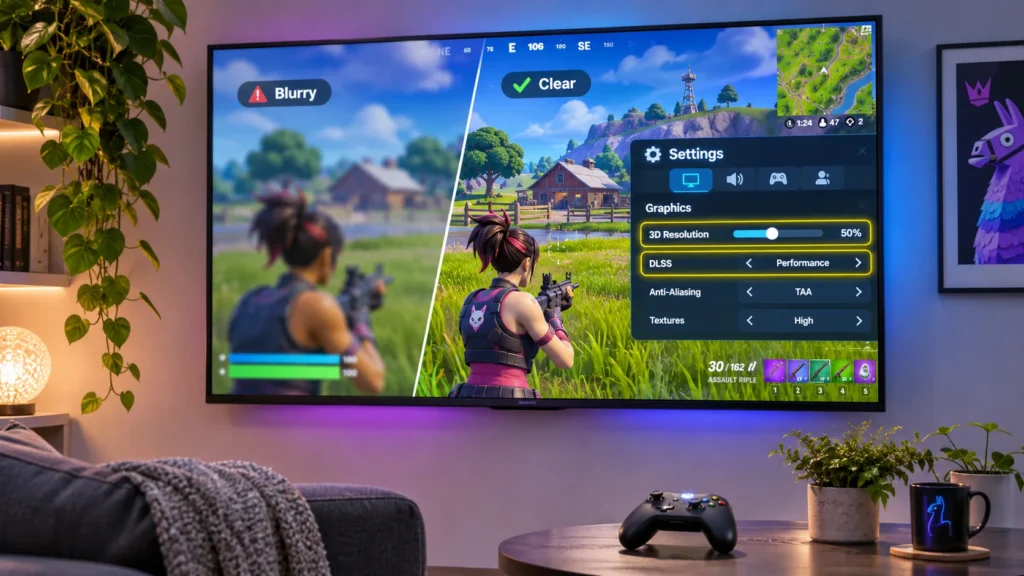

A sharper picture should not depend on guessing which graphics setting changed. If Fortnite has started looking softer on your PC, the concern behind Fortnite blurry after update is understandable. Version 43.00 changed how certain new installations handle Dynamic 3D Resolution, and it now allows that feature to run alongside NVIDIA DLSS. Neither change proves that the update introduced a widespread blur bug.
I would start with the rendering path, not the television’s sharpness slider. A game that renders fewer pixels internally can appear less defined even when Windows and your display still report 1440p or 4K. The good news is that the right comparison usually takes only a few minutes.
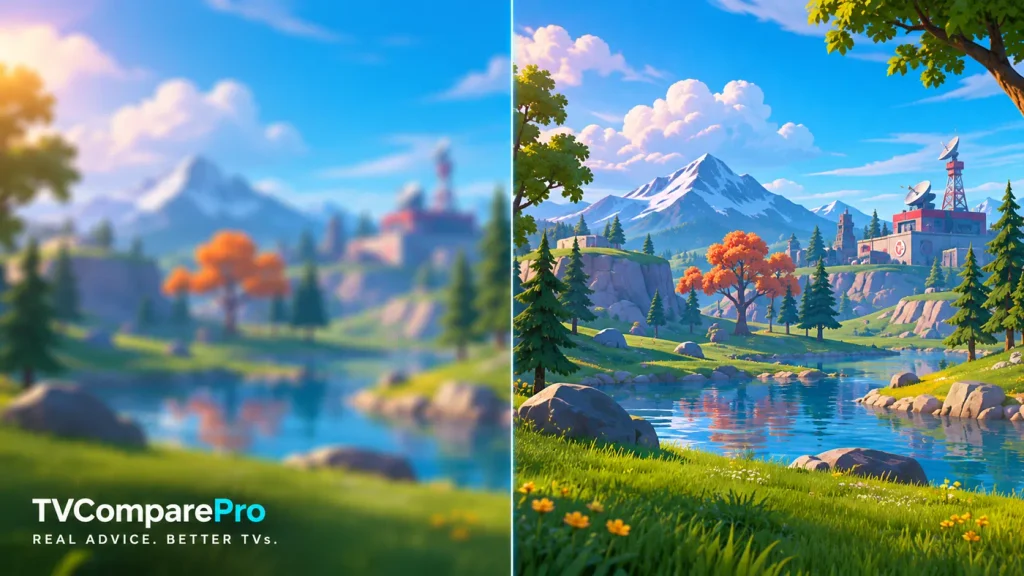
What Fortnite v43.00 Actually Changed on PC
Epic’s November 1 update notes contain three changes worth checking before anything else. First, Dynamic 3D Resolution is enabled by default for new installs on supported configurations. Second, Dynamic 3D Resolution can now operate together with DLSS. Third, fresh installs on PCs using integrated graphics default to the Performance rendering mode.
Those details matter because an update and a clean installation are not the same thing. Epic did not say it had silently changed every existing player’s settings. If you’ve been using the same installation for months, check your actual Video menu before assuming Dynamic 3D Resolution turned itself on.
| v43.00 change | What it means | Who should check it |
|---|---|---|
| Dynamic 3D Resolution on by default for new supported installs | The engine can adjust internal render resolution to meet performance targets. | Fresh installations where clarity changes as scene complexity rises. |
| Dynamic 3D Resolution works with DLSS | Dynamic scaling and DLSS reconstruction are no longer mutually exclusive. | Supported NVIDIA GPU owners comparing image consistency with FPS. |
| Performance Mode default on new installs using integrated graphics | The game prioritizes lighter rendering rather than the full DirectX 12 visual path. | Integrated-GPU PCs and laptops after a fresh install. |
It is possible to prefer these defaults. Dynamic scaling can help avoid performance drops, and Performance Mode is useful for less powerful PCs. The important question is whether you want the system to trade some visual consistency for frame rate, particularly when playing on a large display.
First, Identify What Looks Blurry
Not every soft-looking scene has the same cause. I would separate the problem before touching advanced settings. Blurry edges during camera movement, a permanently soft image and textures that fail to load require different checks.
| What you see | First place to look |
|---|---|
| The whole image softens during heavy combat | Dynamic 3D Resolution, upscaling mode and frame-rate target |
| The whole scene is consistently soft, even while standing still | Display Resolution, 3D Resolution or the selected reconstruction quality |
| Objects have muddy textures up close | Texture settings, asset loading, graphics driver and high-resolution texture installation |
| Fine lines shimmer, ghost or smear while moving | Temporal upscaling method, motion-related effects and the exact scene |
| DLSS is missing from the Video menu | DirectX 12 mode, supported GPU, Windows and NVIDIA driver version |
Do not use the television’s noise reduction or aggressive sharpening to disguise a low internal resolution. Those controls cannot recreate geometry detail that the game never rendered, and excessive sharpening can introduce distracting halos.
Check Dynamic 3D Resolution Before Changing DLSS
Open Fortnite > Settings > Video and look for Dynamic 3D Resolution where the selected rendering mode exposes it. If it is enabled, the game is permitted to vary the resolution used to render 3D scenes. That can be useful for maintaining FPS, but the picture may look softer when the internal resolution falls.
For a clean comparison, switch Dynamic 3D Resolution Off if your configuration allows it, apply the change and revisit a familiar location. Keep the same display resolution, refresh rate, quality preset and frame-rate cap. I would look at distant foliage, thin railings and building edges before making a judgment.
If the image becomes consistently clearer but your frame rate drops sharply, you have discovered a performance trade-off, not necessarily a defect. You can then choose between a more stable image and maintaining your preferred FPS target. A lower frame-rate cap or less demanding visual effects may help without reducing the internal resolution as aggressively.
My starting point: disable Dynamic 3D Resolution temporarily to diagnose unstable sharpness. Do not treat Off as a universally superior setting for every GPU or every competitive player.
DLSS, TSR and 3D Resolution Are Not the Same Setting
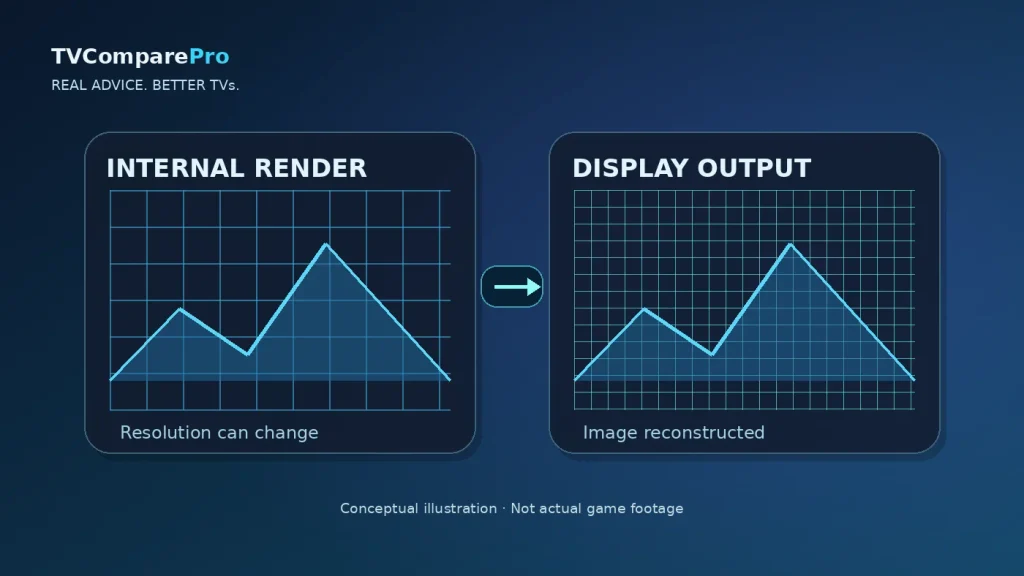
DLSS and TSR are reconstruction methods. They take information from rendered frames and attempt to produce a convincing output at the selected display resolution. In exchange for rendering fewer pixels, they can free GPU performance. What matters for clarity is the combination of source resolution, reconstruction quality, movement and the scene itself.
For a supported NVIDIA GPU, Epic specifies DirectX 12 as the rendering mode needed to access DLSS. Select DirectX 12 under Video, apply the setting and restart the game if requested. Then return to Anti-Aliasing & Super Resolution and select the DLSS mode your hardware offers. Start with a quality-oriented preset if available, rather than assuming the fastest mode will look equally sharp.
On other supported GPUs, TSR or another method may be available. Epic’s documented choices include TSR, DLSS, Intel XeSS, FXAA, SMAA and TAA, depending on hardware and configuration. The exact controls change with the selected reconstruction method, so a separate 3D Resolution slider may be unavailable or replaced by a quality setting. Do not promise that 3D Resolution 100% and DLSS Quality can always be selected at the same time.
When troubleshooting the standard resolution slider without an upscaler imposing its own scale, Epic’s general graphics advice uses 3D Resolution at 100% as a sharpness baseline. That is a diagnostic baseline, not an instruction to override the quality mode of every upscaler.
Why Performance Mode Can Look Different After a Fresh Install
On newly installed systems with integrated graphics, v43.00 may select Performance Mode by default. That mode uses a lighter rendering path designed to help less powerful hardware. It is not a visual-quality preset equivalent to DirectX 12 with every effect enabled.
If your laptop also has a dedicated NVIDIA or AMD GPU, verify that Fortnite is actually running on it before changing the entire graphics setup. Windows provides per-app graphics preferences, and Epic’s troubleshooting instructions include selecting the high-performance GPU on multi-GPU systems.
Performance Mode can be the right choice for competitive play or a weaker PC. But if you were expecting the appearance of a DirectX 12 setup with higher-quality lighting and meshes, first identify the selected rendering mode. Changing modes can require a restart and may expose a different set of graphics controls.
Blurry Textures Are a Separate Problem
If your character, buildings or ground textures remain muddy even when the camera is stationary, internal resolution might not be the main issue. Texture streaming, installed texture assets, graphics memory and drivers are separate parts of the pipeline.
Epic recommends checking graphics drivers for textures that look noisy or fail to load. It also documents a different troubleshooting step for visibly low-quality graphics: lower an excessively high frame-rate limit, apply the change and start another match. I would test that only when the symptom fits, rather than treating it as a universal graphics recipe.
Check whether your installation includes high-resolution textures if you expect them. Epic allows Performance Mode users to remove those assets to save space; deleting them can be reasonable for a lightweight setup but conflicts with a goal of maximum texture quality. On a GPU with limited VRAM, raising texture settings too far can create another problem, so make one change at a time.
DLSS Missing After an NVIDIA Driver Update?
Epic separately acknowledged an issue affecting some players on Windows releases earlier than 25H2 (build 26200) after NVIDIA driver 610.47, where the DLSS option may not appear. That is a documented compatibility problem and should not automatically be blamed on Fortnite v43.00.
First verify the DirectX 12 rendering mode, a supported NVIDIA GPU and your Windows build. If the known driver combination matches your system, check Epic’s current guidance before changing drivers. Avoid downloading unofficial DLLs or replacing files inside the Fortnite installation simply to make a missing menu option appear.
How I Would Compare Image Quality Without Guesswork
A useful test is more controlled than turning five settings on and off and asking whether the picture feels better. Pick one location with fine detail, keep the same camera angle and compare one change at a time. Record the frame rate so you understand the cost of extra clarity.
- Confirm the display output: use your monitor or TV’s native resolution and intended refresh rate in Windows, then check Fortnite’s Display settings.
- Write down the starting settings: Rendering Mode, Dynamic 3D Resolution, Anti-Aliasing & Super Resolution, available quality mode and frame-rate limit.
- Compare Dynamic 3D Resolution On and Off: keep the rest unchanged where the menu allows it.
- Compare reconstruction quality: try a quality-oriented DLSS or TSR option rather than immediately using the fastest preset.
- Inspect moving details: slowly pan across thin branches, fences and building edges to distinguish motion artifacts from static softness.
- Choose your compromise: if a sharper image causes unacceptable frame drops, reduce specific demanding effects or select an appropriate reconstruction mode.
On a large OLED or Mini LED TV, the difference between internal 3D resolution and the panel’s physical resolution can be especially obvious. Keep the TV in an appropriate low-latency Game Mode with neutral extra processing. HDR calibration and black level are different issues and should not be adjusted to cure softness from upscaling.
Should You Leave Dynamic 3D Resolution On?
For a capable PC where I value image consistency, I would start with Dynamic 3D Resolution Off and a quality-focused upscaling mode if needed. For a system struggling with frame-time spikes, I would not dismiss dynamic scaling: a steadier frame rate may matter more than preserving maximum detail in every demanding moment.
The key is to judge what happens on your hardware. Version 43.00 enabled a new combination of options, not a blanket image-quality downgrade. If Fortnite looks softer, first identify whether the game is reducing its internal resolution, using a different rendering mode or failing to load high-quality textures. Each has a different solution.
More Display and Gaming Guides
Image reconstruction is just one part of the experience. These TVComparePro guides cover related questions about sharpening, HDR and display compatibility.