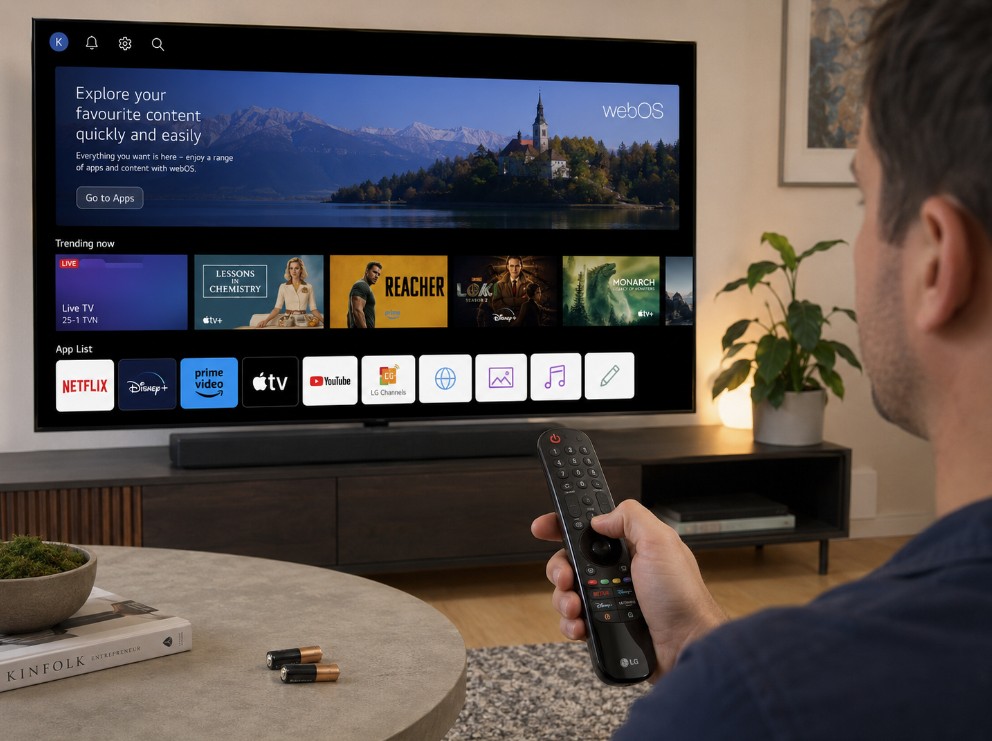

When the remote still changes volume but the on-screen cursor has vanished, LG Magic Remote pointer not working can feel like a strange half-failure. The TV may still react to Power, Volume, or Input, yet shaking the remote no longer brings back the pointer. In other cases, the cursor appears briefly, moves erratically, or disappears again after a few seconds.
The good news is that a missing LG Magic Remote pointer does not automatically mean the remote is broken. Weak batteries, lost wireless pairing, Audio Guidance, interference near the TV, a stuck scroll wheel, or a temporary webOS problem can all interrupt pointer control.
The safest troubleshooting order is to wake the pointer, replace the batteries, check accessibility settings, re-register the remote, restart the TV, and only then consider a reset or replacement. 🖱️
LG Magic Remote pointer not working: symptom and fix table
| What you notice | Most likely cause | What to try first |
|---|---|---|
| Cursor disappeared after inactivity | Pointer entered its normal sleep state | Shake the remote or press Wheel/OK |
| Power and Volume work, but pointer does not | Magic Remote wireless connection was lost | Press Wheel/OK to register again |
| Pointer moves slowly or jumps | Weak batteries or wireless interference | Install fresh batteries and move nearby devices |
| Cursor disappeared after holding Mute | Audio Guidance may have been enabled | Disable Audio Guidance |
| Remote says it is not registered | Pairing was lost | Reset and re-register the remote |
| Scroll wheel does not click | Wheel/OK button may be stuck or damaged | Clean around the wheel and test again |
| Pointer works in menus but not one app | App-specific interface or temporary app issue | Restart or reinstall that app |
| Pointer disappears after an update | webOS or pairing state may be stuck | Restart TV and re-register remote |
| Only Power works | Remote may be operating through infrared only | Restore Magic Remote pairing |
| No buttons work | Batteries, physical damage, or incompatible remote | Replace batteries and verify compatibility |
First check whether the pointer is simply sleeping
The LG Magic Remote pointer is not designed to remain visible permanently. It normally disappears after a short period without movement.
Before changing settings:
- Point the remote toward the TV.
- Shake it gently from side to side.
- Press the center Wheel/OK button once.
- Wait a few seconds.
- Move the remote again.
If the cursor returns and continues to work, there may be no fault. The pointer had simply entered its normal inactive state.
Do not shake the remote aggressively. A gentle wrist movement should be enough to wake the pointer.
Confirm that you have an LG Magic Remote
Not every LG television includes a Magic Remote. Some entry-level models may ship with a standard infrared remote, while other TVs support the Magic Remote only as an optional accessory.
A typical Magic Remote has:
- a clickable scroll wheel;
- an on-screen pointer;
- voice or microphone control on supported models;
- motion-based navigation;
- Bluetooth or radio-frequency pairing;
- standard Power, Volume and navigation buttons.
A standard LG remote may control the TV normally without supporting an on-screen cursor.
If you bought a replacement remote, verify that it is a genuine or compatible Magic Remote for your exact LG TV model and region. A remote that looks similar may still lack the correct wireless hardware or software support.
Replace the batteries before resetting anything
The Magic Remote can appear partially functional when its batteries become weak. Power and Volume may still work, while pointer movement, voice control, pairing or the scroll wheel becomes unreliable.
Install a fresh matching pair of alkaline batteries. 🔋
Use these checks:
- replace both batteries at the same time;
- do not mix old and new batteries;
- do not mix different battery brands or types;
- confirm the positive and negative orientation;
- inspect the battery contacts for dirt or corrosion;
- close the battery cover securely.
After installing the batteries:
- Wait several seconds.
- Point the remote at the TV.
- Press Wheel/OK.
- Shake the remote gently.
- Look for the registration message or cursor.
Rechargeable batteries can work, but their lower voltage or depleted state may create inconsistent remote behaviour. For diagnosis, test with a new pair of standard alkaline batteries first.
Check whether Audio Guidance has hidden the pointer
On supported LG webOS versions, holding the Mute button for several seconds can activate Audio Guidance. When this accessibility feature is enabled, the on-screen pointer may disappear.
This can happen accidentally if the Mute button was held too long.
Listen for spoken menu descriptions when moving through the TV settings. If the TV reads menu items aloud, Audio Guidance is probably active.
Common menu paths include:
Settings > All Settings > Accessibility > Audio Guidance
or:
Settings > All Settings > General > Accessibility > Audio Guidance
Menu names vary by webOS version, model and region.
Turn Audio Guidance off, return to the Home screen, and shake the remote again. The pointer should reappear if the accessibility setting was the cause.
Press Wheel/OK to register the remote again
The Magic Remote uses a wireless connection for pointer movement and advanced controls. If that connection drops, some basic buttons may still work while the pointer disappears.
Try the simplest pairing step first:
- Turn the TV on.
- Wait approximately 20 seconds.
- Point the remote toward the TV.
- Press the center Wheel/OK button.
- Wait for the registration message.
- Shake the remote gently.
The television may display a message confirming that the Magic Remote has been successfully registered.
If the TV does not respond, turn it off and back on, wait for webOS to load, then press Wheel/OK again.
Reset and re-pair the LG Magic Remote
If pressing Wheel/OK does not restore the cursor, deregister the remote and pair it again.
For many LG Magic Remote models:
- Press and hold Back and Home together.
- Keep holding them for at least five seconds.
- Watch for the remote’s Power light to flash.
- Release the buttons.
- Point the remote toward the TV.
- Press Wheel/OK.
- Wait for the pairing confirmation.
On some remotes, the Power light flashes three times when registration is cancelled.
However, LG has used different reset combinations across remote generations. Some newer AI/Magic Remotes may use Home + Settings instead of Back + Home. Other older models may use a different button or procedure.
Use this table cautiously:
| Remote type or generation | Common reset combination |
| Many traditional Magic Remotes | Back + Home for at least five seconds |
| Some newer AI/Magic Remotes | Home + Settings for at least five seconds |
| Certain older remote models | Model-specific combination |
| Remote with unclear button layout | Check the TV or remote manual |
Do not repeatedly press random button combinations. If Back + Home does not work, check the instructions for the exact remote model before trying another sequence.
Why Power and Volume may work without the pointer
This symptom causes a lot of confusion:
- Power works;
- Volume works;
- sometimes Input works;
- but the pointer, voice control and scroll wheel do not.
The reason is that basic remote commands may continue through infrared, while the Magic Remote’s advanced functions depend on its wireless connection to the television.
That means the remote may not be completely dead. It may simply have lost pairing.
This pattern strongly points toward:
- wireless registration lost;
- weak batteries;
- interference;
- incompatible replacement remote;
- webOS pairing state stuck;
- wireless hardware problem in the remote or TV.
Re-registering the remote is more useful here than repeatedly pressing the Power button.
Restart the LG TV properly
Turning the television off with the remote usually places it in standby. It may not fully reload the webOS services that manage Magic Remote pairing.
Use a proper power cycle:
- Turn the TV off.
- Unplug it from the wall.
- Wait at least 60 seconds.
- Press the physical TV power button once, if accessible.
- Plug the TV back in.
- Turn it on.
- Wait for webOS to load.
- Press Wheel/OK to register the remote.
After the restart, test the pointer on the Home screen before opening an app.
A clean restart can clear a temporary Bluetooth, RF or webOS communication state. ⚙️
Move the router and wireless devices away from the TV
The Magic Remote communicates wirelessly with the television. Nearby electronic equipment can sometimes interfere with that connection.
Check for:
- Wi-Fi router directly behind the TV;
- mesh Wi-Fi node placed next to the television;
- cordless phone base;
- wireless headphones transmitter;
- Bluetooth adapter;
- external USB 3.0 drive;
- computer or console with many wireless accessories;
- metal objects blocking the TV’s wireless area.
If the router is directly beside or behind the TV, move it at least several inches away. LG commonly recommends keeping the router roughly 20 cm or more from the television when troubleshooting remote interference.
Also remove unnecessary USB devices temporarily. Some high-speed USB equipment can create local radio interference.
Test the pointer again after moving nearby equipment. 📡
Check whether the Wheel/OK button is stuck
The scroll wheel is not only used for scrolling. It is also the main OK button and is frequently required for pairing.
If the wheel does not click properly:
- Remove the batteries.
- Inspect the area around the wheel.
- Use a dry soft brush to remove dust.
- Rotate the wheel gently.
- Press it several times.
- Reinstall the batteries.
- Test registration again.
Do not pour cleaning liquid into the remote. Avoid using sharp objects around the wheel.
If the wheel spins but no longer clicks, or the button works only when pressed very hard, the remote may have a physical fault.
Pointer appears but moves slowly, jumps or drifts
A cursor that moves badly is different from a pointer that never appears.
Possible causes include:
- weak batteries;
- excessive wireless interference;
- remote sensor calibration state;
- damaged motion sensor;
- unusual pointer speed setting;
- user holding the remote at an extreme angle;
- temporary webOS lag.
Start with fresh batteries and a TV restart.
Then check Pointer Options. Depending on the webOS generation, the path may look like:
Settings > All Settings > General > System > Additional Settings > Pointer Options
or on some older webOS models:
Settings > All Settings > Accessibility > Pointer Options
Possible adjustments include:
- tracking speed;
- pointer size;
- cursor appearance.
Set tracking speed to a middle value while troubleshooting. A very fast pointer can look unstable, while a very slow setting can feel as if the remote is not responding.
LG Magic Remote pointer not working after an update
A webOS update can occasionally leave the remote in an incomplete registration state. The update may not have damaged the remote; the pairing service may simply need to restart.
Use this order:
- Let the TV finish any update activity.
- Turn the TV off.
- Unplug it for 60 seconds.
- Turn it back on.
- Wait for the Home screen.
- Press Wheel/OK.
- If needed, reset the remote with the correct button combination.
- Pair it again.
Do not factory reset the television immediately after an update. First test batteries, pairing and a full power cycle.
If the cursor disappeared only after one app updated, test the remote on the webOS Home screen. If it works there, the remote itself is probably fine.
Pointer works in menus but not inside one app
Some apps do not support full pointer navigation on every screen. Others temporarily stop responding after an app update or crash.
Test the cursor in:
- the webOS Home screen;
- Settings;
- Input selection;
- LG Content Store or Apps area;
- another streaming app.
If the pointer works everywhere except one application:
- Close the affected app.
- Restart the TV.
- Check for an app update.
- Remove and reinstall the app if webOS allows it.
- Test the same screen again.
This is probably an app problem rather than a Magic Remote hardware failure.
For broader application problems, see LG webOS app crashes — the clean fix checklist.
Remote buttons work but voice control does not
Voice control also depends on the Magic Remote’s wireless pairing. If infrared buttons work but the microphone does not, re-registering the remote may restore both the pointer and voice function.
Check:
- fresh batteries;
- Magic Remote pairing;
- microphone permission;
- internet connection;
- LG account or voice assistant setup;
- whether the microphone button responds;
- whether the TV displays a voice prompt.
If neither the pointer nor voice control works, but Power and Volume still do, lost wireless pairing is a strong possibility.
If the pointer works but voice control remains unavailable, the problem may be related to the microphone, account, network or regional voice-service availability.
Check for a protective film or obstruction
Some new remotes arrive with protective film around buttons or the front transmitter area. Cases, covers and heavy sleeves can also interfere with button movement.
Remove:
- protective film;
- thick silicone cases;
- decorative covers;
- tape over the remote;
- dirt around the scroll wheel;
- objects blocking the front of the TV.
The pointer itself uses wireless motion control, but infrared commands and pairing behaviour can still be affected by poor remote condition or blocked components.
Test the remote close to the TV
Stand one to two metres from the television and try pairing again.
If the pointer works only at very close range, suspect:
- weak batteries;
- interference;
- damaged antenna inside the remote;
- wireless problem inside the TV;
- incompatible replacement remote.
Repeat the test with fresh batteries and all nearby wireless accessories temporarily removed.
If two compatible Magic Remotes behave the same way, the problem may be on the TV side rather than inside the remote.
Check remote compatibility before buying a replacement
LG Magic Remotes are not universally interchangeable.
Compatibility can depend on:
- TV model;
- model year;
- webOS generation;
- country or regional version;
- remote model number;
- included voice assistant buttons;
- presence of the required wireless receiver or dongle.
Examples of LG televisions that may support a Magic Remote include selected:
- OLED B-series, C-series, G-series and Z-series models;
- QNED models;
- NanoCell televisions;
- UHD webOS televisions;
- older LG Smart TVs with compatible wireless hardware.
Support still varies by individual model.
Before ordering a replacement, check:
- the complete TV model code;
- the remote model number printed inside the battery compartment;
- LG’s compatibility information;
- whether the listing is genuine, compatible or infrared-only;
- whether voice and pointer functions are supported.
A cheap replacement remote may control Power and Volume but lack Magic Remote pointer functionality.
Use the physical TV controls as a diagnostic
Most LG TVs have at least one physical control button, usually under the centre logo, beneath the panel or near the lower rear edge.
Use it to confirm that the television itself responds.
If the TV can be controlled physically but the remote does nothing, focus on:
- batteries;
- remote damage;
- pairing;
- compatibility.
If the TV is frozen and does not respond to either the remote or physical controls, power-cycle the television before blaming the Magic Remote.
Use the LG ThinQ app as a temporary remote
On compatible LG webOS televisions connected to the same network, the LG ThinQ mobile app may provide temporary control while you troubleshoot the physical remote.
This can help you:
- open Settings;
- restart the TV;
- change accessibility options;
- check for updates;
- navigate webOS;
- confirm that the TV is otherwise responsive.
The phone app does not prove that the Magic Remote is healthy, but it can help you reach settings when the physical pointer is unavailable.
App functions and availability can vary by TV model, webOS version, phone and region.
Update webOS only after basic troubleshooting
If the remote can still navigate with arrow buttons or the ThinQ app, check for a software update.
A common path is:
Settings > All Settings > Support > Software Update
or:
Settings > All Settings > General > System > About This TV
Paths vary by webOS generation.
Install an update only when:
- the TV is stable;
- the internet connection is reliable;
- the TV can remain powered on;
- no update is already running.
After installation, restart the TV and register the Magic Remote again.
Factory reset is the last software step
A factory reset can clear a persistent webOS pairing or settings problem, but it also removes your setup.
It can erase:
- installed apps;
- account logins;
- Wi-Fi information;
- picture settings;
- sound settings;
- HDMI labels;
- accessibility preferences;
- device connections.
On many 2021-and-newer LG webOS TVs, the reset path is commonly:
Settings > All Settings > General > System > Reset to Initial Settings
On some older models, it may appear directly under:
Settings > All Settings > General > Reset to Initial Settings
Only use this after:
- installing fresh batteries;
- checking Audio Guidance;
- pressing Wheel/OK;
- resetting and re-pairing the remote;
- restarting the TV;
- removing wireless interference;
- testing another compatible remote if available.
A factory reset will not repair a physically damaged wheel, motion sensor or wireless component.
When the remote probably needs replacement
Replacement becomes reasonable when:
- new batteries make no difference;
- the remote cannot enter pairing mode;
- the Power light never illuminates;
- the Wheel/OK button is physically broken;
- the pointer works only when the remote is struck or twisted;
- the remote was dropped or exposed to liquid;
- another compatible Magic Remote works normally;
- the TV registers other wireless remotes correctly;
- buttons activate without being pressed.
Do not keep using a remote with battery corrosion, liquid damage or excessive heat.
When the television may need service
The TV’s wireless receiver or main board may be involved if:
- multiple confirmed-compatible Magic Remotes fail;
- infrared buttons work but no remote can pair;
- the TV never displays a registration message;
- Bluetooth accessories also fail to connect;
- the issue began after a power surge;
- webOS repeatedly loses all wireless connections;
- factory reset makes no difference.
Before arranging service, record:
- complete TV model;
- webOS version;
- Magic Remote model number;
- which buttons still work;
- whether the pointer ever appears;
- whether voice control works;
- whether another remote was tested;
- whether the issue happens after every restart.
Safe troubleshooting order
| Step | Action |
| 1 | Shake the remote and press Wheel/OK |
| 2 | Install two fresh matching batteries |
| 3 | Check whether Audio Guidance is enabled |
| 4 | Press Wheel/OK to re-register the remote |
| 5 | Reset the remote using its correct button combination |
| 6 | Power-cycle the LG TV |
| 7 | Move routers and wireless devices away |
| 8 | Test the pointer on the webOS Home screen |
| 9 | Check Pointer Options |
| 10 | Update webOS if the TV is stable |
| 11 | Test another compatible Magic Remote |
| 12 | Factory reset only as a final software step |
Common mistakes to avoid
Assuming the remote is dead because the cursor disappeared
The pointer may simply be asleep or the remote may have lost wireless pairing.
Replacing only one battery
Uneven batteries can create unstable pointer and voice-control behaviour.
Treating every LG remote as a Magic Remote
Standard infrared remotes do not provide motion-pointer control.
Buying a replacement based only on appearance
Two LG remotes can look nearly identical but support different TVs or features.
Using one reset shortcut for every remote
Back + Home is common, but some newer models use a different combination.
Factory resetting the TV too early
A reset removes apps and settings but will not repair a damaged remote.
Ignoring Audio Guidance
An accidental long press on Mute can enable accessibility features and hide the cursor on supported models.
Keeping the router directly behind the TV
Nearby wireless equipment can interrupt the Magic Remote connection.
Practical setup notes
Once the pointer works again:
- keep good-quality batteries installed;
- leave space between the TV and Wi-Fi router;
- avoid dropping the remote on the scroll wheel;
- use a compatible replacement only;
- restart the TV after major webOS updates;
- re-register the remote if voice and pointer functions disappear together;
- keep the original remote model number written down.
A working Magic Remote should bring up the cursor with a gentle movement, register through Wheel/OK and remain responsive throughout normal webOS navigation. ✨
If only one app continues to behave incorrectly, the remote is probably no longer the main problem. For additional LG troubleshooting and setup guidance, continue with: