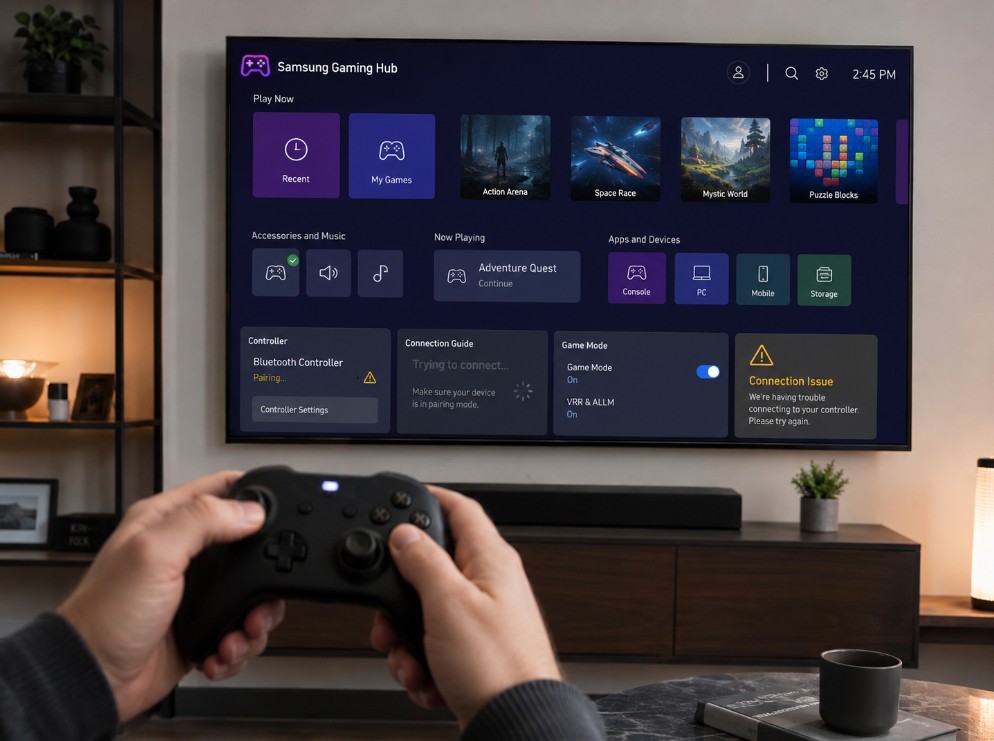

You open Gaming Hub, launch Xbox Cloud Gaming or GeForce NOW, and the game loads — but your controller does nothing. When Samsung Gaming Hub controller not working becomes the problem, it can feel strange because the same controller may still work on a console, phone, tablet, or PC.
That does not always mean the Samsung TV is broken. Cloud gaming on a TV depends on several layers at the same time: the Samsung TV model, Tizen software, Gaming Hub availability, Bluetooth pairing, controller mode, controller firmware, the app you are using, and the network connection behind the stream.
The good news is that most problems are fixable without buying a new TV. You need to separate three things first: whether the controller is paired to the TV, whether Gaming Hub can use it correctly, and whether the lag is coming from Bluetooth or from the cloud gaming connection. 🎮
Samsung Gaming Hub controller not working: quick cause and fix table
| What happens | Most likely cause | What to check first |
|---|---|---|
| Controller does not appear in Bluetooth list | Controller is not in pairing mode or unsupported | Re-enter pairing mode and check compatibility |
| Controller pairs but does not control the game | Wrong mode, app limitation, or XInput issue | Test Xbox app, GeForce NOW, and controller mode |
| Controller works in TV menus but not inside Xbox app | App-specific input issue | Restart app, update TV, reconnect controller |
| Controller works for a few minutes, then disconnects | Low battery or weak Bluetooth link | Charge controller and sit closer to TV |
| Buttons are mapped incorrectly | Controller mode not fully supported | Use Xbox controller, DualSense, or supported XInput pad |
| Input feels delayed | Bluetooth lag or cloud network latency | Use Ethernet/5 GHz Wi-Fi and reduce Bluetooth interference |
| GeForce NOW feels laggy but menus are fine | Network latency, not controller pairing | Test Ethernet and reduce other network traffic |
| Xbox Cloud Gaming says controller required | App does not detect controller session | Reconnect controller before opening the Xbox app |
First, check if your Samsung TV supports Gaming Hub
Samsung Gaming Hub is not available on every Samsung TV ever made. It is mainly associated with newer Samsung Smart TVs, selected Smart Monitors, and some projectors.
As a practical rule, check these first:
| Samsung device type | Gaming Hub expectation |
| 2022 Samsung Smart TVs | Usually supported on many 4K/8K models |
| 2023 Samsung Smart TVs | Broad support across many 4K/8K models |
| 2024 Samsung Smart TVs | Broad support, but features vary by region |
| 2025 Samsung Smart TVs | Broad support on many models |
| Selected Samsung Smart Monitors | Supported on many recent models |
| Selected Samsung projectors | Supported on some models |
| 2021 and older Samsung TVs | Support is more limited and model-dependent |
| Very old Tizen TVs | Do not assume Gaming Hub or cloud gaming controller support |
If Gaming Hub is missing completely, the controller is not the first issue. Check the TV model, country, software version, and app availability first.
On many Samsung TVs, you can find Gaming Hub from the home screen by moving to the gaming/controller icon area. Menu names vary by country and firmware, especially after One UI Tizen updates.
Check your Samsung TV software version
Before blaming the controller, update the TV.
On most Samsung TVs:
- Press the Home button.
- Open Settings.
- Go to Support.
- Choose Software Update.
- Select Update Now.
- Let the TV finish the update.
- Power cycle the TV after the update.
To power cycle:
- Turn the TV off.
- Unplug it from the wall.
- Wait about one minute.
- Plug it back in.
- Turn it on again.
This helps because Gaming Hub, Bluetooth handling, app support, and cloud gaming features can change after software updates. A TV that has not been restarted properly after an update may behave strangely with controllers.
Use a controller that Gaming Hub is likely to understand
Not every wireless controller behaves the same way on Samsung TVs.
The safest choices are usually:
| Controller type | Practical expectation |
| Xbox Wireless Controller | One of the safest choices for Xbox Cloud Gaming |
| Xbox Elite Wireless Controller Series 2 | Strong option, but update firmware first |
| Xbox Adaptive Controller | Good accessibility-focused option where supported |
| PlayStation DualShock 4 | Often works, but button labels may not match |
| PlayStation DualSense | Often works, but features may vary |
| Amazon Luna Controller | Useful for cloud gaming services |
| NVIDIA Shield Controller | Can work in supported setups |
| Logitech F310 / F510 / F710 | Common USB/wireless PC-style options |
| PDP REPLAY Wireless Controller | Designed specifically for Samsung Gaming Hub |
| Cheap unbranded Bluetooth pads | Most risky for pairing and button mapping |
For Samsung Gaming Hub, a controller that works on your phone is not automatically guaranteed to work perfectly on your TV. Some controllers use unusual Bluetooth profiles, proprietary 2.4 GHz dongles, DirectInput-only modes, or phone-only layouts.
If the TV says the controller is connected but games ignore it, the controller may be paired as a generic Bluetooth device instead of working as a proper gamepad.
XInput matters on Samsung Tizen TVs
This is one of the details many users miss.
Some Samsung Tizen TVs support compatible controllers through XInput mode. That matters because many PC-style controllers have more than one mode:
- XInput;
- DirectInput;
- Android mode;
- Switch mode;
- iOS mode;
- proprietary 2.4 GHz dongle mode.
If your controller has a mode switch, set it to XInput before pairing with the Samsung TV.
Common signs of the wrong mode:
- the TV sees the controller but games ignore it;
- buttons are mapped incorrectly;
- D-pad works but sticks do not;
- controller works in menus but not inside the cloud game;
- Xbox app says a controller is required;
- only some buttons respond.
If you use a Logitech F310/F510/F710-style controller, check the physical switch. If you use a third-party Bluetooth controller, check the manual for Xbox/XInput mode.
Update your Xbox controller firmware
If you use an Xbox Wireless Controller, update its firmware before troubleshooting deeper.
Do this using:
- an Xbox console;
- the Xbox Accessories app on Windows;
- USB-C cable where available.
Old controller firmware can cause pairing problems, wrong button behavior, or unstable Bluetooth connections. This is especially important if the controller works fine with an Xbox console but behaves badly with a Samsung TV.
After updating:
- Remove the controller from the Samsung TV Bluetooth list.
- Restart the TV.
- Put the controller back in pairing mode.
- Pair it again from Gaming Hub.
- Test Xbox Cloud Gaming first.
Pair the controller from Gaming Hub, not random Bluetooth menus first
On Samsung TVs, the cleanest route is usually through Gaming Hub.
Try this:
- Open Gaming Hub.
- Select the controller icon or controller setup area.
- Put the controller in pairing mode.
- Wait for the controller to appear.
- Select it on the TV.
- Confirm pairing.
- Open Xbox, GeForce NOW, Luna, or another gaming app.
If you pair the controller only through a general Bluetooth audio/accessory menu, it may connect but not behave correctly inside Gaming Hub.
If the controller already appears as paired but does not work, remove it and pair it again.
How to put common controllers in pairing mode
| Controller | Pairing method |
| Xbox Wireless Controller | Hold the pairing button until Xbox logo flashes |
| DualSense | Hold PS button + Create button until light bar flashes |
| DualShock 4 | Hold PS button + Share button until light bar flashes |
| Xbox Elite Series 2 | Hold pairing button until Xbox logo flashes |
| Amazon Luna Controller | Use Bluetooth pairing mode from controller setup |
| Logitech F710 | Check receiver/mode switch and XInput mode |
| PDP REPLAY | Use the pairing instructions supplied for Samsung Gaming Hub |
If the controller never appears, charge it fully and move closer to the TV. Also disconnect it from any console, phone, or PC that may be grabbing it automatically.
Remove old pairings and start clean
Controllers often reconnect to the last device they used.
If your controller was previously connected to an Xbox, phone, tablet, PC, Fire TV, or another TV, it may keep trying to reconnect there.
Clean setup:
- Turn off nearby consoles or devices.
- Forget the controller from old Bluetooth menus where possible.
- Remove the controller from the Samsung TV paired devices list.
- Restart the Samsung TV.
- Restart the controller.
- Put the controller in pairing mode.
- Pair again through Gaming Hub.
This is especially useful if the controller appears for one second, then disappears.
When the controller pairs but does not work in Xbox Cloud Gaming
If the controller pairs with the TV but Xbox Cloud Gaming still says a controller is needed, use this order:
- Close the Xbox app fully.
- Disconnect the controller from the TV.
- Restart the Samsung TV.
- Pair the controller again through Gaming Hub.
- Open the Xbox app only after the controller is connected.
- Sign out and back into Xbox if needed.
- Test a different game.
- Update the TV software.
- Test another controller if available.
Some games or app sessions may not detect the controller if it connects after the cloud session starts. Pair the controller before launching the game.
Also check whether your Game Pass subscription supports the cloud gaming feature you are trying to use in your country.
When the controller works in Xbox but not GeForce NOW
If Xbox Cloud Gaming works but GeForce NOW does not, the issue may be app-specific.
Check:
- GeForce NOW app update;
- NVIDIA account login;
- controller support inside the game;
- whether the game expects keyboard/mouse input;
- Steam/Epic/Xbox account overlay issues;
- in-game controller settings;
- TV software update;
- controller mode.
Some PC games streamed through GeForce NOW may need controller input enabled inside the game settings. Others may show keyboard prompts even when a controller works.
Before blaming the Samsung TV, test another controller-friendly game.
When GeForce NOW feels laggy
If buttons respond but gameplay feels delayed, you may not have a controller pairing issue. You may have network latency.
For cloud gaming, the TV sends your controller input to a remote server, the server renders the game, and the video stream comes back to your TV. That is very different from a console connected by HDMI.
Check:
- use Ethernet if possible;
- use 5 GHz Wi-Fi if Ethernet is not practical;
- avoid weak mesh nodes;
- stop downloads and cloud backups;
- avoid VPN;
- restart the router;
- test outside peak evening hours;
- sit closer to the TV if Bluetooth is weak;
- close other TV apps before launching games.
A fast internet speed test is not enough. Cloud gaming needs low latency and stable packet delivery, not just high download speed.
Samsung TV controller lag: Bluetooth or cloud latency?
Use this simple test.
| Test | What it tells you |
| Controller moves TV menus slowly | Bluetooth/TV/controller problem |
| TV menus feel instant but game feels delayed | Cloud gaming network latency |
| Xbox app menu feels fine but gameplay lags | Cloud stream latency |
| Only one game feels delayed | Game/server issue |
| Delay improves on Ethernet | Network was the main problem |
| Delay improves when sitting closer | Bluetooth signal was part of the problem |
| Delay appears only with Bluetooth headphones | Audio/Bluetooth congestion may contribute |
If the Samsung TV menu responds instantly, the controller is probably paired correctly. If the game still feels late, focus on network and cloud service settings.
Reduce Bluetooth interference
Bluetooth can be affected by distance and interference.
Try:
- sit closer to the TV;
- move the router slightly away from the TV if it is very close;
- avoid placing the controller behind your body;
- remove USB 3.0 drives or hubs near the TV;
- turn off unused Bluetooth devices nearby;
- charge the controller fully;
- avoid using Bluetooth headphones at the same time for testing;
- remove and re-pair the controller.
If the controller disconnects only when you sit far away, it is not an app issue. It is a wireless link issue.
USB controller vs Bluetooth controller
Some Samsung setups support USB controllers, but behavior varies by model and controller.
USB can help when:
- Bluetooth pairing fails;
- input delay feels inconsistent;
- controller battery is weak;
- the TV is near the seating position;
- you use a wired Logitech or Xbox-style controller.
But USB can still fail if:
- the controller needs drivers;
- it is DirectInput-only;
- it requires a proprietary dongle;
- the Samsung TV does not recognize that model;
- the game app expects a different controller profile.
If you have both options, test USB first for basic detection, then Bluetooth for convenience.
Check if the controller is paired to the TV or to the app
This sounds odd, but it matters.
In most cases, the controller should pair to the Samsung TV, and Gaming Hub apps then use it. But some cloud services may also have their own controller prompts or input checks.
If the app keeps asking for a controller:
- Confirm the TV sees the controller.
- Move around the Samsung TV menus with the controller.
- Open Gaming Hub.
- Open the cloud gaming app.
- Start the game.
- Press the main controller button only after the game loads.
If the TV menus do not respond, fix pairing first. If TV menus respond but the game does not, fix app detection.
Check Game Mode and picture processing
For cloud gaming, Game Mode may help reduce TV-side processing, but it does not solve server latency.
On Samsung TVs:
- use Game Mode where available;
- disable unnecessary picture processing for games;
- avoid heavy motion smoothing for cloud gaming;
- turn off extra noise reduction;
- avoid dynamic picture modes that add processing;
- keep the image clean and responsive.
Cloud gaming is already streaming video. Extra TV processing can make it feel less direct, especially in fast games.
Best Samsung Gaming Hub controller setup for lower lag
For the cleanest setup:
| Area | Recommended setup |
| Controller | Xbox Wireless Controller, DualSense, or certified Gaming Hub controller |
| Controller firmware | Updated before pairing |
| Pairing path | Pair through Gaming Hub controller setup |
| TV connection | Ethernet if possible |
| Wi-Fi backup | 5 GHz or 6 GHz, strong signal |
| TV mode | Game Mode or low-processing picture setup |
| Audio | TV speakers or low-latency soundbar path for testing |
| Headphones | Avoid Bluetooth headphones during lag testing |
| App launch order | Pair controller first, then open cloud gaming app |
| Router | No VPN, no heavy downloads, no weak mesh node |
This setup removes most avoidable problems before you blame the cloud service.
When only one controller fails
If one controller fails but another works, focus on that controller.
Possible causes:
- old firmware;
- wrong mode;
- unsupported Bluetooth profile;
- weak battery;
- broken pairing history;
- controller still connected to another device;
- DirectInput instead of XInput;
- cheap clone controller with limited support;
- proprietary dongle required.
Do not keep resetting the TV if a known Xbox or DualSense controller works. That means the TV and Gaming Hub are probably fine.
When every controller fails
If no controller works, look at the TV and Gaming Hub.
Check:
- TV software update.
- Gaming Hub availability in your region.
- Bluetooth device list.
- TV restart.
- Reset paired accessory list.
- App updates.
- Samsung account status.
- Network connection.
- Whether Gaming Hub services are temporarily unavailable.
- Whether your TV model supports the feature.
If the TV cannot pair any Bluetooth device, including headphones, the Bluetooth system itself may need deeper troubleshooting.
When the controller disconnects during gameplay
Random disconnects usually come from battery, Bluetooth range, interference, or the controller reconnecting to another device.
Try:
- fully charge or replace batteries;
- turn off nearby Xbox console;
- remove the controller from phone/PC Bluetooth list;
- sit closer to the TV;
- remove the controller and pair again;
- update controller firmware;
- avoid Bluetooth headphones during testing;
- restart the TV before a long session.
If disconnects happen only in one cloud app, update or reinstall that app.
When button mapping is wrong
Wrong button mapping usually points to compatibility or mode.
Try:
- switch controller to XInput mode if available;
- update controller firmware;
- test an Xbox controller;
- test DualSense or DualShock 4;
- check in-game controller settings;
- avoid unknown Bluetooth controllers;
- test a simple controller-friendly game.
Button labels may also look different depending on service. For example, a PlayStation controller may work, but the game may still show Xbox-style button prompts.
That is normal in many cloud gaming apps.
Common mistakes to avoid
Pairing after launching the game
Pair the controller before opening Xbox Cloud Gaming or GeForce NOW. Some app sessions do not detect controllers cleanly if they connect too late.
Assuming any Bluetooth controller will work
Bluetooth connection is not the same as full gamepad compatibility. Use a controller known to work well with cloud gaming.
Ignoring XInput mode
Many PC-style controllers need the correct mode. If it has an XInput/DirectInput switch, choose XInput.
Blaming Samsung when the network is the problem
If controller input works but gameplay feels delayed, the issue may be cloud latency, not pairing.
Using Bluetooth headphones during lag testing
Bluetooth audio can add delay and interference. Test with TV speakers first.
Forgetting Xbox controller firmware
Xbox controllers may need updates for smoother Bluetooth behavior across non-console devices.
Factory resetting the TV too early
Do not factory reset before testing another controller, updating firmware, restarting the TV, and checking the network.
Practical setup notes
For most people, the safest order is:
- Confirm your Samsung TV supports Gaming Hub.
- Update the TV software.
- Restart the TV fully.
- Update the controller firmware.
- Pair the controller through Gaming Hub.
- Test TV menu navigation.
- Open Xbox Cloud Gaming or GeForce NOW.
- Test one simple controller-friendly game.
- Switch to Ethernet or strong 5 GHz Wi-Fi if gameplay lags.
- Try another controller before resetting the TV.
The best controller for Samsung Gaming Hub is not always the fanciest one. It is the one the TV recognizes cleanly, the app detects reliably, and the cloud game can use without strange button mapping.
If your controller works in the Samsung menus but the game still feels slow, stop troubleshooting Bluetooth and look at the cloud gaming connection. If the controller cannot even move through the TV menus, fix pairing first.
Samsung Gaming Hub controller not working is usually not one single fault. It is a chain: TV support, Tizen software, controller mode, Bluetooth pairing, app detection, and network latency. Once you check those in order, the problem becomes much easier to solve.