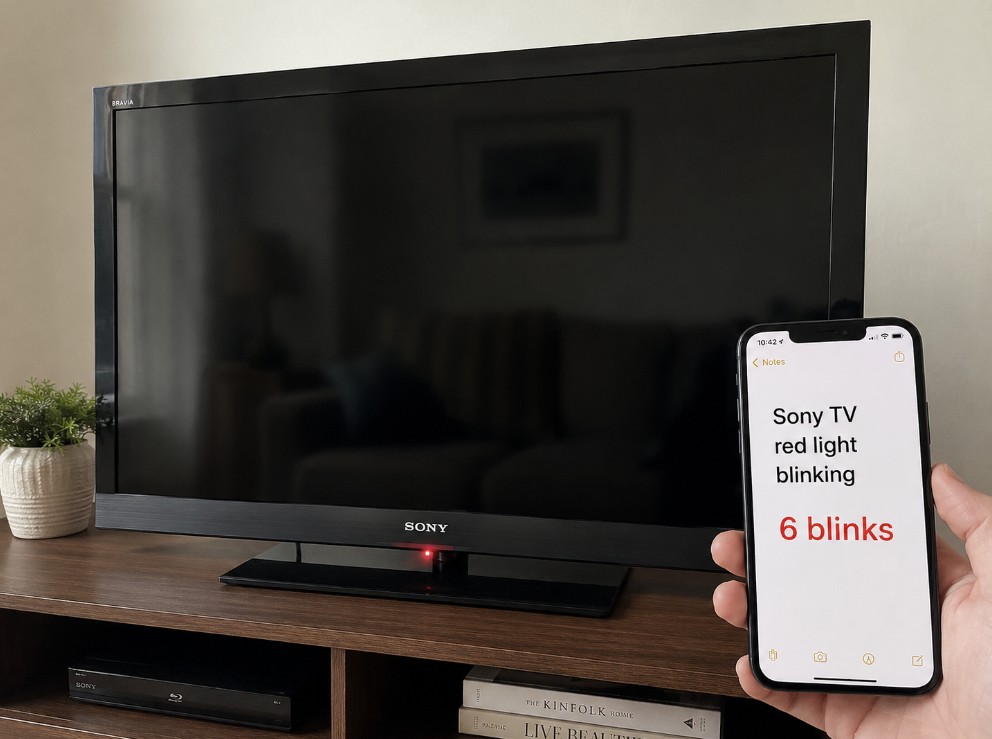

The screen stays dark, the TV refuses to start, and Sony TV red light blinking becomes the only clue you have. It may blink four times, six times, seven times, eight times, or repeat another pattern. That pattern matters, but it does not always mean the same repair on every Sony TV model.
A red blinking LED is different from a normal white, amber, green, or status light. On many Sony BRAVIA TVs, a repeating red blink pattern means the TV has detected a fault or protection state. Sometimes a power reset clears a temporary software or connected-device problem. Other times, the TV is warning you about an internal hardware issue that should not be ignored.
The safest approach is simple: count the flashes, remove external devices, power reset the TV correctly, check for overheating, and avoid opening the TV unless you are a qualified technician. ⚠️
Sony TV red light blinking: quick symptom and fix table
| What you notice | What it may mean | What to do first |
|---|---|---|
| Red light blinks and TV will not turn on | TV detected a fault or protection state | Count the flashes, then power reset |
| Red light blinks after connecting HDMI device | External device or HDMI communication issue | Disconnect all HDMI/USB devices and test TV alone |
| Red light blinks seven times | Possible overheating check needed on some Sony TVs | Check ventilation and let the TV cool |
| TV clicks, then red LED blinks | Power or internal protection state | Unplug TV, wait, then test without devices |
| Red LED keeps blinking after reset | Likely needs service diagnosis | Note model and blink count |
| TV works until a console/box is connected | Source device, cable, HDMI port, or power issue | Reconnect devices one at a time |
| TV has no picture but sound works | Could be different from red blink fault | Test backlight symptoms separately |
| Light is amber, white, green, or yellow | Often status, timer, microphone, update, or activity light | Do not treat all LED colours as red fault codes |
First, count the red flashes correctly
Before unplugging everything, watch the LED pattern carefully.
Most blink codes repeat in a loop. For example, the TV may blink six times, pause, then blink six times again. That would usually be described as six red blinks, not twelve.
Use this method:
- Turn the room lights down if needed.
- Watch the LED from the front of the TV.
- Count only the red flashes before the pause.
- Wait for the pattern to repeat.
- Confirm the same number at least twice.
- Write down the exact number.
- Write down the TV model code if you can find it.
Do not guess. If the TV blinks quickly, record a short video with your phone and count the flashes from the video.
This is useful because Sony support or a repair technician may ask for the blink count. It can help narrow the fault area, but it should not be treated as a universal public diagnosis for every model.
Why blink counts should be handled carefully
It is tempting to search “Sony TV red light blinking 6 times” and assume one exact component has failed. That can be risky.
Blink meanings can vary by:
- model year;
- panel type;
- country version;
- power board design;
- backlight system;
- OLED vs LED/LCD design;
- Google TV vs older BRAVIA platform;
- service manual for that exact model.
A six-blink code on one Sony TV may not mean exactly the same repair as six blinks on another Sony TV. Even if two TVs are both BRAVIA models, their internal boards and panel systems can be very different.
Use blink count as a clue, not a final diagnosis.
Sony BRAVIA models where this can happen
This guide applies broadly to Sony TVs where the front LED or standby light blinks red and the TV fails to start normally.
It can be relevant to model families such as:
| Sony TV family | Examples users may search for |
| Sony BRAVIA Google TV | X80J, X85J, X90J, X95J, A80J, A90J |
| Sony 2022 BRAVIA models | X80K, X85K, X90K, X95K, A80K, A95K |
| Sony 2023 BRAVIA models | X80L, X85L, X90L, X95L, A80L, A95L |
| Sony BRAVIA 2024 models | BRAVIA 3, BRAVIA 7, BRAVIA 8, BRAVIA 9 |
| Sony BRAVIA 2025/2026 models | Newer BRAVIA Google TV generations |
| Older Sony LCD/LED TVs | KDL and older non-Google TV models |
Menu paths and reset options can differ. Older Sony TVs may not have the same restart menu as newer Google TV models. But the safe troubleshooting logic is similar: count, reset, disconnect devices, check ventilation, then stop if the red blink returns.
Red LED vs normal Sony TV light colours
Not every LED light means the TV has failed.
Sony TVs can use different LED colours for normal status information. Depending on the model, a white, amber, green, cyan, yellow, or other light may mean the TV is on, receiving a remote signal, recording, using a microphone, running a timer, or performing another normal function.
A repeating red blinking pattern is the one to take seriously.
| LED behaviour | Usually means |
| White blink | Power, remote command, or update activity on some models |
| Amber / yellow light | Timer, microphone, or standby-related status on some models |
| Green light | Camera/microphone or normal activity on some models |
| Cyan or other colour | Wireless connection, demo activity, or model-specific status |
| Repeating red blink | Fault/protection state that needs troubleshooting |
If the light is not red, do not immediately assume the TV needs repair. Check the TV manual or menu settings for LED indicator behaviour.
Do a proper power reset
A power reset is the first safe step. It can clear temporary glitches, failed startup states, HDMI communication problems, or software lockups.
Use this method:
- Turn the TV off if it responds.
- Unplug the power cord from the wall.
- Leave it unplugged for two minutes.
- Press the power button on the TV once if accessible.
- Plug the TV directly into a wall outlet.
- Turn the TV on.
- Watch the LED pattern again.
Avoid using a power strip for the first test. Plug the TV directly into the wall so you can rule out a weak strip, surge protector, smart plug, or loose socket.
If the red blink disappears and the TV starts normally, the problem may have been temporary. If the same blink pattern returns, continue with the next checks.
Disconnect all HDMI and USB devices
A connected device can sometimes trigger startup problems, HDMI communication issues, or power-related faults.
Disconnect everything:
- game consoles;
- streaming boxes;
- cable boxes;
- satellite receivers;
- soundbars;
- AV receivers;
- HDMI switches;
- USB drives;
- USB hard drives;
- cameras;
- antenna amplifiers powered by USB;
- any adapter or dongle.
Then test the TV alone.
If the TV starts normally with everything disconnected, reconnect devices one at a time. After each device, turn the TV on and check whether the red blink returns.
This can reveal a bad HDMI cable, a faulty external device, a USB drive drawing too much power, or a device that is causing communication trouble during startup.
Sony TV red light blinking after HDMI devices are connected
If the red blink appears only after connecting a console, PC, soundbar, or streaming device, focus on that chain.
Check:
| Device chain | What to test |
| PS5 / Xbox | Different HDMI cable, different HDMI port, direct connection |
| Apple TV / Roku / Fire TV | Remove HDMI switch, test direct to TV |
| Soundbar / AVR | Connect source directly to TV first |
| PC | Lower output resolution/refresh rate for testing |
| HDMI switch or splitter | Remove it completely |
| USB drive | Leave it unplugged during startup |
If the TV only fails with one device connected, the TV may not be the only problem. The device, cable, port, or HDMI chain may be triggering the issue.
Check for overheating, especially with repeated seven blinks
On some Sony TVs, a seven-blink red LED pattern can be associated with an overheating check. Even if your TV shows another blink count, ventilation is still worth checking.
Look behind and around the TV:
- Is the TV pushed tightly against a wall?
- Are the vents blocked by dust?
- Is the TV inside a closed cabinet?
- Is a radiator or heater nearby?
- Is direct sunlight heating the panel?
- Are cables or wall mounts covering vents?
- Is there enough space behind the TV?
Turn the TV off, unplug it, and let it cool before testing again.
Do not spray compressed air aggressively into the TV. If vents are dusty, clean gently around the exterior vents with a soft brush or vacuum at low suction. Avoid forcing debris deeper inside the TV.
Test the wall outlet and power cable
Power problems can look like TV failures.
Check:
- wall outlet;
- power cable;
- detachable AC adapter, if your model uses one;
- loose plug;
- extension lead;
- surge protector;
- smart plug;
- overloaded power strip.
Try another wall outlet if practical. Plug the TV directly into the wall for testing.
If the power cable is detachable and looks damaged, do not keep using it. Replace it with the correct type or contact Sony support.
Do not keep trying to start the TV repeatedly if the LED blinks the same fault pattern every time. Repeated failed starts will not usually repair the issue.
Power restart from the menu if the TV still turns on
If the TV sometimes turns on and lets you access the menu, use the normal restart path before the problem gets worse.
On newer Sony Google TV models, menu wording can vary, but common paths include:
- Settings > System > Restart
- Settings > About > Restart
- Settings > Device Preferences > About > Restart
Some Sony remotes also allow a restart by holding the power button until the restart option appears.
If the TV is already stuck in a red blinking state and does not show a picture, use the power reset method instead.
Update the software only if the TV can stay on
If your Sony TV turns on long enough to access settings, check for software updates.
A software update can help with:
- startup stability;
- HDMI behaviour;
- app crashes;
- remote/power issues;
- general system reliability.
But do not try to force an update if the TV cannot stay powered on. An interrupted update can create a worse problem.
If the TV is stable enough:
- Connect to the internet.
- Open Settings.
- Go to System or About.
- Check for software update.
- Let the update complete fully.
- Restart the TV.
- Watch whether the red blink returns.
If the TV keeps shutting down or blinking red during startup, skip updates and focus on safe power/device checks or service.
When a factory reset may help
A factory reset may help if the issue is caused by corrupted software, settings, or a system state. But it is not a magic fix for hardware faults.
Consider a factory reset only if:
- the TV turns on long enough to access settings;
- power reset did not help;
- all HDMI/USB devices are disconnected;
- the TV does not show obvious overheating signs;
- the issue started after a software/app problem;
- you are prepared to lose settings, apps and logins.
A factory reset removes:
- Google account setup;
- app logins;
- Wi-Fi details;
- picture settings;
- HDMI names;
- accessibility preferences;
- installed apps.
For Sony Google TV models that will not start normally, forced factory reset methods can differ by model and button layout. Follow the procedure for your exact model only.
Do not attempt random button combinations from a different Sony series.
When not to keep troubleshooting
Stop and consider repair if:
- the same red blink pattern returns after power reset;
- the TV blinks red with all HDMI/USB devices disconnected;
- the TV clicks and shuts down repeatedly;
- the red LED blinks immediately after plugging in;
- the TV smells burnt or makes unusual sounds;
- the TV was exposed to liquid, impact or power surge;
- the TV overheats even with clear ventilation;
- the TV cannot stay on long enough for a reset;
- the same blink count repeats every time.
At that point, the blink pattern is likely more than a temporary glitch. A technician or Sony support can use the model and blink count to decide the next step.
Do not open the TV unless you are qualified
A red blinking Sony TV can involve power boards, LED backlight circuits, panel systems, main boards, thermal protection, or other internal components. These parts can be dangerous and expensive to diagnose incorrectly.
Do not open the back cover if:
- the TV is under warranty;
- you are not trained for electronics repair;
- you do not know how to discharge power circuits;
- you do not have the correct tools;
- you are guessing based on forum posts;
- you are working alone on a large panel.
Opening the TV can void warranty, damage fragile cables, crack the panel, or expose you to electrical risk.
A good public troubleshooting article should help readers avoid unnecessary service calls, not push them into unsafe repairs.
Sony OLED vs LED/LCD: why the blink may not mean the same thing
Sony OLED and Sony LED/LCD TVs are built differently.
A Sony OLED TV does not use the same LED backlight system as an LCD TV. A Sony Mini LED or Full Array LED model has different hardware again. That is why public “blink code” explanations can be misleading when they treat all Sony TVs the same.
For example:
| TV type | Why diagnosis differs |
| Sony OLED | No traditional LCD backlight system |
| Sony Full Array LED | Backlight zones and power circuits can matter |
| Sony Mini LED | More complex backlight control system |
| Older Sony LCD | Different boards and blink code logic |
| Newer Sony Google TV | Software and startup state can also matter |
The visible symptom may look similar — red light blinking — but the repair path can differ greatly.
What to write down before contacting support
Before calling Sony support or a repair shop, collect:
- exact model number;
- screen size;
- serial number if available;
- number of red blinks;
- whether the pattern repeats;
- whether the TV clicks;
- whether the screen lights up at all;
- whether sound ever plays;
- whether HDMI/USB devices were connected;
- whether a power reset was tried;
- whether the TV was hot;
- whether a storm or power cut happened recently;
- purchase date and warranty status.
This makes the support conversation much faster.
You can usually find the model code on:
- the back label of the TV;
- original box;
- receipt;
- TV settings, if it still turns on;
- Sony account product registration;
- retailer order history.
Repair or replace: what to think about
A red blinking LED does not automatically mean the TV is dead, but it can point to a repair that may not be cheap.
Think about:
- TV age;
- warranty status;
- screen size;
- repair quote;
- panel type;
- whether parts are available;
- cost of a comparable replacement;
- whether the problem is intermittent or constant;
- whether the TV already had other issues.
For a newer premium BRAVIA, repair may make sense, especially under warranty. For an older TV with repeated red blink faults, a repair quote may approach the cost of replacement.
Do not decide only from a forum comment. Get the blink count and model-specific advice first.
Safe troubleshooting order
Use this order before repair:
| Step | What to do |
| 1 | Count the red flashes before the pause |
| 2 | Write down the exact Sony model |
| 3 | Power reset the TV from the wall |
| 4 | Plug directly into a wall outlet |
| 5 | Disconnect all HDMI and USB devices |
| 6 | Test the TV alone |
| 7 | Check ventilation and overheating |
| 8 | Restart/update only if the TV stays on |
| 9 | Factory reset only if the TV is stable enough |
| 10 | Contact support if the red blink returns |
This order keeps the process safe. It also avoids the common mistake of replacing cables, boards, or devices before checking the simplest causes.
Common mistakes to avoid
Guessing the repair from the blink count alone
The blink count matters, but it is not a universal diagnosis across every Sony model.
Leaving HDMI devices connected during testing
A faulty device or HDMI chain can trigger problems. Test the TV alone first.
Using a weak power strip for troubleshooting
Plug directly into the wall when testing power issues.
Ignoring overheating
Blocked vents and tight cabinets can make a power or protection problem worse.
Running a factory reset too early
Factory reset removes your setup and may not fix a hardware fault.
Trying random service menu codes
Do not enter service menus or hidden diagnostic modes unless instructed by qualified support.
Opening the TV because a forum said it is “just the backlight”
Large TVs contain fragile panels and power circuits. Guessing can make the repair more expensive.
Practical setup notes
If your Sony TV starts working after a reset, keep the setup simple for a while.
Use:
- direct wall power;
- one HDMI device at a time;
- no HDMI switch at first;
- no USB hard drive during startup;
- clear space behind the TV;
- updated software;
- stable power;
- moderate brightness settings if overheating is suspected.
Then reconnect devices slowly. If the red blinking returns after one device is connected, you have a strong clue.
Sony TV red light blinking is not the kind of symptom to ignore, but it is also not a reason to panic immediately. Count the flashes, remove external causes, power reset safely, check ventilation, and know when to stop. If the same red blink pattern keeps coming back with the TV alone, the next step is model-specific support or repair, not more random setting changes.
Internal links
Live sports delay on TV — stop goal spoilers before you see them
Sony TV articles and BRAVIA guides
Sony Bravia 7 II vs TCL C8L — True RGB or brighter SQD Mini LED?