
You adjust brightness, local dimming, motion, color temperature, or Game Mode, and then TCL picture settings keep resetting the next time you turn the TV on. Sometimes the TV jumps back to Vivid. Sometimes Dolby Vision looks different again. Sometimes one HDMI input keeps your changes, but another input behaves like you never touched it.
This is frustrating, especially on newer TCL Google TV models where there are separate picture modes for SDR, HDR, Dolby Vision, Game Mode, streaming apps and HDMI devices. The good news is that this problem usually has a logical cause. It is often Store Mode, Demo Mode, a separate input profile, an HDR mode you did not adjust yet, or a firmware/app state that needs a proper restart.
The important part is not to change every setting at once. First, check whether the TV is actually allowed to save your settings. Then check whether you are adjusting the right picture profile for the right input and signal type. 📺
TCL picture settings keep resetting: quick cause and fix table
| What happens | Most likely cause | What to check first |
|---|---|---|
| Picture mode keeps returning to Vivid | Store Mode, Retail Mode or Demo Mode | Switch the TV to Home Mode |
| Settings reset after turning the TV off | Store Mode or system state issue | Check Usage Mode and restart the TV |
| HDMI 1 saves settings but HDMI 2 does not | Separate picture profiles per input | Adjust each HDMI input separately |
| SDR looks saved but HDR changes again | HDR has a separate picture profile | Play HDR content and adjust HDR mode |
| Dolby Vision keeps looking different | Dolby Vision has its own modes | Adjust Dolby Vision Dark/Bright/IQ separately |
| Game Mode resets after console reconnects | HDMI/Game Master profile conflict | Check Game Mode, ALLM and input label |
| Settings reset after firmware update | Update refreshed picture profiles | Recheck modes after the update |
| Apps keep changing picture mode | App or content switches SDR/HDR/Dolby Vision | Check signal type before adjusting settings |
| TV reverts after a few minutes in shop-like loop | Demo Mode still active | Disable Store Mode / choose Home Mode |
First check if your TCL TV is in Store Mode
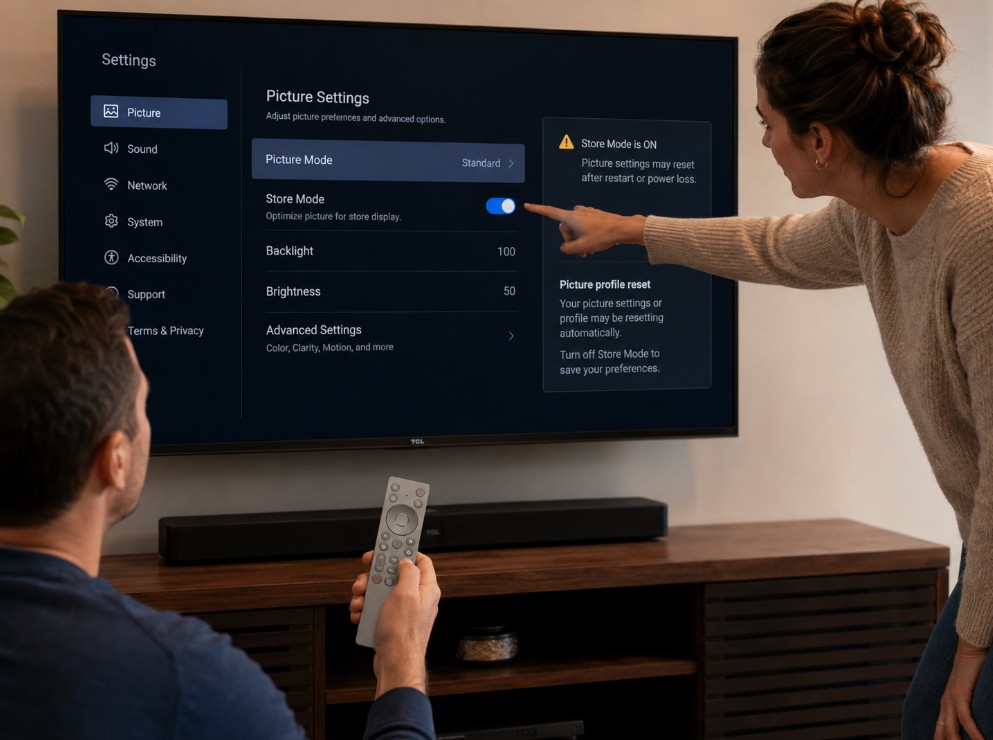
This is the first thing to check. If a TCL Google TV is in Store Mode, Retail Mode or Demo Mode, it may intentionally reset settings so the TV looks bright and eye-catching in a shop.
That is useful in a store. It is terrible at home.
Store Mode can cause:
- picture settings not saving;
- the TV returning to Vivid or Dynamic;
- brightness changing back after restart;
- demo banners or retail messages;
- settings resetting after a few minutes;
- the TV behaving as if it is still on display;
- picture mode changes that do not stay after power off.
If your TCL picture mode keeps changing and you bought the TV as a display unit, open-box unit or showroom model, check Store Mode immediately.
How to switch TCL Google TV from Store Mode to Home Mode
On many TCL Google TV models:
- Press the Settings button on the remote.
- Open All Settings if needed.
- Go to System.
- Open Advanced Settings.
- Select Usage Mode.
- Choose Home Mode.
- Confirm and exit the menu.
- Restart the TV.
After switching to Home Mode, change one simple setting, such as Picture Mode or Brightness, then turn the TV off and back on. If the setting stays saved, Store Mode was likely the cause.
Check Demo Mode if Home Mode already looks selected
Sometimes the TV may appear to be in Home Mode, but a demo or retail behavior is still active.
Look for signs like:
- promotional banners;
- automatic picture changes;
- pop-up feature demos;
- TV returning to a bright showroom look;
- settings reverting after a short time;
- unusually aggressive brightness and color.
Check TCL menu areas such as:
- System;
- Advanced Settings;
- Usage Mode;
- Retail Mode;
- Store Mode;
- Demo Mode;
- Location or Environment setting.
Menu wording can vary by region, model and firmware. The important idea is simple: the TV must be configured for home use, not store display.
If there is no visible option and the TV still behaves like a demo unit, a factory reset may be needed as a last resort. During setup, choose Home Mode or Home Use, not Store Mode.
Why TCL picture settings reset on one HDMI input only
TCL TVs usually save picture settings separately for different inputs and signal types. This is normal.
For example, your settings for the built-in Netflix app may not apply to HDMI 1. Your PS5 settings may not apply to HDMI 2. Your PC input may not share the same profile as your cable box.
That means the TV may not be “forgetting” your settings. You may simply be looking at a different picture profile.
Common examples:
| Source | Why it may look different |
| Built-in streaming apps | App profile can be separate from HDMI |
| HDMI 1 console | Game Mode and HDR may use separate settings |
| HDMI 2 cable box | SDR profile may not match console profile |
| HDMI 3 PC | PC mode can save different sharpness/color options |
| HDMI eARC soundbar chain | Source may pass through another device |
| USB media player | May use a different media playback profile |
| Live TV tuner | Can have separate broadcast picture settings |
To fix this, open the source you actually use, then adjust settings while that source is active.
Do not tune the home screen and assume the same settings apply everywhere.
SDR, HDR and Dolby Vision save separately
This is another major reason people think their TCL TV settings are resetting.
A TCL Google TV can use separate picture modes for:
- SDR;
- HDR10;
- HDR10+ where supported;
- HLG;
- Dolby Vision;
- Game Mode;
- PC mode;
- app playback;
- HDMI playback.
If you adjust SDR settings on the Google TV home screen, those settings may not apply when a Dolby Vision movie starts. When Dolby Vision begins, the TV switches into a Dolby Vision picture mode, such as Dolby Vision Dark, Dolby Vision Bright or Dolby Vision IQ, depending on the model and firmware.
That is not always a reset. It is a different mode.
How to adjust the correct TCL picture mode
Use this method:
- Open the exact app or HDMI device you want to fix.
- Play the exact type of content: SDR, HDR or Dolby Vision.
- Wait for the TV to switch into that signal mode.
- Open Picture settings.
- Adjust only that mode.
- Exit the menu.
- Stop playback.
- Reopen the same content and check if the setting stayed saved.
If Dolby Vision is too bright, too dim or keeps changing, adjust Dolby Vision while Dolby Vision content is actually playing. If Game Mode looks wrong, adjust it while the console is active.
Why Dolby Vision settings may look like they changed
Dolby Vision is handled differently from normal SDR. On TCL TVs, Dolby Vision modes may include options like:
- Dolby Vision Dark;
- Dolby Vision Bright;
- Dolby Vision IQ;
- Dolby Vision Filmmaker Mode on some updated models;
- Dolby Vision Game where supported.
Each mode can behave differently. Dolby Vision IQ can also react to room lighting if the TV has the relevant sensor and setting active.
So if you set Dolby Vision Dark at night and later the TV uses Dolby Vision Bright or IQ during the day, it may feel like your settings changed. In reality, the TV may have switched to a different Dolby Vision profile.
Check:
- which Dolby Vision mode is active;
- whether ambient light features are enabled;
- whether the app is actually playing Dolby Vision;
- whether the same title plays in HDR10 on another device;
- whether the TV received a firmware update that changed Dolby Vision mode names.
A simple rule: tune each Dolby Vision mode separately, and do not assume one mode controls all Dolby Vision playback.
TCL Game Mode settings can save separately too
Gaming adds another layer.
On TCL models with Game Master, Game Bar, VRR, ALLM or 120Hz/144Hz features, the TV may switch automatically when it detects a console or PC. That automatic switch can make it look like picture settings are changing by themselves.
Check these gaming-related items:
| Setting or behavior | What it can change |
| ALLM | Automatically enables low-latency/game mode |
| Game Master | Uses a dedicated gaming profile |
| Game Bar | Shows active refresh rate, VRR and HDR status |
| HDMI input label | PC/Console labels can change processing |
| VRR | May change motion/local dimming behavior |
| 120Hz or 144Hz mode | May use different picture processing |
| Console HDR setup | Can make TV HDR settings look wrong |
| PC RGB range | Can affect black level and contrast |
If Game Mode keeps resetting, test with one console first. Disconnect other HDMI devices, restart the TV, then adjust the console input again.
Do not tune gaming settings from the home screen. Tune them while the console or PC is sending the actual signal.
TCL C7K, C8K, C8L, QM and X models: what to check
The same logic applies across many TCL Google TV models, but newer Mini LED and QLED models can have more picture profiles.
This guide is especially relevant for recent TCL Google TV families such as:
- TCL C6K;
- TCL C7K;
- TCL C8K;
- TCL C8L / QM8L-type models;
- TCL QM6K;
- TCL QM7K;
- TCL QM8K;
- TCL C805 / C855-type regional models;
- TCL X11K / X11L-type premium models;
- other recent TCL Google TV models with HDR, Dolby Vision and Game Mode.
Exact menu names can vary by country, firmware and retailer version. Some models may have Dolby Vision IQ, some may not. Some may have 144Hz, some may stop at 120Hz. Some may receive firmware changes that adjust picture modes or rename options.
The troubleshooting method stays the same: Home Mode first, then correct input, then correct signal type, then restart/update checks.
Check Basic Mode on TCL Google TV
Google TV setup can sometimes offer a simpler mode or limited setup state. If the TV is not fully set up, some smart features, accounts or personalized settings may not behave normally.
Check whether:
- the TV setup was completed;
- Google account sign-in is working;
- network connection is stable;
- user agreements are accepted where required;
- Google TV is not in a restricted or limited mode;
- the TV has enough storage for system/app updates.
If the TV is not fully connected or updated, it may still work as a display but behave inconsistently with apps, home screen features or saved preferences.
Check internet connection and Google TV sync
Picture settings should not need the internet to exist, but Google TV system behavior, app state, updates and account-based settings can be affected by a poor connection.
Check:
- Open Settings.
- Go to Network & Internet.
- Confirm the TV is connected to the correct Wi-Fi.
- Open a streaming app and test playback.
- Check for system updates.
- Restart the TV after updates.
This is especially useful if settings began resetting after an app update, Google TV update or account change.
If your TV has weak Wi-Fi, fix that separately. A poor connection can make apps behave strangely, but it is usually not the main cause of picture mode reverting to Vivid. Store Mode and separate profiles are still more likely.
Restart the TCL TV properly
A normal remote power button press may only put the TV into standby. It may not fully clear the system state.
Use a proper restart:
- Press Settings.
- Go to System.
- Choose Restart if available.
Or use a power cycle:
- Turn off the TV.
- Unplug it from the wall.
- Wait 60 seconds.
- Plug it back in.
- Turn the TV on.
- Test the same picture setting again.
Do this after:
- changing Store Mode to Home Mode;
- installing a firmware update;
- changing HDMI devices;
- pairing a new console;
- changing Dolby Vision or HDR settings;
- clearing app problems.
A clean restart can stop the TV from reloading a stuck profile.
Update TCL Google TV firmware
If the TV is in Home Mode and settings still do not save, check for updates.
On TCL Google TV:
- Open Settings.
- Go to System.
- Select About.
- Choose System update.
- Install any available update.
- Restart the TV after installation.
Firmware updates can fix picture bugs, app behavior, HDMI behavior, Dolby Vision handling, audio issues and general stability. They can also change picture mode names or reset some defaults, so recheck your settings after a major update.
Do not install firmware from random forum links. Use the TV’s built-in update system or TCL’s official support page for your region and exact model.
When a firmware update resets picture settings
Sometimes settings reset because the TV received an update. That can happen after:
- Android TV / Google TV version changes;
- TCL picture processing updates;
- Dolby Vision mode updates;
- Game Bar / Game Master updates;
- HDMI behavior changes;
- app updates that affect playback format.
If your settings changed right after an update, do not assume the TV is defective. Recheck each profile:
- SDR in streaming apps;
- HDR in streaming apps;
- Dolby Vision;
- HDMI console;
- HDMI PC;
- live TV;
- USB media if used.
It is annoying, but it is safer than fighting the wrong setting.
When only one app looks wrong
If YouTube looks fine but Netflix, Disney+, Prime Video or another app looks wrong, the TV may not be resetting all picture settings. That app may be using a different signal format.
Check:
| App behavior | Possible reason |
| One title looks dim | Dolby Vision or HDR profile |
| One app looks oversaturated | Different picture mode active |
| One app ignores motion setting | App playback mode or signal type |
| One app changes brightness | HDR/SDR switching |
| One app looks normal after restart | App state issue |
| Same app looks different on HDMI streamer | External device output settings |
Open the exact app, play the exact title, then adjust picture settings. Do not adjust settings from another app and expect them to carry over perfectly.
When only one HDMI device resets
If the problem happens only with one HDMI device, check the device and input chain.
Possible causes:
- console switches ALLM on;
- PC changes refresh rate or HDR mode;
- cable box changes output resolution;
- Apple TV or streamer switches dynamic range;
- HDMI-CEC changes source behavior;
- AVR or soundbar changes signal path;
- HDMI input label changed;
- TV treats PC mode separately.
Test cleanly:
- Disconnect other HDMI devices.
- Connect only the problem device.
- Restart the TV.
- Set the HDMI input label if needed.
- Play SDR content first.
- Adjust SDR settings.
- Play HDR content.
- Adjust HDR settings.
- Restart and test again.
If the setting only resets with that device, the source may be changing the signal type.
Avoid changing every picture mode at once
When the TV keeps changing settings, it is tempting to adjust everything. That makes troubleshooting harder.
Change one setting first:
- Picture Mode;
- Brightness;
- Local Dimming;
- Motion;
- Color Temperature;
- Game Mode.
Then restart the TV and check if it stayed saved.
If one setting saves but another does not, the issue may be profile-specific. If nothing saves, check Store Mode again.
Safe settings to test first
Use simple settings for the first test:
| Setting | Why it is useful for testing |
| Picture Mode | Easy to notice if it changes back |
| Color Temperature | Easy to see Warm vs Cool |
| Motion setting | Easy to tell if smoothing returns |
| Local Dimming | Useful on Mini LED models |
| Brightness / Backlight | Easy to verify after restart |
| Game Mode | Useful for HDMI console testing |
Do not start by changing advanced color management or white balance. Those settings are harder to track and may behave differently across profiles.
When to clear app cache
If one streaming app keeps switching modes or behaving oddly, clear its cache before resetting the whole TV.
On TCL Google TV:
- Open Settings.
- Go to Apps.
- Select See all apps.
- Choose the problem app.
- Select Clear cache.
- Force stop the app if available.
- Reopen the app and test again.
Only clear storage/data if needed, because that may sign you out.
This is useful when the issue happens only in one app, not across the TV.
When to factory reset the TCL TV
Factory reset should be the last step.
Consider it only if:
- the TV was a store display unit;
- Store Mode cannot be disabled normally;
- Home Mode does not stay selected;
- settings do not save anywhere;
- multiple profiles reset after every restart;
- system updates do not help;
- the TV has other serious software problems;
- TCL support recommends it.
Before factory reset, write down your important picture settings or take photos of the menus. A reset removes apps, accounts, Wi-Fi details, picture settings and preferences.
During setup, choose Home Mode or Home Use, not Store Mode.
Troubleshooting order
Use this order before making major changes:
| Step | What to do |
| 1 | Check if the TV is in Store Mode / Demo Mode |
| 2 | Switch to Home Mode |
| 3 | Restart the TV fully |
| 4 | Test one simple picture setting |
| 5 | Adjust the correct input, not only the home screen |
| 6 | Check SDR, HDR and Dolby Vision separately |
| 7 | Check Game Mode separately for consoles/PC |
| 8 | Update TCL Google TV firmware |
| 9 | Clear cache for one problem app if needed |
| 10 | Factory reset only as a last resort |
This order avoids the most common mistake: resetting the whole TV when the only issue is Store Mode or a separate HDR profile.
Common mistakes to avoid
Changing settings on the home screen only
The home screen may use SDR. Your movie, console or streaming device may use HDR or Dolby Vision. Adjust settings while the real content is playing.
Assuming Dolby Vision uses the same settings as SDR
It does not. Dolby Vision has its own modes and may need separate adjustment.
Forgetting each HDMI input can be different
HDMI 1, HDMI 2 and HDMI 3 may not share the same profile. Tune the input you actually use.
Leaving Store Mode active
If the TV is in Store Mode, settings may keep resetting by design.
Blaming the panel
A reset picture mode is usually software/profile behavior, not a bad panel.
Factory resetting too early
Factory reset can help, but it is not the first fix. Check Home Mode, input profiles and signal modes first.
Using random firmware files
Do not install unofficial firmware. Use the TV update menu or the official support page for your exact TCL model and region.
Practical setup notes
For a stable TCL Google TV setup:
- use Home Mode;
- restart after changing Usage Mode;
- tune each HDMI input separately;
- tune SDR, HDR and Dolby Vision separately;
- tune Game Mode while the console or PC is active;
- keep firmware updated;
- avoid changing ten settings at once;
- write down your final settings;
- recheck profiles after major updates;
- use factory reset only when normal fixes fail.
A TCL TV that keeps returning to Vivid, Standard or another mode is not always defective. Most of the time, the TV is either still acting like a store display, using a different input profile, switching into HDR or Dolby Vision, or loading a game profile you have not adjusted yet.
Once you separate those layers, the fix becomes much easier. Put the TV in Home Mode, tune the exact source you use, save each signal type separately, and restart once before judging the result.