
A TCL television may play streaming Dolby Vision perfectly, yet TCL Dolby Vision not working from USB becomes the problem as soon as you open a local MKV or MP4 file. The TV may switch only to HDR10, show strange green or purple colours, play the video without the Dolby Vision badge, or reject the file completely.
This does not necessarily mean Dolby Vision is broken on the television.
Dolby Vision support is not one universal switch. Successful local playback depends on the file’s Dolby Vision profile, its MKV or MP4 container, the media player application, the decoder available on that TCL model, the firmware version and the file’s audio format.
A streaming service can therefore trigger Dolby Vision correctly while a USB file on the same television falls back to HDR10 or fails to play.
The first step is identifying what is actually inside the file. 🎬
TCL Dolby Vision not working from USB: quick diagnosis
| What happens | Likely explanation | Best first check |
|---|---|---|
| File plays as HDR10 | Dolby Vision metadata or enhancement layer is not being used | Check the Dolby Vision profile |
| No Dolby Vision notification appears | Player may be using only the HDR10 base layer | Test another player application |
| Green or purple image | Unsupported profile or incorrectly interpreted colour format | Check whether the file is Profile 5 |
| MKV fails but MP4 works | Container extraction differs between players | Test the same legal sample in both containers |
| Built-in player fails but another app works | TCL Media Player limitation | Keep the player that uses the correct decoder |
| Video works but has no sound | Audio codec is unsupported or not being passed through | Check TrueHD, DTS-HD or other audio track |
| Video stutters from USB | Drive speed, USB port or bitrate limitation | Test a faster drive and port |
| Dolby Vision works through HDMI player | Internal Google TV playback path is limited | Use the external player for that file type |
| File works on one TCL but not another | Decoder, chipset or firmware support differs | Verify the exact TCL model |
| Video refuses to open | Container, codec, profile or file-system problem | Inspect the file before resetting the TV |
Dolby Vision support does not guarantee every local file
A TCL product page may list:
- Dolby Vision;
- Dolby Vision IQ;
- H.265 or HEVC;
- MKV playback;
- MP4 playback;
- USB media support;
- 4K video playback.
Those features are important, but they do not combine into a promise that every Dolby Vision MKV file will work.
Think of local playback as a chain:
- The USB drive must be readable.
- The media player must open the container.
- The player must identify the video codec.
- It must recognise the Dolby Vision metadata and profile.
- The TCL decoder must support that profile.
- The television must receive a valid Dolby Vision output.
- The audio track must also be supported or converted.
If one link fails, the television may use HDR10, display incorrect colours, play only audio or refuse the file.
This explains why Netflix can work normally while the same TV struggles with a local video.
MKV is not the video codec
One of the most common sources of confusion is treating MKV as the video format.
MKV is a container. It can hold:
- HEVC/H.265 video;
- AVC/H.264 video;
- Dolby Vision metadata;
- HDR10 metadata;
- several audio tracks;
- subtitles;
- chapter information;
- multiple versions of the same language.
MP4 is also a container.
Two files can contain visually identical HEVC video while behaving differently because one is stored in MKV and the other in MP4. The application must know how to extract the video, Dolby Vision metadata, audio and subtitles from that specific container.
Changing the filename from .mkv to .mp4 does not convert the container and will not fix playback.
A proper remux creates a new container without re-encoding the video. Only use personal content, openly licensed samples or backups you are legally permitted to create and modify.
Why the Dolby Vision profile matters
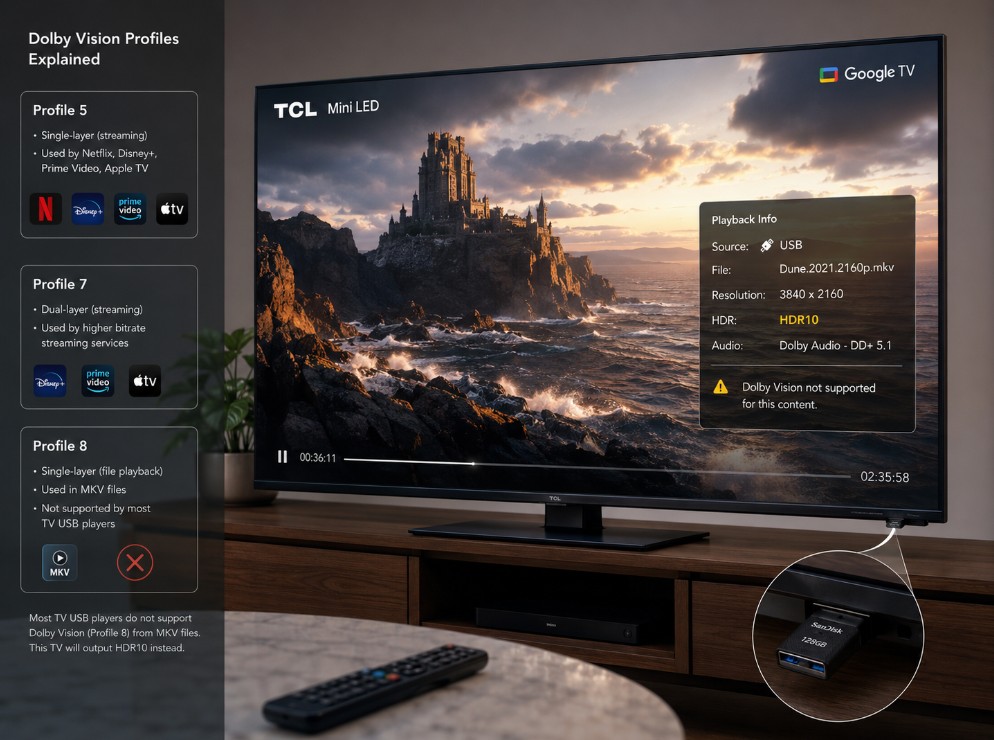
Dolby Vision uses different profiles for different delivery systems. The three most relevant profiles for TCL local playback are Profile 5, Profile 7 and Profile 8.
| Dolby Vision profile | Common use | Backward-compatible base | Practical TCL concern |
| Profile 5 | Streaming delivery | No normal HDR10 fallback | Can show incorrect colours if Dolby Vision is not decoded properly |
| Profile 7 | UHD Blu-ray | HDR10 base layer plus enhancement data | Internal players may use only HDR10 or reject part of the Dolby Vision structure |
| Profile 8.1 | Streaming/local delivery | HDR10-compatible base | Often has a safer HDR10 fallback |
| Profile 8.4 | Broadcast and selected delivery workflows | HLG-compatible base | Requires correct Profile 8.4 recognition |
| Other profiles | Specialised workflows | Varies | Compatibility must be checked individually |
The profile number should not be treated as a quality score. Profile 8 is not automatically better than Profile 7, and Profile 7 is not automatically better for every playback device.
The profiles describe different technical structures and compatibility paths.
Dolby Vision Profile 5 and the green or purple screen
Profile 5 is widely associated with streaming-style Dolby Vision delivery. It normally relies on Dolby Vision decoding and does not contain a conventional HDR10 fallback image.
If a player opens the video but fails to process the Dolby Vision colour information correctly, the result may look:
- green;
- purple;
- magenta;
- heavily tinted;
- washed out;
- extremely dark;
- completely wrong despite smooth playback.
This is not usually fixed through TCL picture settings.
The player is decoding the file incorrectly or passing it through a path that does not support that Profile 5 format.
Try:
- Confirm that the file is Profile 5.
- Test another Google TV player.
- Update the player application.
- Restart the TV.
- Test a known-good Dolby Vision sample.
- Use an external Dolby Vision-capable playback device if necessary.
If Profile 5 produces wrong colours while Profile 8.1 works, the TV panel is not the problem. The difference is in the file and playback path.
Dolby Vision Profile 7 is more complicated
Profile 7 is commonly associated with Dolby Vision UHD Blu-ray.
It can contain:
- an HDR10-compatible base layer;
- Dolby Vision metadata;
- an enhancement layer;
- either a minimal enhancement layer or a full enhancement layer.
This creates several possible results on a TCL TV.
Result 1: full or supported Dolby Vision playback
The player and decoder recognise the Profile 7 structure and trigger Dolby Vision.
This is the ideal result, but support must be confirmed for the exact model, application and file.
Result 2: HDR10 fallback
The player ignores or cannot use the Dolby Vision enhancement information but plays the HDR10 base layer.
The television then shows HDR10 rather than Dolby Vision.
This is not necessarily a playback failure. It may be the safest compatible fallback available.
Result 3: partial Profile 7 handling
A player may recognise the Dolby Vision metadata without processing every part of the enhancement layer.
The TV can show a Dolby Vision mode, but that does not prove that the complete original Profile 7 structure is being reconstructed.
Result 4: playback failure
The application cannot correctly extract or deliver the required layers, resulting in:
- a black screen;
- an error message;
- no video;
- stuttering;
- playback that immediately closes;
- HDR10 fallback;
- incorrect colours.
Profile 7 is therefore the profile most likely to generate contradictory online answers.
Two users can own Dolby Vision-capable TCL televisions and still obtain different results because they use different models, firmware, media players or Profile 7 variants.
MEL and FEL are not the same thing
Profile 7 discussions often mention MEL and FEL.
- MEL means Minimal Enhancement Layer.
- FEL means Full Enhancement Layer.
FEL contains more enhancement information and requires a playback chain capable of reconstructing it correctly. Many television applications and external boxes do not process the full FEL path, even when they can trigger a Dolby Vision output.
A player may instead:
- use the HDR10 base layer;
- use Dolby Vision metadata without full FEL reconstruction;
- convert the file into another supported playback path;
- reject the enhancement layer;
- fail completely.
This is why “the Dolby Vision logo appeared” is not a complete technical test of Profile 7 FEL playback.
For normal users, the practical question is not only whether the badge appears. It is whether the image is stable, correctly coloured and using the intended HDR path.
Profile 8 is often easier, but not universal
Profile 8 is normally single-layer and can use a backward-compatible base.
Common examples include:
- Profile 8.1 with an HDR10-compatible base;
- Profile 8.4 with an HLG-compatible base.
This structure can make fallback easier. If the device cannot use the Dolby Vision metadata, it may still play the compatible HDR base.
However, Profile 8 is still not guaranteed on every TCL media player.
The application must:
- recognise the profile;
- identify the metadata;
- access a compatible decoder;
- pass the correct output to the display.
An older app can therefore play a Profile 8.1 file as HDR10 even when the television itself supports Dolby Vision.
When TCL Dolby Vision not working from USB is actually a player limit
The built-in TCL Media Player is designed for convenient everyday playback. It may handle standard HEVC, H.264, MP4, MKV, photos and music without supporting every advanced Dolby Vision structure.
Another Google TV player may use:
- a different container extractor;
- a different version of the Android media framework;
- different hardware-decoder preferences;
- tunneled playback;
- software support for additional audio formats;
- a deliberate HDR10 fallback for unsupported Dolby Vision files.
This is why a file can fail in one application and work in another.
Players commonly tested by TCL Google TV owners include:
- the built-in Media Player;
- Just Player;
- VLC;
- Kodi;
- Plex;
- Jellyfin;
- Nova Video Player.
Availability and behaviour can change through app updates.
Do not assume that the player with the longest feature list will be best for every file. Test the simplest direct-play path first.
Built-in player vs Just Player
The TCL player is convenient because it is integrated into the television. However, it may provide limited technical information when a file falls back to HDR10.
Just Player is built around the Android Media3/ExoPlayer playback stack and supports several containers and HDR formats on compatible hardware.
For Profile 7, some player implementations offer an option to treat the file as HDR HEVC. That allows playback through the HDR10-compatible base layer rather than claiming full Dolby Vision processing.
This can be preferable to:
- a black screen;
- corrupted colours;
- unstable playback;
- complete rejection of the video.
But HDR HEVC fallback should not be described as full Profile 7 Dolby Vision.
Check which picture mode the TCL television activates during playback.
How to identify the file correctly
Use a media-information utility on a computer to inspect the file.
Record:
- container: MKV, MP4, M2TS or another type;
- video codec: HEVC/H.265, AVC/H.264 or AV1;
- Dolby Vision profile;
- Dolby Vision level;
- base-layer compatibility;
- HDR10 or HLG compatibility;
- resolution;
- frame rate;
- bitrate;
- audio codec;
- subtitle formats.
The most important details may appear in a form similar to:
- Dolby Vision Profile 5;
- Dolby Vision Profile 7;
- Dolby Vision Profile 8.1;
- HDR10 compatible;
- BL+EL+RPU;
- BL+RPU;
- MEL;
- FEL.
Do not rely only on the filename. A filename containing “DV” or “Dolby Vision” can be incorrect.
Check whether the TCL TV really enters Dolby Vision
When Dolby Vision activates, TCL TVs commonly show a Dolby Vision notification or make Dolby Vision picture modes available.
Depending on the model and firmware, the picture menu may show options such as:
- Dolby Vision Dark;
- Dolby Vision Bright;
- Dolby Vision IQ;
- Dolby Vision Filmmaker Mode;
- Dolby Vision Game.
If the TV shows normal HDR picture modes instead, the file is probably playing as HDR10 or another HDR format.
Open the Picture menu while the video is actively playing. Do not check the mode from the Google TV Home screen because picture profiles are saved separately for different formats and sources.
Menu names vary by model, country and firmware.
Test a known-good file before blaming the television
A single problematic file is not enough to diagnose the TV.
Use a short, legally obtained Dolby Vision test clip whose profile and container are known. Then compare:
- Profile 5 in a supported container.
- Profile 8.1 with HDR10 fallback.
- A normal HDR10 HEVC file.
- A standard SDR file.
Record what happens with each one.
| Test result | What it suggests |
| All Dolby Vision files fail | Player, decoder, firmware or model limitation |
| Profile 8.1 works, Profile 5 is purple | Profile 5 decoding incompatibility |
| Profile 7 plays only as HDR10 | Enhancement layer is not being used |
| MP4 works, MKV fails | Container extraction limitation |
| Built-in player fails, another app works | Application limitation |
| Every 4K file stutters | USB speed, bitrate or decoder load |
| HDMI player works correctly | Internal playback path is the limitation |
This comparison is far more useful than repeatedly changing picture settings.
MKV vs MP4: which one should work?
There is no universal answer for every TCL model.
MP4 is commonly used for streaming-style Dolby Vision delivery and may receive stronger Dolby Vision extraction support in certain Android player frameworks.
MKV is flexible and widely used for local libraries, but Dolby Vision handling depends heavily on the player version and exact profile structure.
A TCL TV may therefore:
- trigger Dolby Vision from MP4 but not MKV;
- play MKV as HDR10;
- play both correctly in one application;
- reject the same MKV in another application;
- lose audio or subtitles after a container change.
The correct conclusion is not that MKV is bad or MP4 is always better. The correct conclusion is that the player must understand the combination inside the container.
Do not simply rename the file extension
Renaming:
movie.mkv
to:
movie.mp4
does not rebuild the file.
The internal structure remains MKV, and the player may reject it or misidentify it.
A legitimate remux uses compatible software to place existing video, audio and subtitle tracks into a different container without re-encoding the video.
Even a correct remux does not guarantee compatibility if:
- the Dolby Vision profile is unsupported;
- the audio track is unsupported;
- the player cannot read the metadata;
- the decoder cannot process the profile;
- the subtitle format causes trouble;
- the file exceeds another hardware limitation.
Audio can make a working video appear broken
A local file can contain perfectly compatible Dolby Vision video and still fail because of its audio track.
Common high-end audio formats include:
- Dolby TrueHD;
- Dolby TrueHD with Atmos;
- Dolby Digital Plus with Atmos;
- DTS-HD Master Audio;
- DTS;
- multichannel FLAC;
- PCM.
The internal TCL app, another player and the eARC output may support different combinations.
Symptoms can include:
- video with no sound;
- player closing immediately;
- audio converted to PCM;
- Atmos disappearing;
- transcoding in Plex or Jellyfin;
- playback stutter caused by server conversion.
Test another audio track if one is available.
For diagnosis, an AC-3, E-AC-3 or AAC track can help determine whether the video itself is compatible. This does not mean it offers the same lossless quality as TrueHD or DTS-HD.
USB speed and bitrate are separate problems
TCL Dolby Vision not working from USB may appear to be a format problem when the real issue is transfer speed.
High-bitrate local files can briefly exceed 100 Mbps or more. A slow flash drive, overloaded USB hub or damaged drive may cause:
- buffering;
- dropped frames;
- audio desynchronisation;
- playback stopping;
- delayed seeking;
- application crashes.
Try:
- A fast, reliable USB drive or SSD.
- The TV’s faster USB port, where available.
- Direct connection without a hub.
- A shorter test file.
- Another storage device.
- The same file over a stable local network.
A recent TCL model may have both USB 2.0 and USB 3.0 ports, but port availability differs by series, size and region.
Check the labels near the ports or the model specification.
File-system limits can also interfere
The USB drive’s file system matters.
Common formats include:
- FAT32;
- exFAT;
- NTFS.
FAT32 cannot hold an individual file larger than 4 GB, which makes it unsuitable for many high-quality 4K files.
Support for exFAT and NTFS can vary by TCL platform, firmware and market. A drive that works on a PC is not automatically guaranteed to work on the television.
If the TV does not detect the drive at all:
- test another USB port;
- safely eject and reconnect it;
- verify the partition;
- test a smaller drive;
- avoid unusual multi-partition layouts;
- back up the data before reformatting.
Never reformat a drive before copying important files elsewhere.
Update the TCL firmware and player application
Dolby Vision playback can change through:
- TCL firmware updates;
- Google TV system updates;
- media-player updates;
- Android decoder changes;
- bug fixes for container extraction;
- changes to permissions and file access.
A common TCL Google TV path is:
Settings > System > About > System Update
or:
Settings > System > About > System software update
Paths vary.
Update the player through Google Play, then restart the television fully:
- Turn off the TV.
- Unplug it from power.
- Wait approximately 60 seconds.
- Reconnect it.
- Open the player.
- Test the known-good sample again.
Do not install firmware downloaded from unofficial forum links. Firmware must match the exact TCL model and region.
Clear the player cache without erasing everything
If a player previously worked and suddenly stopped recognising Dolby Vision:
- Open Settings.
- Go to Apps.
- Select the media player.
- Choose Force stop.
- Select Clear cache.
- Restart the application.
Clear data only if cache clearing fails. Clearing data can remove:
- player preferences;
- library information;
- network connections;
- playback history;
- permissions.
Reinstalling the application is another option if its extractor or database has become corrupted.
Test direct USB before Plex or Jellyfin
Plex and Jellyfin add another layer to the playback chain.
The server can:
- direct play the file;
- remux the container;
- transcode the video;
- transcode only the audio;
- remove Dolby Vision metadata;
- choose the HDR10 base layer;
- trigger tone mapping;
- reduce bitrate.
When diagnosing TCL Dolby Vision not working from USB, test the file directly from USB first.
If it works directly but not through Plex, investigate:
- Direct Play status;
- Direct Stream or remux status;
- video transcoding;
- audio transcoding;
- subtitle burn-in;
- server bandwidth;
- client profile;
- network speed.
Image-based subtitles can sometimes trigger video transcoding, which may remove Dolby Vision even when the original file is compatible.
Why subtitles can change the result
Subtitle formats may include:
- SRT;
- WebVTT;
- ASS/SSA;
- PGS;
- DVB subtitles.
Simple text subtitles are usually easier for a TV player.
Image-based subtitles such as PGS may require the application or media server to render them into the video. That process can trigger transcoding and cause Dolby Vision to fall back to HDR10 or SDR.
Test the same scene with subtitles disabled.
If Dolby Vision activates only when subtitles are off, the problem is probably in the subtitle-processing path rather than the video file.
Models where behaviour may differ
This issue can affect selected Dolby Vision-capable TCL Google TV models, including families such as:
- C835 and C935;
- C745, C755 and C805;
- C845 and C855;
- C6K, C7K and C8K;
- C7L and C8L;
- QM6K, QM7K and QM8K;
- regional Mini LED and QLED derivatives.
This list does not mean that every model supports the same local Dolby Vision profiles.
Differences can include:
- MediaTek chipset generation;
- Google TV version;
- internal storage;
- USB port speed;
- Dolby decoder implementation;
- player version;
- regional firmware;
- audio licences;
- model-specific bugs.
Always verify the full model code rather than assuming two similarly named TCL televisions behave identically.
When an external player is the correct solution
An external player may be the practical solution when:
- Profile 7 repeatedly falls back to HDR10;
- the internal player cannot read the MKV structure;
- high-bitrate files stutter;
- lossless audio is important;
- the local server repeatedly transcodes;
- the TV shows wrong colours with Profile 5;
- the same files work correctly through another playback device.
Possible device categories include:
- dedicated Android media players;
- compatible streaming boxes;
- UHD Blu-ray players with supported local playback;
- home-theatre media players;
- computers connected through HDMI.
Check the external player’s exact Dolby Vision profile, container, audio and FEL support before buying. “Dolby Vision supported” can be just as vague on a media box as it is on a television.
The player should also match the needs of your soundbar or AV receiver.
What not to do
Do not change every picture setting
Picture settings cannot make an unsupported Dolby Vision profile compatible.
Do not assume HDR10 fallback is a panel fault
The player may simply be using the compatible base layer.
Do not treat the Dolby Vision badge as proof of full FEL processing
The output mode does not reveal every part of the decoding path.
Do not rename MKV to MP4
A filename change does not convert the container.
Do not factory reset the TV first
A factory reset rarely changes a fundamental profile or decoder limitation.
Do not install random firmware
Incorrect firmware can create a much more serious problem.
Do not download suspicious codec packs
Google TV applications rely mainly on system and application decoders. Unknown packages can create security and stability risks.
Do not discuss every MKV as if it were identical
Container, profile, audio, subtitles and bitrate can all differ.
Safe troubleshooting order
| Step | Action |
| 1 | Confirm that the TCL model supports Dolby Vision |
| 2 | Inspect the file’s container, codec and Dolby Vision profile |
| 3 | Test a known-good Dolby Vision sample |
| 4 | Check which picture mode the TV activates |
| 5 | Test the built-in TCL Media Player |
| 6 | Test another reputable Google TV player |
| 7 | Disable subtitles temporarily |
| 8 | Test a simpler audio track |
| 9 | Use a faster USB drive and port |
| 10 | Update TCL firmware and the player |
| 11 | Test direct USB before Plex or Jellyfin |
| 12 | Use an external player for unsupported combinations |
The practical answer
TCL Dolby Vision not working from USB usually does not have one universal setting fix.
The result depends on the exact combination of:
- Dolby Vision profile;
- MKV or MP4 container;
- media player;
- TCL decoder;
- firmware;
- USB performance;
- audio format;
- subtitle processing.
Profile 5 can produce incorrect colours if Dolby Vision decoding fails. Profile 7 may fall back to its HDR10 base layer or require a more capable playback path. Profile 8.1 can offer a safer HDR10 fallback but still depends on player support.
If Dolby Vision works in streaming apps and through an external HDMI player, the panel and basic Dolby Vision capability are probably fine. The limitation is more likely inside the local playback chain.
Start by identifying the file instead of resetting the television. Once you know the profile, container and active output mode, the confusing behaviour usually becomes much easier to understand. ✨