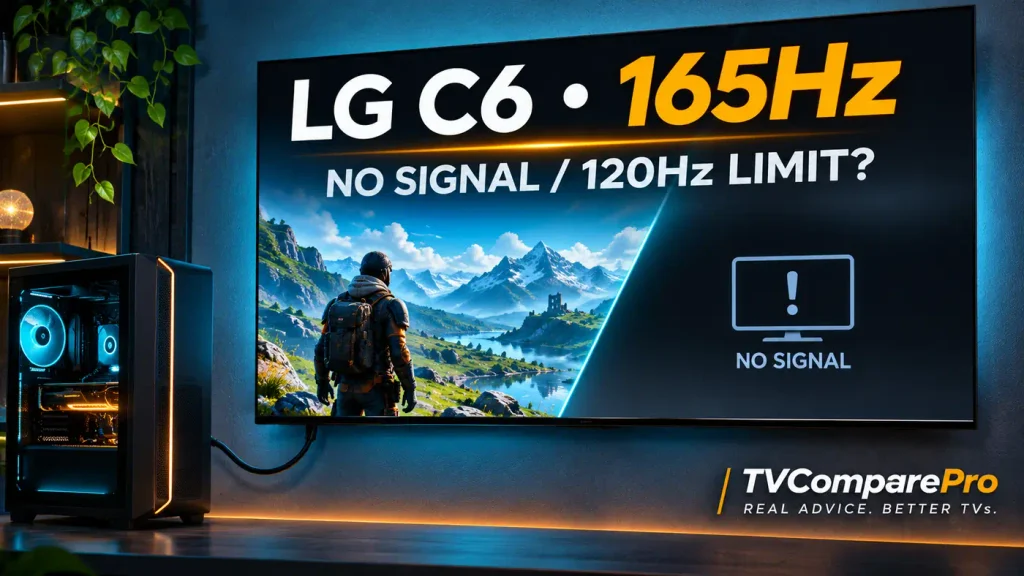

The LG C6 should be able to run at 165Hz with a compatible gaming PC, so it’s confusing when Windows only offers 120Hz. If you’re dealing with the LG C6 165Hz not working issue, the first thing I’d check is whether the higher refresh rate is missing entirely or the TV loses the picture after you select it. Some owners have also reported black screens when switching HDMI inputs, which is a separate problem worth checking.
The 2026 LG C6 supports 3840 × 2160 at up to 165Hz from a compatible PC, with VRR, across its four HDMI 2.1 inputs. That includes the 65-inch OLED65C6. It does not mean every graphics card, adapter, cable or source will negotiate 4K165 automatically. Nor does it mean PS5 or Xbox can output 165Hz. Both consoles stop at 120Hz.
There’s also a separate issue worth taking seriously: some owners have reported black video with audio still playing when switching away from a 165Hz PC to another HDMI source. I wouldn’t tell someone to factory-reset their TV just because Windows is missing one option, and I wouldn’t blame an HDMI cable without checking the signal path first. Here’s how I would approach it.
First, Work Out Which 165Hz Problem You Have
The fastest way to reach a useful fix is to identify the symptom before changing settings.
| What you see | Where I would start |
|---|---|
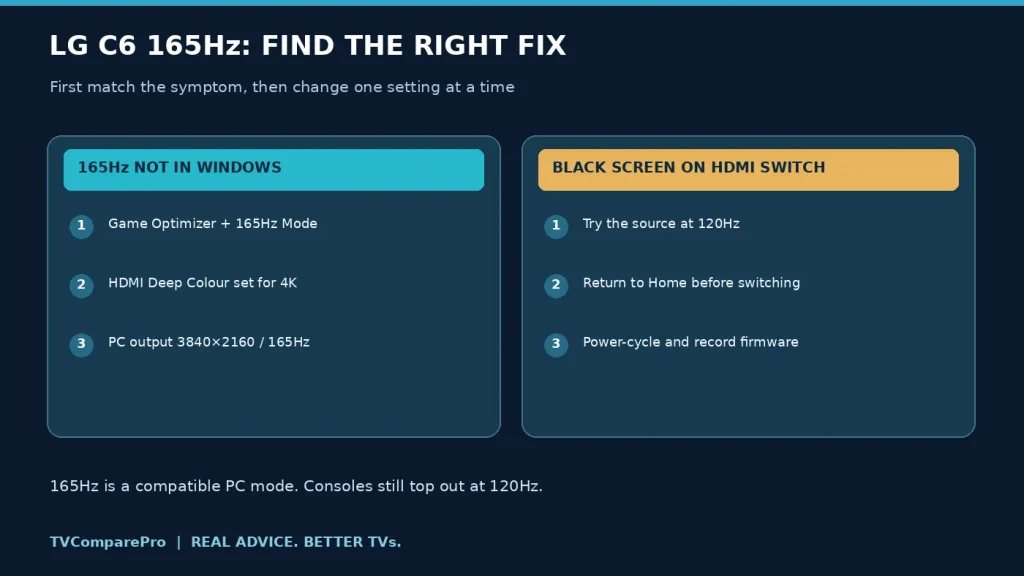
| Windows only offers 60Hz or 120Hz | Enable 165Hz Mode on the current HDMI input, then check the PC’s display output. |
| 165Hz is selectable, but the screen goes black | Return to 120Hz and isolate the cable, graphics driver and HDR/VRR settings. |
| 165Hz works at 8-bit but not 10-bit | Check HDMI Deep Colour, GPU output format and firmware before assuming a panel limitation. |
| The picture disappears on another HDMI input after PC gaming | Use the separate HDMI-switching checks below. This has been reported by some C6 owners. |
| VRR flickers in dark games | Compare steady 120Hz, 165Hz and VRR-on/off behavior. It may not be the same fault as a blank screen. |
Get 4K165 Working: Check the TV Before Windows
I would begin with the TV because it advertises the modes the graphics card is allowed to select. LG’s 2026 user guide makes an important point: 165Hz Mode must be enabled for 165Hz inputs, and HDMI settings can be different for each port.
- Switch the C6 to the HDMI input connected to your gaming PC.
- Open All Settings → General → Game Optimizer and turn Game Optimizer on. On some software versions, certain controls only appear when the active input is recognized as a game or PC source.
- Find 165Hz Mode inside Game Optimizer and enable it. You do not need to enable VRR merely to prove that a fixed 165Hz signal works.
- Check the HDMI input settings and make sure HDMI Deep Colour is configured for 4K on that input. LG’s menu labels and paths can vary by region and firmware.
- Return to Windows and check whether 165Hz now appears under the advanced display settings.
If the 165Hz switch is greyed out, check the connected source and the active picture/input mode rather than assuming the TV is limited to 120Hz. A console, older laptop HDMI port or unsupported graphics adapter cannot make use of the C6’s maximum PC refresh rate.
Windows and NVIDIA: Select the PC Resolution, Not Just the Refresh Rate
Once the TV advertises 165Hz, the computer needs to send the right timing. On Windows 11, go to Settings → System → Display → Advanced display, select the C6 if you have more than one monitor and check the available refresh rates. Use 165Hz only when it is offered for the LG at 3840 × 2160.
With an NVIDIA GPU, I would also open NVIDIA Control Panel → Display → Change resolution. Choose 3840 × 2160 under the PC resolutions where available, then select 165Hz. A separate resolution entry under the television/Ultra HD list may show a lower maximum refresh rate. Confirm that the settings apply to the C6 rather than your laptop’s own display.
For an AMD GPU, use Windows Advanced display and the corresponding AMD display controls to check the active resolution, refresh rate and pixel format. I wouldn’t start by creating custom timings or editing EDID. Those are escalation steps, not the safest first fix.
One more distinction matters: 165Hz is a display refresh rate, not an automatic 165 FPS game mode. If a game runs at 85 FPS, the TV does not generate 80 extra game frames. VRR can help the panel match the timing of compatible gameplay, but it cannot solve a graphics card that isn’t outputting the selected video mode.
Check the HDMI Cable and GPU Without Buying Anything First
The 65-inch C6 has four HDMI 2.1 inputs, but the entire chain must support the selected output: graphics card, connector, cable and TV. I would connect the PC directly to the television with a suitable certified Ultra High Speed HDMI cable for the first test, bypassing an AVR, dock, switch or adapter.
A label saying “HDMI 2.1” on a laptop doesn’t automatically tell you which output modes that particular machine supports. GPU generation, driver, HDMI controller and adapter capabilities all matter. The display might support 4K165 while the source negotiates only 4K120.
Start with 4K120, SDR and VRR off. If that is stable, try 165Hz. Next enable HDR and then VRR one at a time, checking the signal after each change. This sequence makes it easier to identify which setting actually causes a dropout.
Don’t automatically replace a working cable because a forum post says it fixed somebody else’s problem. A marginal connection is possible, especially on long runs, but the same symptom can also come from an input setting or driver. My separate RUIPRO tests established 4K120 with HDR and full 4:4:4 color over a 10-metre run; they were not a test of 4K165 on the C6.
165Hz Works, but 10-Bit Color or HDR Disappears
LG’s 2026 input table lists 165Hz timings and multiple color depths, including 10-bit, for compatible models. So I wouldn’t tell a C6 owner that 165Hz is inherently an 8-bit-only mode. A report that 10-bit vanished after an update is a useful clue, not proof that every C6 has the same limitation.
On NVIDIA systems, check Change resolution → Use NVIDIA color settings. Confirm the output color depth and format being negotiated by the TV. For PC text, full RGB or YCbCr 4:4:4 is desirable when the whole signal chain supports it. Use 4:4:4 Pass Through on the C6 if you need to preserve full chroma detail for desktop use; it is not a universal prerequisite for simply making 165Hz appear.
If 165Hz works at 8-bit but fails at 10-bit, note that result. Then check the cable path, recent GPU driver changes, HDR status and firmware version. Don’t repeatedly toggle unrelated settings until you lose track of the last working combination. Return to 120Hz with 10-bit HDR temporarily if picture stability matters more than the highest refresh number.
What about DSC? Display Stream Compression can help transport demanding video modes when supported by the hardware path. But the presence or absence of DSC on your particular GPU, driver and HDMI connection shouldn’t be diagnosed from a black screen alone. The useful evidence is the actual available mode and the signal information Windows reports.
Black Screen After Switching HDMI Inputs: A Different C6 Problem
There is another pattern I wouldn’t ignore. Some 65-inch C6 owners report that after gaming from a PC at 165Hz, switching to a Blu-ray player or receiver on another HDMI input produces a black picture while audio still plays. One report even described the video appearing in a home-screen preview but disappearing when the input was opened. These are owner reports, not proof of a confirmed fault in every C6 or a specific firmware release.
That symptom suggests the source and TV are communicating at least partially, but it doesn’t prove whether the failure lies in the HDMI handshake, a video mode carried over from the previous input, a firmware issue or a connected device. I would try these steps in order:
- Use the PC at 120Hz for one session. Then switch to the same external player. If the problem disappears, the higher-refresh configuration is a useful suspect, not a confirmed root cause.
- Try the TV’s Home screen first, then open the other HDMI source. Some owners report that this order avoids the blank picture.
- Start the external source before switching inputs and wait until it is ready. Again, this is a workaround reported by users, not an LG-certified fix.
- Restart the TV and source normally. If that doesn’t restore the image, a complete power-cycle with the devices safely shut down may clear a temporary state.
- Test a direct connection if the blank input normally runs through an AVR or HDMI switch. This narrows down which device is involved.
I would avoid doing repeated factory resets, random firmware downgrades or hot-plugging HDMI cables every evening as a permanent solution. If the issue repeats, record your firmware, GPU driver, connected devices, HDMI port numbers and exactly which input switch triggers it. That will be far more useful to LG support than a general statement that the screen goes black.
Why 165Hz VRR Can Flicker in Dark Games
A black screen and OLED VRR flicker are easy to confuse, yet they aren’t necessarily the same problem. With VRR, refresh timing follows the graphics card. Large frame-time swings can make subtle near-black brightness shifts more visible on OLED panels, especially in dark menus or scenes.
Try the same game or menu with VRR enabled and disabled, then compare a stable 120Hz mode with 165Hz. If the flicker tracks changing frame rate rather than the act of switching HDMI sources, it points to a different type of behavior. A frame-rate cap that keeps delivery steadier can sometimes help. I wouldn’t turn every dark-scene flicker into an HDMI bandwidth diagnosis.
Do remember that 120Hz isn’t a failure on this TV. At 120Hz, a new refresh can begin every 8.33 milliseconds; at 165Hz, every 6.06 milliseconds. The difference matters most when a powerful PC can keep supplying sufficiently high frame rates. A stable 4K120 HDR session is better than an unreliable 165Hz setting just to make the number on the dashboard look bigger.
Did a Firmware Update Remove 165Hz or 10-Bit?
At least one C6 48-inch owner reported losing 165Hz at 10-bit or 12-bit after firmware 43.11.73 in July 2026. That report doesn’t establish that the same firmware behavior affects every size or region, nor that the latest firmware fixes the issue universally.
Go to All Settings → Support → Software Update (the exact path may vary), record the installed version and check the support page for your complete model number and country. LG distributes updates by model and region. I would only install software intended for that exact television, and I wouldn’t recommend a community firmware downgrade without official instructions.
If something changed immediately after an update, include before-and-after refresh-rate options, color depth and a description of the connected GPU when contacting LG. A repeatable description is more actionable than guessing that the OLED panel itself has failed.
When to Stop Troubleshooting and Contact LG
If the TV cannot hold a stable 4K120 signal with a direct compatible connection, or the same HDMI input regularly goes black across multiple known-good devices, this is no longer just about enabling 165Hz. Document the behavior and speak to LG support while the warranty applies.
I would also escalate if 165Hz disappears after an update despite the correct Game Optimizer and HDMI settings, or if the HDMI-switching problem persists after the simple isolation steps. Provide the exact C6 model, firmware, graphics card, driver, cable and affected ports.
For a PS5 or Xbox, I would stop chasing 165Hz entirely. Those consoles support up to 120Hz output, which the C6 is designed to accept. The additional 165Hz capability is for compatible PC gaming sources.
Looking for a 65-inch OLED or a reliable long-distance HDMI connection? Here are three options worth checking out.
4K OLED with up to 165Hz VRR for compatible PCs, Dolby Vision and four HDMI 2.1 inputs.
Check on AmazonFull-fiber HDMI 2.1 cable with fixed connectors. Supports 8K 60Hz, 4K 120Hz, HDR, VRR and ALLM for long HDMI runs.
Check on AmazonFull-fiber HDMI 2.1 cable with removable connectors. Supports 8K 60Hz, 4K 120Hz, HDR, VRR and ALLM. Easier to route through tight spaces.
Check on AmazonAffiliate links. Purchases may support TVComparePro at no extra cost.
What I Would Actually Leave Enabled
For a gaming PC that negotiates 4K165 reliably, keep the C6’s 165Hz mode enabled, use the matching Windows display setting and turn on VRR if it improves the games you play. HDR and 10-bit color should be evaluated separately, using the combinations that your PC and TV actually report as available.
If 165Hz is what triggers recurring HDMI black screens, I would personally use 4K120 as a temporary stable setting rather than recommend cable purchases or factory resets without evidence. The whole point of a good OLED gaming setup is to play games and watch films, not troubleshoot the HDMI connection every time you change inputs.
I’ve already compared what the 65-inch LG C6 offers against the Sony BRAVIA 6, including why its higher PC refresh rate matters for some buyers. If your issue involves a long HDMI run, my RUIPRO 10m fiber HDMI cable review documents the highest signal I verified there: 4K120 HDR, not 4K165. Those are different questions, and keeping them separate is how I’d troubleshoot this one.