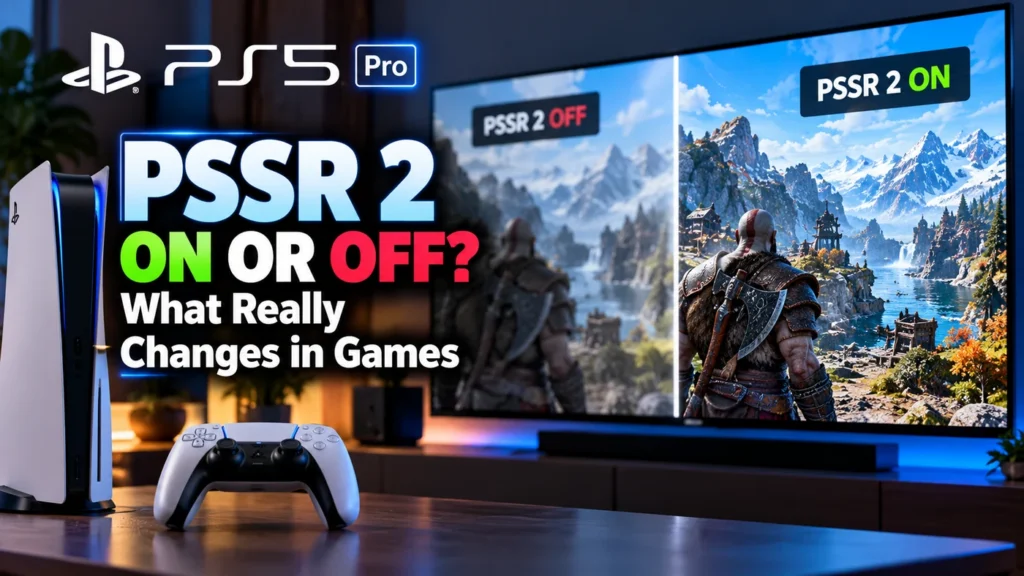

The useful question is not whether AI upscaling sounds impressive. It is whether you should leave PS5 Pro PSSR 2 on or off for the game you are actually playing. The answer is generally ON, but there is a catch: the console’s switch does not control every implementation in the same way.
Sony’s Enhance PSSR Image Quality option is now enabled by default on PS5 Pro. It can bring the upgraded reconstruction algorithm to games built around the original PSSR. Switching it OFF does not magically disable every game’s upscaling or force native 4K. In titles with a dedicated upgraded-PSSR implementation, the game itself matters more than a system-wide switch.
That distinction is worth getting right before you start changing display settings. A little shimmering in one game is not a reason to sacrifice the cleaner image the upgrade can deliver in another.
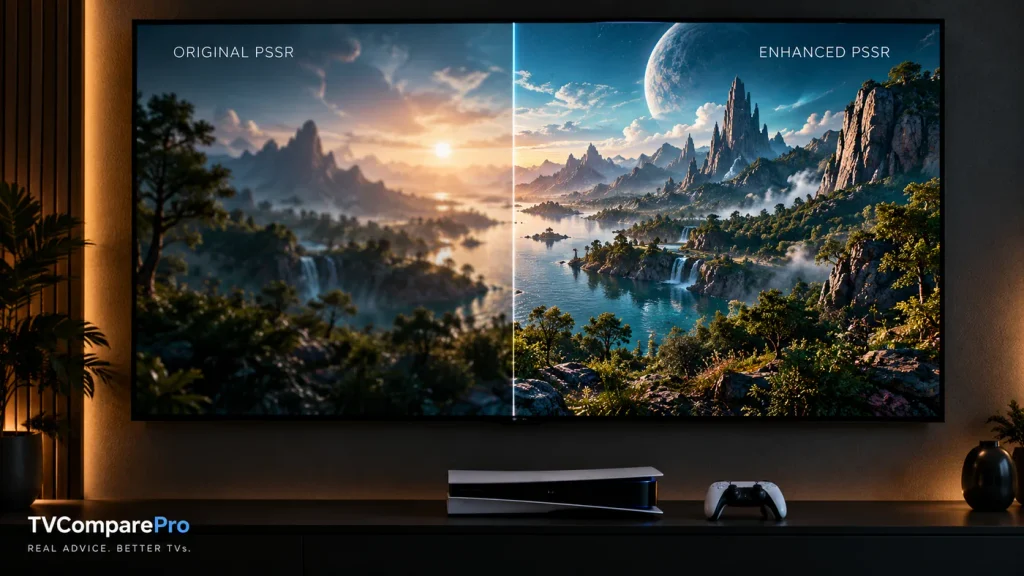
Should you leave PSSR 2 on or turn it off?
My starting point is ON. Sony recommends the enhancement for compatible games and explicitly allows you to switch it off if you see unexpected visual behaviour. There is no reason to treat OFF as the cleaner or more ‘authentic’ option by default.
| What you’re playing | What ON does | Does OFF remove PSSR? |
|---|---|---|
| Game using the original PSSR implementation | Can substitute the newer reconstruction when supported by the system option. | No. The older PSSR path may still be used. |
| Game with upgraded PSSR integrated by its developer | Uses the title’s dedicated integration where provided. | Not necessarily. The toggle is not a universal disable-upscaling switch. |
| Game without PSSR | Does not add PSSR to an unsupported game. | There was no PSSR to remove through this option. |
| Compatible game displaying new artifacts | May show different temporal reconstruction behaviour. | Try OFF as a controlled comparison; the result depends on the game. |
Think of it as a compatibility and quality override, not the PlayStation equivalent of a PC game’s all-purpose DLSS switch. Sony calls the updated technology upgraded PSSR; ‘PSSR 2’ is the common shorthand.
Where the setting is and why it may already be enabled
On PS5 Pro, open Settings → Screen and Video → Video Output → Enhance PSSR Image Quality. Sony’s current support documentation says it is turned on by default. You can change it at any time.
- Update the PS5 Pro system software before checking the feature.
- Open the Video Output menu and find Enhance PSSR Image Quality.
- Leave it ON for your first test in a PSSR-compatible game.
- Only switch it OFF to compare the same scene or investigate an actual image-quality problem.
Don’t see the option? First check that you have the PS5 Pro (CFI-7000 model group), rather than the standard PS5. Also make sure the system software is current. Do not confuse this control with Enhance Image Quality for PS4 Games, which is a separate feature.
Which games show why the distinction matters?
A list of ‘PSSR 2 games’ can be misleading if it mixes developer patches with older games that benefit through the console option. The useful question is whether a game has a dedicated implementation, has only been assessed through the system enhancement, or still needs title-specific verification.
| Game | Evidence as of October 2026 | What I would do |
|---|---|---|
| Resident Evil Requiem | Sony identifies it as the first game built around upgraded PSSR. | Use its intended graphics modes. Do not assume system OFF restores original PSSR. |
| Silent Hill f | Konami confirmed a dedicated upgraded-PSSR implementation. | Leave enhancements enabled; judge motion and vegetation stability in the same scene. |
| Silent Hill 2 | Konami confirmed upgraded support. | Check the installed game version; do not mistake the system toggle for a full PSSR-off mode. |
| Alan Wake 2 | Remedy confirmed upgraded PSSR support for Alan Wake 2, with improved image stability and fewer temporal artifacts compared with the original implementation. | Keep the updated implementation. Don’t chase artifacts with TV sharpness controls first. |
| Control | Remedy confirmed upgraded support. | Keep the current patch and compare quality/performance modes separately. |
| Final Fantasy VII Rebirth | Sony lists it among titles adopting the upgraded PSSR. | Use the game’s appropriate Pro graphics mode rather than expecting this switch to change frame-rate targets. |
| Dragon Age: The Veilguard | BioWare announced enhanced PSSR across its console graphics modes. | Leave the new reconstruction enabled unless a specific scene looks worse. |
| Gran Turismo 7 | Upgraded PSSR can improve image stability, although some visual inconsistencies remain. | Good candidate for a same-scene comparison; don’t claim an individual toggle result without testing that mode. |
| Dragon’s Dogma 2 | Sony includes this game in its upgraded-PSSR support list, but the improvements are not flawless. | Test ON versus OFF only if you can reproduce the issue; OFF is not proven better overall. |
| Star Wars Jedi: Survivor | Enhanced PSSR still struggles with noise in certain reflections, particularly in complex scenes. | Compare the same reflective scene. Do not interpret this as an official recommendation to disable the upgrade. |
Sony and the game developers confirm the supported PSSR integrations, while my own testing revealed improvements in image stability alongside some remaining visual artifacts and reflection noise. However, these findings do not mean that switching Enhanced PSSR off will affect every game listed. Results can vary depending on the game’s PSSR implementation, version, and graphics mode.
Why enhanced PSSR can look better without changing your TV’s output resolution
PSSR reconstructs a higher-resolution image from game-rendered information. The console can still send a 4K signal even when the game internally renders fewer pixels. The key difference is how convincingly the reconstruction preserves detail and motion, not whether the television suddenly reports a different HDMI resolution.
Fine foliage, hair, distant railings and small high-contrast edges are useful stress tests. If a detail flickers as the camera moves, you are looking at temporal stability, not simply the static sharpness of a paused frame. This is also why I would never decide between ON and OFF from a compressed still posted on social media.
There is a trade-off: cleaner temporal reconstruction can improve image quality, but some games have engine-specific issues that a single system setting cannot fully resolve. During my own testing, I noticed that visual artifacts and noise in reflections remained noticeable in certain scenes, even with Enhanced PSSR enabled. This is why I wouldn’t automatically assume the newer algorithm delivers better results in every game or situation.
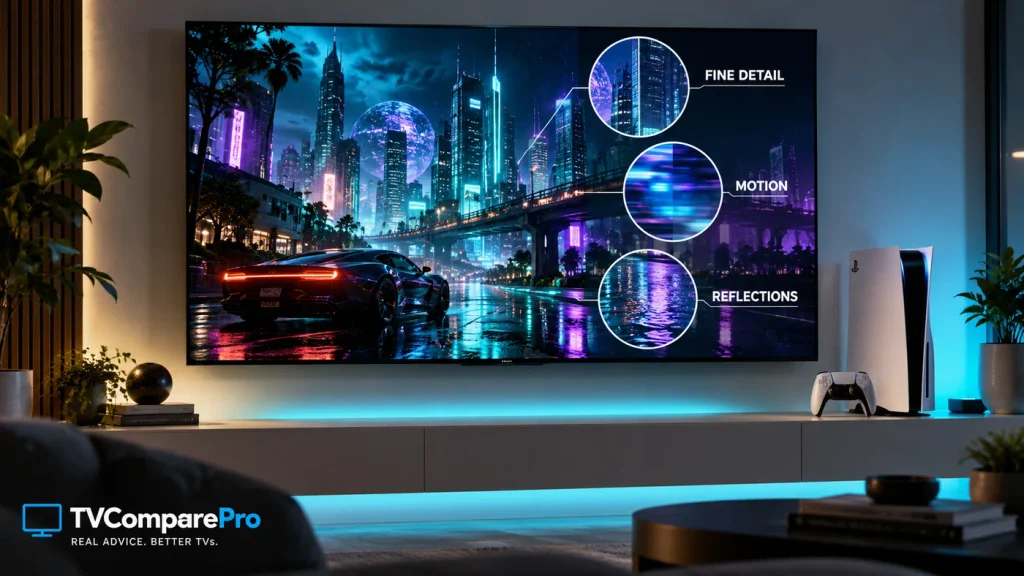
How to compare PSSR 2 ON and OFF without fooling yourself
I would start with one reproducible scene in a game that actually supports the relevant system override. Keep everything else constant. It sounds obvious, but comparing two different camera positions or two different graphics modes makes the result almost meaningless.
- Choose a scene with thin objects, distant detail and movement. Save at a consistent checkpoint if possible.
- Note the exact game patch and graphics mode. Do not switch from Performance to Quality midway through the test.
- Observe both a still frame and a slow camera pan with the enhancement ON.
- Change the system enhancement to OFF, return to the same scene and repeat the same camera movement. Restart the game if it does not appear to pick up the change; do not assume the effect is instant.
- Look for edge flicker, hair breakup, ghost trails, specular noise and fine texture stability. If you cannot see a repeatable difference, leave it ON.
Do not claim an FPS gain simply because the image looks sharper. Sony’s system option does not promise a fixed performance uplift, and a game’s frame pacing can vary independently of the reconstruction quality. For a proper frame-rate comparison you would need matching scenes and suitable measurement tools.
PSSR artifact, bad HDR or TV processing? Separate the causes
One reason ‘PSSR looks blurry’ advice goes wrong is that it blends three different problems. A game can have reconstruction artifacts, a television can apply excessive processing, and an HDR mismatch can make an otherwise detailed image look flat. They are not interchangeable.
Shimmering or ghosting around moving objects
Look at the same scene when panning. If ON versus OFF changes the artifact in a compatible game, the reconstruction path may be involved. If it remains identical, the game’s own effects, ray tracing, motion blur or a dedicated implementation might be responsible. Avoid declaring PSSR ‘broken’ from one isolated video.
Soft detail from too much television processing
Use the television’s appropriate Game Mode and a neutral sharpening setting. Disable unnecessary noise reduction or motion interpolation for this comparison. These TV features do not upgrade PSSR and can obscure the very differences you are trying to observe.
Washed-out colors or crushed blacks
Check the game’s HDR mode, the PS5 Pro HDR calibration and the television’s black-level behaviour separately. PSSR is a reconstruction technique, not the control for HDR10 metadata, tone mapping, RGB range or HDMI black level. An ON/OFF test for upscaling should not become an excuse to change all those settings at once.
One important limit: the PS5 Pro enhancement option is not a native-4K switch, not a global frame-generation control and not a cure for all game-engine artifacts. Its effect depends on the title’s implementation.
Best TV setup for judging PSSR on OLED and Mini LED
For this article, the television’s job is deliberately simple: preserve the PS5 Pro output without adding unnecessary processing. Keep Game Mode active. Check that the HDMI input supports the video format you’re using. Set HDR once, correctly, before comparing game scenes.
OLED can make instability around fine bright edges easy to notice; a Mini LED TV may add its own local-dimming behaviour around highlights. Neither means PSSR works differently at the console level. Don’t compare two TVs and attribute every visible difference to the reconstruction algorithm.
If you need the wider console setup rather than this PSSR decision, see TVComparePro’s PS5 Pro 4K120, HDR and VRR settings guide. For TCL owners, the C8L / QM8L PS5 Pro setup covers the television-specific side without repeating the PSSR comparison here.
When I would actually switch PSSR 2 off
I would leave the enhancement ON unless a repeatable problem appears in a compatible game and a controlled comparison makes OFF visibly preferable. Even then, I would describe it as a workaround for that game and version, not a recommendation for the whole console.
What matters most is understanding what the switch is allowed to change. A developer-integrated upgraded-PSSR title is not necessarily affected in the same way as an older PSSR game using the system override. If your ON/OFF comparison shows no clear difference, that may be perfectly normal. Keep the default, enjoy the game, and avoid changing unrelated display settings to solve a reconstruction problem you haven’t identified.