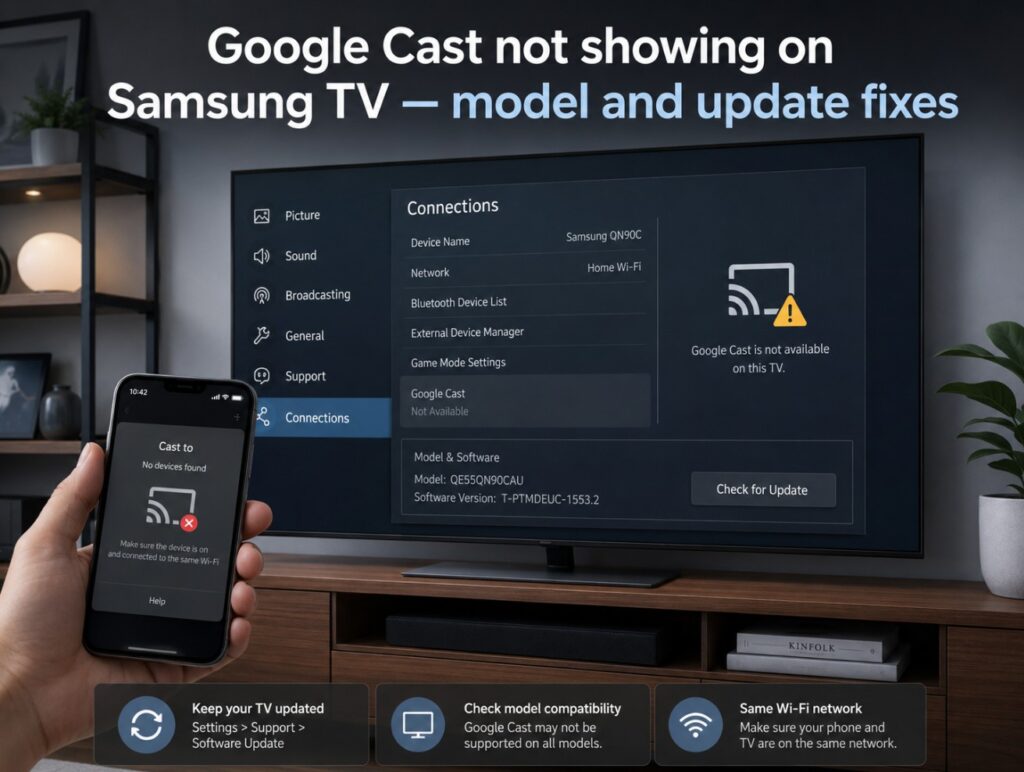

You open YouTube, tap the Cast icon, wait for your TV to appear, and nothing happens. When Google Cast not showing on Samsung TV becomes the problem, the most confusing part is that the TV may still have Wi-Fi, apps, AirPlay, SmartThings, and screen mirroring working normally.
That does not always mean something is broken. Google Cast is a separate feature. It is not the same as AirPlay, Samsung Smart View, basic screen mirroring, or using a Chromecast plugged into HDMI. On supported Samsung TVs, Google Cast lets compatible phones, tablets, and Chrome browsers send supported video, music, and other content directly to the TV.
The fix depends on one key question: does your Samsung TV actually have built-in Google Cast yet? If it does, the problem is usually software, Wi-Fi, app support, phone permissions, or router discovery. If it does not, you may need to wait for a firmware update or use an external Google TV Streamer, Chromecast, or app-based workaround. 📺
Google Cast not showing on Samsung TV: quick diagnosis table
| What you see | Most likely cause | What to check first |
|---|---|---|
| Samsung TV never appears in the Cast list | Model does not support Google Cast yet | Check model year and software version |
| TV is from 2024 or 2025 but Cast is missing | Firmware update has not arrived or is not installed | Check for One UI Tizen / software update |
| TV supports AirPlay but not Cast | AirPlay and Google Cast are different | Do not use AirPlay support as proof |
| Cast works on YouTube but not another app | App limitation or account restriction | Test with another Cast-enabled app |
| Cast icon missing on phone | App, phone, or permission problem | Update app and check phone settings |
| TV appears sometimes, then disappears | Network discovery issue | Restart TV, phone, and router |
| TV appears but playback fails | DRM, region, app, or service issue | Test YouTube first, then original app |
| Older Samsung TV from 2022 or earlier does not appear | Built-in Google Cast may not be supported | Use external Chromecast or Google TV device |
First check your Samsung TV year and model
Before changing router settings, confirm which Samsung TV generation you have.
Samsung model names can look confusing, but the year is usually hidden in the letter inside the model code. For example, many 2024 Samsung TVs use model names ending in D, while many 2025 models use F. Newer 2026 models may use the next generation naming depending on region and lineup.
Examples:
| Model example | Approximate model year | Notes for Google Cast |
| Samsung S90D / S95D OLED | 2024 | Reported in rollout discussions; needs compatible firmware |
| Samsung QN90D / QN95D Neo QLED | 2024 | Possible candidate depending on region and update |
| Samsung QN900D / QN800D 8K Neo QLED | 2024 | Possible candidate depending on firmware branch |
| Samsung The Frame LS03D | 2024 | May depend on region and update availability |
| Samsung S90F / S95F OLED | 2025 | More likely to receive newer One UI Tizen features |
| Samsung QN90F / QN95F Neo QLED | 2025 | Check firmware and regional support |
| Samsung QN900F / QN990F 8K Neo QLED | 2025 | Check firmware and rollout timing |
| Samsung Crystal UHD 2025 models | 2025 | Support may vary by exact model and region |
| Samsung 2026 Neo QLED / Mini LED / Crystal UHD | 2026 | Google Cast support is expected on select models |
| Samsung 2022 or older Tizen TVs | 2022 or older | Built-in Google Cast is less likely; use external device |
| Samsung 2015–2021 Tizen TVs | 2015–2021 | Do not expect native Google Cast unless Samsung specifically adds support |
This table is not a guarantee for every country, retailer version, or firmware branch. Treat it as a practical guide. The final answer is always on your own TV: if the latest software is installed and Google Cast still does not appear in settings or supported apps, your model may not have the feature yet.
How to find your exact Samsung TV model
You need the exact model code, not only the marketing name.
On most Samsung TVs:
- Press the Home button.
- Open Settings.
- Go to Support.
- Select About This TV.
- Look for Model Code and Software Version.
Write both down.
You may see something like:
- QN65S90DAFXZA
- QE55S95DATXXU
- QE65QN90DATXXH
- UE55DU8000
- TQ65QN95D
- QN75QN900F
- QE65LS03D
The first part tells you the series and screen size. The letter near the model generation can help identify the year. The final letters often indicate region, tuner type, or retailer variant.
Do not rely only on “Samsung OLED” or “Samsung Neo QLED.” Two Samsung TVs with similar marketing names can have different firmware and feature availability.
Check the software version before blaming the phone
For Samsung TVs that are eligible, Google Cast is usually tied to a software update. If your TV is still on older firmware, the Cast target may simply not exist yet.
Check:
- Open Settings.
- Go to Support.
- Choose Software Update.
- Select Update Now.
- Let the TV install the update.
- Restart the TV after the update.
If you see a software version around the newer One UI Tizen rollout level, that is a better sign. If your TV is still on an older software branch, Google Cast may not appear until the update reaches your region.
After installing an update, do a proper power cycle:
- Turn the TV off.
- Unplug the TV from power.
- Wait about one minute.
- Plug it back in.
- Turn it on.
- Test YouTube Cast again.
This simple restart matters because connectivity features can fail to appear cleanly if the TV only goes into standby.
Which Samsung TVs are most likely to get Google Cast?
The safest way to write this is carefully, because Samsung feature rollouts can vary by country and model.
In general, built-in Google Cast is most relevant for:
- selected 2026 Samsung TVs;
- selected 2025 Samsung TVs;
- selected 2024 Samsung TVs after firmware update;
- possibly some 2023 models in certain reports or regions;
- newer One UI Tizen models more than older Tizen models.
Model families to check first:
| Samsung family | Model examples to check | Why it matters |
| OLED | S90D, S95D, S90F, S95F | Premium models often receive major platform updates early |
| Neo QLED 4K | QN85D, QN90D, QN95D, QN90F, QN95F | Common living-room models where users expect casting |
| Neo QLED 8K | QN800D, QN900D, QN900F, QN990F | High-end models likely to receive newer smart features |
| The Frame | LS03D and newer variants | Popular lifestyle TV where casting is heavily used |
| Crystal UHD | DU8000 / newer UHD families | Support can vary more by exact model and region |
| Mini LED 2026 models | Newer 2026 Mini LED families | Google Cast support is expected on select new models |
| Older Tizen TVs | 2022 and earlier | Usually better served by external Google TV / Chromecast device |
If you own a 2024 or 2025 Samsung TV and Google Cast is missing, do not assume it is unsupported immediately. Check firmware first. If you own a 2019, 2020, 2021, or 2022 Samsung TV, be more realistic: built-in Google Cast may never arrive, even if the TV still receives some app updates.
Google Cast not showing on Samsung TV on 2024 models
For 2024 models, check the update first.
Examples of 2024 Samsung TVs people are likely to search for:
- Samsung S90D OLED;
- Samsung S95D OLED;
- Samsung QN90D Neo QLED;
- Samsung QN95D Neo QLED;
- Samsung QN800D 8K;
- Samsung QN900D 8K;
- Samsung The Frame LS03D;
- Samsung DU8000 Crystal UHD.
If you have one of these, do this:
- Check the exact model code.
- Check the current software version.
- Run Update Now.
- Power cycle the TV.
- Test YouTube Cast from your phone.
- Check if Google Cast appears in connection settings.
- If not, wait for regional rollout or try USB firmware update only from Samsung’s official support page.
Do not install firmware from another region just because someone online says it worked. TV firmware can be region-specific, and a wrong update can create bigger problems than a missing Cast button.
Google Cast not showing on Samsung TV on 2025 models
For 2025 models, Google Cast support is more plausible, but still not guaranteed on every regional variant.
Examples to check:
- Samsung S90F OLED;
- Samsung S95F OLED;
- Samsung QN90F Neo QLED;
- Samsung QN95F Neo QLED;
- Samsung QN900F 8K;
- Samsung The Frame 2025;
- Samsung Crystal UHD 2025 models.
If your 2025 Samsung TV does not appear as a Cast target:
- update the TV;
- restart the TV fully;
- test YouTube first;
- check that the phone and TV are on the same network;
- disable VPN;
- avoid guest Wi-Fi;
- test from Chrome on a laptop;
- check whether the same TV appears in SmartThings;
- check whether Google Cast appears anywhere in settings.
If the TV has the latest update but still does not show Google Cast, it may be a model or region limitation rather than a user error.
Google Cast on Samsung 2026 TVs
Samsung’s 2026 lineup is where Google Cast should become much more visible. Selected Samsung 2026 TVs, including models from Mini LED, Neo QLED, and Crystal UHD families, are expected to support Google Cast directly.
That means buyers of newer 2026 models should check the feature list carefully before purchase.
Look for wording such as:
- Google Cast;
- Cast;
- Chromecast built-in;
- works with Google Cast;
- casting from compatible smartphones and tablets.
Still, do not assume every single 2026 Samsung TV in every country has identical support. Entry-level models, hotel models, regional variants, and retailer-specific versions may differ.
If you are buying mainly for Google Cast, check the product page and the manual for that exact model code.
Older Samsung TVs: when Google Cast probably will not appear
If your Samsung TV is from 2022, 2021, 2020, 2019, or older, you should not build your setup around a future Google Cast update.
Older Samsung TVs can still be useful, but they usually rely on:
- native Samsung TV apps;
- AirPlay on supported models;
- Smart View;
- screen mirroring;
- HDMI streaming devices;
- cable or satellite boxes;
- game consoles;
- external Google TV or Chromecast hardware.
If your older TV works well but lacks Google Cast, the cleanest fix is usually an external device. A small Google TV Streamer or Chromecast-style device gives you a proper Cast target without waiting for Samsung to add the feature to an older Tizen platform.
This is often better than wasting hours on router settings when the TV simply does not have built-in Google Cast.
Google Cast, AirPlay, Smart View and screen mirroring are not the same
This is the mistake that causes most confusion.
| Feature | What it does | Main devices |
| Google Cast | Sends supported app content to a Cast target | Android, iPhone apps, Chrome |
| AirPlay | Apple streaming and mirroring system | iPhone, iPad, Mac |
| Smart View | Samsung screen mirroring / sharing | Samsung Galaxy and some compatible devices |
| Screen mirroring | Mirrors the whole phone or computer screen | Varies by platform |
| HDMI Chromecast / Google TV Streamer | Adds Google Cast through HDMI | Any TV with HDMI |
| Native TV app | Plays content directly on the TV | Samsung TV apps |
Your Samsung TV can support AirPlay but not Google Cast. It can support Smart View but not Google Cast. It can show up in SmartThings but still not appear in YouTube’s Cast list.
So test the exact thing you want: open a Cast-enabled app and look for the Samsung TV as a Cast destination.
Use YouTube as your first Google Cast test
YouTube is the easiest test because it is widely supported and usually shows Cast devices clearly.
On your phone:
- Connect to the same Wi-Fi network as the TV.
- Open YouTube.
- Tap the Cast icon.
- Look for your Samsung TV.
- Play a normal video.
If YouTube sees the TV, basic Google Cast discovery is working. If another app does not see the TV, the other app may be the problem.
If YouTube does not see the TV, troubleshoot in this order:
- TV support and firmware;
- TV restart;
- same Wi-Fi network;
- phone app update;
- router restart;
- VPN and guest network checks;
- Chrome cast test from laptop.
Do not start by factory resetting the TV. That should be a last resort.
Same Wi-Fi does not always mean same network
A phone and TV can both show Wi-Fi connected and still be unable to see each other.
Common problems:
- phone on guest Wi-Fi;
- TV on main Wi-Fi;
- phone on mobile data;
- router separates 2.4 GHz and 5 GHz networks;
- mesh system isolates devices;
- AP isolation is enabled;
- VPN hides the phone from local devices;
- work or apartment Wi-Fi blocks device discovery;
- router firewall blocks multicast or local discovery.
For a clean test:
- Put the Samsung TV on the main home Wi-Fi.
- Put the phone on the same Wi-Fi name.
- Turn off mobile data temporarily.
- Turn off VPN.
- Avoid guest networks.
- Restart the router.
- Test YouTube again.
If your router has separate networks like Home, Home_5G, and Home_Guest, use the same main network first. Do not use the guest network for casting.
If the TV is connected by Ethernet
Ethernet is fine. The TV does not have to be on Wi-Fi if the phone is on Wi-Fi, as long as both are on the same local network and the router allows device discovery.
But problems can happen if:
- Ethernet devices are isolated from Wi-Fi devices;
- router has separate LAN/WLAN rules;
- mesh router uses different subnets;
- guest Wi-Fi cannot see wired devices;
- VLANs are enabled;
- parental control or security mode blocks discovery.
If the TV is wired and your phone cannot see it, temporarily test the TV on the same Wi-Fi network as the phone. If Google Cast appears, your router is separating wired and wireless devices.
Phone checks for Android
On Android, check these items:
- Wi-Fi is on;
- mobile data is not being used instead;
- VPN is off;
- YouTube is updated;
- Google Play Services is updated;
- Google Home app is updated;
- the app has nearby device permissions where required;
- battery saver is not restricting the app;
- Data Saver is off;
- Bluetooth and nearby scanning are enabled if your phone uses them for discovery;
- the app is not blocked by a privacy or firewall app.
Also test from another Android phone if possible. If one phone sees the Samsung TV and another does not, the issue is probably phone-side.
Phone checks for iPhone and iPad
On iPhone and iPad, check carefully because AirPlay and Google Cast can look similar.
For Google Cast:
- Open YouTube or another Cast-enabled app.
- Look for the Cast icon inside the app.
- Do not use only Control Center screen mirroring.
- Make sure the app has local network permission if requested.
- Update the app.
- Turn off VPN.
- Connect to the same Wi-Fi as the TV.
If AirPlay works but Google Cast does not, that does not prove the TV is broken. It only proves AirPlay works.
For Samsung TVs, iPhone users may sometimes be better served by AirPlay, while Android users may prefer Google Cast. The best option depends on device, app, and TV support.
Chrome browser test on laptop
A laptop can help confirm whether the problem is the phone or the network.
On Chrome:
- Connect the laptop to the same network as the TV.
- Open Chrome.
- Click the three-dot menu.
- Choose Cast, Save and share, or the current Chrome Cast option.
- Look for the Samsung TV.
If Chrome sees the TV but your phone does not, focus on the phone app and permissions.
If Chrome also cannot see the TV, focus on TV support, firmware, and router discovery.
If Chrome sees an external Chromecast but not the Samsung TV, your TV may not have built-in Google Cast enabled yet.
App-specific problems: when only one service fails
Not every app handles casting the same way.
If YouTube works but another app does not, check:
- app update;
- account region;
- subscription plan;
- whether that title allows casting;
- whether the app supports Google Cast on TV;
- whether the app prefers its native Samsung TV app;
- DRM limitations;
- temporary service outage;
- whether the app removed Cast support.
This is especially important for streaming services, sports apps, local broadcaster apps, and pay-TV apps. Some allow casting from mobile. Some only allow casting to external Chromecast devices. Some block casting for certain content.
A good rule: if YouTube casts but one app does not, do not reset the TV yet. Fix the app path first.
Cast icon missing vs TV missing from Cast list
These are different problems.
| Problem | Meaning |
| Cast icon is missing completely | App or phone issue |
| Cast icon appears but Samsung TV is missing | TV support, firmware, or network discovery issue |
| TV appears but playback fails | App, DRM, account, region, or service issue |
| TV appears only after restart | Router or TV discovery cache problem |
| TV appears as a different name | Device naming issue |
If the Cast icon is not visible at all, update the app and test another Cast-enabled app. If the Cast icon is visible but the Samsung TV is not listed, focus on TV support and network visibility.
Samsung TV settings to check
Depending on model and firmware, menu wording can vary, but check these areas:
- Settings > Support > Software Update
- Settings > Support > About This TV
- Settings > General & Privacy > Network
- Settings > Connection
- Settings > Connected Devices
- Settings > External Device Manager
- SmartThings device name
- TV Device Name
- Privacy or Terms settings after update
If Google Cast appears as a setting or connection option, make sure it is enabled. If it does not appear anywhere, the firmware may not support it yet.
Also check whether the TV has completed all terms and privacy prompts after a major update. Some smart features may not work correctly if user agreements or network services are not fully accepted.
Rename the Samsung TV
Sometimes the TV is visible, but under an unexpected name.
It may appear as:
- Samsung TV;
- Living Room TV;
- S90D;
- QN90D;
- Neo QLED;
- The Frame;
- model code;
- room name from SmartThings.
Rename it clearly:
- Open Samsung settings or SmartThings.
- Find the TV name.
- Change it to something simple, like Living Room Samsung TV.
- Restart YouTube on the phone.
- Test Cast again.
This helps when there are several smart TVs, speakers, Chromecast devices, soundbars, or streaming boxes in the home.
Router settings that can block Google Cast
Google Cast needs local device discovery. Some routers block that.
Check for:
- AP isolation;
- client isolation;
- guest network isolation;
- multicast filtering;
- mDNS filtering;
- VLAN separation;
- strict firewall mode;
- parental controls;
- router VPN mode;
- security apps that block local network discovery;
- mesh nodes that isolate wireless clients.
If you do not understand those settings, do the simple version:
- Use the main home Wi-Fi, not guest Wi-Fi.
- Turn off VPN.
- Restart the router.
- Put phone and TV on the same network name.
- Test near the router.
- Try Ethernet for the TV, then Wi-Fi if Ethernet is isolated.
- Test another phone.
Most Cast problems are not about internet speed. They are about whether devices can see each other inside your home network.
What if your Samsung TV still does not show after update?
Use this decision table.
| Situation | Best next step |
| 2026 Samsung TV, latest firmware, Cast missing | Check model page and regional support |
| 2025 premium model, Cast missing | Wait for rollout or check Samsung support page |
| 2024 model on old firmware | Update software first |
| 2024 model on latest firmware, Cast missing | Feature may not be enabled for region/model yet |
| 2022 or older Samsung TV | Use external Google TV Streamer or Chromecast |
| YouTube works but one app fails | Fix that app, not the TV |
| Chrome sees TV but phone does not | Fix phone permissions/apps |
| No device sees TV | Check TV support, firmware, and router discovery |
This is where patience matters. A firmware rollout can be real and still not available on your exact TV today.
Use an external device if built-in support is not available
If your Samsung TV does not support Google Cast, the cleanest solution is an external HDMI device.
Good options include:
- Google TV Streamer;
- Chromecast with Google TV;
- Android TV box;
- streaming stick with Cast support;
- game console app where available;
- HDMI from laptop as a backup.
This is especially useful for older Samsung TVs from 2019–2022. The TV can still have a good panel, good speakers, and working apps, but no built-in Google Cast.
An external device also avoids waiting for Samsung firmware updates and gives you a more predictable Cast target.
Should you factory reset the Samsung TV?
Only as a last resort.
Try everything else first:
- software update;
- power cycle;
- router restart;
- same Wi-Fi test;
- YouTube test;
- Chrome test;
- another phone;
- VPN off;
- guest Wi-Fi off;
- app update;
- TV name check.
Factory reset may help if the TV software is corrupted after an update, but it also removes your app logins, picture settings, account setup, Wi-Fi details, and smart home configuration.
Use it only if:
- the TV clearly supports Google Cast;
- firmware is current;
- multiple phones cannot see it;
- YouTube and Chrome both fail;
- network checks are clean;
- other smart features are behaving strangely too.
Common mistakes to avoid
Assuming all Samsung TVs now have Google Cast
They do not. Support depends on model year, exact model, firmware, and region.
Thinking AirPlay support means Google Cast support
AirPlay and Google Cast are different. A Samsung TV can support AirPlay and still not appear in Android Cast menus.
Ignoring the TV software version
For newer Samsung TVs, firmware is critical. If the update has not arrived, the feature may not be active.
Testing only one app
One streaming app may hide or block casting. Test YouTube first.
Using guest Wi-Fi
Guest networks often block phones from seeing TVs. Internet works, but casting fails.
Installing firmware from another region
Do not do this. Use the official Samsung support page for your country and model code.
Factory resetting too early
A reset is not the first fix. Most cases are support, update, network, or app issues.
Practical setup notes
For the best chance of success:
- Find your exact Samsung TV model code.
- Check the production year and model family.
- Update the TV software.
- Restart the TV fully after updating.
- Use the same main Wi-Fi network on phone and TV.
- Turn off VPN.
- Test YouTube first.
- Test Chrome from a laptop.
- Rename the TV clearly.
- Use an external Google TV or Chromecast device if the TV is older or unsupported.
If your Samsung TV is from 2024, 2025, or 2026, the missing Cast button may simply mean the update has not reached your model or region yet. If your TV is older, built-in Google Cast may never arrive, and an external device is the faster fix.
When Google Cast finally works
After the Samsung TV appears in the Cast list, test it properly:
- cast a normal YouTube video;
- pause and resume from the phone;
- change volume;
- stop casting;
- cast again after closing the app;
- test another Cast-enabled app;
- test from Chrome on a laptop;
- restart the TV and check if it still appears.
If YouTube works every time, the basic Google Cast setup is healthy. If another app fails, troubleshoot that service separately.
Google Cast not showing on Samsung TV is usually not one problem. It is a chain: model support, firmware, region, network discovery, phone permissions, and app behavior. Once you check those in the right order, the answer becomes much clearer. Either the TV needs the right update, the network is blocking discovery, the app is the issue, or the Samsung TV simply needs an external Cast device.