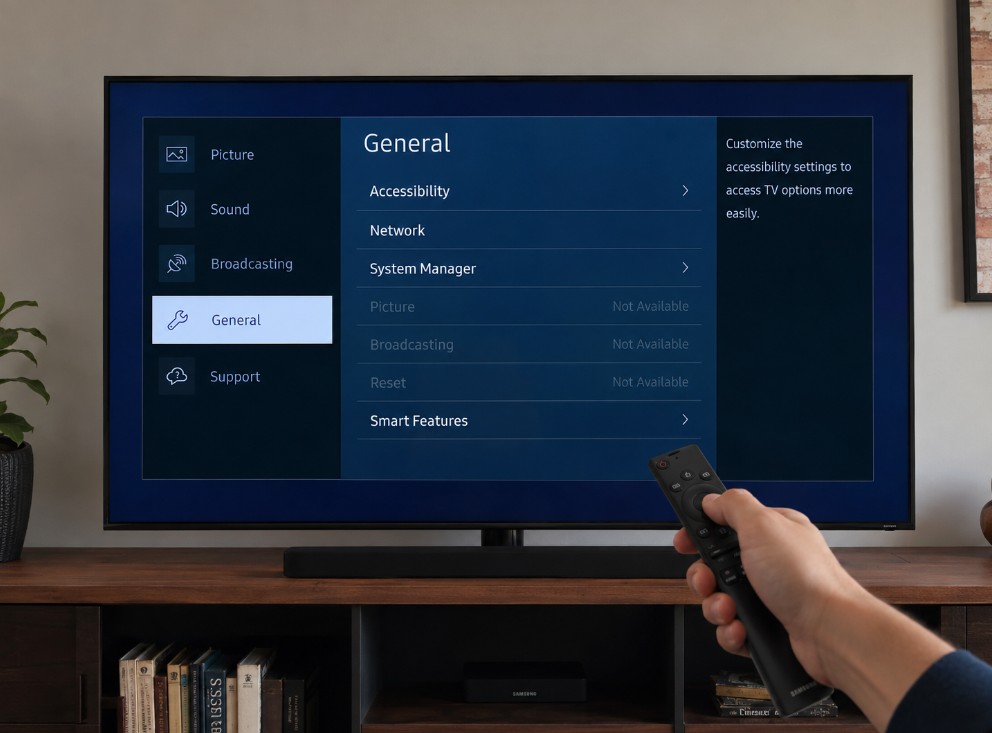

You open the Tizen menu expecting to change one simple option, but Samsung TV settings greyed out suddenly blocks Picture Mode, Broadcasting, Reset, Software Update or another control. The TV may even display “This function isn’t available” without explaining which active feature is causing the restriction.
A grey menu option usually does not mean the television is broken. Samsung TVs automatically disable settings that do not apply to the current app, source, signal type, picture mode or connected device. A streaming app may control its own aspect ratio, Intelligent Mode may manage picture processing, and Broadcasting stays unavailable unless the television’s internal tuner is selected.
The fastest solution is normally to leave the running app, switch to a suitable TV or HDMI source, and then reopen Settings. 🔒
Samsung TV settings greyed out: quick diagnosis table
| Greyed-out option | Common reason | First thing to try |
|---|---|---|
| Picture Mode | Intelligent Mode or restricted content mode | Turn Intelligent Mode off |
| Expert Settings | Current picture mode, app, Game Mode or signal limitation | Switch source and test Standard or Movie mode |
| Picture Size Settings | Streaming app controls the aspect ratio | Exit the app and select TV or HDMI |
| Broadcasting | TV source is not selected | Change Source to TV |
| Auto Tuning / Auto Program | No antenna connection or wrong source | Connect coaxial cable and select TV |
| Reset | An app is still running | Switch to TV Plus, live TV or HDMI |
| Reset Picture | App is active in the background | Exit the app and reopen Picture settings |
| Software Update | No internet or app still running | Close apps and check Network settings |
| AirPlay | TV is offline or Smart Hub is stuck | Reconnect network, then consider Smart Hub reset |
| Game Mode | No supported console or PC source selected | Select the correct HDMI input |
| Input Signal Plus | Built-in app selected or incompatible HDMI signal | Select the connected HDMI device |
| HDMI Black Level | Signal format is controlling the range automatically | Leave it unchanged unless the source supports adjustment |
| Time Zone | Network time is controlling it automatically | Review Clock Mode and network settings |
Why Samsung TV menu options become unavailable
Samsung’s Tizen interface changes available controls according to what the TV is doing at that moment.
The television may disable an option because:
- a streaming app is open;
- the wrong input source is selected;
- Intelligent Mode is controlling picture adjustments;
- Game Mode has replaced normal picture processing;
- a PC input uses a restricted signal format;
- HDR content has activated a separate picture profile;
- an antenna is not connected;
- the television is offline;
- an external sound system controls the audio format;
- a feature is unsupported on that model;
- the setting does not apply to the current video signal.
Greyed out and missing are not always the same problem.
A greyed-out option exists but cannot currently be selected. A missing option may be unsupported, renamed, moved to another menu or unavailable in that country or model series.
Menu paths can also differ across Samsung OLED, Neo QLED, QLED, Crystal UHD, The Frame, older Tizen televisions and models using newer One UI Tizen layouts.
Exit the streaming app before changing anything
A streaming app running in the background is one of the most common reasons Samsung settings remain greyed out.
Apps such as Netflix, YouTube, Prime Video, Disney+, Hulu or Samsung TV Plus may control:
- aspect ratio;
- picture size;
- HDR behaviour;
- frame rate;
- audio format;
- subtitle presentation;
- playback resolution.
Pressing the Home button does not always close the app completely. It may remain suspended in the background.
Try this:
- Press Home on the Samsung remote.
- Move away from the app.
- Select a connected HDMI device, live TV or another normal source.
- Wait several seconds.
- Open Settings > All Settings again.
- Check the unavailable option.
For Reset and Software Update, selecting an HDMI source or live TV is often more reliable than leaving the app paused in the background.
If the menu becomes available, the restriction was caused by the app rather than a Tizen failure.
Switch to the correct source
Many Samsung menu controls are source-specific.
A television cannot scan antenna channels while an HDMI console is selected. Input Signal Plus has no purpose while using a built-in streaming app. HDMI Black Level only applies to certain external video signals.
Use the Sources or Connected Devices menu and select the input related to the option you want to change.
| Setting you need | Source to select |
| Broadcasting / Auto Tuning | TV |
| Picture Size for set-top box | Its HDMI input |
| Game Mode | Console or PC HDMI input |
| Input Signal Plus | HDMI port containing the external device |
| HDMI Black Level | Compatible HDMI source |
| Reset | TV, TV Plus or HDMI |
| Software Update | TV or HDMI, with internet connected |
| App-specific picture check | The app where the issue appears |
Testing the setting on the wrong source can make a normal restriction look like a software fault.
Samsung picture settings greyed out with Intelligent Mode
On selected newer Samsung OLED, Neo QLED and QLED televisions, Intelligent Mode can automatically manage picture and sound processing according to the content and room conditions.
When Intelligent Mode is active, controls normally managed by that system may become unavailable.
A common path is:
Settings > All Settings > General & Privacy > Intelligent Mode Settings
Turn Intelligent Mode off temporarily, then return to:
Settings > All Settings > Picture
Check whether Picture Mode, brightness-related controls or other Expert Settings are now available.
Older models may place the option under:
Settings > General > Intelligent Mode Settings
Paths and available Intelligent Mode features vary by model and region.
Turning it off is a diagnostic step. You can re-enable it later if you prefer automatic picture adjustment.
Picture Mode or Filmmaker Mode is unavailable
Picture presets can be restricted by the current source or active processing mode.
Picture Mode may show fewer options when:
- Intelligent Mode is enabled;
- Game Mode is active;
- the HDMI input is labelled as PC;
- an app uses a restricted playback profile;
- the television is displaying HDR content;
- Ambient Mode or Art Mode is active;
- the TV model does not support that preset.
Start by switching to regular SDR content on an HDMI or TV source. Then turn off Intelligent Mode and check the Picture Mode menu again.
On supported Samsung TVs, common presets may include:
- Dynamic;
- Standard;
- Movie;
- Filmmaker Mode.
Not every preset appears for every signal. A PC input or Game Mode source may use a separate group of picture controls.
Do not factory reset the TV simply because one picture preset is unavailable on one source.
Expert Settings are greyed out
Samsung Expert Settings can change according to picture mode, signal type and connected device.
Controls such as Picture Clarity, Colour Space, White Balance, Contrast Enhancer or Shadow Detail may be disabled when another feature takes control.
Check these conditions:
- Exit the streaming app.
- Select a normal TV or HDMI source.
- Turn Intelligent Mode off.
- Test Standard, Movie or Filmmaker Mode.
- Turn Game Mode off temporarily.
- Check whether the HDMI input is labelled as PC.
- Test with SDR content instead of HDR.
- Reopen Expert Settings.
Do not assume every Expert Setting should always be selectable. Some controls are deliberately unavailable when the TV is already receiving a format that determines the correct behaviour.
For example, certain motion controls may be restricted during Game Mode because the television prioritises lower input latency. 🎮
Picture Size Settings are greyed out
Streaming apps often control their own aspect ratio. As a result, Picture Size Settings, Fit to Screen, Zoom or Position may be unavailable while Netflix, Prime Video or another app is playing.
To test it:
- Exit the app.
- Select live TV or an external HDMI source.
- Open Settings > Picture > Picture Size Settings.
- Check whether the options are now available.
Even on HDMI, some controls remain restricted by the input signal.
The following can affect availability:
- 4K resolution;
- HDR playback;
- PC input mode;
- console signal;
- broadcast format;
- app-controlled playback;
- current Picture Size selection.
Black bars in a film are not always a TV setting problem. Many movies intentionally use a wider aspect ratio than the television’s 16:9 screen.
Stretching or zooming the image can remove parts of the picture.
Broadcasting greyed out on Samsung TV
The Broadcasting menu is intended for the television’s internal tuner. It normally becomes unavailable when the TV is using:
- HDMI;
- a streaming app;
- Samsung TV Plus;
- a cable or satellite box connected through HDMI;
- another external source.
To restore it:
- Press Home.
- Open Connected Devices or Source.
- Select TV.
- Open Settings > Broadcasting.
- Check Auto Tuning or Auto Program.
An antenna or coaxial cable should be connected to the television’s ANT IN port.
If Broadcasting remains greyed out:
- Turn the television off.
- Unplug it from power.
- Disconnect the coaxial cable.
- Wait approximately 30 seconds.
- Reconnect the cable securely.
- Plug the TV back in.
- Select the TV source again.
If you receive channels through a cable box or satellite receiver connected by HDMI, channel scanning is normally performed by that external box rather than the TV.
Auto Tuning or Auto Program is unavailable
Auto Tuning depends on the same tuner conditions as Broadcasting.
Check:
- TV source is selected;
- antenna cable is connected to ANT IN;
- the TV has a tuner in your region;
- the television is not displaying an HDMI source;
- a streaming app is not active;
- the cable is not connected only to an external decoder;
- the country or broadcasting region was configured correctly during setup.
If the television was imported from another country, channel standards and tuner support may differ.
A model sold for one market may not support every terrestrial or cable broadcast system used in another market.
Reset is greyed out on Samsung TV
Samsung may prevent a complete TV reset while an application is running.
Switch away from the app first:
- Press Home.
- Select TV Plus, live TV or an HDMI source.
- Open Settings > All Settings.
- Go to General & Privacy > Reset.
- Enter the TV PIN if requested.
The default PIN is commonly 0000 unless it was changed.
On some older models, Reset may be found under:
Settings > Support > Self Diagnosis > Reset
A factory reset removes accounts, apps, network settings, input names and personalised TV settings. It should be used only after simpler fixes fail. ⚠️
If Reset remains greyed out after changing source, restart the television before trying again.
Do not use service-menu codes from forums to force a reset. The service menu contains calibration and hardware settings that can damage the TV’s configuration.
Reset Picture is greyed out
Reset Picture affects only the picture profile currently in use. It does not perform a complete TV reset.
A common path is:
Settings > Picture > Expert Settings > Reset Picture
If Reset Picture is unavailable:
- Exit the current app.
- Select TV or HDMI.
- Open the Picture menu again.
- Confirm that a normal picture mode is active.
- Try Reset Picture.
Remember that Samsung TVs can save different picture settings for:
- SDR;
- HDR;
- Game Mode;
- each HDMI input;
- built-in apps;
- PC mode.
Resetting one profile may not reset every source and format.
Software Update is greyed out
Software Update commonly requires two conditions:
- no streaming app actively controlling the interface;
- an internet connection.
Try this order:
- Exit all apps.
- Select an HDMI or TV source.
- Open Settings > Support > Software Update.
- Select Update Now if available.
If the menu is still disabled, check:
Settings > Connection > Network > Network Status
Confirm the TV is connected through Wi-Fi or Ethernet.
A failed network connection can also leave Contact Support and other online options unavailable.
If the TV is connected but the update menu remains grey, perform a proper restart before resetting anything.
AirPlay settings are greyed out
AirPlay depends on the TV’s network connection and Smart Hub state.
Check:
- The Samsung TV is connected to the home network.
- Wi-Fi is enabled.
- The iPhone, iPad or Mac is on the same network.
- The router is not isolating wireless devices.
- The television’s date and time are correct.
- Tizen has finished any software update.
If AirPlay remains unavailable, a Smart Hub reset may help:
Settings > Support > Device Care > Self Diagnosis > Reset Smart Hub
The menu path varies on older models.
Reset Smart Hub can remove app accounts, agreements and Smart Hub configuration. It is not the first step for a simple network problem.
For separate casting problems on newer Samsung TVs, see Google Cast not showing on Samsung TV — model and update fixes.
Game Mode is greyed out
Game Mode normally applies to a compatible console or PC connected through HDMI.
If it is unavailable:
- Turn the console or PC on.
- Select the HDMI input where it is connected.
- Confirm the television detects a video signal.
- Open Settings > Connection > External Device Manager.
- Look for Game Mode Settings.
Older models may place External Device Manager under General.
Game Mode may remain unavailable when:
- no external gaming device is selected;
- a built-in streaming app is open;
- the connected device is off;
- the signal is passing through an incompatible receiver or switch;
- the model does not support the requested gaming function;
- the television identifies the device incorrectly.
If Auto Game Mode is greyed out but On and Off remain available, the console may not be sending an Auto Low Latency Mode signal.
Connect the console directly to the television while diagnosing.
For controller and cloud-gaming problems, use Samsung Gaming Hub controller not working — pairing and lag fixes.
Input Signal Plus is greyed out
Input Signal Plus applies to compatible devices connected through HDMI. It is used for higher-bandwidth formats such as selected 4K HDR, high-refresh-rate or 8K signals.
A common path is:
Settings > Connection > External Device Manager > Input Signal Plus
If the control is unavailable:
- select the connected HDMI device;
- turn the external device on;
- verify the correct HDMI port;
- remove HDMI switches temporarily;
- test the device directly on the TV;
- restart both devices;
- check whether that signal format requires Input Signal Plus.
The option may be unavailable while using a built-in app because built-in apps do not use an HDMI port.
It can also be unnecessary for lower-resolution or lower-refresh-rate signals.
Do not repeatedly enable it on every port if one older device loses signal with enhanced HDMI processing.
HDMI Black Level is greyed out
HDMI Black Level depends on the signal format supplied by the external device.
The option may be greyed out when:
- the source is not HDMI;
- the device uses a signal range controlled automatically;
- the source outputs YCbCr rather than a compatible RGB format;
- the PC or console has already defined the black-level range;
- the television determines that no manual adjustment is needed.
This is often normal.
Do not try to unlock HDMI Black Level unless the picture has obvious raised blacks or crushed shadow detail and you understand the output range used by the source.
Incorrect combinations can make black look grey or hide dark detail.
Sound settings are greyed out
Audio controls can change when the TV is using:
- Bluetooth headphones;
- an HDMI eARC soundbar;
- an AV receiver;
- optical audio output;
- Pass-Through;
- a Dolby Atmos signal;
- an app that controls its audio format.
For example, the television may disable its own equaliser when audio is being sent to an external sound system.
To test:
- Change Sound Output temporarily to TV Speaker.
- Exit the current app.
- Select a normal TV or HDMI source.
- Reopen Sound Expert Settings.
If the control becomes available on TV Speaker, the external audio connection was managing that setting.
Do not permanently change eARC or Pass-Through options unless you are troubleshooting an actual audio problem.
Device Care or Self Diagnosis is unavailable
Device Care may be disabled while:
- an app is actively playing;
- screen mirroring is running;
- the TV is updating;
- recording or time-shift functions are active;
- the television is in a restricted source or mode.
Exit playback and return to a normal source before opening:
Settings > Support > Device Care
Depending on the model, available tools may include:
- Self Diagnosis;
- Picture Test;
- Sound Test;
- Device Care scan;
- Manage Storage;
- Reset Smart Hub.
If apps are also failing because storage is full, read Samsung TV not enough storage fix.
Perform a proper Samsung TV restart
A normal press of the Power button may only put the television into standby.
Use a soft restart:
- Keep the TV turned on.
- Hold the remote’s Power button.
- Continue holding until the Samsung logo appears.
- Release the button.
- Wait for Tizen to reload.
Alternatively:
- Turn the TV off.
- Unplug it from the wall.
- Wait between 30 and 60 seconds.
- Reconnect the power.
- Turn it on.
After restarting, select the correct source before checking the greyed-out setting again. 🔄
A restart clears temporary app and interface states without deleting accounts or picture settings.
Check whether the restriction affects every source
Before resetting the TV, test the option across several sources:
- Samsung TV Plus;
- live antenna TV;
- one HDMI device;
- another HDMI device;
- a built-in app;
- SDR content;
- HDR content.
If the setting is available on one source but not another, the TV is probably behaving normally.
For example:
| Test result | Likely conclusion |
| Picture Size works on HDMI but not Netflix | App-controlled aspect ratio |
| Broadcasting works only on TV source | Normal tuner behaviour |
| Game Mode works only on console HDMI | Normal source restriction |
| Expert Settings work in Movie but not Intelligent Mode | Active processing conflict |
| Reset works on HDMI but not inside app | App was blocking reset |
| Audio controls work on TV Speaker but not soundbar | External audio device controls format |
This source-by-source check is more useful than immediately performing a factory reset.
Samsung models where menu paths may differ
The troubleshooting principles apply broadly, but paths vary across generations.
| Samsung TV family | What may differ |
| Samsung OLED | Intelligent Mode, Game Mode and panel-specific controls |
| Neo QLED | Intelligent Mode and advanced gaming menus |
| QLED | Menu placement varies significantly by generation |
| Crystal UHD | Fewer advanced settings on some models |
| The Frame | Art Mode can restrict normal picture options |
| Samsung 8K TVs | Input Signal Plus and HDMI capabilities differ |
| Older Tizen TVs | General, Support and Self Diagnosis use older layouts |
| One UI Tizen models | Settings categories may be renamed or reorganised |
| Hospitality or commercial models | Some controls may be intentionally restricted |
Use the TV’s own search function, e-Manual or model-specific support page if a path does not match exactly.
What to do with a former hotel or commercial Samsung TV
If many unrelated settings remain locked on every source, the TV may have been configured for:
- hotel use;
- hospitality mode;
- retail display;
- commercial signage;
- managed installation.
This is more likely with ex-display, used, auction or hotel televisions.
Do not enter random service-menu codes. Contact the seller or Samsung support with the complete model code and explain that multiple settings are restricted.
A commercial or hospitality model may not behave like a standard consumer Samsung TV.
Factory reset only after the basic checks
A complete reset is reasonable only when:
- multiple settings remain greyed out across all sources;
- apps have been closed;
- the correct source is selected;
- Intelligent Mode has been tested;
- the TV has been restarted;
- software is current;
- no external device is controlling the option;
- the model normally supports the setting.
Before resetting:
- photograph your picture settings;
- note Wi-Fi details;
- record app logins;
- note HDMI input names;
- check the current PIN;
- disconnect unnecessary USB devices.
A factory reset will not add a feature the TV does not support. It will also not unlock an option that is intentionally restricted by the current signal format.
Common mistakes to avoid
Resetting the TV while still inside an app
The app may be the reason Reset is greyed out. Switch to TV or HDMI first.
Searching for Broadcasting while using a cable box
Broadcasting controls the internal tuner, not an external HDMI receiver.
Assuming every picture control must work in Game Mode
Low-latency modes intentionally disable or replace some video processing.
Trying to adjust Picture Size in every streaming app
Some apps control the aspect ratio and do not allow TV-level zoom or position changes.
Treating a grey HDMI Black Level setting as a fault
The external device’s signal format may already determine the correct range.
Entering the Samsung service menu
Service-menu changes can alter calibration, panel type, region and hardware configuration.
Factory resetting before testing another source
A five-second source change can reveal whether the restriction is normal.
Practical setup notes
When testing Samsung TV settings greyed out, keep the setup simple:
- close streaming apps;
- select one known HDMI source;
- disable Intelligent Mode temporarily;
- use Standard or Movie mode;
- disconnect HDMI switches;
- test TV Speaker for audio controls;
- connect the antenna directly for Broadcasting;
- restart the TV after changing modes;
- change one setting at a time.
Do not alter every picture, gaming and HDMI option simultaneously. That makes it difficult to identify which active feature originally locked the menu.
The most reliable rule is this: choose the source where the setting logically belongs. Broadcasting needs the internal TV tuner, Game Mode needs an active gaming HDMI source, and Input Signal Plus needs a compatible external device.
Safe troubleshooting order
| Step | Action |
| 1 | Exit the running app |
| 2 | Select TV or the correct HDMI source |
| 3 | Reopen Settings |
| 4 | Turn Intelligent Mode off temporarily |
| 5 | Test another picture mode |
| 6 | Check the network for online settings |
| 7 | Connect antenna/coaxial cable for Broadcasting |
| 8 | Restart the Samsung TV |
| 9 | Test the option on another source |
| 10 | Update Tizen if available |
| 11 | Reset Smart Hub only for app-platform problems |
| 12 | Factory reset only as the final software step |
For more Samsung troubleshooting: