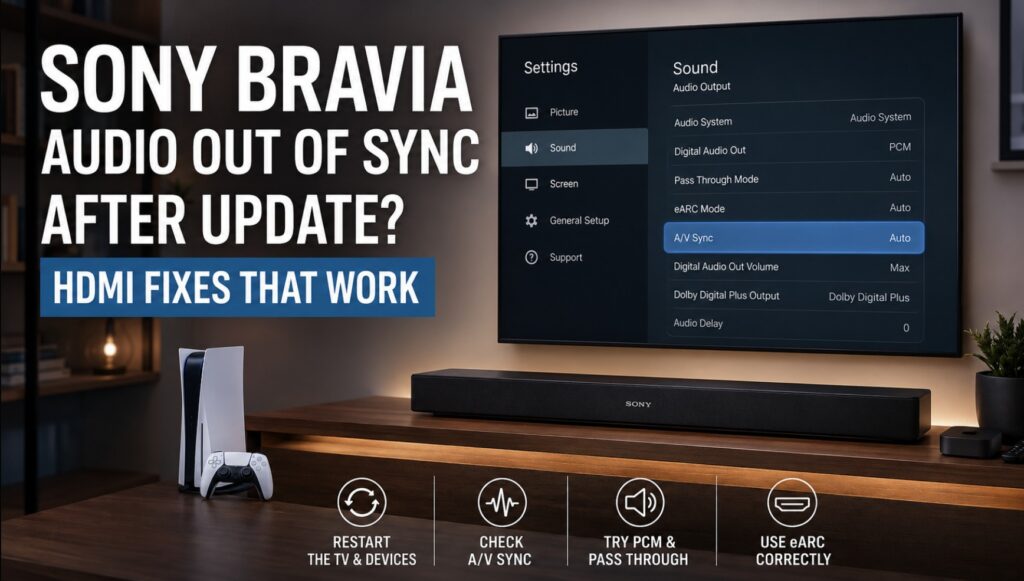

When dialogue arrives before or after the actor’s lips, the problem becomes impossible to ignore. If your Sony Bravia audio out of sync after update issue affects several HDMI devices, the soundbar may not be the real cause.
Recent owner reports describe delays that build after several minutes, affect multiple inputs and disappear temporarily after changing inputs or restarting the television. Sony’s own guidance treats software, HDMI processing, cables, A/V Sync, Pass Through and eARC as separate causes rather than one universal fault. 🔊
Quick symptom check
| What you notice | What to investigate first |
|---|---|
| Audio is correct after startup, then drifts | Firmware or HDMI processing |
| Changing inputs fixes it temporarily | HDMI handshake or TV audio process |
| Every HDMI source is affected | TV settings or firmware |
| Internal apps are fine | External HDMI path |
| TV Speakers are also delayed | TV or firmware |
| PCM fixes the delay | Dolby, bitstream, Pass Through or eARC |
| eARC Off fixes it | eARC negotiation or audio format |
| Only one device is affected | Source settings, cable or input |
Why Sony Bravia audio out of sync after update can happen
A modern BRAVIA processes video, HDR, motion, audio formats and HDMI control at the same time. The complete path can include a console, the TV, eARC and a soundbar:
PS5, Apple TV or player → Sony BRAVIA → HDMI eARC → soundbar or receiver
A timing error can appear immediately or build after the TV has been running for 20–40 minutes.
Sony firmware v114.602.080.1 reached supported model groups on different dates by region. The North American changelog includes an earlier improvement for sound that may be out of sync, while European and Asia-Pacific pages use separate regional model lists and may show different current-change wording. The same version number should not be treated as one universal package for every BRAVIA model.
1. Confirm whether the TV, source or soundbar is responsible 🔍
Test the same scene in three ways:
- Play it through an internal Sony app.
- Play it from the affected HDMI device.
- Switch Audio Output to TV Speakers.
| Test result | Likely direction |
|---|---|
| Only one HDMI device is delayed | Source device or its cable |
| All HDMI devices are delayed | TV HDMI processing or firmware |
| TV Speakers are synchronized | eARC, soundbar or receiver |
| TV Speakers are also delayed | The soundbar is probably not the main cause |
| Music played directly on the soundbar is fine | TV-to-soundbar HDMI path |
On 2024 or newer Google TV models, Sony also recommends testing Post Process Setting: Standard instead of Dolby Audio when TV Speakers themselves are affected. Menu availability varies by model.
Do not use Bluetooth as the control test. Bluetooth has its own latency.
2. Restart the television and HDMI chain
Hold the Power button on the Sony remote until Restart appears. This reloads the operating system and audio services instead of placing the TV in standby.
If the delay returns:
- Turn off the TV, soundbar and external devices.
- Unplug them and disconnect the HDMI cables.
- Wait about one minute.
- Reconnect the soundbar to the port marked ARC/eARC.
- Power on the TV, then the soundbar.
- Reconnect source devices one at a time.
If synchronization fails only after one device is added, investigate that device’s audio and HDMI-CEC settings.
3. Test A/V Sync instead of assuming Auto is correct
Recent BRAVIA models usually place this under:
Settings → Display & Sound → Audio Output → A/V Sync
Test Auto, On and Off separately.
| Timing problem | Setting worth testing |
|---|---|
| Sound plays before the picture | A/V Sync Off may help |
| Soundbar audio lags behind the picture | Auto or On may help |
| Delay returns after several minutes | Test all three, but suspect firmware if none remains stable |
| Game controls also feel delayed | Confirm Game Mode is active |
A/V Sync can delay the picture to match audio processing. Sony specifically notes that turning it off may help when audio from the connected system plays before the video. Change one option, replay the same scene and wait long enough for the original problem to return.
4. Use PCM as a diagnostic format
Open:
Settings → Display & Sound → Audio Output → Digital Audio Out
Temporarily select PCM.
If synchronization returns, the HDMI connection can remain stable with a simpler format. The likely cause is then connected to Dolby processing, bitstream output, Pass Through, eARC or the source device.
PCM is not automatically the best permanent setting. It may reduce the available surround format on some devices, so restore the original setting after the test if you lose Atmos or multichannel sound. Sony also uses PCM as one of its official soundbar-delay troubleshooting tests.
5. Test Pass Through and eARC separately
Look for:
- Pass Through Mode
- Digital Audio Output
- eARC Mode
- Audio System Settings
| Test | What the result suggests |
|---|---|
| Pass Through Auto is stable | TV processing may have caused the delay |
| Pass Through Off is stable | Original-format passthrough may be involved |
| eARC Off is stable | eARC negotiation or a high-bandwidth format is involved |
| PCM is the only stable option | Audio-format processing is the main suspect |
| None remain stable | Firmware or the TV HDMI process becomes more likely |
Sony’s guidance varies by connection type: one support route recommends testing Pass Through Auto and eARC Auto, while another uses eARC Off or PCM when audio timing remains unstable. This is why the settings should be tested individually rather than copied as one permanent combination.
Turning eARC off can remove Dolby TrueHD, Dolby MAT or multichannel PCM. Use it as a test, not an automatic permanent fix.
6. Check the cable, HDMI port and BRAVIA Sync
Confirm that the soundbar uses the TV port physically marked ARC/eARC. Then test:
- one known-good HDMI cable;
- a direct source-to-TV connection;
- no HDMI switch or splitter;
- unused HDMI devices disconnected;
- BRAVIA Sync/HDMI-CEC with one device at a time.
A device can interfere with HDMI control even when it is not active. If removing one device fixes the problem, disable HDMI-CEC on that device before disabling BRAVIA Sync for the entire system.
7. Check each source separately 🎮
Sony Bravia audio out of sync after update on PS5 or Apple TV
For PS5 or PS5 Pro, confirm Game Mode is active and compare Linear PCM with Dolby Atmos or Dolby Audio. Do not change VRR, refresh rate and audio format at the same time.
For Apple TV 4K, compare the same service in a Sony internal app. Test the Apple TV audio format and temporarily disable Match Frame Rate to see whether the delay appears during format switching.
For Xbox, compare Stereo Uncompressed, multichannel output and Dolby Atmos for home theater. If only Atmos drifts, the problem is probably higher in the audio-format chain.
If Switch, PS5 and a laptop all develop the same delay, the shared TV processing path becomes a stronger suspect than any individual device. Several recent owner reports describe the same timing problem across multiple HDMI sources.
8. Check the firmware version and region
On recent Sony TVs:
Input → Help → Status & Diagnostics → System Software Update
Write down:
- complete model code;
- software version;
- country of purchase;
- affected HDMI inputs;
- whether TV Speakers are affected;
- how long the delay takes to appear.
Version 114.602.080.1 reached North America on June 23, 2026, Asia-Pacific on June 24 and Europe on July 8 for supported model groups. Sony uses staggered rollouts, so an individual TV may receive the update later.
Never install firmware from another region or from a similar-looking model. Sony also does not provide an official downgrade path after newer firmware has been installed.
9. Do not factory reset too early
Use this order:
- Restart the TV.
- Test TV Speakers.
- Isolate each HDMI source.
- Test A/V Sync.
- Test PCM.
- Test Pass Through and eARC.
- Replace one cable.
- Update only with the correct regional firmware.
- Factory reset only after recording the results.
Owner reports include cases where input switching or restarting helped only temporarily and a factory reset did not provide a lasting cure. These reports suggest a possible software problem but do not prove that every BRAVIA is affected.
When the problem is probably firmware-related
Firmware becomes the leading suspect when:
- several HDMI sources develop the same delay;
- TV Speakers are also affected;
- the delay began immediately after an update;
- changing inputs resets it temporarily;
- it returns after a predictable period;
- cables and source settings make no lasting difference.
In that situation, settings may reduce the symptom without removing the underlying cause.
When to contact support
Contact Sony when the delay affects TV Speakers or several HDMI sources after the full troubleshooting sequence.
Contact the soundbar or receiver manufacturer when TV Speakers remain synchronized, only the external system is delayed, or direct source-to-soundbar routing works correctly.
Provide the exact model, software version, connection diagram and results of the PCM/eARC tests. That is far more useful than saying only that the sound is late.
The safest setup to keep ✅
For most BRAVIA systems, connect sources directly to the TV, connect the soundbar to the marked eARC port and keep the format that remains stable without removing features you need.
A/V Sync, PCM and eARC Off are diagnostic tools, not universal fixes. Change one variable at a time. Once you know whether the delay follows the source, TV Speakers, Dolby processing or eARC, the problem becomes easier to describe and harder to dismiss as a random cable issue.